Microsoft 365 Copilot now allows you to create custom agents directly inside OneDrive that reference multiple files as knowledge sources for answering questions accurately. These OneDrive Copilot agents pull context from several documents simultaneously, which means your team can interact with a single agent instead of searching through dozens of scattered files manually. This article walks through the complete process of creating a OneDrive Copilot agent that understands multiple files at once, from initial setup through testing and sharing with colleagues.
OneDrive Copilot Agents and Multi-File Knowledge
A Copilot agent in OneDrive is a declarative agent that uses selected files and folders as its dedicated knowledge base for generating responses to user prompts. Unlike standard Copilot Chat that searches broadly across your Microsoft 365 tenant, a OneDrive agent restricts its knowledge grounding to the specific documents you choose during setup. I recently configured a OneDrive Copilot agent scoped to our quarterly reports folder, and the accuracy of responses improved dramatically compared to general Copilot queries across the full tenant.
How OneDrive Copilot Agent Knowledge Sources Work
When you add multiple files as knowledge sources, the OneDrive Copilot agent indexes the content of each document and uses that combined context to formulate answers. The agent can cross-reference information between different files, which means it can compare data from a budget spreadsheet with narrative content from a project proposal simultaneously. This multi-file understanding capability makes OneDrive agents particularly effective for teams that maintain related documents across Word files, Excel workbooks, PowerPoint decks, and PDF reports.
OneDrive Copilot Agent Requirements and Licensing
Creating agents in OneDrive requires a Microsoft 365 Copilot license, which includes access to the agent builder interface embedded directly within the OneDrive web application. Your organization’s administrator must also enable the Copilot agents feature through the Microsoft 365 admin center, and your OneDrive storage must contain the files you want the agent to reference. The files themselves can be in any format that OneDrive supports, including Word documents, Excel spreadsheets, PowerPoint presentations, PDFs, and plain text files stored in your personal or shared library.
Setting Up a OneDrive Copilot Agent With Multiple Files
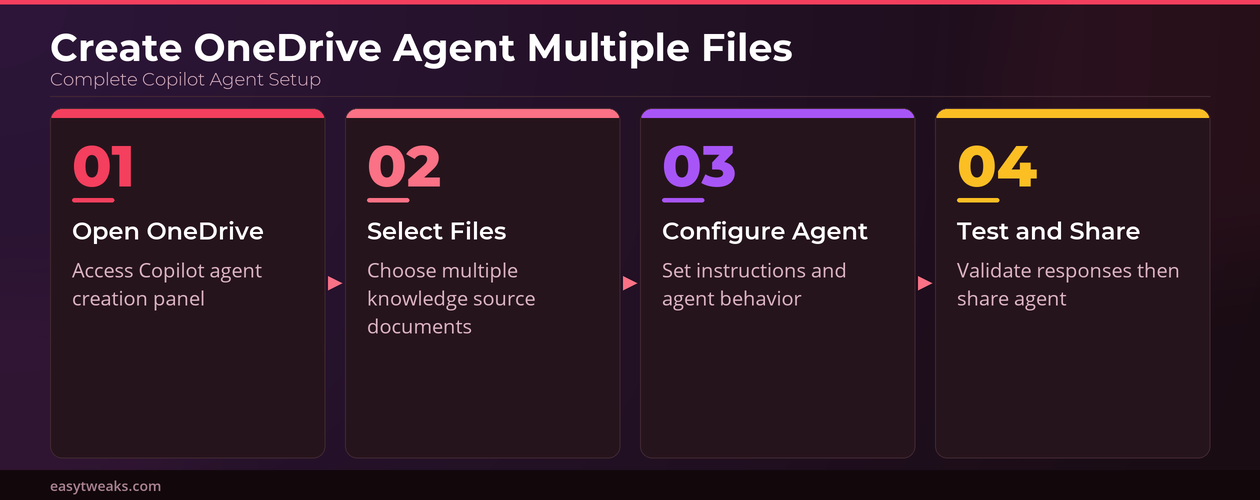
The creation process for a OneDrive Copilot agent starts within the OneDrive web interface, where you select the files and configure the agent behavior through a guided setup panel. You should organize your source documents into a dedicated folder before beginning, because this makes selecting multiple files faster and keeps your knowledge sources logically grouped together.
Selecting OneDrive Files as Copilot Agent Knowledge Sources
Navigate to OneDrive in your browser, then locate the files or folder you want the agent to reference as its primary knowledge base during conversations. Click the Copilot button in the OneDrive toolbar, then select the option to create a new agent from the dropdown menu that appears on screen. The agent creation panel opens on the right side, where you can add individual files by clicking the add knowledge sources button and browsing through your OneDrive file structure. You can select up to twenty files or entire folders as knowledge sources, and the agent will index all supported document types within those selected locations automatically.
Configuring OneDrive Copilot Agent Instructions and Behavior
After selecting your knowledge source files, the next step involves writing custom instructions that tell the OneDrive Copilot agent how to respond to queries from users. These instructions function as a system prompt that shapes the agent’s tone, scope, and response format every time someone asks a question through the conversation interface. For example, you might instruct the agent to always cite the specific document name when providing answers, or to format responses as bullet points for easier scanning. The instructions field accepts natural language, so you can describe the desired behavior conversationally rather than using any specialized syntax or programming language constructs.
Testing and Sharing Your OneDrive Copilot Agent
Once you have selected the knowledge source files and written your agent instructions, the OneDrive interface provides a built-in testing area where you can validate responses before sharing. During my testing workflow, I found that asking questions which require the Copilot agent to combine information from two or more different source files reveals whether the knowledge grounding is working correctly across all documents.
Testing OneDrive Copilot Agent Multi-File Responses
Type a test question in the conversation panel that specifically requires information from at least two different source documents to answer completely and accurately. The agent should reference content from multiple files in its response, and you can verify accuracy by checking the citations that appear beneath each answer in the interface. If the agent returns incomplete or inaccurate responses, you should review whether all intended files were added as knowledge sources and whether the file formats are fully supported by the OneDrive indexing system. Testing with five to ten different questions that span multiple documents ensures the agent handles a variety of cross-file queries before you share access with your broader team.
Sharing the OneDrive Copilot Agent With Team Members
After validating that the agent provides accurate multi-file responses, you can share it with colleagues by clicking the share button within the agent configuration panel in OneDrive. Shared agents inherit the file permissions already set on the underlying OneDrive documents, which means recipients can only access answers derived from files they already have permission to view. This permission-aware sharing model ensures that confidential documents referenced by the agent remain protected even when the agent itself is shared broadly across the organization. You can share the agent via a direct link, through Microsoft Teams as a pinned app, or by embedding it within a SharePoint page for department-wide access and self-service usage.
Frequently Asked Questions About OneDrive Copilot Agents
How Many OneDrive Files Can a Copilot Agent Reference?
A single OneDrive Copilot agent can reference up to twenty individual files or you can add entire folders containing supported document types as knowledge sources simultaneously. The agent indexes all content within the selected files and folders, so choosing a well-organized folder structure often provides better coverage than selecting individual files one at a time. I tested adding a folder with fifteen mixed-format documents and the Copilot agent successfully cross-referenced content from Word, Excel, and PDF files without any noticeable degradation in response quality.
Can a OneDrive Copilot Agent Access SharePoint Files Too?
OneDrive Copilot agents primarily reference files stored in your personal OneDrive or shared OneDrive libraries, but you can also add files from SharePoint document libraries as additional knowledge sources. The agent treats SharePoint files the same way it treats OneDrive files, indexing their content and making it available for knowledge grounding during conversations with users across the organization.
What Happens When OneDrive Source Files Are Updated?
When you modify a file that serves as a knowledge source for an existing OneDrive Copilot agent, the agent automatically re-indexes the updated content within a short synchronization period. This means the agent’s responses will reflect the latest version of your documents without requiring you to manually rebuild or reconfigure the agent after every file change or update.
Conclusion
Creating a OneDrive Copilot agent that understands multiple files at once transforms how teams interact with their document collections stored across OneDrive and related Microsoft 365 services. The combination of multi-file knowledge grounding, custom instructions, and permission-aware sharing makes these Copilot agents an efficient solution for teams that need quick answers from large document sets. Start by organizing your key documents in a dedicated OneDrive folder, then follow the creation steps outlined above to build an agent that your entire team can query through Copilot Chat or Microsoft Teams for instant, grounded responses.