How to install and set up Power Automate Desktop on Windows 11 depends on whether you only want to build attended desktop flows or you also need machine runtime features for cloud-triggered desktop automation. Windows 11 users can work with Power Automate for desktop, but the installer choice matters. Microsoft supports a Microsoft Store install for standard users and an MSI installer for admins who need machine runtime during setup.
The clean approach is to choose one installation path, sign in, confirm the environment, add browser extensions if your flows touch websites, and register machine runtime only when cloud-to-desktop runs are part of the plan.
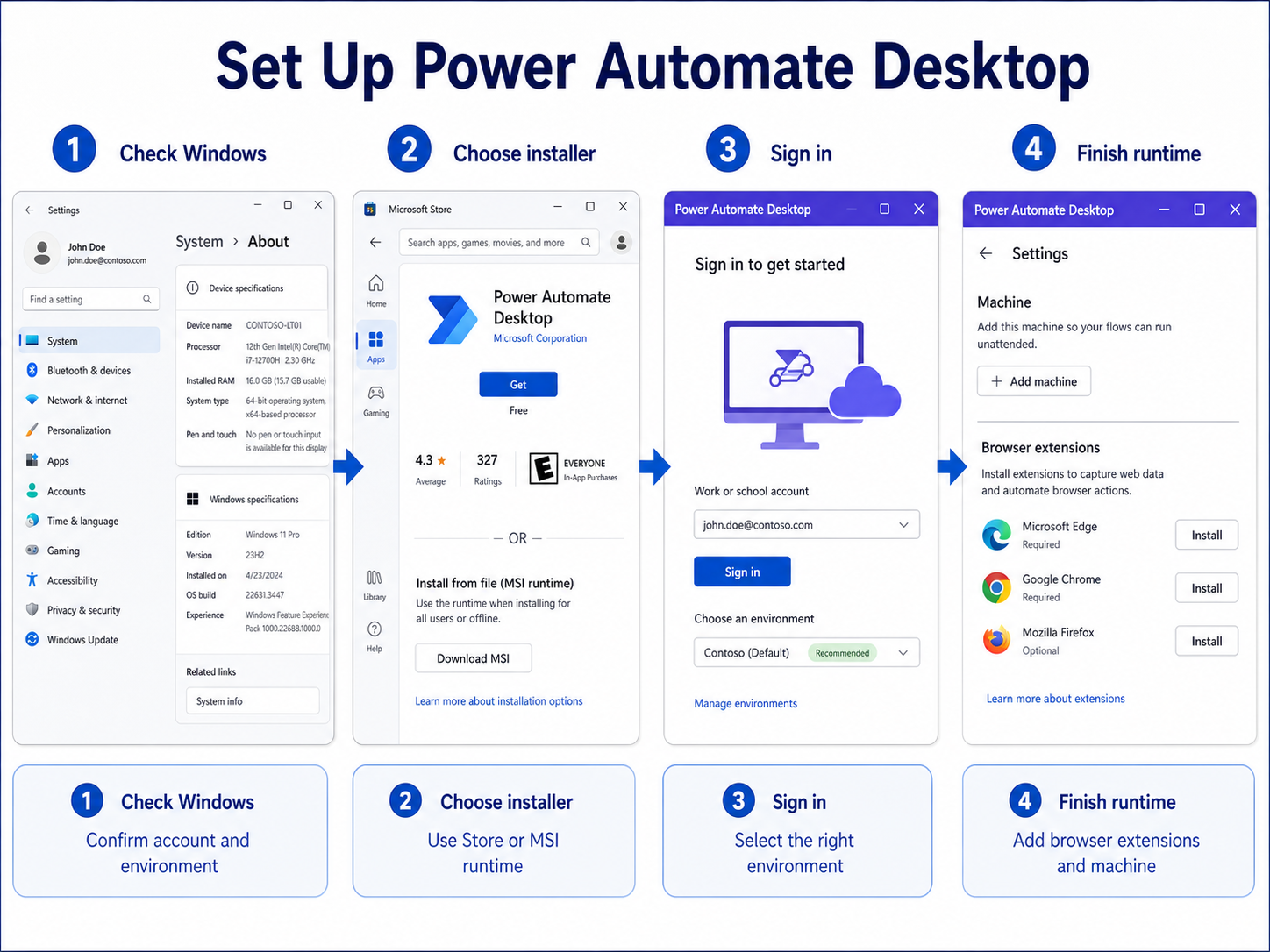
Prepare Windows and Microsoft access
Confirm Windows requirements before installing
Before installing, make sure the PC runs a supported Windows edition and has enough resources for the apps your desktop flow will control. Microsoft lists Windows 11 Home, Pro, and Enterprise as supported for Power Automate for desktop authoring, while ARM devices are not supported. For a normal single-user authoring session, leave headroom beyond the minimum processor, RAM, and storage requirements because browser automation, Excel, and legacy apps can be heavier than the flow designer itself.
Check that you can sign in with the Microsoft account, work account, or school account you plan to use. If this is a company device, confirm that Power Platform access and environment permissions are already assigned. My setup tests are smoother when I confirm the target environment before launching the installer.
Choose Store or MSI installer
Use the Microsoft Store version when you want a simple install without admin rights and automatic Store-managed updates. This is usually enough for learning, recording attended desktop flows, and running flows locally from the desktop app. It is also the least disruptive option on personal Windows 11 devices.
Use the MSI installer when an administrator is available and you need the machine runtime app included during installation. Machine runtime is the path you use when desktop flows must be connected to the Power Automate cloud portal and triggered from cloud flows. Microsoft warns that having both the Store and MSI versions installed on the same machine is not supported, so uninstall the wrong edition before switching.
Install Power Automate Desktop cleanly
Install from Microsoft Store safely
Open Microsoft Store, search for Power Automate, and install the app from Microsoft. After installation, launch Power Automate from the Start menu and sign in. Let the app finish its first-run setup before creating a flow, because the designer may need a moment to load actions, templates, and account-connected features.
Once the app opens, check the environment shown in the top area of Power Automate. If you build flows in the wrong environment, they may not appear where your team expects them later. For your first local workflow, it helps to capture a repeatable task after setup instead of starting with a large business process.
Use MSI for machine runtime
Download the Power Automate installer from Microsoft Learn when you need the MSI path. Run it with administrator rights, keep the machine runtime option selected if cloud connectivity is required, and finish the installer. Restart the PC if the installer requests it, especially on managed devices where services and browser components may not register until after restart.
After the MSI install, open Power Automate machine runtime from the Start menu. Sign in with the same account used in Power Automate, then confirm the machine environment. If the machine does not register automatically, choose the correct environment when prompted. You need the right Power Platform role, such as Environment Maker or a desktop flow machine role, to register the machine successfully.
Finish setup after first sign-in
Add browser extensions for web tasks
If your desktop flows will automate web pages, install the Power Automate browser extension for the browser you actually use. Power Automate includes its own automation browser, but Edge, Chrome, Firefox, and older Internet Explorer automation need extra setup such as extensions or drivers. The installer may prompt for browser extensions; if you skip the prompt, open the desktop flow designer and use Tools >> Browser extensions later.
Test browser automation with a small page navigation and one field entry before recording a long process. Browser extension problems are easier to fix while the flow has three actions than after it has fifty. If Edge or Chrome was already open during installation, close every browser window and reopen it before testing.
Register machine runtime when needed
Machine registration is only needed when cloud flows will trigger desktop flows on this Windows 11 PC. Open Power Automate machine runtime, sign in, and check Machine settings. Confirm the machine name, description if needed, and machine environment. Direct connectivity registers the machine to the selected environment and makes it available for desktop flow connections.
Windows Home has an important limitation: you can create and monitor desktop flows, but Microsoft states that cloud runtime for attended or unattended desktop flows is not available on Windows Home. If cloud triggering is required, use Windows Pro, Enterprise, or a supported server edition. When you later need a cloud flow to call the desktop flow, you can create a starter automation and connect it to the registered machine.
Verify Power Automate Desktop with a minimal first flow
Treat this as a short decision process rather than a long reset checklist. Choose the Microsoft Store or MSI path that matches organization management. The first result should determine the next action.
Preserve a trustworthy baseline
Confirm WebView2, browser extensions, and proxy requirements before building web automation. Create a small local flow that opens an approved application and writes no business data. Use a disposable example when the action could alter shared data or notify other people.
Before deeper repair, test attended execution before registering a machine for cloud-triggered runs. Do not delete profiles, credentials, or source records merely to make an error disappear.
Test the reader’s real workflow
Use a nonproduction environment for connector and credential checks. Record installer version, account, environment, and machine-registration error if setup fails. Repeat the test after reopening the client and, when relevant, after synchronization or refresh.
If it still fails, note the exact error, product version, account, device, and time. Compare one other supported client only when that comparison answers a specific question. Treat grayed-out organization settings as an administrator boundary.
The final check should be performed by the person or role that normally uses the feature. Their result may expose permissions or cached state that an owner cannot see. Remove private information from evidence, revert changes that did not help, and preserve the working configuration for future recovery. Recheck the result after the next sign-in or scheduled cycle when timing can affect it. Keep a concise note of the successful condition so it can be restored later. Verify that the change did not alter unrelated files, permissions, or settings. Recheck the result after the next sign-in or scheduled cycle when timing can affect it. Keep a concise note of the successful condition so it can be restored later.
Troubleshoot setup and sign-in issues
Fix missing runtime registration options
If machine runtime does not show the expected registration option, first confirm that you installed the MSI version with machine runtime selected. Then confirm the account has permission to register machines in the target environment. Teams environments can be used to create and debug desktop flows, but Microsoft notes that machines cannot be registered in them.
Remove duplicate installations before troubleshooting deeper. Store plus MSI on one PC is unsupported, and it can leave you guessing which update and runtime path is active. Pick the installation model that matches your workflow, then repair or reinstall that edition cleanly.
Check proxies and managed devices
Power Automate for desktop normally honors Windows proxy settings. On managed networks, proxy rules, firewall allowlists, TLS inspection, and endpoint restrictions can block sign-in, extension installation, or machine registration. Ask IT to validate the Power Automate service endpoints when setup works at home but not on the corporate network.
For unattended or shared machine plans, also verify licensing before you build the workflow around it. Some desktop flow scenarios require premium RPA licensing, process capacity, or unattended bot capacity. Do not assume the app install alone grants every runtime mode.
Power Automate Desktop setup questions
Is Power Automate Desktop free
Power Automate for desktop can be used to create desktop flows, and Microsoft documents Microsoft account use for desktop automation. Premium licensing is still required for some cloud-triggered, attended, unattended, and machine-management scenarios. Check licensing before promising a production automation.
Should I use Store or MSI
Use Store for the simplest personal or authoring setup without admin rights. Use MSI when an admin can install it and you need machine runtime for Power Automate portal machine management. Do not keep both editions installed.
Why is my machine not registered
The usual causes are missing machine runtime, the wrong Power Platform environment, unsupported Windows Home cloud runtime needs, or insufficient environment permissions. Open Power Automate machine runtime, confirm the signed-in account, and select a supported environment.
Once Power Automate Desktop opens, the important setup work is still choosing the correct environment and validating the runtime mode you plan to use. A clean install path now prevents confusing flow and machine issues later.