A red Microsoft Teams action in Power Automate does not automatically mean the Teams service is down. The run details usually distinguish an expired connection from a forbidden target, a deleted team or channel, or throttling. Start with the failed action and its HTTP status, then change only the dependency that the error identifies.
Keep the trigger and the Teams action separate during diagnosis. A flow can trigger successfully and fail while posting, or never reach the connector at all. Run history provides that boundary without requiring speculative edits to every connection.
Trace the authoritative result
Where the saved result lives
For power automate teams connector failed, record the exact account, item, client, and result before changing anything. A precise baseline distinguishes an unavailable control from a saved-data, permission, or synchronization failure and gives the later retest a meaningful comparison.
What confirms recovery
The first useful milestone is “Open the failed run and copy the first error code.” Once that result is known, continue to “Repair the exact connection reference used by the action” without changing unrelated settings. This keeps the diagnosis narrow enough for a user, owner, or administrator to repeat.
A focused recovery path
- Open the failed run and copy the first error code. Record the result before moving on so later evidence stays attributable.
- Repair the exact connection reference used by the action. Keep the test narrow and use the same account that experienced the failure.
- Confirm the team or channel with the same account. Do not broaden permissions or delete data to force a passing result.
- Test one neutral message and inspect the new run. Confirm the saved or downstream state, not just the visible control.
Read the first failed action
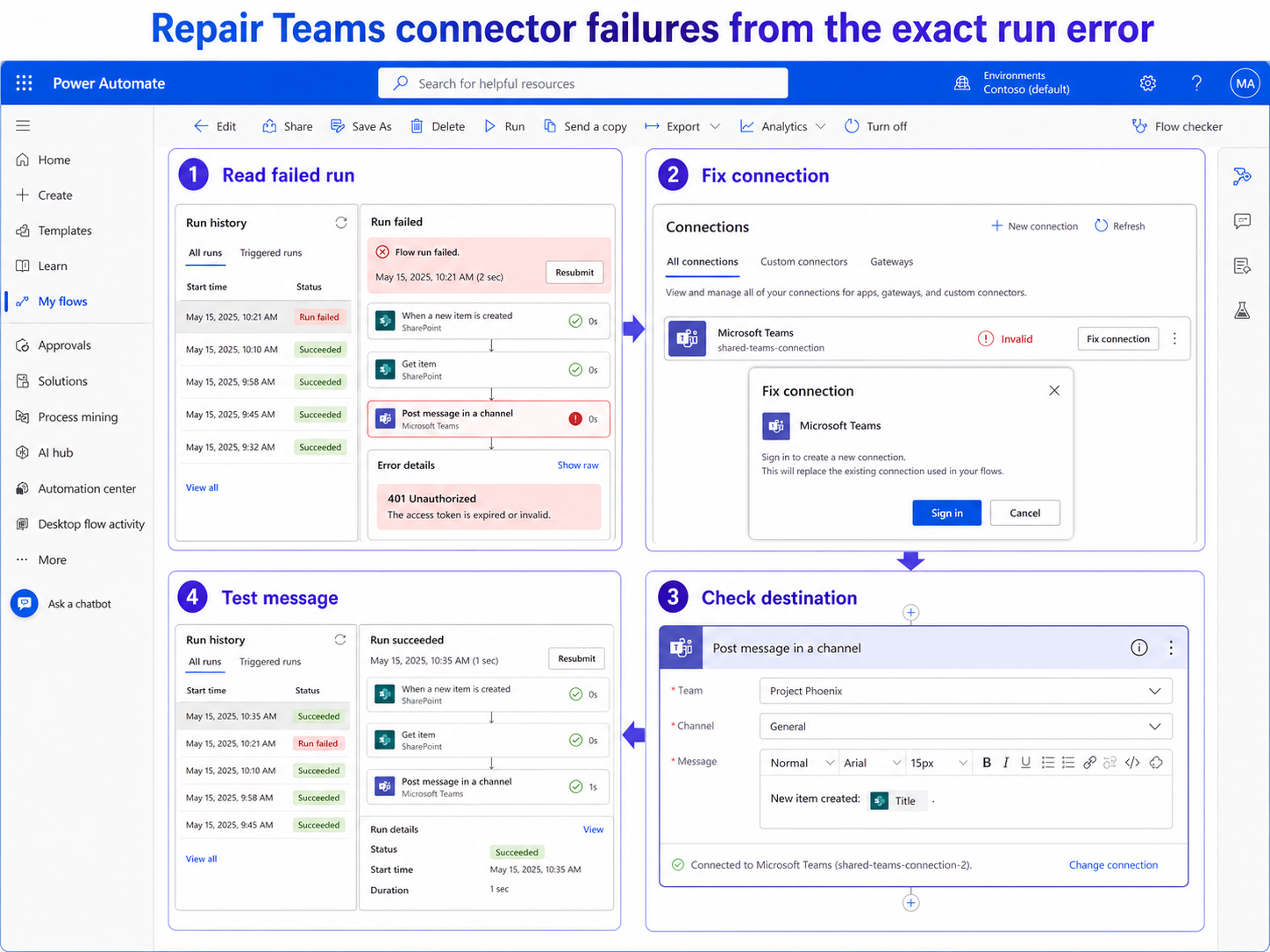
Open the flow’s run history, select a failed run, and expand the first action marked red. Record its action name, time, error code, and target team, channel, chat, or user. A 401 generally points to authentication, a 403 to permission or policy, a 404 to a moved or deleted target, and a 429 to throttling.
If no run exists for the expected event, use the trigger-side diagnosis before touching the Teams connection. The connector cannot fail in a run that never started.
Repair the connection deliberately
Open Connections in Power Automate and locate the exact connection reference used by the failed action. Choose Fix connection or reauthenticate, sign in with the intended work account, and return to the action to confirm it uses that repaired reference. Shared flows can contain connections owned by someone who changed roles or left.
Do not delete a connection until you know which apps and flows use it. Microsoft provides connection details so owners can identify dependencies; replacing a widely used connection casually can break working automations.
Check the Teams destination and policy
Open Teams with the same account and verify that the destination exists and that you can post there manually. Re-select renamed teams, channels, chats, or users in the action rather than trusting an old display label. A 403 can also indicate a data-loss-prevention or consent change that only an administrator can resolve.
Compare the action with the basic message-action setup when required fields or posting identity are unclear. Some Teams actions depend on the Workflows app being allowed in the Teams admin center.
Rerun with controlled content
Save the flow and test it with neutral text and a known destination. Inspect the new run rather than assuming a successful save repaired execution. If the action succeeds, restore the original dynamic content gradually so malformed values do not hide behind a resolved connection issue.
For throttling, reduce unnecessary loops and retries, then honor the connector’s returned retry behavior. Escalate repeated 403 or tenant-wide failures with the run ID, environment, connector operation, error code, and policy-change timing.
Compare one supported client
Use one alternate supported client only after the authoritative service has been checked. Keep the account and content unchanged so the client is the sole variable. If both clients fail identically, focus on permission, policy, source data, or service state; if one succeeds, preserve that result and troubleshoot the failing client without altering shared data.
Before repairing the Teams connection, copy the flow run ID, first failed action, HTTP status, connection reference, and target team or channel. Confirm the destination manually with the same account. This evidence prevents a trigger problem, expired token, missing target, and policy block from being treated as one failure.
Changes to avoid during diagnosis
Do not remove shared data, relax tenant security, or recreate the production object simply to make the symptom disappear. Those changes can hide the original cause and create a second recovery job. Export or verify anything important first, use a harmless sample, and obtain the owner’s approval before altering shared configuration.
If a destructive change becomes necessary, confirm the exact target and recovery path with the owner first. For managed Microsoft 365 data, an administrator should preserve identifiers, timestamps, and service evidence before removal or recreation.
Teams connector failure FAQ
Why does the connection look healthy while the action still returns 403?
Authentication can be valid while the signed-in account lacks access to the destination or a tenant policy blocks the connector. Test the target manually and ask the administrator about recent consent or DLP changes.
Should I create a new Teams connection immediately?
First try Fix connection on the reference the flow already uses. Create and bind a replacement only when the existing owner or authentication context is no longer appropriate.
Can I rerun the old failed run after fixing the connection?
Rerun behavior depends on the flow and action, so a fresh controlled test is usually clearer. It proves the current connection and current destination without confusing the result with stale input.
Stabilize the flow after recovery
A control appearing is only partial recovery. Repeat the original workflow and confirm the downstream result in the authoritative service: the shared calendar, Loop page, Forms response store, Teams destination, Copilot citation, transcript, or dashboard hierarchy. Then undo temporary test settings and retain only the targeted correction.
Keep owner and administrator boundaries clear. End users can verify their account, refresh a supported client, and test content they are allowed to use. Owners control sharing and source configuration; administrators control tenant policy, licensing, consent, retention, and service-health escalation. Stop when the evidence reaches one of those boundaries.
The durable fix is the smallest change that explains the symptom and survives a normal retest. Keep the verified configuration, remove temporary test content, and share the precise boundary with the owner of any policy or permission dependency. If the problem returns, compare it with the same baseline before repeating cleanup.