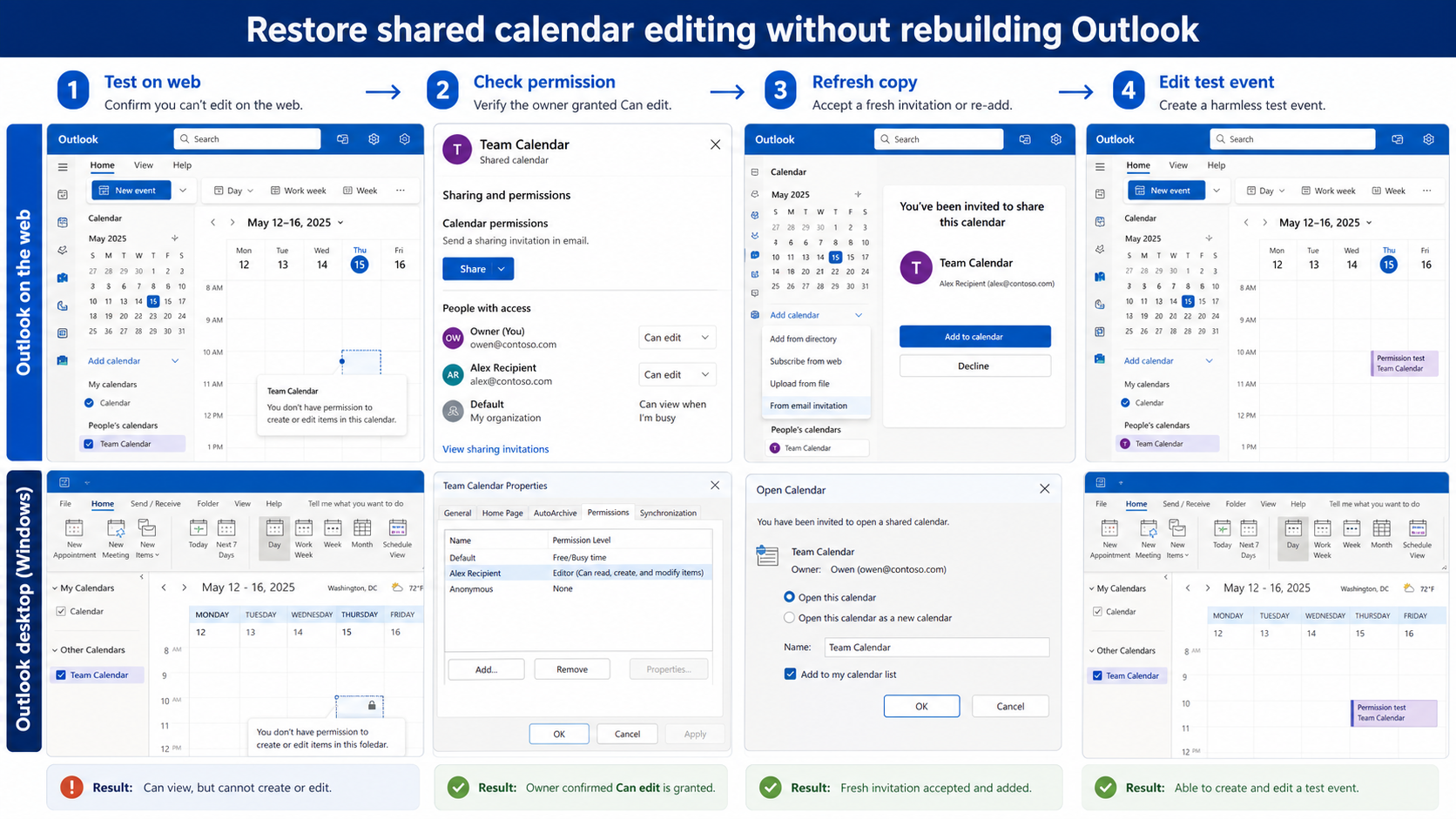
A shared calendar can open normally and still reject edits because viewing and editing are separate permissions. It can also retain an older read-only state in one Outlook client after the owner changes access. Prove the server-side permission first in Outlook on the web, then refresh or re-add the recipient’s copy only if the web result is correct.
Do not start by rebuilding the Outlook profile. The owner controls calendar permission, the Microsoft 365 service enforces it, and each client displays a synchronized copy. Testing those layers in that order protects cached data and avoids unnecessary disruption.
Separate access from capability
Permission is not a feature promise
For outlook shared calendar cannot open set of folders, record the exact account, item, client, and result before changing anything. A precise baseline distinguishes an unavailable control from a saved-data, permission, or synchronization failure and gives the later retest a meaningful comparison.
Test reading before acting
The first useful milestone is “Test the calendar in Outlook on the web.” Once that result is known, continue to “Confirm Can edit, Editor, or Delegate with the owner” without changing unrelated settings. This keeps the diagnosis narrow enough for a user, owner, or administrator to repeat.
Separate a permission error from a folder error
Ask the recipient to open the calendar in Outlook on the web using the same work account. Create a harmless event far in the future, save it, confirm it appears for the owner, and then delete it. If web editing fails too, the issue is permission or policy rather than a damaged desktop view.
If the calendar does not open at all and Outlook reports that the set of folders cannot be opened, verify that the mailbox and calendar still exist and that the recipient accepted the latest invitation. A removed mailbox or stale auto-mapped entry needs owner or administrator attention.
Have the owner verify effective access
The owner should open calendar sharing or permissions and confirm the recipient is set to Can edit, Editor, or Delegate as appropriate. The editor-versus-delegate comparison helps choose whether the recipient only changes events or also handles meeting requests on the owner’s behalf.
Microsoft notes that modern clients simplify permissions to view or edit, while intermediate Exchange permissions can appear as Custom. When the displayed choice and the required job do not match, an administrator may need to inspect effective mailbox-folder permissions.
Refresh the shared copy only after permission is correct
Allow time for the permission change to synchronize. If Outlook on the web edits correctly but the desktop client remains read-only, close and reopen Outlook, then remove only the shared calendar from the recipient’s calendar list and accept a fresh sharing invitation. Do not delete the owner’s calendar or mailbox.
Use the calendar refresh checks if other calendars also lag. A broad synchronization symptom points to the account or client, while one affected shared calendar points back to its copy or permission.
Verify the complete edit path
Create, change, and remove a clearly labeled test appointment. Confirm each action in the owner’s view and in Outlook on the web. For delegate scenarios, separately test a meeting request because sending on behalf of the owner requires more than ordinary editor access.
If the desktop still fails, capture the Outlook client, exact error, permission shown by the owner, and successful or failed web result. This gives support a clean boundary without exposing calendar content.
Work through the evidence in order
- Test the calendar in Outlook on the web. Record the result before moving on so later evidence stays attributable.
- Confirm Can edit, Editor, or Delegate with the owner. Keep the test narrow and use the same account that experienced the failure.
- Refresh or re-add only the shared calendar copy. Do not broaden permissions or delete data to force a passing result.
- Create and remove a harmless appointment to verify sync. Confirm the saved or downstream state, not just the visible control.
Narrow the remaining uncertainty
Keep the test matrix small enough to explain to another person. Preserve the same account and harmless sample item while changing only the suspected layer. When the result crosses from working to failing, stop broad cleanup and focus the next check on that boundary.
Before refreshing the shared calendar, record the owner, recipient account, displayed permission, Outlook client, and exact edit error. Try one harmless future appointment in Outlook on the web. That result reveals whether the service permission or only the recipient’s desktop copy needs attention.
Avoid a broad reset
A broad cache clear, mass permission change, or complete recreation may appear faster, but it destroys the evidence needed to prevent recurrence. Work from the authoritative service outward, keep one known-good comparison, and stop as soon as the smallest successful correction explains both the original failure and the retest.
If a destructive change becomes necessary, confirm the exact target and recovery path with the owner first. For managed Microsoft 365 data, an administrator should preserve identifiers, timestamps, and service evidence before removal or recreation.
Shared calendar questions
Why can I create an event but not send invitations for the owner?
Editor access can allow event changes without granting the full delegate workflow. The owner must assign delegate capabilities when the recipient needs to receive or answer meeting requests on the owner’s behalf.
How long should a permission change take?
Changes made in modern Outlook clients can resynchronize quickly, while changes from some other applications may take hours. Test in Outlook on the web before repeatedly removing and adding the calendar.
Will removing the shared calendar delete the owner’s events?
Removing it from your calendar list normally removes your displayed copy, not the owner’s server calendar. Confirm you are removing the shared entry and never delete events as a cleanup method.
Make the permission durable
A control appearing is only partial recovery. Repeat the original workflow and confirm the downstream result in the authoritative service: the shared calendar, Loop page, Forms response store, Teams destination, Copilot citation, transcript, or dashboard hierarchy. Then undo temporary test settings and retain only the targeted correction.
Keep owner and administrator boundaries clear. End users can verify their account, refresh a supported client, and test content they are allowed to use. Owners control sharing and source configuration; administrators control tenant policy, licensing, consent, retention, and service-health escalation. Stop when the evidence reaches one of those boundaries.
The durable fix is the smallest change that explains the symptom and survives a normal retest. Keep the verified configuration, remove temporary test content, and share the precise boundary with the owner of any policy or permission dependency. If the problem returns, compare it with the same baseline before repeating cleanup.