An adaptive-card timeout means the flow waited without receiving a valid response before the action’s run limit or timeout policy ended. It does not prove that Teams failed to deliver the card. The recipient may not have opened it, the submit action may be invalid, the card may already have been submitted, or the flow may be waiting in a different run.
Treat the timeout as a state problem. Correlate the card shown in Teams with the exact Power Automate run, confirm that the action genuinely waits for a response, and provide a deliberate expiry path.
Start from the timed-out run
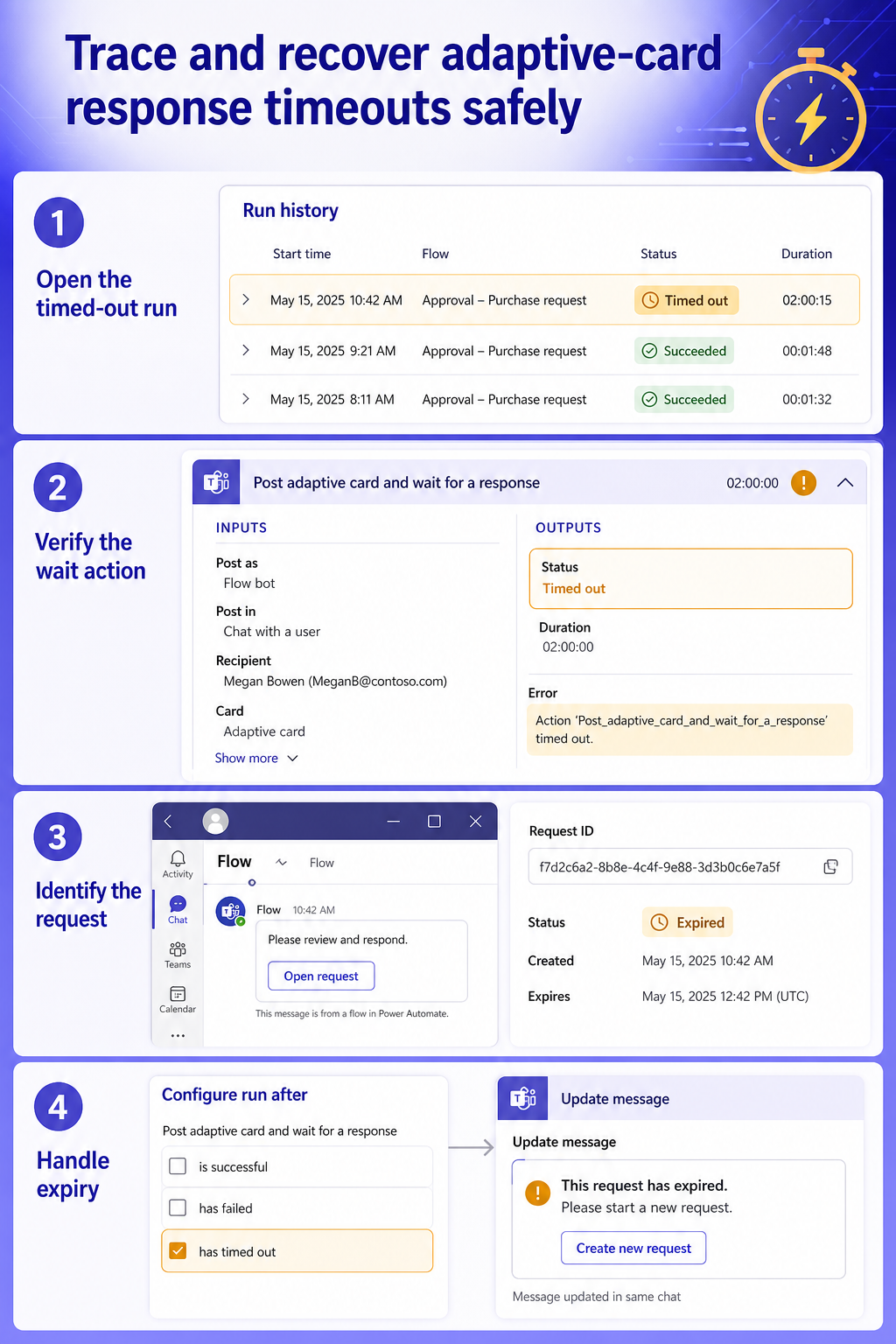
Open the flow’s run history and select the failed or timed-out run. Expand the Microsoft Teams action and record the recipient, post location, card payload version, start time, duration, and error. Check whether the run remained on the wait action or failed before posting.
Search the recipient’s Teams chat or channel at the corresponding time. A visually similar card from another run can remain present, so include a harmless request ID or created time in future cards. Do not put secrets or internal run URLs in user-facing text.
Confirm the correct Teams action
Microsoft distinguishes posting actions from actions named Post adaptive card … and wait for a response. A card posted without a wait action cannot collect ordinary submit data in the same way; submit buttons can error unless they are OpenURL actions.
If buttons are present but inert, use the Teams card-delivery checks to verify the approval surface before extending the timeout.
Validate the card and its audience
Test the JSON in an Adaptive Card validator and keep the schema version compatible with Teams. Check every required input has a unique ID and every submit button sits inside a supported action structure. Broken image URLs can also affect presentation, so remove optional images during diagnosis.
Verify the flow connection can post to the selected user, chat, team, or channel. For user-targeted cards, confirm the recipient identity is the intended Microsoft Entra user rather than a guest or stale email. For channel cards, remember that the wait action can continue when an eligible member responds, depending on the action used.
Make submission state obvious
Microsoft notes that wait-for-response cards accept one response per recipient/card and that later submissions are ignored. Configure Update message and the update-card setting so the original card changes after submission. This prevents another person from trying a card whose run already continued.
Include a short status such as “Response received” and keep the request identifier in the replacement message. Do not leave an active-looking button on an expired request.
Add a controlled timeout branch
Open the wait action’s settings and define a timeout that matches the business process. Then use Configure run after on an expiry scope so the flow can notify an owner, mark the request expired, or issue a new card with a new ID.
The broader approval design is useful when the process needs an email fallback or auditable approval record. An adaptive card should not be the only path for a time-critical decision unless the owner accepts that risk.
Retry without creating two live requests
Before reposting, write the original request status as expired in a durable store. Generate a new request ID, post the replacement card, and link it logically to the prior request. If the old card remains in Teams, update it to show that it is no longer active.
Avoid a blanket automatic retry on the wait action. Retrying can produce multiple live cards or keep the run occupied longer without changing recipient behavior. Retry only after distinguishing a transient connector failure from a human non-response.
Test the four response paths
Use a test user and run these cases: submit normally, open without submitting, submit after the configured expiry, and attempt a second submission. Confirm the run history, replacement message, expiry notification, and durable status for each case.
This matrix exposes the difference between delivery, response, expiration, and duplicate submission. It also gives support staff a predictable explanation when someone says, “The button did nothing.”
Adaptive-card timeout questions
Does a timeout mean the card was never posted?
No. A wait action can post successfully and then time out because no valid response arrived. Check the action inputs/outputs and the Teams conversation at the run time before blaming delivery.
Can the same card be submitted twice?
Microsoft documents one response per recipient and card for these wait actions, with later submissions ignored. Configure an update message so the visual state no longer invites another submission.
Should I simply increase the timeout?
Only if the current period is shorter than the real business decision window. A longer timeout does not repair invalid JSON, wrong recipients, an expired connection, or a card from another run. Add an escalation path instead of waiting indefinitely.
How do I know which run a user answered?
Include a non-sensitive request ID in the card and store it with the run’s business record. After the response, write the responder and timestamp to that record. Do not correlate by card title alone.
Design expiration as a normal outcome
A robust card workflow expects some users not to respond. Make expiry visible, close the old request, and route the decision to an owner or alternate channel. Once every card has an identity and a state transition, timeout troubleshooting becomes an ordinary run-history check rather than a guess about Teams delivery.
Monitor wait actions as open work
A flow that is waiting is still an active business request. Build an owner view that shows request ID, recipient, posted time, expiry time, and current state without exposing the full card payload. This lets a coordinator intervene before a deadline instead of learning about the timeout from a failed run.
Set reminders outside the wait action when the process warrants them. A reminder should reference the existing request, not post a second live decision card. When the request expires, update the durable record first and then notify the owner. That order keeps late clicks from being mistaken for valid approvals.
Review timeout rates by recipient group and process stage. A cluster of expirations may indicate unclear wording, delivery to an unattended channel, or an unrealistic response window rather than a connector defect.