A SharePoint action that returns 404 in Power Automate is telling you that the connection reached the service but could not resolve the requested resource. Microsoft lists a renamed, moved, or deleted SharePoint list, library, file, or endpoint as the common explanation. The error is different from 401 authentication failure and 403 permission denial, so begin with the action’s stored resource reference.
Do not reconnect every connector immediately. First identify whether the action points to a site, list, library, item, file, or folder, and whether that object still exists under the same identity.
Read the failed request in run history
Open My flows, select the flow, and open the failed run. Expand the first red SharePoint action. Record the action name, status code, site address, list or library, identifier or path, and any server message. The first red action is normally more informative than a later skipped action.
Decide whether the action uses an ID or a path
Actions such as Get file content using path depend on the exact current path. A renamed folder or moved file makes the old path invalid. Actions using a list item ID can fail when the flow is pointed at another list where that number does not represent the same item.
File Identifier, ItemId, and a display name are not interchangeable. Re-select dynamic content from the current trigger or earlier SharePoint action rather than typing a URL copied from the browser address bar.
Reopen the selector in edit mode
Edit the failed action and open the Site Address and list/library pickers. If the intended object no longer appears, verify its current location in SharePoint. If it does appear, reselect it so the connector stores the current reference, then save and test.
For a new SharePoint automation, the connector setup pattern provides a clean comparison for site, list, and dynamic identifiers. Do not rebuild the production flow until a small test action proves the current resource reference.
Use the 404 decision ladder
- Open the site directly. Confirm the current SharePoint site URL and that it has not been renamed or replaced.
- Find the list or library. Check its current name and location. Remember that a display-name change and an underlying URL change are not always the same event.
- Locate the exact item or file. Follow the path segment by segment or search the library.
- Compare the flow input. Inspect the run-history identifier or path without exposing sensitive data.
- Reselect the resource. Save the action and run a controlled test on one known object.
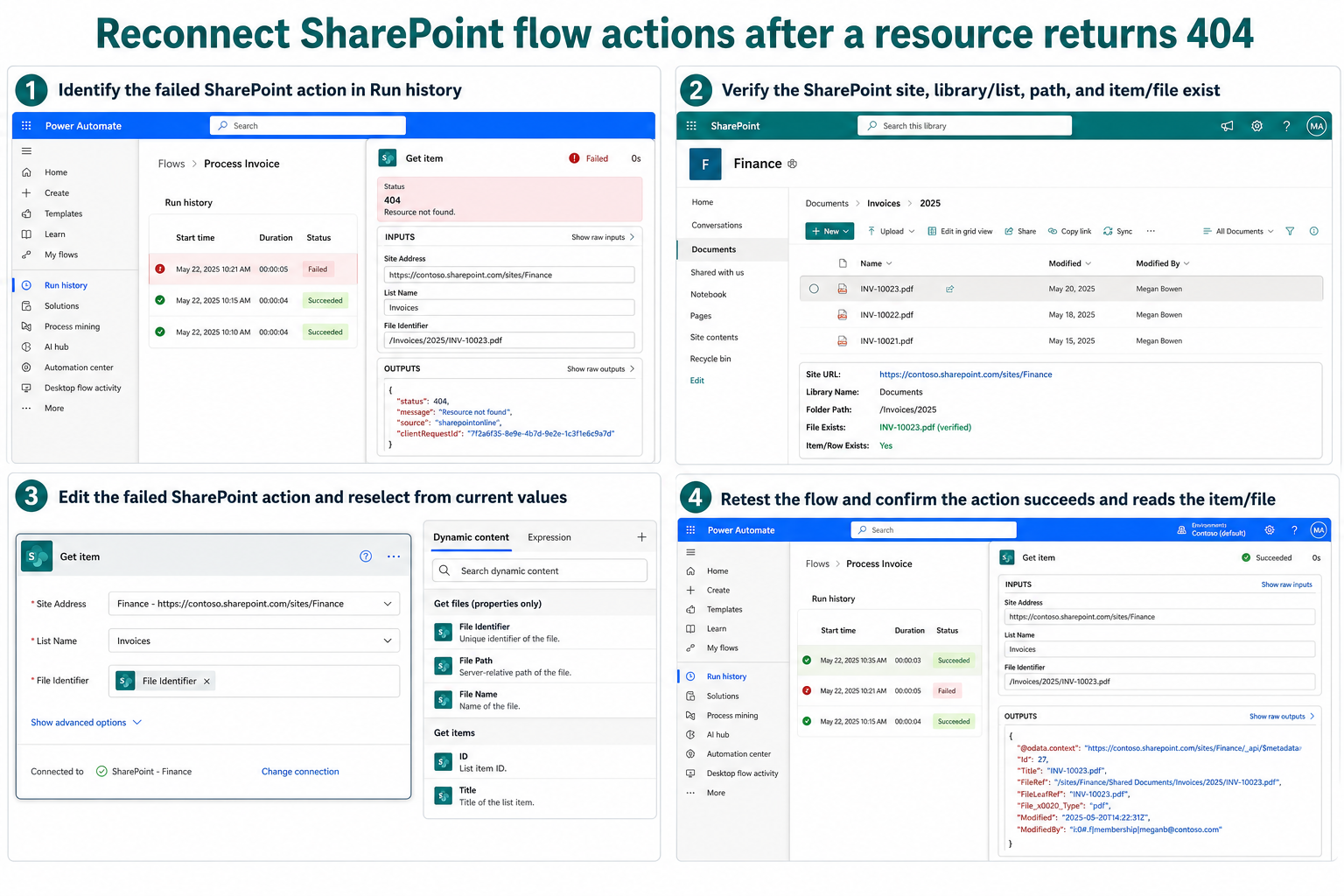
This ladder is intentionally resource-first. A healthy connection can still return 404 for an old path. Reauthentication is appropriate when the error is 401 or the Connections page marks the connection broken, but it cannot recreate a deleted library.
Handle common SharePoint variants
The list was renamed
Open the action and select the list again. If the flow contains multiple actions aimed at that list, review each one; repairing only Get items does not update a later Update item. Test create, read, and update paths separately before re-enabling high-volume triggers.
A file moved to another folder or library
Use current dynamic identifiers from the trigger or a fresh metadata action. If the business process allows movement, avoid hard-coded paths and capture the file identifier as early as possible. A copied file is a new object and may need a newly returned identifier.
The flow was imported into another environment
Connection references may transfer while environment-specific site addresses do not. Review solution environment variables and every SharePoint action after import. Confirm that the destination account has access, but remember that access failure more commonly appears as 403 rather than 404.
The item was deleted between actions
Concurrent processes can remove or move an object after the trigger. Compare timestamps and add a deliberate “not found” branch only if deletion is an expected race. Do not silently ignore 404 when the missing item represents data loss.
Keep permissions and existence separate
Microsoft’s current flow troubleshooting table maps 403 to permission or data-loss-prevention restrictions and 404 to a missing or changed resource. Some services deliberately obscure unauthorized resources, so permissions may still deserve a check after the path is proven. The status code nevertheless gives you the best initial route.
If the flow transfers Outlook content into SharePoint, the mailbox-to-library workflow can help verify the intended destination and filename stages. Keep its contextual pattern separate from the actual failing flow’s IDs and site policy.
An administrator should review recent site renames, library migrations, retention actions, and solution deployments. Ask for a change record around the first failure time. That evidence is stronger than assuming the connector randomly forgot the object.
Questions about SharePoint 404 failures
Why can I open the file in a browser while the flow gets 404?
The browser may follow a newer link, use a different account, or open the file by a sharing URL while the flow holds an old path or identifier. Compare the exact site, library, and identifier shown in run history with the current object.
Should I delete and recreate the SharePoint connection?
Not as the first step for a pure 404. Check the Connections page for an explicit authentication problem, but prioritize the resource reference. A new connection aimed at the same stale path normally receives the same response.
Can renaming a SharePoint list break every action?
It can affect actions that stored the old list reference, especially after moves, copies, or environment changes. Review all SharePoint cards in the flow and reselect the resource where needed. One successful read does not prove later write actions are updated.
How should a production flow handle an expected missing file?
Use a scoped exception path that records the business identifier and chooses an approved outcome, such as skip, notify, or create. Keep unexpected 404 errors visible. Configure run-after behavior carefully so a missing resource is not mistaken for a successful process.
Reconnect the action to reality
Prove the current SharePoint object, compare its identity with the failed action, and reselect the resource before touching authentication. Test one known item through the entire branch, then check every other action that referenced the old list, library, or path. This repairs the broken contract without masking deletion, migration, or environment-mapping problems.