Microsoft associates OneDrive error 0x8004def4 with two specific situations: the OneDrive sync app is being used while the Microsoft Store OneDrive app is also installed, or OneNote notebooks were not migrated to OneDrive correctly. Start by deciding which situation fits. Broad credential resets are unlikely to help an app conflict, and removing notebooks before checking their location can create unnecessary risk.
OneDrive files remain available online when you unlink, disable, or uninstall the sync app, but verify that important local changes have finished syncing before maintenance. A file marked only on this device may need a separate backup.
Identify which path applies
The error appears when OneDrive starts or signs in
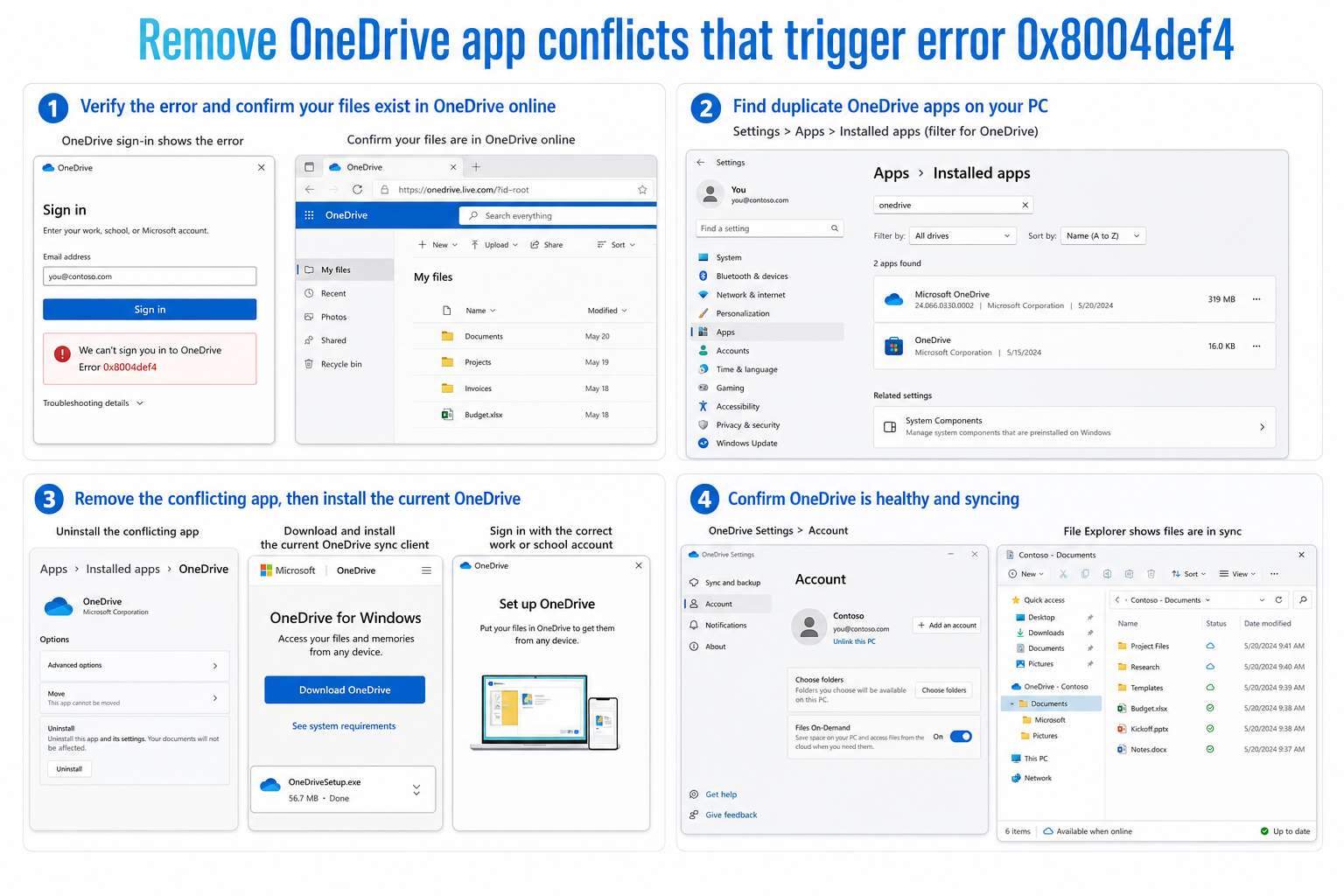
Open Windows Settings > Apps > Installed apps and search for OneDrive. Also press Start and enter apps:onedrive, the shortcut Microsoft provides for locating the Store app entry. If both a Store app and the desktop sync client are present, treat duplicate installation as the leading cause.
Check the cloud icon’s Settings > About page when it opens and note the version. Do not uninstall yet if the icon reports active uploads. Pause changes, let the queue finish where possible, and confirm recent files exist on OneDrive on the web.
The error is tied to OneNote notebooks
If 0x8004def4 appears while opening or moving a notebook, follow Microsoft’s OneNote notebook migration guidance. A OneNote notebook is not a normal single file that should be dragged between sync folders while open. Confirm the notebook opens in OneNote or OneNote for the web and use the supported move process.
If OneDrive has broader launch or sync symptoms beyond this code, the Windows sync-client diagnosis helps check service state without changing the error-specific route below.
Remove the duplicate app cleanly
Microsoft’s published solution is to uninstall all OneDrive app versions and then install the latest OneDrive sync app. Prepare first:
- Verify recent files on OneDrive on the web.
- Record which work or school and personal accounts are connected.
- Close Office documents and OneNote notebooks stored in OneDrive.
- Capture any folder-backup choices for Desktop, Documents, or Pictures.
- Note organization policies that may reinstall or configure OneDrive automatically.
Then use Settings > Apps > Installed apps to uninstall the OneDrive entries. Restart Windows if the uninstaller or organization support process requests it. Download and install the current OneDrive sync app from Microsoft, sign in with the intended account, and allow the first sync to settle before reconnecting additional libraries.
Reconnect in stages
Start with one account. Confirm the cloud icon reaches Up to date, open a small online file, edit it, and verify the change appears on the web. Only then add a second account or SharePoint library. This staged approach makes an account-specific policy or library problem visible.
Avoid duplicate local folders
When the installer proposes a folder location, inspect the existing OneDrive folders before accepting it. Do not point two accounts at the same directory or delete an old folder simply because a new one appears. Compare account labels and cloud contents, then let organizational support reconcile duplicates.
Reapply exclusions and backup choices deliberately
Folder backup and Files On-Demand preferences can make the reinstalled client download or protect more content than expected. Review them instead of clicking through automatically. If the original problem involved large or unsupported content, the selective-sync approach can reduce the local footprint after the client is healthy.
Protect OneNote during the repair
Close notebooks before uninstalling. Verify each important notebook in OneNote for the web or through the notebook’s supported location. If a notebook exists only as a local notebook, back it up through OneNote rather than treating its internal folder as ordinary synchronized documents.
Microsoft explicitly lists incorrect OneNote migration as another cause of 0x8004def4. If removing duplicate OneDrive apps does not change a notebook-specific error, stop repeating the reinstall and follow the OneNote move guidance. Note the notebook owner, account, and destination because personal and work locations are not interchangeable.
If the code returns
Open Installed apps again and verify that device management or the Microsoft Store did not restore a second OneDrive package. Check the OneDrive version and the exact moment the code appears. A code shown during one notebook operation may have a different root cause from a code shown at sync-client startup.
For managed PCs, send IT the Windows version, OneDrive version, installed OneDrive entries, account type, screenshot of the code, and whether OneDrive on the web is accessible. Do not include file contents or passwords. Administrators can then review app deployment policy and OneNote migration without assuming account corruption.
Questions about error 0x8004def4
Will uninstalling OneDrive delete my cloud files?
Microsoft says disabling, uninstalling, or unlinking OneDrive does not remove files stored in the cloud. Still confirm recent changes online first, because unsynced local-only edits are not yet cloud files. Preserve any folders whose status is uncertain until the new client is verified.
Why do I see two OneDrive entries in Windows?
The Microsoft Store app and the desktop sync app can coexist on a device and create the conflict Microsoft associates with this code. Follow the official remove-and-reinstall route so the latest sync app becomes the single working client.
Should I reset OneDrive before reinstalling it?
For 0x8004def4, Microsoft’s error-code article specifically recommends uninstalling all versions and reinstalling the latest sync app when duplicate apps are involved. A reset may be useful for other sync symptoms, but it does not remove the conflicting Store package.
What if only one notebook triggers the error?
Treat that as a OneNote migration problem rather than a general sync-client failure. Verify the notebook online, close it, and use Microsoft’s supported notebook move instructions. Avoid copying the notebook’s internal folders manually.
Return to a single healthy sync client
Confirm the cloud copy, distinguish app conflict from notebook migration, and use the matching Microsoft repair. Reconnect one account at a time and verify a real round-trip edit before adding complexity. That protects local work while resolving the condition the error code actually describes.