When a flow succeeds but no approval card appears in Teams, the useful evidence is inside the run history. The card may have been posted to a different chat or channel, blocked by a connector or app policy, rendered incompletely because of the payload, or replaced after a response.
Do not rebuild the full approval first. Clone or test the flow with a minimal card and one known recipient. That proves delivery separately from complex Adaptive Card JSON and business logic.
Trace the missing card through one run
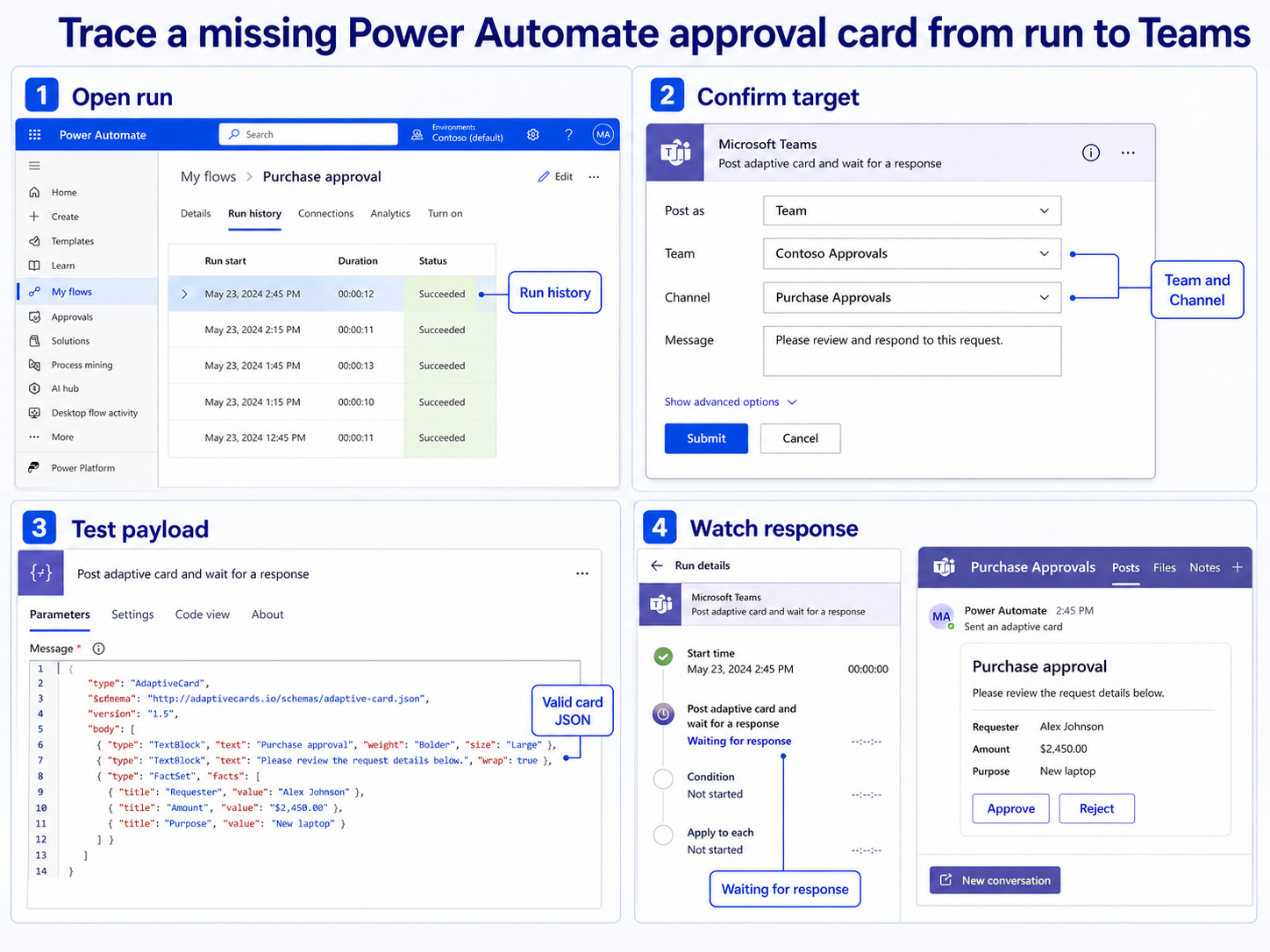
Read action inputs and outputs
Open My flows, select the flow, and inspect the most recent relevant run. Expand the Teams action and verify its status, posting identity, recipient or Team and Channel values, and output. The basic Teams delivery pattern is a useful baseline when the current action has accumulated many dynamic fields.
Separate delivery from response
Microsoft distinguishes actions that simply post a card from actions that post and wait for a response. A wait action can remain running until someone submits. A completed action with no visible card needs target and Teams-side checks; a failed action needs the connector error addressed first.
Add complexity back one piece at a time
Restore dynamic values, images, mentions, and conditional sections individually. Microsoft recommends testing image links in a browser; an inaccessible URL can make a card look incomplete. Validate the card payload with an Adaptive Card tool when styling or schema constraints are involved.
If a simple message from a simpler notification comparison reaches the same destination but the card does not, focus on the card action and payload. If neither arrives, inspect the Teams connection, Workflows app availability, target membership, and tenant policy.
Use a minimal card as the baseline
Keep a minimal Power Automate test beside the production flow. A fixed target and short payload make connector delivery easier to prove than a complex approval. Change only one variable before repeating the test, and keep the failing example unchanged until the comparison is complete.
For the approval card, keep the flow run ID, resolved Team or recipient, action name, and final status. Capture whether the action failed, succeeded, or remained waiting. If a plain Teams message reaches the same target while the minimal card does not, the connector route works and card action or payload becomes the useful focus.
When results differ between desktop and web, do not keep changing both clients. A working web result usually proves that the cloud object and account still exist, leaving desktop installation, operating-system permission, or cached session as the narrower scope. Failure in both places makes the item, account, policy, connector, or service configuration more likely.
For a managed account, provide the affected identity, client, time, one reproducible example, the second-client result, and any visible error. Keep screenshots focused on the relevant pane and remove private names. Avoid sending passwords, private documents, recordings, or full card payloads unless the support owner requests them through an approved channel.
Before closing this Power Automate issue, repeat the successful path with a second ordinary example. If the second example works, preserve the original failure for object-specific review. If it fails in the same place, the shared client, account, permission, policy, or connector layer remains the stronger lead.
Reduce the card to a known-good test
- Copy the flow or add a controlled test branch so production approvals are not affected.
- Use a short card with one TextBlock and one submit action, within the schema version supported by the Teams host.
- Choose a recipient or test channel you can open directly. Confirm the flow owner has access to that destination.
- Run the flow manually and watch the card action. Then open the exact chat or channel named in the inputs.
- Submit once and confirm the wait action completes. Microsoft notes that each card submission is handled once; repeated submissions can be ignored.
Practical verification notes
Repeat the successful path with a second ordinary example before calling the issue resolved. The second test should use the same account and client but a different item, meeting, file, or run. If only the original example fails, investigate that object’s settings and history. If both fail, continue at the client, policy, connector, or service layer.
Keep rollback simple. Save existing settings before changing them, avoid deleting shared data during diagnosis, and prefer reversible tests such as a new appointment, copied flow, private meeting, or sample file. This protects production work while giving support a clean comparison.
Adaptive-card questions
Why does the flow stay running after the card appears?
A “post and wait for a response” action is expected to wait until someone submits the card. Confirm that the card contains a submit action and that the intended person can interact with it. If no response is required, choose a non-waiting action.
Can I submit the same card twice?
Microsoft documents one response per recipient and card for the wait pattern, and further submissions may be ignored. Start a new test run when validating a second response. Do not treat an already-submitted card as a fresh approval.
Why does the card appear in the wrong place?
Dynamic Team, Channel, or recipient values may resolve differently from what the designer label suggests. Inspect the run’s resolved inputs rather than only the design screen. Use fixed test values until delivery is reliable.
What should an admin verify?
Ask them to check whether the Workflows app and Microsoft Teams connector are allowed for the posting account and target users. Provide the run ID, action name, destination, time, and connector error. Do not send sensitive card payloads unless required.
Rebuild from the successful card
Keep the minimal card as a diagnostic branch until the real approval works. Add one dynamic section per run and inspect the resolved inputs after each change. When the production card arrives and a single submission advances the flow, remove the diagnostic branch and retain the run ID as your verified baseline.