An email attachment can have a valid name, size, and ID while its content is empty in the next Power Automate action. That happens because attachment metadata and attachment bytes are different values. A flow that passes only the name, link, or identifier has not passed the file itself.
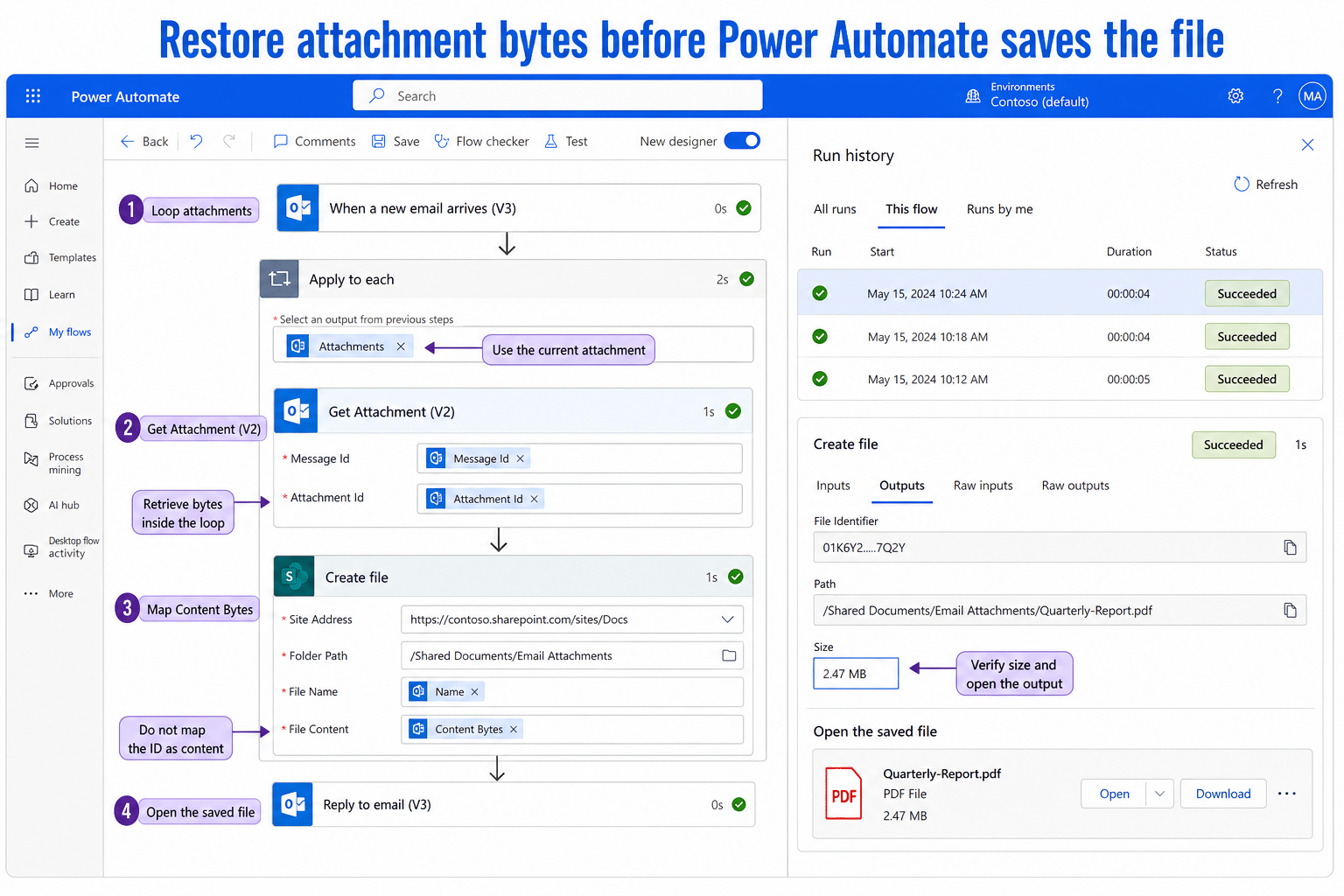
The reliable repair is to loop through each attachment, call Get Attachment (V2) with the current message and attachment IDs, and map its Content Bytes output into the destination action.
Find where the bytes disappear
Open a failed or suspicious run and expand the trigger, attachment loop, retrieval action, and destination action. Do not rely only on the green status icons.
Compare metadata with content
The trigger can expose an attachment collection containing fields such as ID, Name, Content Type, Size, and Is Inline. Those fields describe the file. The Office 365 Outlook connector’s Get Attachment (V2) action returns the actual contentBytes value needed to recreate or send it.
If the flow maps Attachment Id or Name into a file-content field, the destination may create a zero-byte or corrupt file. If the destination input is blank, work backward until you find the first action whose bytes output is missing.
Use a controlled test message
Send one small PDF and one small text file to a test mailbox. Avoid signatures with images for the first run because Outlook may expose inline images as attachments. Record the expected file names and sizes so you can compare them with the run outputs and destination files.
Rebuild the attachment loop safely
Use the attachment array from the email trigger as the input to Apply to each. Inside that loop, add Get Attachment (V2) from the Office 365 Outlook connector.
Map the trigger’s Message Id to the action’s Message Id field. Map the current attachment item’s Attachment Id to Attachment Id. Do not use a message ID from a different email action or a fixed attachment ID copied from test data.
Map the returned bytes
After Get Attachment (V2), configure the action that consumes the file:
- For SharePoint Create file, map the current attachment’s Name to File Name and Content Bytes from Get Attachment (V2) to File Content.
- For Outlook Send an email (V2), build each attachment with a Name and the retrieved Content Bytes.
- For an array, append an object with
NameandContentBytesproperties inside the loop, then pass the completed array to the send action after the loop.
The working email-attachment pattern provides useful context for the final send step. The important repair here is earlier: retrieve the bytes explicitly before building the outgoing attachment.
Prevent the loop from using the wrong item
Dynamic-content labels can look identical when several Outlook actions exist. Rename actions before mapping fields, for example Get incoming attachment bytes and Send repaired email. Clear labels reduce the chance of choosing an Attachment Id from one action and a Message Id from another.
Keep retrieval inside Apply to each
When a message contains several files, each attachment needs its own retrieval call. Placing Get Attachment (V2) outside the loop often locks it to one item or causes Power Automate to create an implicit loop you did not intend.
Inside the explicit loop, use the current item’s ID. For an attachment array, initialize the array before the loop, append one object per file inside it, and send the message after the loop finishes.
Filter inline images deliberately
Logos and signature graphics may have Is Inline set to true. If your process needs only user-added files, add a condition that excludes inline items before retrieval or before the destination action. Test carefully because some legitimate business images may also be inline.
Do not filter solely by a tiny size unless the business accepts that rule. A small text or CSV file can be valid. Combine Is Inline, content type, extension, and business context when needed.
Inspect the destination, not just the run
A successful Create file or Send email action can still receive the wrong bytes. Open the resulting PDF, workbook, or image. Compare its size with the source attachment and verify that the content is current.
For a SharePoint archive, send one email containing three clearly named files. Confirm that the library receives exactly three openable files. This mailbox-to-library workflow shows how the loop, file creation, and duplicate-name decisions fit into the larger archive.
If a file is present but corrupt, inspect the raw inputs of the destination action. The attachment body should be the retrieved content bytes, not a link, preview, ID, or an entire metadata object.
Handle large messages and connector limits
Including attachment content in a trigger can slow runs and can contribute to timeouts for messages with several large files. An explicit metadata-first trigger followed by Get Attachment (V2) inside a filtered loop is often easier to diagnose and limits retrieval to the files you actually need.
Large files can still hit connector, mailbox, or downstream storage limits. For oversized internal documents, store the file in SharePoint or OneDrive and send a permission-aware link instead. Do not base a production limit on one successful test; check the current connector documentation and your tenant policies.
Attachment-content questions
Why does the attachment name appear when the file is empty?
Name is metadata and can travel without the binary body. The destination needs Content Bytes from a file-content or attachment-content action. Map both the name and actual bytes.
Should I use Get Attachment or Get Attachment (V2)?
Use Get Attachment (V2) for the Office 365 Outlook connector. Microsoft marks the older Get Attachment operation as deprecated. Recheck the dynamic fields after replacing an old action.
Do I need base64ToBinary around Content Bytes?
Usually the connector output can be mapped directly into another connector’s file-content field. Adding conversion expressions without evidence can double-convert or corrupt data. Inspect the destination action’s expected input and test one known file before adding an expression.
Why does the flow save only the first attachment?
The retrieval or file action is probably outside the correct loop, or it uses a fixed ID. Put both retrieval and per-file processing inside Apply to each and map the current attachment item.
How do I keep signature images out?
Check the Is Inline flag and add a condition for the file types your process accepts. Validate the rule with a message that has both a signature image and a real image attachment.
What to do next
Prove the flow with two small files, retrieve each one through Get Attachment (V2), and open the outputs. Once that works, add inline filtering, duplicate-name handling, and large-file branches one at a time. Run history should show the same current item moving from attachment ID to non-empty Content Bytes to the destination.