Typing an at-sign and a Teams tag name into a Power Automate message produces ordinary text. A real Teams tag notification needs a mention token created by the Teams connector, and the message action must post in a context that supports that token.
The reliable pattern is simple: identify the team and tag, generate the tag mention token, insert that dynamic output into the message, then confirm the mention in both run history and Teams. Skipping the token step is the main reason a message looks right but never alerts tag members.
Build the flow around the tag, not the text
Start with a test tag that already exists in the target team. Confirm that it has at least one member and that your flow connection can access the team. Tag ownership and membership are managed in Teams; Power Automate does not turn an arbitrary label into a team tag.
Add the token action
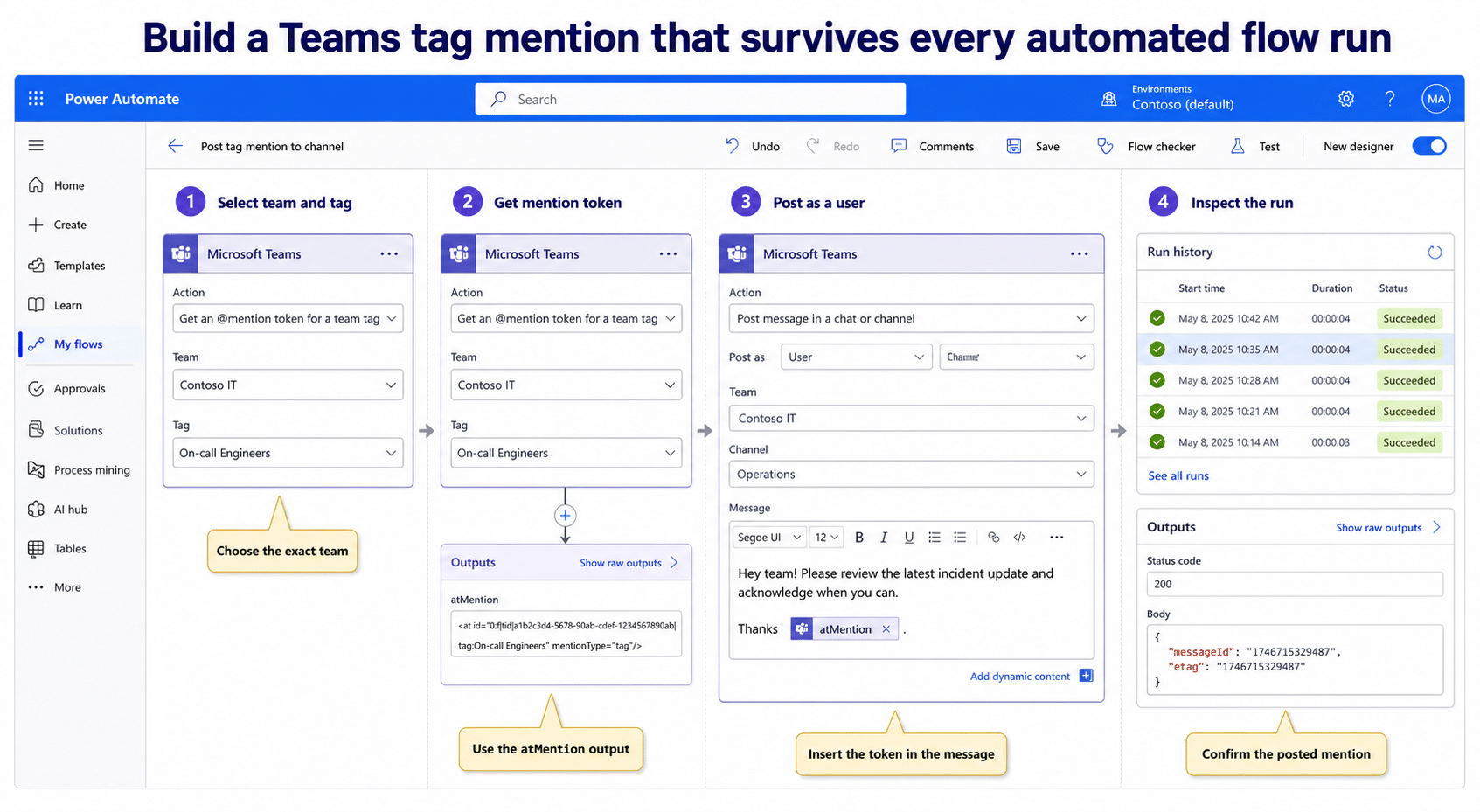
In the cloud-flow designer, add the Microsoft Teams action named Get an @mention token for a team tag. Choose the Team and Tag values from the action fields. Its output is an atMention token designed for a later Teams message or adaptive card.
Do not replace this action with a Compose value containing @Support or <at>Support</at>. Those strings lack the structured mention metadata Teams uses to resolve the tag. The token output must travel into the posting action unchanged.
Choose a compatible post action
Add Post message in a chat or channel after the token step. Select the target team and channel, then place the tag-token dynamic value at the point where the mention should appear in the message. Add normal explanatory text around it, for example: token, followed by “A new priority request is ready for review.”
For a broader walkthrough of the channel-post action, this Teams messaging setup shows how the connector, target, and message body fit together. Keep your first mention test in a non-production channel so repeated runs do not notify a large audience.
Match the posting identity to the connector rule
Microsoft documents the team-tag token as a token for a message or adaptive card sent as a user in a channel. That boundary matters. If the post is configured as a bot, sent to a chat instead of a channel, or routed through an action that does not accept the tag token, the output may render as plain text or fail.
Use the signed-in user for the first test
Set the post identity to the signed-in user when the action offers that choice, and target a standard channel in the same team as the tag. Once this baseline works, you can test other message formats supported in your tenant.
The Microsoft Teams connector also has known limits. A single message can mention up to 20 users and 20 tags, and some post or card scenarios have channel-type restrictions. Keep one tag in the initial test so a limit or unsupported channel does not hide the core configuration problem.
Read run history like a mention debugger
A green flow run only proves that each action returned successfully. It does not prove that Teams resolved the mention or notified tag members. Open the run and inspect the relevant inputs and outputs.
Check the token output
Expand Get an @mention token for a team tag. Confirm that the Team and Tag inputs match the destination channel’s team. The output should contain the connector’s mention value rather than a blank field.
If the token action cannot find the tag, refresh the connector selection and verify the tag still exists. Reauthenticate the Teams connection when the team list is stale or the connection belongs to an account without access.
Check the message input
Expand the post action and verify that its body contains the dynamic token output, not a hard-coded tag name. Also confirm that the destination team matches the team selected in the token action. A valid token for one team should not be treated as a portable tag identifier for another.
After the run, open Teams and inspect the posted message. The mention should be visually styled as a mention. Ask one tag member to confirm an Activity notification, because a styled message and a delivered notification are separate observations.
Handle dynamic tags without brittle expressions
Flows become fragile when a trigger supplies only a friendly tag name. The token action expects a tag selection or identifier the connector can resolve. If several tags are possible, use explicit branches or a controlled mapping from business values to known tags.
Avoid accepting arbitrary text from a form and feeding it directly into a mention expression. Similar tag names can exist in different teams, and renamed tags break name-based assumptions. Keep the team and allowed tag set together in the flow’s design.
If the flow begins from SharePoint or another system, separate the routing decision from the message action. First decide which tag should own the alert; then generate its token; finally post the message. This file-change alert pattern is a useful example of keeping the trigger and Teams notification stages distinct.
When a tag mention still arrives as plain text
Work through these checks in order:
- Confirm that the action is Get an @mention token for a team tag, not the user-token action.
- Confirm that the message uses the token’s dynamic output.
- Confirm that the post is sent as a user to a channel when required by the token action.
- Confirm that the tag belongs to the same team as the destination channel.
- Test in a standard channel before assuming a private or shared channel supports the same scenario.
- Recreate only the affected Teams connection if its team or tag pickers remain stale.
Do not rebuild the trigger, conditions, and downstream business actions at the same time. Copy the two Teams actions into a small manual test flow, prove the mention, and then apply the same configuration to the production flow.
Quick answers about automated tag mentions
Can I type the tag name directly into the message?
No. Plain text such as @Managers does not contain the connector-generated mention token. Use the Teams action that returns the token and insert that output into the supported post action.
Why can a user mention work while a tag mention fails?
They are different connector operations with different inputs. A user token resolves one user principal, while a team-tag token needs both a team and a tag. Reusing the user pattern without the tag action will not resolve the group.
Will a successful run always create notifications?
Not necessarily. The connector can successfully post a message even when the content renders as ordinary text. Verify the styled mention in Teams and ask a tag member to check Activity and notification settings.
Can the same token mention a tag in another team?
Treat the token as scoped to the selected team and tag. Generate a new token for the destination team rather than copying an output across teams.
How many tags can one message mention?
Microsoft’s connector documentation lists a limit of 20 tags per message. Operationally, fewer targeted mentions are better because they reduce alert fatigue and make failed routing easier to diagnose.
The practical takeaway
A Teams tag mention is structured connector data, not decorated text. Generate the token for the exact team and tag, post it through a compatible user-to-channel action, and inspect the actual run payload. Once that minimal path works, add conditions and richer message content without changing the mention chain.