A reminder can be configured correctly on the meeting and still fail to appear above other apps. Outlook has its own calendar notification controls, while Windows, Teams presence, browser permission, and client state can influence what reaches the screen.
Use a fresh test appointment rather than waiting for the next important meeting. Set it a few minutes ahead, choose an explicit reminder, and observe the result while changing one layer at a time.
Test each notification layer
- Create an appointment five to ten minutes ahead and set a two-minute reminder. Keep the time easy to observe.
- For Outlook on the web, leave the Outlook tab and browser running. Microsoft notes that web reminders do not arrive after Outlook on the web is closed.
- Open Windows notification settings and confirm Outlook is allowed. Temporarily turn off Do not disturb or Focus for the test.
- Check whether Teams is set to Do not disturb, because Microsoft lists other app and Windows states as possible interference.
- If one client fails, open the same mailbox in another supported client and repeat with a new event. Do not reuse a reminder that has already fired or been dismissed.
Follow the reminder from event to screen
Verify the event value
Open the affected meeting and inspect Reminder. If it says Don’t remind me, choose a lead time and save. A default reminder controls ordinary events, but an individual event or series can override it; the reminder preference walkthrough helps distinguish global and item-level choices.
Choose a visible notification style
In new Outlook, open Settings > General > Notifications. Turn on Calendar notifications, expand the section, and choose a popup or Reminder style. In classic Outlook for supported Microsoft 365 versions, File > Options > Advanced includes the option to show reminders on top of other windows.
Interpret the test result
If the event appears in Outlook but no notification is recorded anywhere, continue through the wider alert diagnosis and compare Windows notification history. If a banner appears but hides behind windows, focus on notification style or the classic “on top” setting.
Shared calendars and copied meetings can carry different reminder values. Check the exact item rather than assuming the mailbox default applies. For a recurring meeting, open the series when you intend to change every occurrence.
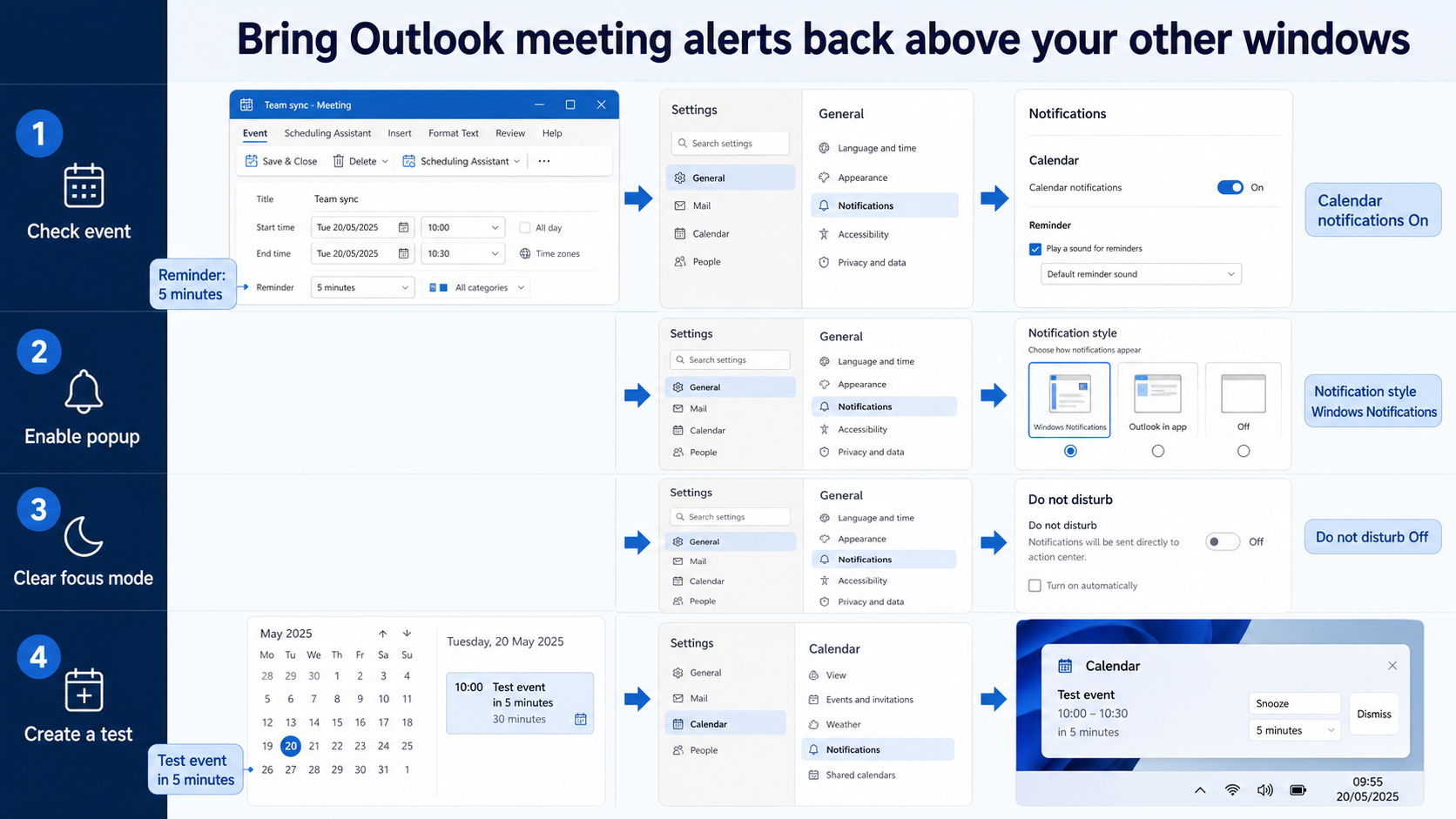
Build a reminder test you can observe
Create a harmless appointment a few minutes ahead with an explicit reminder. Observe the event setting, Outlook notification style, and operating-system delivery separately. Change only one variable before repeating the test, and keep the failing example unchanged until the comparison is complete.
For reminders, use a newly created event so an old dismissal cannot confuse the result. Write down the reminder lead time, chosen Outlook notification style, Windows Do not disturb state, and whether the browser tab stayed open. A visible banner that fails only behind other windows is different from no notification being created.
When results differ between desktop and web, do not keep changing both clients. A working web result usually proves that the cloud object and account still exist, leaving desktop installation, operating-system permission, or cached session as the narrower scope. Failure in both places makes the item, account, policy, connector, or service configuration more likely.
For a managed account, provide the affected identity, client, time, one reproducible example, the second-client result, and any visible error. Keep screenshots focused on the relevant pane and remove private names. Avoid sending passwords, private documents, recordings, or full card payloads unless the support owner requests them through an approved channel.
Before closing this Outlook issue, repeat the successful path with a second ordinary example. If the second example works, preserve the original failure for object-specific review. If it fails in the same place, the shared client, account, permission, policy, or connector layer remains the stronger lead.
Practical verification notes
Repeat the successful path with a second ordinary example before calling the issue resolved. The second test should use the same account and client but a different item, meeting, file, or run. If only the original example fails, investigate that object’s settings and history. If both fail, continue at the client, policy, connector, or service layer.
Keep rollback simple. Save existing settings before changing them, avoid deleting shared data during diagnosis, and prefer reversible tests such as a new appointment, copied flow, private meeting, or sample file. This protects production work while giving support a clean comparison.
Reminder troubleshooting FAQ
Why do reminders work only when Outlook is open?
Outlook on the web requires the web app to remain open in the browser for event notifications. Desktop behavior also depends on the app and operating system being able to run. Use the supported desktop client if you need notifications without an open browser tab.
Why did one meeting fail while others alerted normally?
That event may have its reminder set to Don’t remind me, or one occurrence in a series may have been changed. Open the exact occurrence and compare it with a working event. Save a corrected reminder and create a separate short test.
Can Focus or Do not disturb suppress Outlook?
Yes. Microsoft specifically points to Windows Notifications, Focus Assist, Do not disturb, and Teams status as possible interference. Temporarily allow Outlook during a controlled test, then build a focused rule that still permits calendar alerts.
Should I dismiss old reminders automatically?
That is a preference, not a repair. In new Outlook, automatic dismissal is available with Reminder style and affects past events. Leave it off during diagnosis so an old reminder is not removed before you can observe it.
Make the fix measurable
A successful test should produce one visible alert at the expected minute with the chosen client open. Repeat once after restoring your normal Focus settings. If the failure returns only under a specific Windows or browser state, adjust that layer; if it follows the mailbox across clients, capture the event reminder value and contact Microsoft 365 support.