Calendar meeting reminder notifications stopped working
You scheduled an important client meeting for next week and set a 15-minute reminder, but when the time came, no notification appeared on your screen. Missing calendar reminders in Outlook can cause you to miss critical appointments, leading to missed opportunities and damaged professional relationships. This common issue affects both Outlook desktop and web applications, leaving users wondering why their carefully planned schedule alerts have suddenly disappeared.
Understanding appointment reminder notification failures
Calendar reminder failures typically stem from corrupted notification settings, cached data conflicts, or synchronization issues between your local Outlook client and Microsoft 365 servers. These problems can occur after Outlook updates, profile changes, or when switching between different devices and platforms.
We will cover troubleshooting steps to restore your Outlook calendar reminders across desktop and web versions. We will cover notification settings verification, cache clearing procedures, profile repair methods, and advanced registry modifications when necessary. The workflow focuses on identifying the root cause of reminder failures and implementing targeted fixes based on your specific Outlook configuration and environment setup.
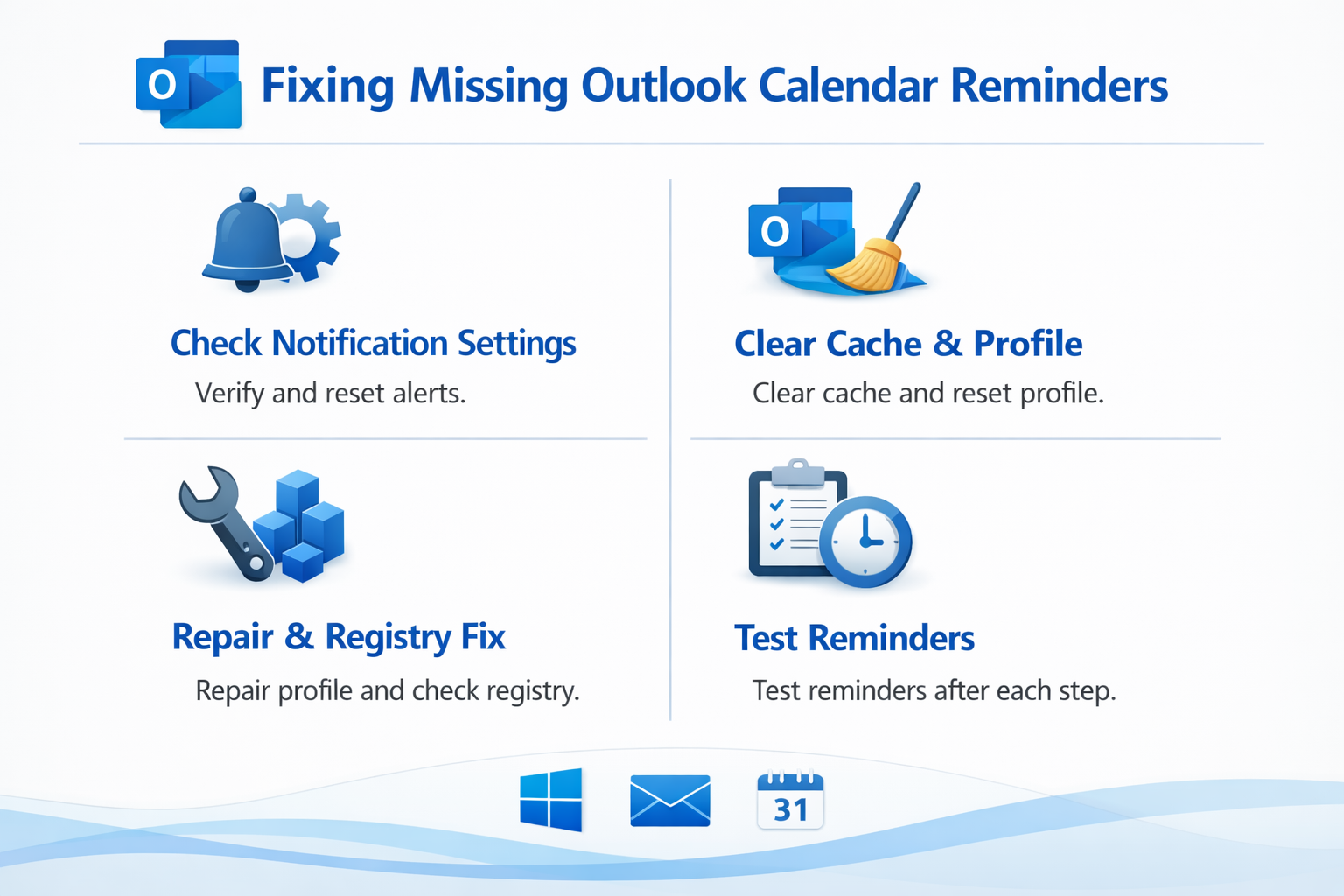
Restoring calendar notification functionality step by step
Verify and reset notification settings
- Open Outlook desktop application and navigate to File menu, then select Options from the left sidebar to access your account configuration settings.
- Click on Calendar in the left navigation panel and locate the Calendar options section where reminder settings are configured for your account.
- Ensure the “Default reminder” checkbox is selected and set your preferred notification time using the dropdown menu next to this option.
- Scroll down to find the “Reminder options” section and verify that “Play reminder sound” is checked if you want audio notifications enabled.
- Click on “Browse” next to the sound file option and select a different notification sound, then test it using the “Play” button to confirm audio functionality.
- Navigate to Advanced options and click on “Reminder Options” button to access detailed notification settings that control how reminders appear on your screen.
- Verify that “Show reminders on top of other windows” is enabled and adjust the reminder display duration according to your preferences for maximum visibility.
Clear Outlook cache and reset profile data
- Close Outlook completely using Task Manager to ensure all background processes are terminated before proceeding with cache clearing procedures that require exclusive file access.
- Press Windows key + R to open the Run dialog box and type “%localappdata%\Microsoft\Outlook” to navigate to your local Outlook data folder location.
- Locate and rename the “RoamCache” folder to “RoamCache_backup” to clear potentially corrupted cached data that might interfere with reminder notifications.
- Navigate back to the Outlook folder and find files with “OST” extension, then rename your main OST file by adding “_backup” to create a fresh synchronization.
- Restart Outlook and allow it to recreate the cache files and re-synchronize your mailbox data from the Microsoft 365 servers automatically.
- Test reminder functionality by creating a new calendar event with a 1-minute reminder to verify that notifications are now working properly in your environment.
Expert Tip: Before modifying cache files, create a backup of your entire Outlook folder to prevent potential data loss during the troubleshooting process.
Resolving common reminder restoration challenges
- Reminders work intermittently or only for new events: This typically indicates a synchronization delay between your local Outlook client and Microsoft 365 servers, requiring you to adjust sync frequency settings in Account Settings under Send/Receive tab for more frequent updates.
- No sound notifications despite enabled audio settings: Windows Focus Assist or Do Not Disturb mode might be blocking Outlook notifications, so navigate to Windows Settings > System > Focus Assist and add Outlook to your priority notification list for consistent audio alerts.
- Reminders appear but disappear immediately without user interaction: Registry corruption in the reminder display settings often causes this behavior, requiring you to delete the entire Reminders registry key and restart Outlook to recreate default notification parameters.
- Calendar events sync but reminders only work in Outlook web version: Profile corruption in desktop Outlook prevents proper reminder processing, so create a new Outlook profile through Control Panel > Mail and reconfigure your account settings to restore full notification functionality across applications.
For more tips on troubleshooting Outlook calendar and notification issues, see our guide on calendar sync issues in Outlook and advice on automated reminders in Outlook for enhanced productivity.
Check the complete reminder delivery path
A reminder can be configured correctly in Outlook and still fail before it reaches the screen. Test the path in layers instead of repeatedly recreating the appointment.
This test separates calendar data from notification delivery. If the reminder appears in Outlook but no Windows banner appears, the calendar item is healthy and the operating-system notification settings are the likely cause. If no reminder appears anywhere, confirm that the event is stored in the intended calendar and that its reminder field is not set to None.
Compare one account and one device
For people with several mailboxes, create the same test appointment in the primary Microsoft 365 calendar and in the affected shared or secondary calendar. Then compare Outlook on the web with the desktop app. A reminder that works on the web but not the desktop points to a local profile, cache, or notification problem. Failure on every device points more strongly to the event, calendar permissions, or mailbox configuration.
Do not rely on reminders for a meeting that another organizer may still change. Open the event after an update and verify the new time and reminder value. If you also use Teams, check its notification and quiet-time settings separately; Teams controls do not repair an Outlook reminder.
After changing a setting, repeat the short test appointment before clearing caches or rebuilding a profile. That evidence keeps the troubleshooting focused and avoids an unnecessary reset.