Windows Autopilot pre-provisioning splits device setup into a technician phase and a user phase. IT, a partner, or an OEM applies device-targeted policies and supported apps before delivery. The employee then completes the familiar user-driven experience with less work left to download.
Pre-provisioning builds on a working user-driven Autopilot deployment. If device registration, automatic enrollment, network access, or the enrollment status page is not healthy, adding a technician phase will not fix the foundation. Use a small hardware pilot and prove the full handoff before giving the process to a supplier.
Readiness checklist
Confirm these items before editing the profile:
- The hardware is registered as a Windows Autopilot device.
- Automatic MDM enrollment and required licensing are in place.
- A supported user-driven Microsoft Entra join or hybrid join scenario works.
- The deployment profile and enrollment status page are assigned to the intended device group.
- Required device-context apps install silently and do not need user input.
- The device can reach Microsoft cloud endpoints during out-of-box experience.
The technician phase installs device-targeted policies and apps. It can also install user-targeted Win32 or line-of-business apps when they run in device context and a user is preassigned. Other user-targeted policy waits until the employee signs in.
Keep the app mix predictable
Microsoft warns against targeting both Win32 and line-of-business app types to the same pre-provisioned device. Standardize important desktop software as Win32 apps where practical, and reduce the required app set to what the employee needs on day one.
If a device reaches Windows but its assigned software is unstable, the general app launch checks help separate an application failure from an Autopilot enrollment problem.
Enable pre-provisioning on the deployment profile
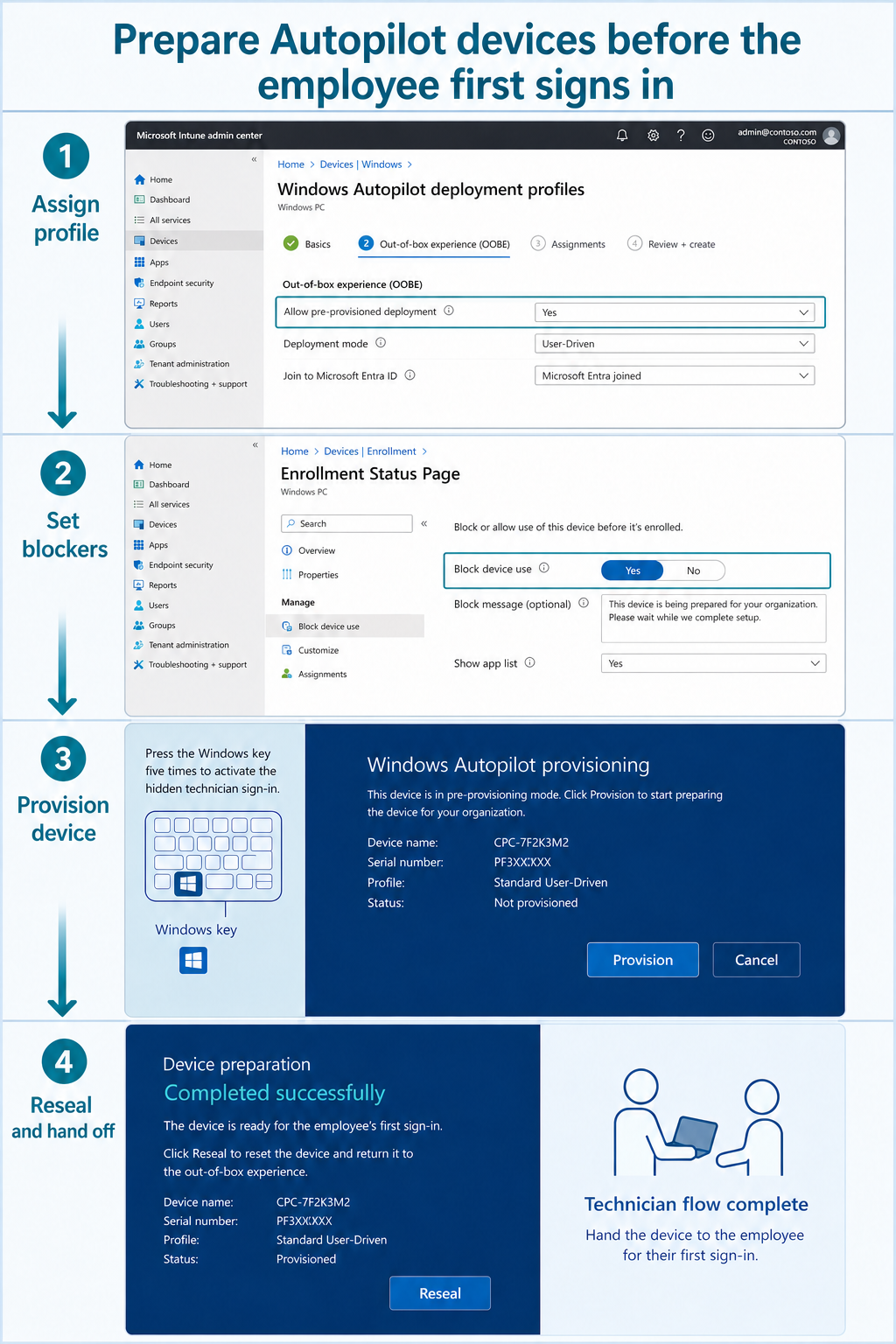
In the Intune admin center, open Devices > Windows > Enrollment > Windows Autopilot deployment profiles and create or edit a user-driven profile for the applicable join type. Set Allow pre-provisioned deployment to Yes. Microsoft recommends a user-specified language mode so technicians can enter pre-provisioning mode more easily on different hardware.
Configure the remaining out-of-box settings according to your organization’s user-driven design, then assign the profile to the Autopilot device group. Do not target the same device with conflicting profiles. In the Windows Autopilot devices list, confirm that the intended profile shows as assigned before beginning the technician phase.
Align the enrollment status page
The enrollment status page controls whether setup waits for required apps and profiles. Select only business-critical blocking apps. A long list turns a small packaging defect into a failed pre-provisioning event, while no meaningful blockers can seal a device before essential software arrives.
Review timeouts and the option users see when setup fails. A technician needs a documented decision: retry after fixing connectivity, reset the device, or return it to engineering. Do not let a technician bypass a failed required security component just to seal the PC.
Run the technician phase
Start the registered device at the first out-of-box screen and establish a network connection. At the regional selection page, press the Windows key five times. Select Windows Autopilot provisioning, review the organization and profile information, and choose Provision.
The device downloads the assigned profile, enrolls, and applies device-targeted content. Watch the enrollment status page rather than interrupting the process. When the technician phase completes successfully, select Reseal. The device shuts down and is ready to ship.
Do not sign in as the eventual user during the technician phase. If testing requires a full user sign-in, treat that unit as a test device and reset it before delivery. A pre-provisioned device cannot simply repeat the same Autopilot enrollment indefinitely without cleaning up the relevant device record and reset state.
Validate the employee handoff
Power on a resealed pilot device and complete the user phase with the assigned employee account. Confirm that organization branding appears, the device joins the intended directory, and the remaining user-targeted content finishes. Then check Intune for enrollment, compliance, configuration, and application status.
When the red screen appears
A red pre-provisioning screen indicates the technician flow failed. Check profile assignment, device identity, network access, enrollment restrictions, the enrollment status page, app install context, and Intune Management Extension logs. A silent installer that works interactively can still fail under system context.
If Windows is stuck in a reboot cycle outside the Autopilot screens, use the boot recovery decision path before retrying provisioning. Hardware or operating-system instability should not be hidden by repeated resets.
When the wrong organization appears
Stop immediately. Verify the device’s Autopilot registration, serial number, hardware hash record, group membership, and profile assignment. Do not continue or reseal a device that displays another tenant’s branding.
Before handing the process to a partner
Write a short runbook containing the approved network method, the expected organization name, the correct profile, success and failure screens, and the escalation contact. Give technicians no administrative credentials for the employee account. If a partner performs the work, use role and scope controls appropriate to their task rather than a broad Intune administrator role.
Measure technician duration for multiple hardware models. Slow or inconsistent models often expose driver, firmware, or oversized app issues that a single successful test misses. Test again when the enrollment status page or required app set changes.
Questions about the technician flow
Does pre-provisioning replace user-driven Autopilot?
No. It extends a supported user-driven scenario by completing the device-focused work first. The user still signs in and completes the user phase after the device is resealed.
Must a user be assigned before the technician starts?
Not always. Without a preassigned user, the technician phase applies device-targeted content. Preassignment can allow eligible user-targeted, device-context apps to install earlier, but other user-targeted policy still waits for sign-in.
Can technicians install interactive applications?
Required Intune applications must install silently in the deployment context. An installer that displays prompts is unsuitable for an unattended enrollment status page. Repackage it or change the deployment method before making it a blocker.
What should happen after a failed pilot?
Identify the exact failed profile or app, correct it, and reset the test device into a known supported state. Repeating the same sequence without changing the root cause only produces another red screen and makes the evidence harder to interpret.
Deliver a repeatable result
Pre-provisioning succeeds when the ordinary Autopilot path, app packaging, and enrollment status page are already reliable. Keep device-context requirements small, verify profile assignment, and never reseal after a security-critical failure. A measured pilot across real hardware provides the evidence needed to expand to a partner or staging team. The employee should receive a predictable business-ready PC, not become the final tester of the technician workflow.