Intune Win32 app supersedence lets a new application replace or update an older Win32 app. The relationship controls which package is newer and whether Intune should send the older app’s uninstall command first. It does not automatically assign the new app, and it is not the same as an app dependency.
The safest deployment begins with installer behavior and detection rules, not the Supersedence page. This tutorial follows a release from packaging through pilot monitoring so you can avoid uninstall loops, false detections, and an upgrade that never reaches devices.
Prepare both app records
Add the new release as its own Windows app (Win32) record. Confirm its install and uninstall commands are silent, because Intune does not support installers that require user interaction. Configure requirements and a detection rule that identifies only the new release.
Keep the old app record available while you build the relationship. Its uninstall command must work if you intend to choose Uninstall previous version: Yes. Test both commands locally under the same user or system context planned in Intune.
Pick an upgrade strategy
Use No for Uninstall previous version when the new installer performs a reliable in-place update. Use Yes when the products cannot coexist or the new package does not remove the old application. A different replacement product usually needs the uninstall-first path, but confirm that user data and shared components are preserved.
If a failed Windows update or reboot is already affecting the pilot device, resolve that condition before blaming the package. This recovery sequence helps separate endpoint servicing trouble from Intune app behavior.
Recheck the detection rules
The superseded app should detect its installed version accurately, and the new app must not report installed merely because a shared file or registry key exists. Prefer a version-aware MSI, file, or custom detection rule. A weak rule can make Intune skip installation or repeatedly offer the app.
Add the supersedence relationship
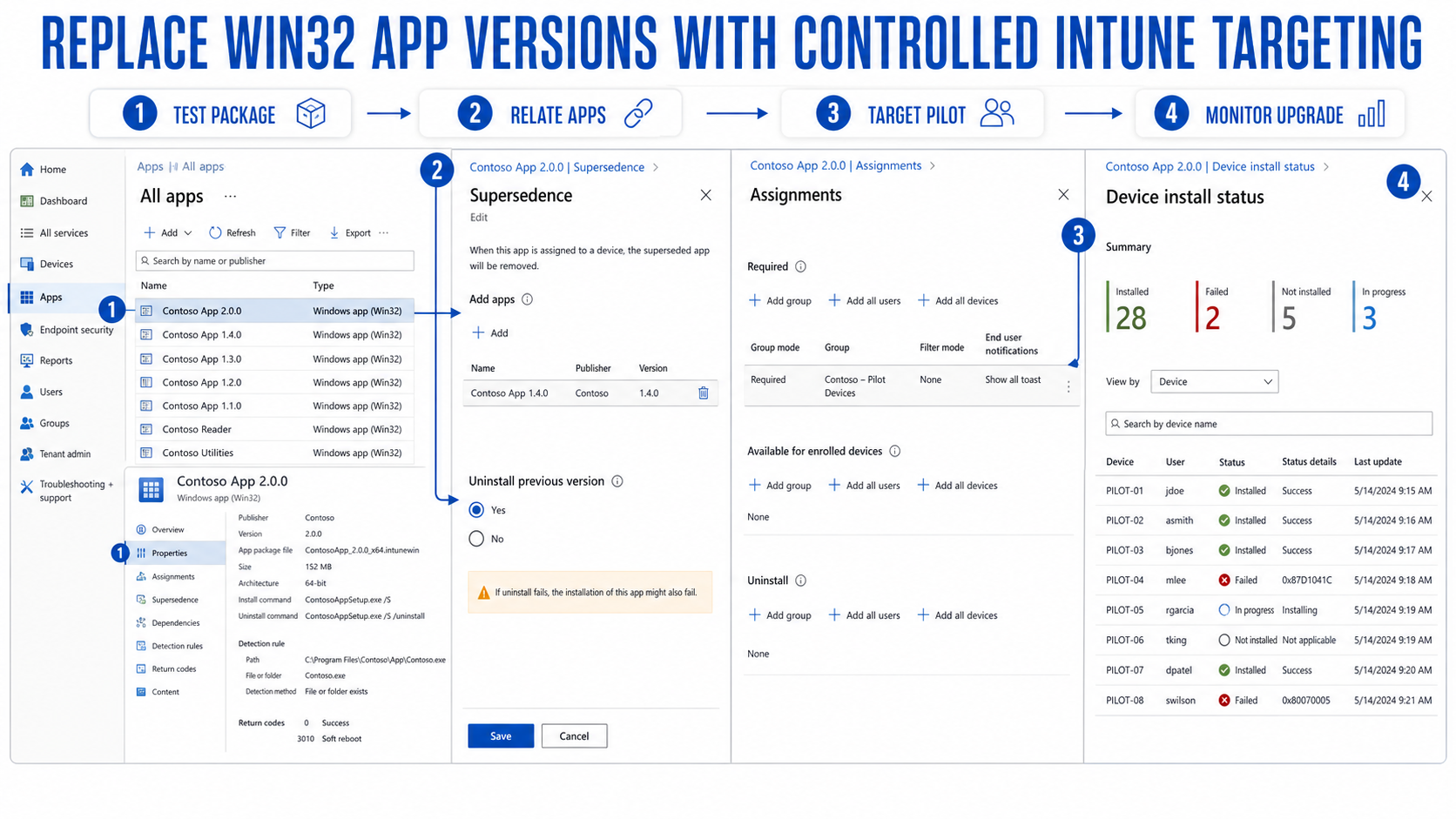
Open Apps > All apps in the Intune admin center and select the new Win32 app. Choose Properties, find Supersedence, and select Edit > Add. Search for the old Win32 app and add it to the list.
For each older app, set Uninstall previous version to Yes or No according to the tested installer strategy. Review the relationship, then select Review + save. The new app is the superseding app; the selected older record is the superseded app.
You need the Intune Mobile apps > Relate permission to create or edit these relationships. The feature applies only to Win32 apps. Do not try to use supersedence to interchange a dependency or replace a different Intune app type.
Assignment is the switch that starts deployment
Supersedence alone does not target the new package. Assign the superseding app explicitly. For a controlled rollout, use a small device group with Required intent, or publish it as Available for enrolled devices to a user group.
Required deployment installs the new package when it is applicable. With an available assignment, users see only the superseding app in Company Portal. Intune also supports Auto-update for eligible available assignments: users who previously installed the older available app from Company Portal can receive the newer one automatically.
Do not change production assignments and build the relationship in one unreviewed move. First save the app configuration, verify the relationship viewer, and then apply the pilot assignment. A staged approach makes rollback and status interpretation much clearer.
Watch the first migration closely
Select the new app and review device install status. Check at least one device with the old version installed and one clean device. The expected outcome depends on the relationship:
- With uninstall set to Yes, Intune removes the detected old app and installs the new one.
- With uninstall set to No, Intune installs the new app and the installer decides whether the older version remains.
- On a clean device, only the new app installs.
For available-app auto-update, allow for the additional check-ins Microsoft documents. A user also needs to be signed in for the auto-update scenario. Do not mark the deployment failed simply because the relationship was saved recently.
Investigate a replacement failure
Review the Intune Management Extension logs, the app’s return codes, and both detection rules. If uninstall succeeds but install fails, test the new command independently. If the new app installs but Intune reports failure, the new detection rule is the likely problem.
Also check whether a local file-access or security control blocked the installer. The Windows access-denied troubleshooting path can help confirm whether the package source, staging directory, or installer process lacks access.
Avoid relationship traps
Intune supports chains, but a long chain is harder to reason about and has a documented node limit. Keep a direct relationship from the current release to the versions you must replace when that is operationally clearer. Examine dependencies in the same app graph because supersedence takes precedence and conflicting relationships can produce a reported conflict.
Azure Virtual Desktop multi-session supports supersedence only for system-context, device-based apps. Also remember that only targeted apps show install status, which is another reason to confirm assignments before interpreting an empty report.
Common supersedence questions
Does supersedence upgrade every device with the old app?
No. The superseding app must be explicitly targeted. If it reaches a device that has the superseded app, Intune applies the relationship even when the old app is no longer targeted.
Should I delete the old app after rollout?
Not immediately. Keep it while you monitor the migration and preserve rollback options. Remove obsolete records only after the current package is stable and no active dependency or supersedence relationship still relies on them.
Can an available app update automatically?
Yes, when the new app is assigned as Available for enrolled devices, the supersedence relationship exists, and Auto-update is enabled for the assignment. The behavior is for users who obtained the older available app through Company Portal, not required deployments.
What happens if both versions can coexist?
Set uninstall to No only when the new installer’s behavior and your licensing or support model allow coexistence. Make the new detection rule version-specific, then test shortcuts, file associations, and user data before expanding the assignment.
Release with a rollback path
A good supersedence deployment has a tested silent installer, accurate detection, a deliberate uninstall choice, and an explicit new-app assignment. Pilot on devices that represent both upgrade and clean-install states. Keep the previous package intact until status and user experience are stable. That preparation turns supersedence into a controlled application lifecycle tool rather than a risky mass uninstall.