Fix Windows 11 Restart Loop After Update by choosing the recovery path that matches what the PC actually does after the failed update restart. A loop that reaches the sign-in screen is not the same as a loop that drops into Automatic Repair, and both are different from a blue-screen restart cycle. The fastest safe route is a decision tree: identify the loop, enter Windows Recovery Environment, try Safe Mode, roll back the latest update, and only then use broader repair or reset options.
This guide is intentionally narrow. It focuses on post-update restart loops where Windows repeatedly restarts during or after update completion, not generic slow restarts or every no-boot scenario.
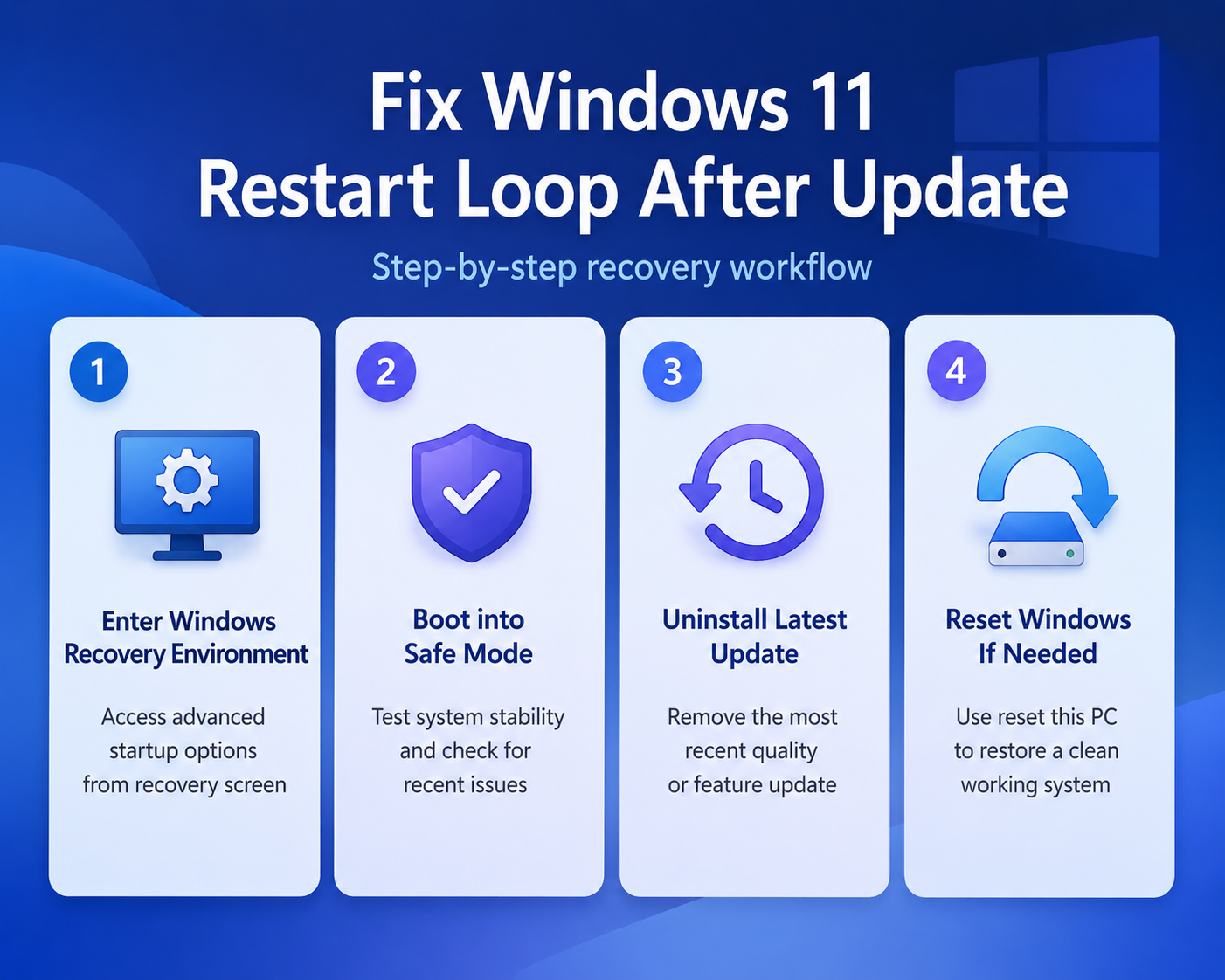
Choose the right recovery path
Identify the loop pattern first
Watch one full restart cycle before changing anything. If the PC shows the spinning dots, restarts, and eventually opens Automatic Repair, use Windows Recovery Environment. If it reaches the sign-in screen and restarts only after you log in, start with Safe Mode and remove startup drivers or security tools. If it shows a blue screen and restarts too quickly to read, use Startup Settings later to disable automatic restart on system failure.
Do not keep forcing shutdowns after the recovery screen is already available. Repeated hard power-offs can interrupt rollback work and increase disk repair time. My recovery attempts are more reliable when I stop cycling power after Windows RE appears.
Enter Windows Recovery Environment safely
If Windows does not open recovery by itself, interrupt startup carefully. Turn on the PC, wait for the Windows or manufacturer logo, then hold the power button until it shuts down. Repeat that process two times, then start the PC a third time. Windows should open Automatic Repair; choose Advanced options.
You can also use Shift while selecting Power >> Restart if you can reach the lock screen. BitLocker-protected devices may ask for a recovery key before some tools work, so get that key from your Microsoft account or your organization before uninstalling updates.
Try Safe Mode before rollback
Start Safe Mode from recovery
From Choose an option, select Troubleshoot >> Advanced options >> Startup Settings >> Restart. After the restart, press 4 or F4 for Enable Safe Mode. Use 5 or F5 only when you need networking to download a driver or sign in to a managed tool.
Safe Mode starts Windows with a limited set of drivers and services. If the loop stops in Safe Mode, Windows itself can still load, and the post-update problem is probably tied to a third-party driver, startup app, security product, display driver, or update component that loads during normal startup.
Remove drivers and startup blockers
In Safe Mode, open Settings >> Windows Update >> Update history and note the most recent update. Then open Device Manager and look for recently updated display, storage, VPN, printer, docking, or security drivers. Roll back or uninstall only the change that lines up with the first failed restart.
Open Task Manager >> Startup apps and disable nonessential startup tools for one test boot. Security suites, VPN agents, hardware utilities, and old peripheral software are common post-update blockers because they load early. When Windows starts normally again, re-enable items one at a time instead of turning the entire list back on.
For update installation failures that happen after the desktop loads, use this separate guide to resolve failed update installs. If the main symptom is freezing after sign-in rather than a restart cycle, compare it with these check random freeze symptoms.
Roll back the problem update
Uninstall the latest quality update first
Return to Troubleshoot >> Advanced options and choose Uninstall Updates. Start with Uninstall latest quality update because quality updates are the monthly cumulative updates most often installed right before a sudden restart loop. This option is narrower than a feature rollback and usually preserves more of the current Windows setup.
After the uninstall finishes, restart normally and wait through one complete boot. If Windows loads, do not immediately force the same update again. Free disk space, disconnect unnecessary USB devices, check the PC maker’s driver updates, and then run Windows Update from a stable desktop session.
Use feature rollback only when matched
Use Uninstall latest feature update only when the timing matches a major Windows version upgrade. Feature rollback is more disruptive than removing a quality update, and Windows may offer it only for a limited recovery window. If that option is unavailable, do not delete recovery folders or try to fake the rollback.
If the feature rollback works, pause before reinstalling the upgrade. Update firmware, storage, graphics, and chipset drivers from the device maker first. Post-update restart loops often come back when the same driver conflict meets the same feature update again.
Repair only after rollback fails
Run Startup Repair one time
Use Troubleshoot >> Advanced options >> Startup Repair when Windows Recovery Environment opens but Safe Mode and update uninstall do not break the loop. Startup Repair checks startup files, boot configuration data, and related settings that can prevent Windows from starting correctly. Let it finish, then restart once.
Avoid running Startup Repair five times in a row. One clean run is useful; repeated identical runs usually mean the problem sits in an update rollback, driver, disk, or Windows image layer. If Startup Repair reports it cannot repair the PC, keep the report in mind and move to the least destructive remaining option.
Keep files during final reset
Use Reset this PC >> Keep my files only after the update-specific path fails. This reinstalls Windows while preserving personal files, but it can remove apps and reset settings. On a work device, check with IT first because encryption, device management, VPN, and business apps may require a company recovery process.
If you can still enter Safe Mode, back up important local files befo