A failed Intune enrollment can leave a Windows device between states: the work account exists locally, a Microsoft Entra record was created, but Intune has no healthy managed-device record. Retrying the same enrollment from Company Portal often returns a different error without removing the original cause.
Recover by classifying the failure before disconnecting anything. Licensing, enrollment restrictions, existing management, account permissions, stale certificates, and Autopilot configuration need different corrections.
Capture the enrollment boundary
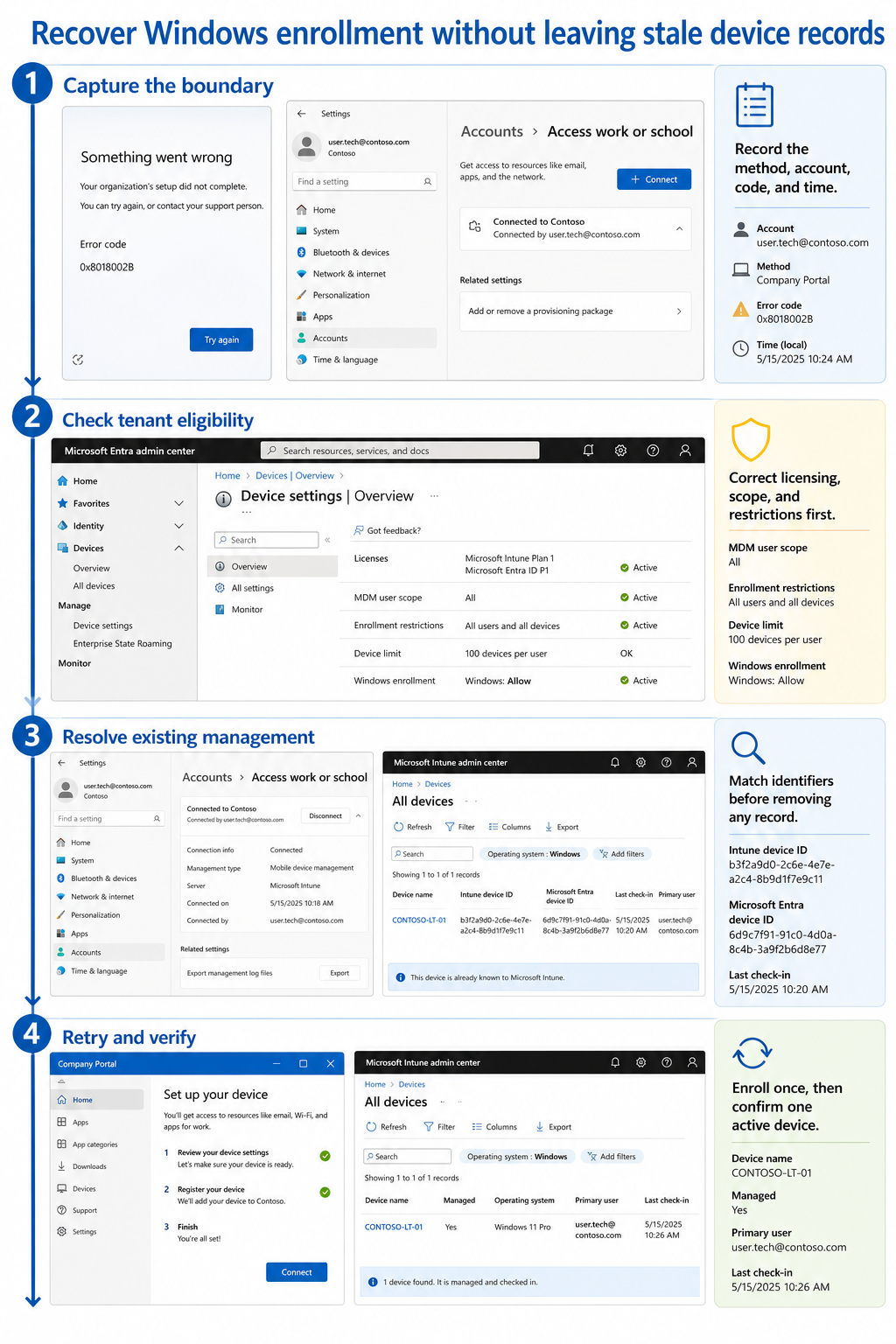
Write down the full error text and code, the enrollment method, the account used, and the approximate failure time. Note whether the device was being joined to Microsoft Entra ID, adding a work or school account, enrolling through Company Portal, or provisioning through Windows Autopilot.
Check Settings > Accounts > Access work or school. A connection can exist even when MDM enrollment failed. Select the work account and inspect Info when available; if Windows shows Sync and management information, do not assume the device is unenrolled.
Decide whether the failure is before or after Microsoft Entra join
If the account could not authenticate or the organization was not found, start with identity, network, and the entered user principal name. If Microsoft Entra join succeeded but MDM enrollment failed, focus on Intune licensing, MDM user scope, platform restrictions, user/device limits, and management records.
An Autopilot failure at ESP belongs to the provisioning path. Use the provisioning-stage checks when the device has already reached Device setup, rather than treating it as a normal Company Portal enrollment.
Match the message to the administrative check
| Failure clue | Administrative check | Avoid doing first |
|---|---|---|
| User is not allowed or not licensed | Intune license, MDM user scope, enrollment permissions | Resetting Windows |
| Platform is blocked | Windows enrollment restriction and assignment | Reinstalling Company Portal |
| Device limit reached | User device limit and stale device inventory | Deleting the active device blindly |
| Already managed | Existing work connection, MDM provider, and certificates | Adding the account repeatedly |
| Join is not permitted | Microsoft Entra device settings and user join quota | Changing the app package |
| ESP timed out | Autopilot profile, blocking workload, and diagnostics | Assuming enrollment never started |
Check the user’s license directly and confirm the user is included in the configured MDM user scope. Then review Devices > Enrollment > Enrollment restrictions in Intune. A default restriction and a higher-priority assigned restriction can produce different results for users who appear similar.
Confirm that Windows is not already managed elsewhere
The message that the device is already managed can be accurate. Windows might still be enrolled in Intune under another account, connected to another MDM provider, or carrying remnants from a previous organizational enrollment. Compare the local work-account connection with Intune and Microsoft Entra device records using serial number and device ID, not only the computer name.
Do not disconnect a corporate device simply to test. Removing a work connection can remove access to managed resources, certificates, and policy. Confirm the intended recovery path and any required administrator credentials first.
Recover in a controlled order
Use the smallest sequence that matches the cause:
- Correct licensing, MDM scope, join permission, platform restriction, or device limit in the tenant.
- Wait for group or license changes to become effective before retrying.
- On the device, confirm network access and the correct work identity.
- Remove a stale work connection only when the active record and organizational procedure prove it is safe.
- Restart Windows so account and enrollment services start from a clean session.
- Enroll once through the intended method and preserve the new error if it fails.
For a previously enrolled device, coordinate cleanup between the local connection, Intune managed-device record, Microsoft Entra device object, and Windows Autopilot record. Those objects are related but not interchangeable. Deleting every matching name can damage reuse or Autopilot assignment.
Use Windows evidence when the retry still fails
Open Event Viewer and inspect Applications and Services Logs > Microsoft > Windows > DeviceManagement-Enterprise-Diagnostics-Provider > Admin around the recorded time. The event details can show discovery, authentication, policy, certificate, or MDM enrollment errors that the user-facing dialog shortens.
For Microsoft Entra registration and Autopilot issues, provisioning diagnostics and the Autopilot diagnostics package add the join and OOBE context. Keep the Windows event timestamp aligned with the server-side enrollment attempt so two different retries are not mixed.
Avoid deleting enrollment certificates based only on a generic web suggestion. Certificates under the local computer account can represent the current organization. Use certificate cleanup only for a documented stale-enrollment condition and after you have identified the certificate and management record involved.
Confirm a clean managed state
A successful join message is not the end of the recovery. Verify that Intune has one active Windows managed-device record with a recent check-in, the expected ownership, and the intended primary user. Confirm that Access work or school shows the correct connection and that Company Portal recognizes the device.
Allow compliance policy to evaluate, then confirm the new record has evaluated before troubleshooting access. A brand-new enrollment can briefly show unknown or not evaluated while policies and inventory arrive.
Enrollment recovery questions
Why does Windows say the device is already managed?
Windows found an existing MDM relationship or organizational connection. Compare the account and device identifiers with tenant records before removing anything. If another organization manages the device, only that organization or an approved reset/retirement process can release it safely.
Can I delete the Intune device and enroll it again?
Sometimes, but deletion should match the enrollment method and reuse plan. An Intune record, Microsoft Entra object, and Autopilot registration serve different purposes. Confirm which object is stale and whether the device must remain registered for Autopilot before deleting a record.
Why did enrollment fail after a user received an Intune license?
License assignment might not have propagated, the user might be outside MDM scope, or a platform restriction or device limit might still block enrollment. Recheck the effective user configuration rather than only the license pane. Wait for the change, then make one new enrollment attempt.
Does the user need local administrator rights?
The answer depends on the enrollment method. Enrolling an already configured Windows device through Company Portal can require local administrator rights, while Autopilot and a brand-new Microsoft Entra join use different system-driven flows. Choose the supported organizational method instead of elevating a user permanently.
Return the device to one clear identity
The recovery is complete when Windows, Microsoft Entra, Intune, and Company Portal refer to one active device and the intended work account. Keep the original error, correct its administrative boundary, and retry only after the prior state is understood. That approach avoids replacing one failed enrollment with duplicate records, lost Autopilot registration, or an unmanaged device that merely looks connected.