“Not compliant” is a summary, not a diagnosis. An Intune device can receive that label because one required setting failed, a grace period expired, the device did not receive a compliance policy, or the service has not received a recent check-in. The fastest repair is to find the setting-level result before resetting Company Portal or removing the work account.
This guide follows the evidence from the device record to the user-facing remediation message and separates actions a user can take from changes that require an Intune administrator.
Start with the setting behind the label
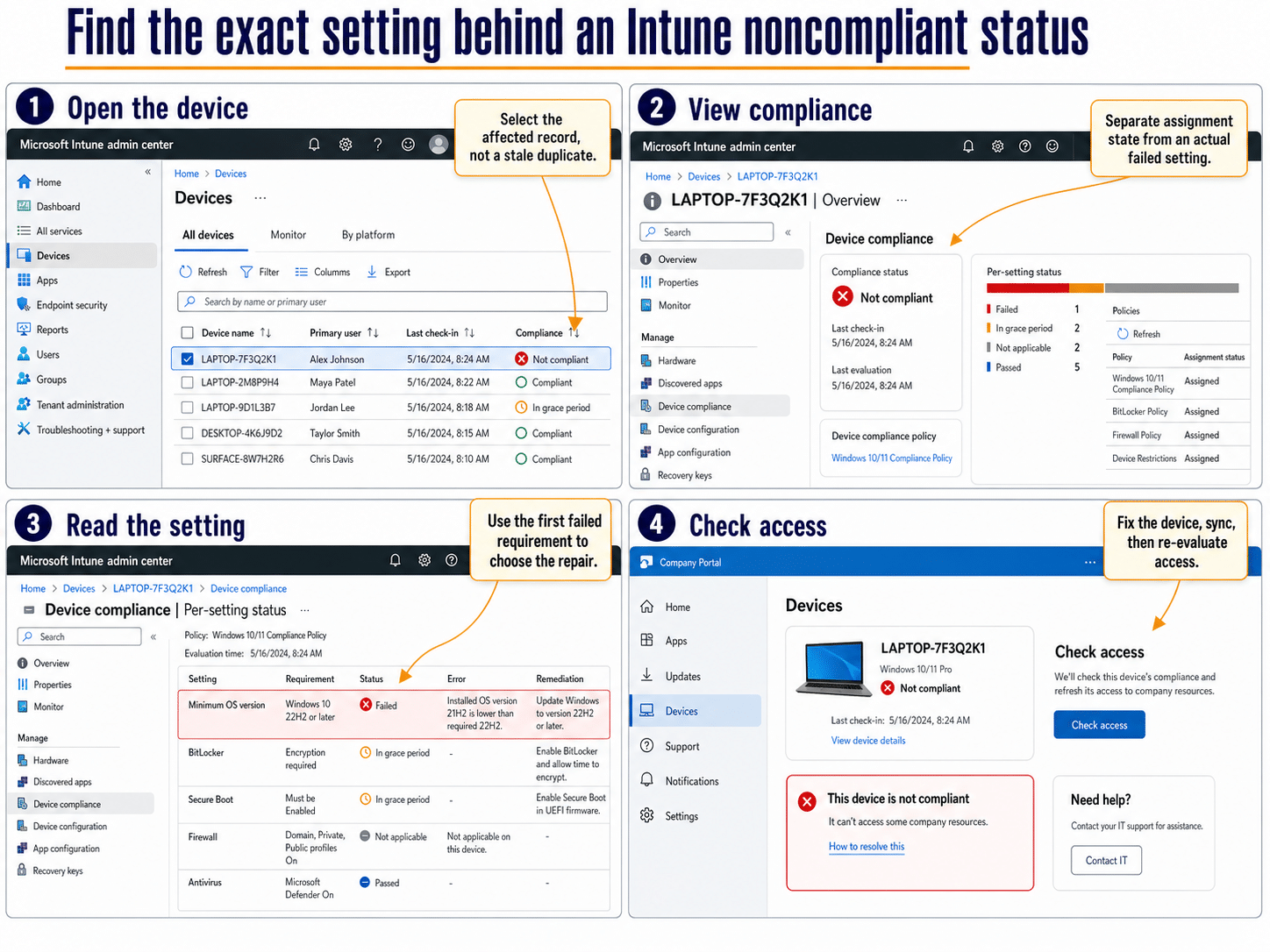
In the Microsoft Intune admin center, open Devices > All devices, select the active device, and choose Device compliance. Review the assigned policies and open the relevant policy to see its per-setting status.
Distinguish failure, error, and grace period
A failed setting means Intune evaluated the requirement and the device did not meet it. An error means evaluation could not complete, so the error code and platform state matter more than the policy threshold. “In grace period” means the requirement is not yet satisfied but the configured noncompliance action has not reached its deadline.
Also check Last check-in and Last contact timestamps. A device that has not checked in recently may show an old result even after the user corrected the setting.
Work from the active device object
Compare the device name, serial number, Microsoft Entra device ID, operating system, enrollment date, and primary user. If several records have similar names, do not retire or delete anything during diagnosis. First identify which record is actively checking in and which enrollment Company Portal displays.
Match common failures to the right repair
The per-setting report should point to a concrete requirement. Use that requirement to choose the next action.
- Minimum operating system: Install pending Windows updates, restart, and confirm the reported build changed.
- BitLocker or encryption: Open Windows security or encryption settings and complete the organization-approved enablement flow. Do not suspend protection simply to obtain a passing state.
- Secure Boot: Confirm support and state in System Information or firmware settings. Firmware changes may require IT assistance and a recovery key.
- Firewall or antivirus: Verify that the required Microsoft security service is running and that a third-party product is reported through the expected security provider.
- Password or PIN: Apply the required length or complexity, then lock and unlock the device before checking access again.
- Threat level: Open the connected security product, resolve active alerts, and wait for its risk signal to reach Intune.
If authentication fails while several Microsoft 365 apps are also asking for credentials, use the broader work-account sign-in checks to isolate a stale token or blocked identity before changing compliance thresholds.
Let the user recheck access
On the affected Windows device, open Company Portal, select Devices, choose the current device, and select Check access. When Company Portal provides How to resolve this or Resolve, follow that targeted action.
After correcting the setting:
- Keep the device connected to the internet and power.
- Restart if the operating system or encryption change requires it.
- Open Company Portal and choose Check access again.
- If needed, open Settings > Accounts > Access work or school > connected account > Info > Sync.
- Wait for the check-in timestamp to advance before repeating the same repair.
Do not alternate rapidly between sync buttons. Multiple requests do not make a platform requirement evaluate faster, and they can obscure which action produced the updated result.
Use the admin view for policy-side causes
When the user has completed remediation but the state remains wrong, review the policy and tenant settings.
Review actions for noncompliance
Every compliance policy includes an action that marks the device noncompliant, commonly with a zero-day schedule. A configured grace period changes when the action takes effect; it does not make the failed setting compliant. Confirm that the schedule reflects your organization’s intent before changing it.
Check “no policy assigned” behavior
Tenant-wide compliance policy settings can determine how devices without an assigned compliance policy are treated. If the device shows no assigned policy, investigate targeting rather than telling the user to toggle local security controls. An assignment, exclusion, or filter issue must be repaired in Intune.
Compare the platform report
Use device compliance reporting to see whether the problem affects one device, one model, one operating-system build, or an entire assignment group. A cluster of identical failures usually points to policy applicability, a security integration, or a recent platform change. One isolated failure is more likely to be local state or stale enrollment.
Avoid destructive shortcuts
Do not remove the work account, retire the device, delete the Intune record, or factory-reset Windows as a first response. Those actions can remove managed access, applications, certificates, or recovery information without fixing the original requirement.
If Company Portal itself will not open, repair the Windows app layer before touching enrollment. These Windows app recovery steps help confirm whether Store app corruption is the separate problem.
Escalate when the failed setting requires administrator rights, firmware access, security-product action, a recovery key, or a policy exception. Send the device ID, last check-in time, policy name, failed setting, error code, and the remediation already attempted. That evidence is far more useful than a screenshot of the overall red status.
Common questions about noncompliant devices
Why is the device still blocked after the setting was fixed?
Conditional Access can continue using the previous compliance claim until the device checks in and Intune updates the state. Confirm the last check-in advanced and the setting now reports compliant. Then sign out and back in to the blocked app only if its access token still reflects the earlier state.
Does “in grace period” mean the device is compliant?
No. It means the device has a failed requirement but the scheduled action has not fully taken effect. The user should remediate before the deadline, and the administrator should verify that the grace period matches the organization’s risk policy.
Can a stale duplicate device make the wrong record look noncompliant?
Yes. A retired or re-enrolled computer can leave more than one object with a similar name. Match identifiers and recent check-in data before acting, and follow your organization’s lifecycle process for stale records only after the active record is confirmed.
Why does Company Portal say compliant while Intune says not compliant?
The views may be showing different devices or timestamps, or one interface may not have refreshed yet. Compare the device ID and last update, trigger one status check, and review the per-setting result. Persistent disagreement with current timestamps should be escalated with logs.
What to do next
Fix the first failed requirement, not the color of the overall status. Recheck access, confirm a recent check-in, and verify the setting-level result in Intune. If the device still fails, the collected policy name, setting, timestamp, and error code will tell the administrator whether to correct targeting, platform support, or an external security signal.