An Intune app can remain Pending install, report Not installed, or fail with an error even though the Windows device is online. Those labels describe different stages of delivery, so repeating Sync or reinstalling Company Portal is not a reliable first response.
The useful question is where the app stopped: assignment, applicability, download, installation, detection, or reporting. Follow that chain once and the visible status normally points to a much smaller set of causes.
Read the app result instead of the user symptom
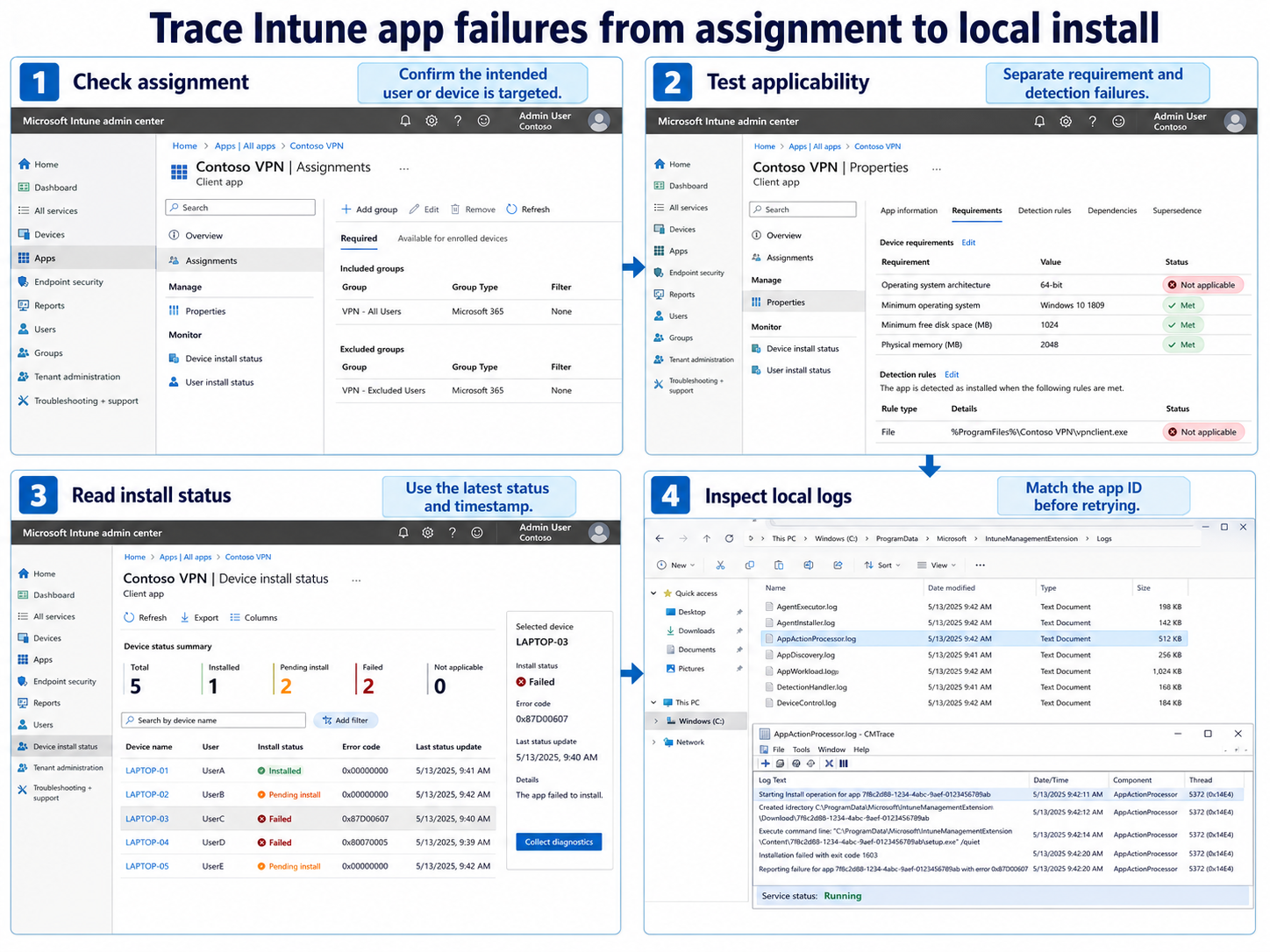
Open the Microsoft Intune admin center and go to Apps > Monitor > App install status. Select the affected app, then review Device install status and User install status. For a user-specific ticket, Troubleshooting + support > Troubleshoot > select user > Managed Apps shows the app lifecycle for that user and device.
Do not treat a device compliance warning as proof that the installer failed. First separate the device state from the app result, because compliance, Conditional Access, and app deployment are evaluated through different records.
| Visible state | What it usually tells you | Best next view |
|---|---|---|
| Pending install | Delivery or processing has not completed | Assignment, device check-in, and IME activity |
| Not applicable | A requirement or filter excludes the device | Requirements, architecture, OS, and assignment filters |
| Failed | Intune received an installation or detection error | Error details, install command, and logs |
| Installed, then failed | Detection no longer finds the app | Detection rule and app update history |
| No status | The assignment might not reach this user or device | Group membership and assignment intent |
The timestamp matters as much as the label. A status created before the latest assignment change or device check-in can be valid but stale.
Trace delivery from assignment to detection
Confirm the intended user or device is targeted
Open the app and select Properties > Assignments. Confirm whether the app is Required, Available for enrolled devices, or configured for uninstall. Check included groups, excluded groups, assignment filters, and whether the target is a user or a device.
Group changes are not always reflected immediately. Verify the object is currently a member of the intended group and that an exclusion is not winning. For available apps, also confirm that the user signed in to Company Portal is allowed to see the application and is associated with the device.
Check requirements before changing the installer
A Win32 app can be excluded before its install command ever runs. Review the minimum operating system, architecture, disk space, file or registry requirements, dependencies, and supersedence relationships. ARM64 devices and Windows in S mode need particular attention because an otherwise correct package can still be inapplicable.
Then inspect the detection rule. A file path that expands differently in 32-bit and 64-bit contexts, a version comparison using the wrong operator, or an MSI product code from an older build can make a successful install report as failed. Test the rule against the actual installed state, not the packaging workstation.
Verify Intune Management Extension activity
Win32 apps depend on Intune Management Extension (IME). On the device, confirm the Microsoft Intune Management Extension service exists and is running. The primary logs are under C:\ProgramData\Microsoft\IntuneManagementExtension\Logs.
Start with AppWorkload.log for app check-in, applicability, download, install, and detection activity. Use IntuneManagementExtension.log for policy retrieval and agent health, and AppActionProcessor.log when the action or detection flow needs more detail. Match the app ID and timestamp so an older attempt is not mistaken for the current one.
Choose evidence from the failing stage
If the app never appears in the logs, focus on assignment, licensing, platform support, filters, and device check-in. If content download starts but stops, check network filtering, delivery optimization, proxy access, free disk space, and the IME content cache. Avoid deleting the cache as a first step because it removes evidence and forces another download.
If the install command runs, copy the command into the same execution context only when it is safe to test. Compare the returned exit code with the app’s configured return-code table. An installer that returns a restart code can be healthy even when Intune is configured to interpret that code as failure.
When installation succeeds locally but Intune reports failure, return to the detection rule. When the installer itself fails, collect its vendor log along with the IME logs. Intune can also collect Win32 app diagnostics from the installation details pane for supported failed deployments.
Apply the smallest correction
Correct only the layer supported by the evidence:
- Fix group targeting or a filter when the app never reaches the device.
- Correct a requirement when the device is wrongly marked not applicable.
- Repair the install command, dependency, or return-code mapping when execution fails.
- Update the detection rule when the software exists but Intune cannot recognize it.
- Repair IME or network access when policy or content delivery never starts.
After changing the app, note whether the modification affects existing detection. A new detection rule can immediately change reporting for already installed devices; a new package or command normally needs a fresh deployment cycle.
If the app failure is actually caused by a failed security requirement, follow the setting-level repair workflow rather than repackaging a healthy application.
App installation questions
Why does Company Portal show an app as pending for hours?
The device might be waiting for its next check-in, another required app, a reboot, or an IME content download. Compare the Company Portal timestamp with the app’s device install status and AppWorkload.log. Repeatedly selecting Sync does not help when a dependency or installation process is still active.
Can I reinstall the Intune Management Extension safely?
Reinstalling IME is a recovery action, not a diagnostic starting point. First confirm the service, recent log activity, and assignment. If the agent is missing or unhealthy, follow your organization’s supported repair process so other Win32 apps and scripts are not disrupted unexpectedly.
Why does the app install manually but fail through Intune?
Manual testing often uses an administrator’s interactive account, while a Required Win32 app can run as System. File locations, mapped drives, user-profile paths, network access, and prompts behave differently in that context. Test the silent command and detection logic in the same context configured for the app.
What does error 0x87D1041C usually mean?
It commonly indicates that Intune could not detect the application after installation completed. Confirm the app is actually present, then compare the installed file, registry value, MSI code, or script result with the detection rule. Do not keep retrying the installer if detection is the only failing stage.
Turn the report into the next action
Start with the Intune status and its timestamp, then move through assignment, requirements, execution, detection, and reporting. That sequence preserves evidence and prevents a bro