Copilot in Excel can suggest formulas from plain-language prompts, but it is much more reliable when your worksheet is a clean table and your request names the target column. If Copilot says it cannot help, returns a vague explanation, or writes the wrong formula, the workbook context is usually the first thing to fix.
Think of the prompt as a formula specification. Tell Copilot what data to use, where the result should go, what calculation to perform, and how to handle blanks or errors. Then review the suggested formula before filling it down the whole table.
This guide shows a practical way to turn a prompt into a formula without treating Copilot output as automatically correct.
Prepare the worksheet first
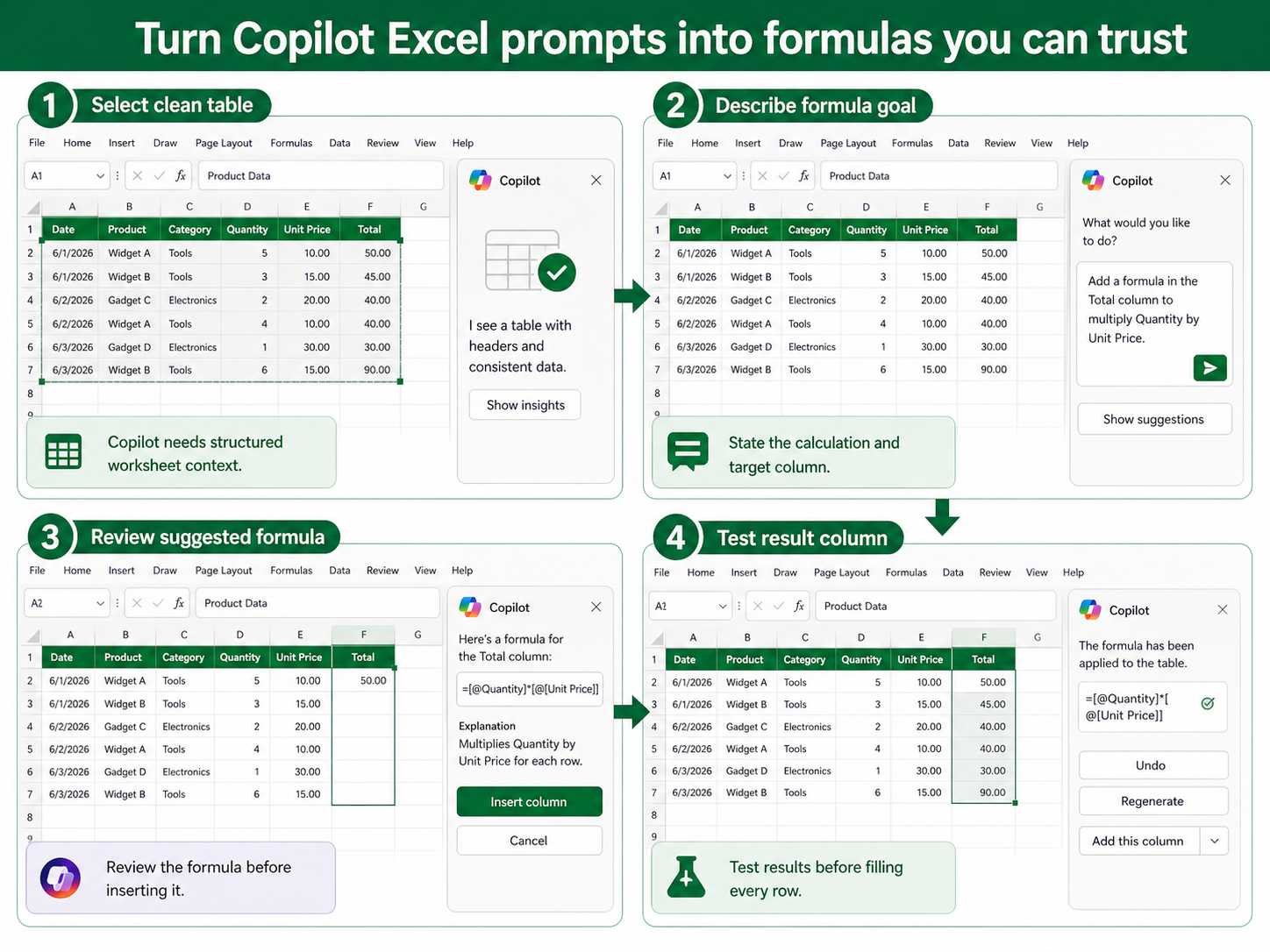
Copilot works best with structured data: one header row, no blank header names, consistent data types, and no merged cells inside the analysis range. Convert the range to an Excel table if possible. A named table gives Copilot clearer column context and makes formulas easier to read.
If Copilot is missing entirely or disabled, handle that first with the steps to the knowledge-source review. Formula prompting will not work reliably until the workbook is saved in a supported location and Copilot can read the table context.
Clean the table before prompting:
- Use clear column names such as Quantity, Unit Price, Region, and Status.
- Remove blank rows inside the data range.
- Format dates and numbers consistently.
- Put the active cell inside the table before opening Copilot.
Write a formula prompt Copilot can follow
A weak prompt says: make a formula. A useful prompt says: Add a formula in the Total column that multiplies Quantity by Unit Price for each row. This names the output column, the input columns, and the calculation. If you need conditions, say those too.
For example: Create a formula in the Commission column. If Status is Closed, multiply Revenue by 8 percent; otherwise return blank. That gives Copilot enough detail to choose an IF formula and use the table columns correctly.
For lookup formulas, be even more explicit about the lookup value and return column. The same discipline applies when you the related setup guide, because Copilot needs to know which table is the source and which result should be returned.
Review the suggested formula
Before inserting the formula, read it like you would read a formula from another analyst. Check that the referenced columns are correct, the comparison values match your data, and the math reflects the business rule. Copilot can produce a syntactically valid formula that still answers the wrong question.
Insert the formula into a small test column or review the first few results. Compare the output with a manual calculation for two or three rows, including a normal row, a blank row, and an edge case. If those fail, refine the prompt instead of manually patching a formula you do not understand.
Useful prompt refinements:
- Use structured table column names.
- Tell Copilot how to handle blanks.
- Specify whether text matches should be exact or partial.
- Ask Copilot to explain the formula before inserting it.
Fix common formula prompt failures
If Copilot returns a narrative instead of a formula, move the active cell into the table and restate the target column. If it references the wrong column, rename ambiguous headers and prompt again. If it writes formulas with normal cell addresses when you expected table references, convert the range to a table.
If the result looks almost right, ask Copilot to adjust one rule at a time. For example: Change the formula so blank Unit Price returns blank instead of zero. Smaller follow-up prompts are easier to verify than a long paragraph with many conditions.
Before you ask
Can Copilot create formulas in any workbook?
No. Availability depends on your Microsoft 365 license, account, workbook location, and whether Copilot can read the workbook context.
Should I accept Copilot formulas without checking them?
No. Always review the referenced columns and test a few rows, especially when the formula affects financial or operational decisions.
Why does Copilot ask me to select data first?
It needs a clear table or range. Put the active cell inside the data table and make sure the headers are clean.
Prompt like a formula reviewer
The best Copilot formula prompts are short but specific. Name the target column, the input columns, the rule, and the exceptions. Then verify the formula against known rows. Once the table is clean and the prompt is precise, Copilot becomes a useful formula drafting assistant instead of a guessing tool.