How to Enable Copilot in Excel 365 depends on two things: your Microsoft 365 account must be licensed for Copilot, and Excel must be signed in, updated, and using a workbook Copilot can read. If the Copilot button is missing, the fix is usually not inside a single Excel checkbox. Start with license assignment, then confirm the app, account, workbook format, and tenant settings.
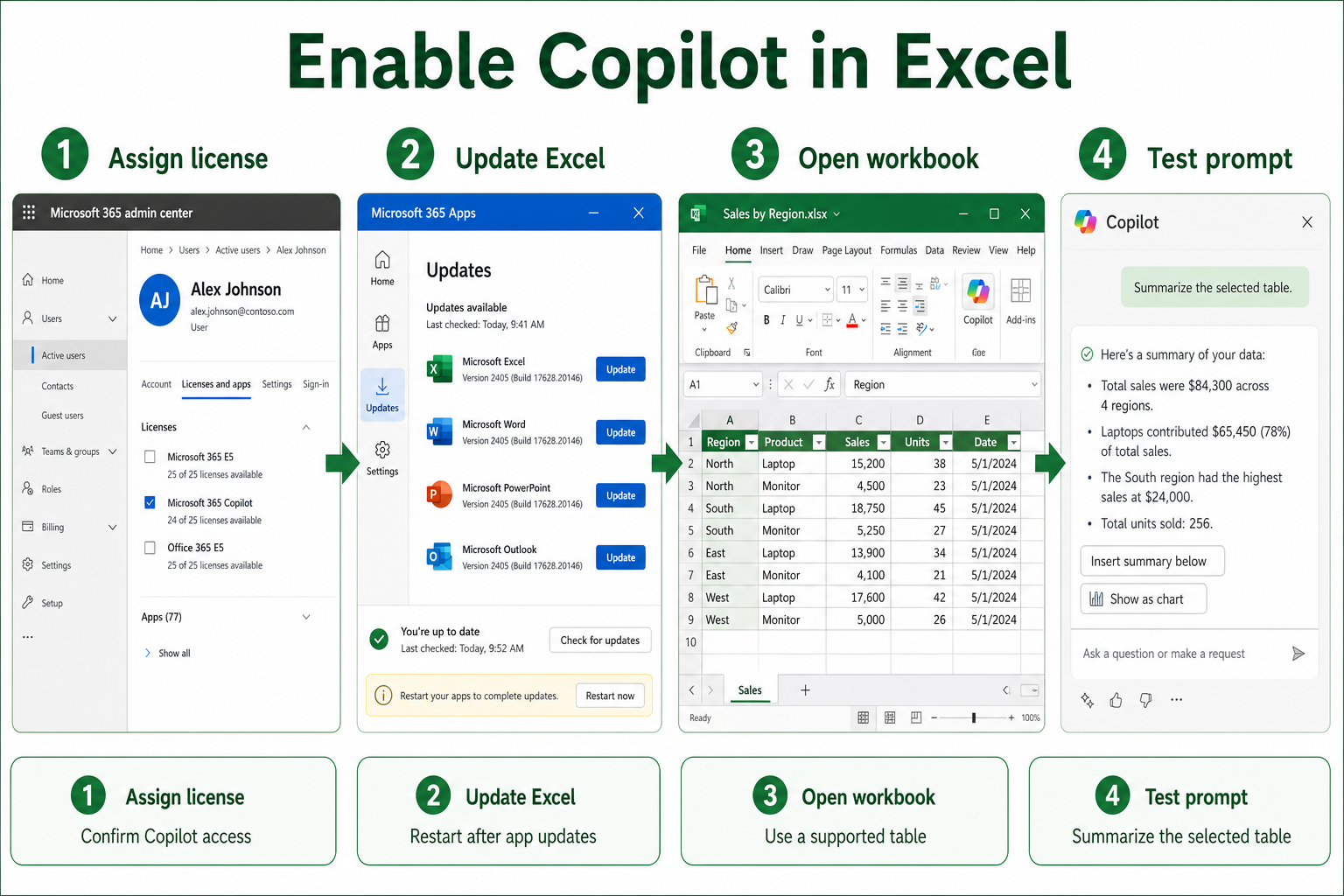
Confirm Copilot licensing and access
Check the Microsoft 365 license
For work or school accounts, Copilot in Excel requires a qualifying Microsoft 365 setup and the right Copilot license assigned to the user. An admin can check this in the Microsoft 365 admin center under Billing >> Licenses, select Microsoft 365 Copilot, and confirm that the user is assigned. Microsoft notes that after assignment, Copilot can take up to 24 hours to appear in Microsoft 365 apps and the user may need to restart or refresh the app.
On my test tenant, the Excel button appeared only after a full app restart.
If you are a regular user, ask your Microsoft 365 admin to confirm both the base Microsoft 365 license and the Copilot license. A personal Microsoft account, guest account, or unlicensed work account may show Copilot Chat elsewhere but not unlock full in-app Excel features. Licensing is the most common reason the ribbon button never appears.
Sign into the correct account
Open Excel, select your profile icon or File >> Account, and verify that you are signed in with the licensed work or school account. If Excel is signed into more than one account, sign out of the wrong one or switch the active account for Office. Then close every Excel window and reopen the workbook.
This matters because Copilot entitlement follows the signed-in account, not the device. A PC can have Microsoft 365 Apps installed correctly while Excel is using a different identity. If your company uses multiple tenants, confirm the tenant name and email address with IT.
Update Microsoft 365 Apps
In Excel, go to File >> Account >> Update Options >> Update Now. Copilot features depend on current Microsoft 365 Apps deployment, and admins can manage update channels for the organization. Microsoft recommends Current Channel or Monthly Enterprise Channel for Copilot deployment, while Semi-Annual Enterprise Channel is not the right fit for Copilot rollout.
After updating, reboot if Office asks for it. If updates are managed by IT, do not install a separate Office build yourself; ask whether your device is on a supported update channel. Mixed Office builds can make Copilot appear in one app and not another.
Enable Copilot inside Excel workbooks
Find Copilot on the ribbon
Open Excel for Microsoft 365 and look on the Home tab for the Copilot button. Microsoft Support describes the Copilot icon on the Home tab as the entry point for conversation starters, formula help, formatting suggestions, summaries, and analysis. Select the button to open the Copilot pane.
If the button is not there after licensing and updates, test Excel on the web at Microsoft365.com with the same account. A browser test helps separate a local app update problem from an account or tenant problem. For web Excel, make sure your browser allows required cookies because Microsoft documents third-party cookies as a requirement for Copilot in Office web apps.
Prepare data for Copilot prompts
Copilot works best when Excel can understand the data range. Format your data as a table with Home >> Format as Table, add clear column headers, remove fully blank rows or columns inside the data, and keep the workbook editable. Microsoft Support states that data should be formatted in a table or supported range for Copilot to read.
- Save the file to OneDrive or SharePoint when your organization expects cloud-connected files.
- Make sure the workbook is not read-only, protected in a way that blocks edits, or opened from an email attachment.
- Convert messy ranges into an Excel table with descriptive headers.
- Select a cell inside the table before asking Copilot to summarize, filter, or suggest formulas.
For analysis workflows after setup, the EasyTweaks guide on Copilot what-if analysis is a practical next step once the button is available.
Try a simple Excel prompt
Start with a small prompt that proves Copilot can read your workbook: “Summarize this table”, “Find trends in this data”, or “Suggest a formula column for profit margin.” Keep the prompt tied to the selected table and avoid asking for a large restructuring on the first test. If Copilot responds with a permission or data access warning, fix that issue before testing more advanced prompts.
My quickest validation is a two-column table, because permissions and formatting problems show up immediately.
If your organization has newer editing experiences enabled, Copilot may offer workbook edits alongside chat-style answers. The related EasyTweaks tutorial on using Excel agent mode can help when you already have Copilot and want it to make broader workbook changes.
Fix missing Copilot in Excel
Wait for license propagation
If an admin assigned the license today, wait before rebuilding Office. Microsoft says Copilot can take up to 24 hours to appear in apps after licenses are assigned. During that time, sign out of Excel, close all Office apps, reopen Excel, and check File >> Account again.
For managed devices, restart Windows after the license appears in the admin center. This refreshes Office sign-in tokens and app policy. If the button is still missing the next day, the issue is less likely to be normal propagation.
Review admin and privacy settings
Admins should check the Microsoft 365 admin center Copilot area and any Copilot Control System settings that affect app availability, plugins, web grounding, and data controls. Microsoft also calls out Microsoft 365 Apps privacy settings because connected-experience controls can affect Copilot availability. If a policy blocks connected experiences, Excel may be installed and licensed but still not show the expected Copilot feature.
Do not treat this as a user preference setting if multiple people in the same tenant are affected. Compare one licensed user who can see Copilot with one who cannot, then compare license, update channel, app version, and policies. That side-by-side check is faster than reinstalling Office on every PC.
Repair Excel only after checks
Use repair after license, account, update, and policy checks are complete. Open Settings >> Apps >> Installed apps, find Microsoft 365, choose Modify, and run Quick Repair first. If that fails, use Online Repair when your organization allows it, then sign back into Excel.
Repair helps when the ribbon is damaged, Office updates are stuck, or Excel behaves differently from Word and PowerPoint on the same account. It will not fix a missing license or an admin policy that blocks Copilot. Keep a screenshot of File >> Account before and after repair so IT can compare the state.
Run a minimum viable Copilot test in Excel
A reliable Excel Copilot readiness procedure begins with a controlled test and a clear success condition. Record the current state, account, device or file involved, and the exact symptom before making changes. Apply one material change at a time so the outcome is reversible and useful evidence is preserved.
Run the focused check
Save the workbook in OneDrive or SharePoint, sign into Excel with the licensed account, and avoid running Office as administrator. Convert the working range to a clean table with unique headers and consistent data types.
Start with a bounded prompt such as summarizing one table, identifying outliers, or explaining a formula. Review the cited cells or inserted result and confirm that filters, hidden rows, and totals were interpreted as intended.
Verify and document the outcome
If Copilot remains missing, record the Excel build, update channel, license account, file location, and privacy or connected-experience settings. Test a new workbook in the browser to separate desktop configuration from licensing and service availability.
For a managed work environment, check whether the behavior is controlled by policy, licensing, permissions, retention, or a staged feature rollout. A missing or locked control may be intentional. Do not bypass governance locally. Capture the application and operating-system versions, account type, relevant timestamps, and non-sensitive screenshots. This evidence helps support teams identify whether the remedy belongs on the device, in the user profile, in Microsoft 365 administration, or with another service owner.
Repeat the original action after the change and confirm the result from the perspective of another affected user when appropriate. If the test fails, restore the previous state before trying the next option. Keep the final working configuration and the reason for it in the team documentation.
Before closing the case, restart or refresh the affected client and perform the test once more. A result that survives a new session is stronger than a temporary improvement. Note any remaining limitation and the person responsible for follow-up.
Copilot in Excel questions answered
Why is Copilot missing from Excel?
The common causes are no assigned Copilot license, the wrong signed-in account, an outdated Microsoft 365 Apps build, a managed update channel, or tenant settings that block the feature. Workbook state can also matter after the button appears. Test with a simple editable table before assuming Excel is broken.
Can personal Microsoft 365 use Copilot?
Copilot availability depends on the subscription and account type Microsoft currently supports for that experience. Work and school users usually need a qualifying Microsoft 365 base license plus the appropriate Copilot entitlement. If you use a personal account, check your Microsoft account subscription page and the exact Excel app you are using.
Does Copilot require Excel data tables?
Copilot can work with supported ranges, but tables with clear headers produce more reliable results. Formatting the data as a table also makes prompts easier because Excel understands where the dataset begins and ends. For troubleshooting, always test with a small table first.
Once licensing, account sign-in, updates, and workbook formatting are aligned, Copilot should show on the Excel Home tab and respond to workbook-aware prompts. Treat a missing button as an entitlement or deployment problem first, then troubleshoot the workbook.