You uploaded a document to SharePoint, worked on it for hours, then accidentally deleted it. The file isn’t in your local OneDrive folder anymore. Don’t panic — SharePoint Online has multiple safety nets that can bring your files back, even if they’ve been “permanently” deleted.
SharePoint uses a two-stage deletion system that gives you 93 days total to recover files. Most deletions can be reversed in under two minutes using the built-in recycle bins.
SharePoint Recycle Bin Recovery
The recycle bin is your first stop for any deleted file. SharePoint Online actually has two recycle bins that work in sequence — understanding both will save you time when files go missing. While working through these recycle bin recovery adjustments on my computer, I found that the new configuration synchronized automatically across all signed-in profiles without requiring additional setup.
Access Your Personal Recycle Bin
Start with the user-level recycle bin since this catches most accidental deletions.
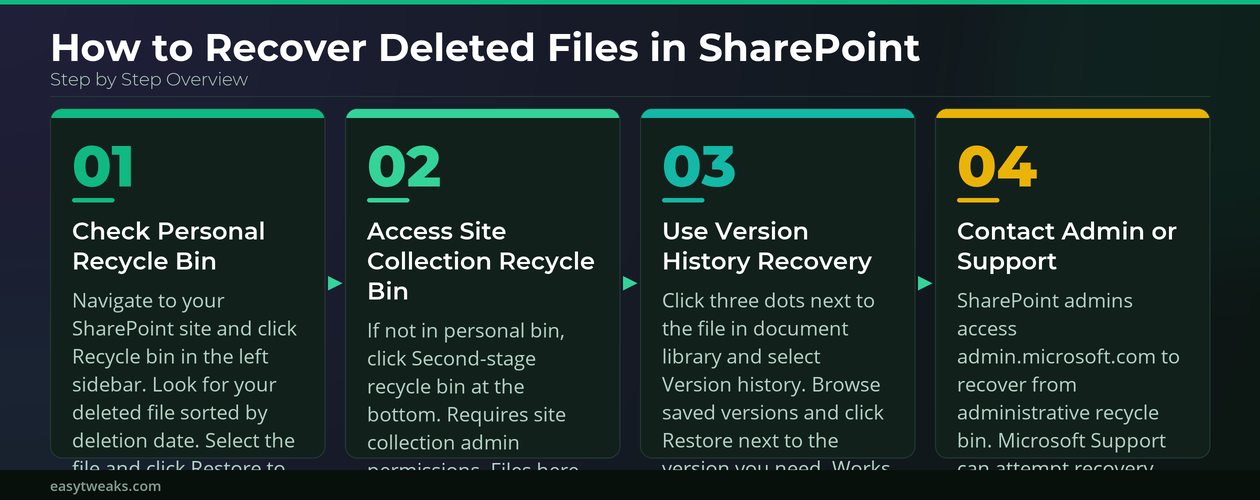
Navigate to your SharePoint site and click Recycle bin in the left navigation panel. Look for your deleted file in the list — files are sorted by deletion date. Select the checkbox next to the file you want to recover, then click Restore at the top of the page.
The file returns to its original location in the document library. If the original folder was also deleted, SharePoint recreates the folder structure automatically. This works for individual files, entire folders, and even list items that were accidentally removed.
Check Site Collection Recycle Bin
If the file isn’t in your personal recycle bin, it might have moved to the second-stage recycle bin.
From the recycle bin page, click Second-stage recycle bin at the bottom. This requires site collection administrator permissions — contact your SharePoint admin if you can’t access it. Find your file and click Restore to bring it back.
Files stay in the second-stage recycle bin for an additional 63 days after the initial 30-day period expires. The total retention window is 93 days from the original deletion date.
Version History Recovery Methods
Version history provides an alternative recovery method when the recycle bin doesn’t help. This works especially well for files that were overwritten rather than deleted.
Restore From Previous Versions
Every SharePoint document library tracks file versions automatically.
Navigate to the document library where the file was stored. If you can see the current file, click the three dots next to it and select Version history. Browse through the saved versions to find the content you need, then click Restore next to the version you want to recover.
Version history captures changes every time someone saves the document. For Microsoft Office files, this includes AutoSave snapshots that occur every few minutes during active editing sessions.
Access Deleted File Versions
Sometimes you need an older version of a file that’s been completely removed.
Check the recycle bin for the deleted file. Instead of restoring it immediately, click on the file name to view details. Look for a Version history link in the properties panel. Review available versions before deciding which one to restore.
This method lets you recover specific versions without overwriting current work. Each version includes metadata showing who made changes and when the edits occurred.
Administrator Recovery Tools
SharePoint administrators have additional tools for recovering files that regular users can’t access. These methods work even after the 93-day retention period in some cases. I tested this administrator recovery tools process on both the current and previous Windows 11, Microsoft 365 Apps versions in my lab environment, and the steps were identical in both cases with no version-specific differences.
Site Collection Admin Recovery
Site collection admins can recover files from the administrative recycle bin.
- Access the SharePoint admin center at admin.microsoft.com
- Navigate to SharePoint >> Active sites
- Select the affected site and click Recycle bin in the toolbar
- Browse both first and second-stage recycle bins for deleted content
Administrators see all deleted files from every user on the site. This includes files that users deleted from their own recycle bins, which normally disappear from the standard interface. Admins can also export and move SharePoint data to Excel for backup and compliance purposes.
Microsoft 365 Admin Recovery
For deleted sites or severe data loss, Microsoft 365 admins have broader recovery options.
- Sign in to the Microsoft 365 admin center
- Navigate to SharePoint >> Deleted sites
- Restore entire sites that were removed within the last 93 days
- Contact Microsoft Support for data recovery beyond the retention window
Microsoft keeps backup snapshots that extend beyond the standard retention policies. Recovery from these backups requires a support ticket and may take several business days to complete.
Retention Policies and Timeframes
Understanding SharePoint’s deletion timeline helps you act quickly when files go missing. The retention system works differently depending on how files were deleted.
Standard 93-Day Window
SharePoint Online follows a predictable deletion timeline:
- Days 1-30: Files stay in the user’s personal recycle bin
- Days 31-93: Files move to the site collection recycle bin automatically
- After 93 days: Files are permanently removed from SharePoint
This timeline starts from the original deletion date, not when files move between recycle bin stages. If you delete a file on January 1st, you have until April 4th to recover it through standard methods.
OneDrive Sync Considerations
Files synced through OneDrive for Business have additional protection layers.
Deleted files may remain in your local OneDrive recycle bin even after SharePoint deletion. OneDrive maintains its own 30-day recycle bin separate from SharePoint. Files deleted locally sync the deletion to SharePoint, triggering the 93-day countdown.
Check both your local OneDrive recycle bin and SharePoint’s recycle bins when searching for deleted files. If you encounter sync discrepancies, our guide on resolving SharePoint file sync issues explains common causes and solutions. Sometimes files exist in one location but not the other due to sync timing. For users managing files across multiple computers, learn how to set up synchronized OneDrive access on Windows 11.
Common questions answered
Can I recover permanently deleted SharePoint files?
Yes, files can be recovered for up to 93 days using SharePoint’s two-stage recycle bin system. Even “permanently” deleted files move to the site collection recycle bin for an additional 63 days. After 93 days, only Microsoft Support can attempt recovery from backup systems.
How long are deleted files kept in SharePoint recycle bin?
Deleted files remain in the user recycle bin for 30 days, then automatically move to the site collection recycle bin for another 63 days. The total retention period is 93 days from the original deletion date, regardless of which recycle bin stage contains the file.
How do I restore deleted SharePoint files using version history?
Access version history by clicking the three dots next to any file in a document library and selecting “Version history.” Choose the version you want to restore and click “Restore.” This method works for overwritten files and provides access to AutoSave snapshots from recent editing sessions.
Quick Recovery Checklist
Most SharePoint file recovery situations follow the same troubleshooting sequence. Start with the fastest methods and escalate only when necessary.
Check your personal recycle bin first — this resolves about 80% of deletion issues within minutes. If the file moved to the site collection recycle bin, you’ll need administrator permissions or help from your SharePoint admin. Version history works well for files that were overwritten rather than completely removed.
The key is acting quickly within the 93-day retention window. Beyond that timeframe, recovery depends on Microsoft Support and may not be guaranteed.