When a Teams meeting invite is not showing in Outlook, the problem is usually not the meeting itself. Outlook may be using the new built-in Teams toggle, classic Outlook may have disabled the Teams COM add-in, or the signed-in account may not support Teams scheduling. The fastest fix is to identify which Outlook experience you are using, then repair the integration instead of recreating the meeting repeatedly.
Confirm which Outlook experience you use
Check the Teams control location
Start in Outlook Calendar and create a new event. In new Outlook for Windows or Outlook on the web, look for the Teams meeting toggle inside the event window. In classic Outlook for Windows, look for New Teams Meeting on the calendar ribbon.
That difference matters because new Outlook does not use the classic Teams COM add-in. Microsoft documents the new Outlook experience as a native integration, while classic Outlook relies on the Teams Meeting Add-in for Microsoft Office. My first check is always the Outlook version, because repairing the wrong integration wastes time.
If the invite was sent but the join details are missing, open the sent calendar item and check whether the Teams toggle or add-in was actually enabled before sending. Saving a draft may not add join details until the invite is sent, so test with a small internal meeting before blaming synchronization. After correcting the join details, send the calendar item again instead of creating a duplicate meeting.
Verify the signed-in work account
Teams meetings in Outlook work best with a Microsoft 365 Business Exchange account and the Teams desktop app signed in with the same work or school identity. Microsoft also notes that personal Outlook.com-style accounts and POP or IMAP accounts do not support creating Teams meetings from the Outlook add-in.
- Outlook and Teams are signed in with the same work or school account.
- The mailbox is an Exchange mailbox, not a POP, IMAP, or personal Microsoft account.
- The user has a Teams license assigned by the organization.
- The meeting is created from the calendar tied to the licensed account.
If you manage several accounts in Outlook, use the calendar selector carefully. A Teams invite can disappear from one calendar view simply because the meeting was created under a different mailbox.
Restart Teams before repairing Outlook
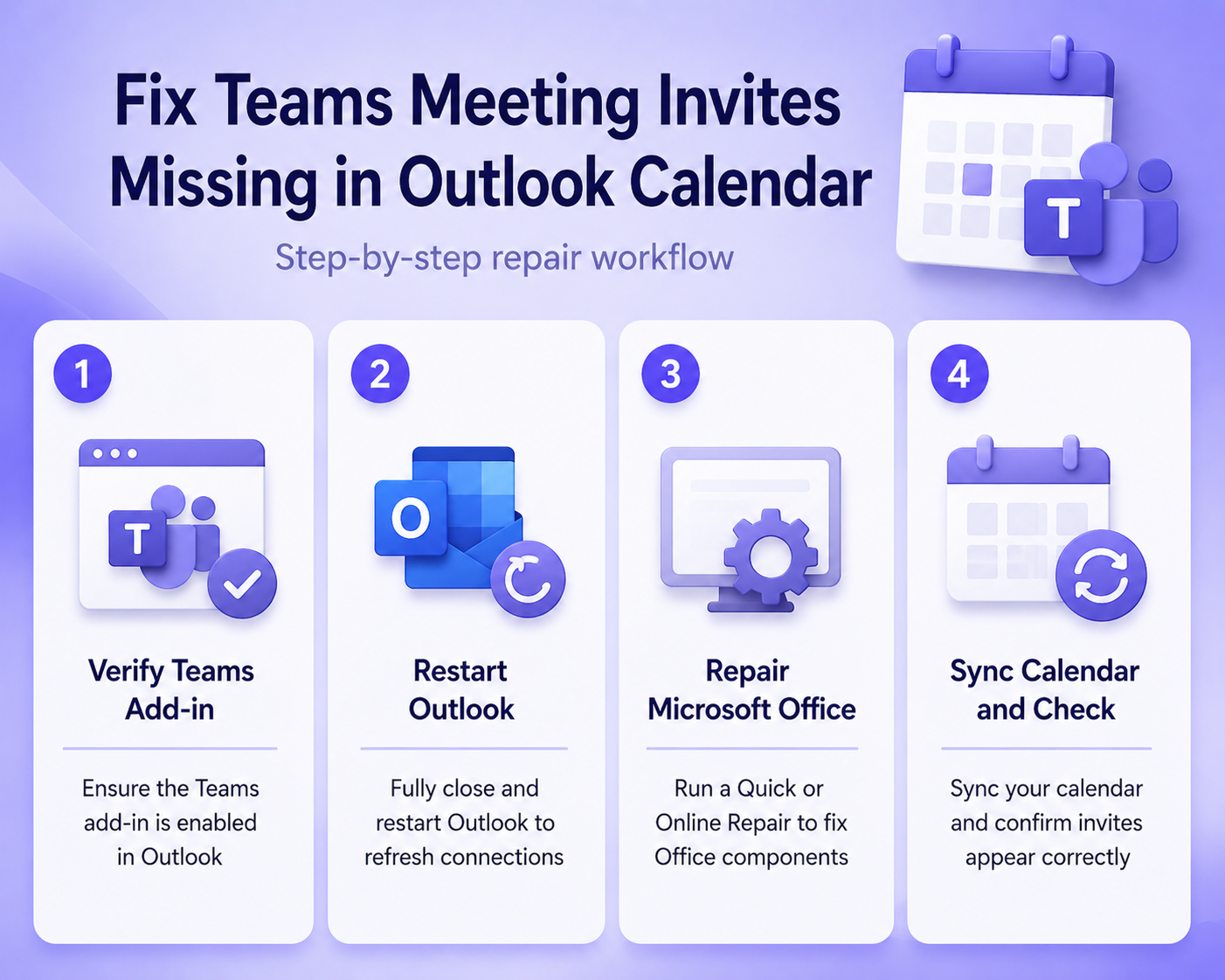
Close Outlook first, then quit Teams from the Windows system tray instead of only closing the Teams window. Start Teams again, confirm that you are signed in, and reopen Outlook. Microsoft recommends this basic restart sequence for both classic and new Outlook integration issues because Teams reinitializes the calendar integration when it starts.
This is also a good moment to compare the behavior with Teams itself. If meetings scheduled in Teams are not reaching Outlook either, use the calendar sync checks in repair calendar updates before spending more time on the Outlook button.
Repair the classic Teams add-in
Re-enable disabled Outlook COM add-ins
In classic Outlook, go to File >> Options >> Add-ins. Look for Microsoft Teams Meeting Add-in for Microsoft Office under active add-ins. If it appears under disabled add-ins, select COM Add-ins in the Manage box, choose Go, enable the Teams add-in checkbox, and restart Outlook.
Outlook disables add-ins when it thinks they slowed startup or crashed. That does not mean the Teams add-in is broken permanently; it means Outlook stopped loading it. If the add-in disables itself again, note the timing and whether it happens after a Teams, Office, or Windows update.
Reinstall the add-in after updates
After a move to the new Teams client, classic Outlook may lose the Teams Meeting Add-in if the update did not install it cleanly. Microsoft Support documents a repair path: uninstall the Teams Meeting Add-in from Windows installed apps, close Outlook, quit Teams, then start Teams again so it reinstalls the add-in.
Use this only for classic Outlook. In new Outlook, there is no separate COM add-in to reinstall, so the right test is whether the Teams meeting toggle appears in the event window. When the missing piece is the meeting link rather than the button, compare the invite behavior with restore Teams links because link insertion and add-in visibility are related but not identical problems.
Check admin and mailbox restrictions
If one user is affected and others are not, check whether the mailbox is hidden from the Global Address List, whether the user has a valid Teams license, and whether the Teams add-in is deployed for that user. Microsoft Learn calls out mailbox visibility and add-in installation problems as common admin-side causes for classic Outlook scheduling failures.
Ask IT to confirm the mailbox and license before rebuilding the local Outlook profile. A profile rebuild can help with corrupted local settings, but it will not fix a mailbox or licensing rule that prevents the Teams scheduling service from working.
When Teams invites still do not appear
Inspect sent invites and recipients
Open the meeting from the organizer calendar, not from a recipient mailbox. If the organizer item has Teams join details but a recipient cannot see them, the issue may be message formatting, a mail rule, or a mobile calendar client trimming the body. Resend the update from Outlook after confirming the Teams toggle is active.
The quickest proof is a test invite to one internal recipient and one external test address. In my testing, the organizer copy tells you whether Outlook created the Teams meeting, while recipient copies show delivery or rendering problems.
Recreate the meeting after repair
Existing meetings do not always gain Teams join details automatically after you repair the add-in. Open the affected calendar item, remove the Teams meeting setting if it is partially attached, save, reopen the item, enable Teams meeting again, and send an update. If the meeting is important, create a fresh test meeting first so you do not send several confusing updates to attendees.
For recurring meetings, edit the whole series when the missing Teams invite affects every occurrence. Edit a single occurrence only when one date is broken, because changing the series can overwrite custom notes or exceptions.
Escalate with the right evidence
When IT needs to help, give them the Outlook version, whether it is new or classic Outlook, the Teams client used, the mailbox type, and a screenshot of File >> Options >> Add-ins for classic Outlook. Include whether the issue affects new meetings, existing meetings, recurring meetings, or only invites from one organizer.
That evidence keeps the support path focused. A missing classic add-in, a missing new Outlook toggle, and a sent invite without join details can look similar to users, but they point to different fixes.
Verify the meeting link after creating the invite
A dependable meeting creation fix starts with a reproducible test, not a long list of unrelated changes. Preserve the current configuration, note the time and exact symptom, and change one variable at a time. That approach makes the result reversible and gives an administrator useful evidence if the issue needs escalation.
Run a focused validation
In new Outlook, Teams meeting creation is built in and does not use the classic Outlook COM add-in. In classic Outlook, confirm the Microsoft Teams Meeting Add-in is active, then close both Outlook and Teams before restarting them in the normal user context.
Create a short test meeting and inspect the saved body for join details before inviting a large audience. Confirm that Outlook and Teams use the same work account and that the mailbox is visible and licensed for the organization’s meeting configuration.
Confirm the result
If the control is present but the link is absent, capture the Outlook version, Teams version, mailbox type, and exact time. Avoid editing registry entries until standard add-in repair and administrator policy checks are complete. Recreate the invite after repair, because an existing item may not gain a link retroactively.
Repeat the original action after every material change and record what improved. If the test fails, restore the previous state before trying the next step. This keeps the troubleshooting path clear and avoids creating a second problem while resolving the first.
For a managed work device, also check whether the setting is enforced by organizational policy. A control that is unavailable, returns after sign-in, or behaves differently for another account may be intentional rather than broken. Do not bypass that policy locally. Instead, capture the device name, Windows or application version, account type, network used, and screenshots of the relevant setting. Share only non-sensitive evidence with support. This information lets the administrator reproduce the condition, compare policy assignments, and decide whether the solution belongs on the device, in the user profile, or in the Microsoft 365 administration layer.
Outlook Teams questions answered
Why is Teams not an option in Outlook?
In new Outlook, Teams appears as a meeting toggle inside the event window. In classic Outlook, it appears through the Teams Meeting Add-in for Microsoft Office. If neither appears, check that Teams is installed, Outlook and Teams use the same work account, and the mailbox supports Microsoft 365 Business Exchange scheduling.
Does new Outlook need the Teams add-in?
No. Microsoft says new Outlook for Windows uses native Teams meeting capability rather than the classic Teams COM add-in. That is why add-in repair steps apply to classic Outlook, while new Outlook fixes usually focus on account sign-in, Teams restart, and the missing toggle.
Why did the invite send without a Teams link?
The Teams meeting option may not have been enabled before sending, the account may not support Teams scheduling, or Outlook may have failed to load the integration. Open the organizer copy of the meeting first. If join details are missing there too, repair the Outlook Teams integration and resend the meeting update.
Once you separate new Outlook toggle issues from classic add-in failures, this problem becomes much easier to fix. Repair the integration, confirm the account, and then resend or recreate only the affected meetings.
Meta description: Practical steps to Fix Teams Meeting Invite Not Showing in Outlook by checking accounts, add-ins, new Outlook, calendar repair, and fast resend options.
Excerpt: Fix missing Teams meeting invites in Outlook by checking the Outlook version, account eligibility, Teams sign-in, classic COM add-in status, and repaired calendar items.