You’ve scheduled several important client meetings in Microsoft Teams, but when you check your Outlook calendar to prepare for your day, those meetings are nowhere to be found. Your colleagues mention receiving the invites, but you can’t see them in your own calendar. This disconnect between Teams and Outlook is causing you to miss important meetings and creating confusion about your availability.
Teams meetings not appearing in Outlook calendars
When Teams meetings don’t appear in your Outlook calendar, it creates significant workflow disruptions. You might double-book yourself, miss important meetings, or waste time searching for meeting links. This synchronization issue between Microsoft Teams and Outlook affects productivity and can lead to problems similar to when your Teams Outlook plugin stops working, damaging professional relationships when meetings are missed.
Why my teams meetings don’t show up on Windows 10/11?
This tutorial will guide you through troubleshooting and fixing the disconnection between your Teams meetings and Outlook calendar. We’ll explore common causes including incorrect calendar settings, sync delays, permission issues, and corrupted cache files. The solutions will work for Microsoft 365 subscribers using desktop applications or web versions of Teams and Outlook on Windows or Mac systems.
Solve Teams meetings not showing in Outlook
Check your calendar settings in Teams
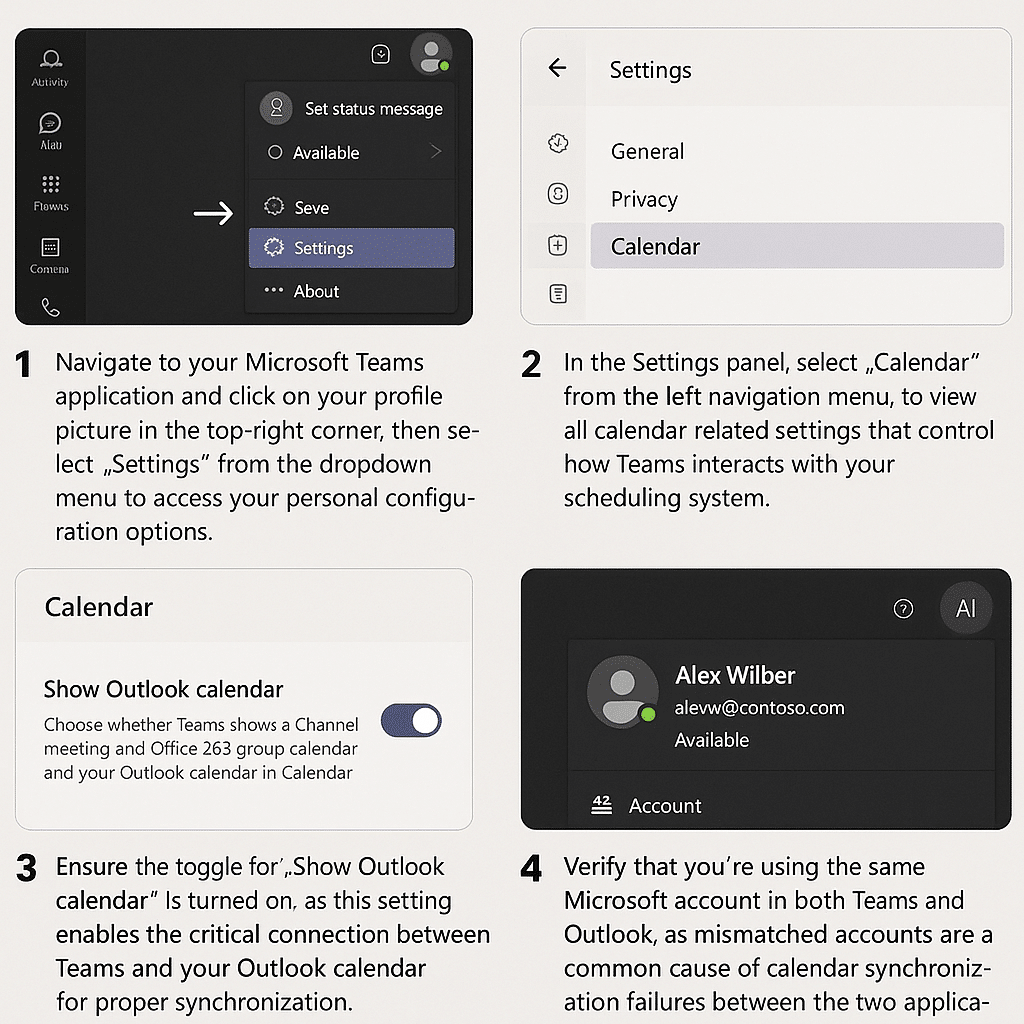
- Navigate to your Microsoft Teams application and click on your profile picture in the top-right corner, then select “Settings” from the dropdown menu to access your personal configuration options.
- In the Settings panel, select “Calendar” from the left navigation menu to view all calendar-related settings that control how Teams interacts with your scheduling system.
- Ensure the toggle for “Show Outlook calendar” is turned on, as this setting enables the critical connection between Teams and your Outlook calendar for proper synchronization.
- Verify that you’re using the same Microsoft account in both Teams and Outlook, as mismatched accounts are a common cause of calendar synchronization failures between the two applications.
- After confirming these settings, restart both Teams and Outlook applications completely to apply the changes and initiate a fresh synchronization attempt.
Verify Outlook calendar settings
- Open Outlook and click on the “File” tab in the top-left corner, then select “Account Settings” and choose “Account Settings” again from the dropdown menu.
- In the Account Settings dialog, select the “Data Files” tab and ensure your primary Outlook data file is set as the default calendar for storing appointments and meetings.
- Go to the “Calendar” view in Outlook by clicking the calendar icon in the navigation pane at the bottom of the screen.
- Check the calendar folder list on the left side and make sure your primary calendar is selected and visible, as Teams meetings will only appear in calendars that are actively displayed.
- Right-click on your primary calendar, select “Properties,” then “Permissions” to verify that you have appropriate owner permissions for your calendar to receive and display meeting invitations.
Reset the Teams cache
- Close Microsoft Teams completely by right-clicking the Teams icon in your system tray and selecting “Quit” or using Task Manager to end the process if necessary.
- Press Windows+R to open the Run dialog, then type “%appdata%\Microsoft\Teams” and press Enter to open the Teams application data folder containing cache files.
- Create a backup of this folder by copying it to another location before proceeding with any deletions to ensure you can restore your data if needed.
- Delete the following cache folders: “Application Cache,” “Cache,” “blob_storage,” “databases,” “GPUCache,” “IndexedDB,” “Local Storage,” and “tmp” to remove potentially corrupted data.
- Restart your computer to ensure all Teams processes are completely terminated, then relaunch Teams and allow it to rebuild its cache files with fresh data.
Force a calendar sync
- In Outlook, press F9 or navigate to the “Send/Receive” tab and click “Update Folder” to manually initiate a synchronization of your calendar with the Microsoft Exchange server.
- For Outlook on the web, click the refresh button in your browser or press Ctrl+F5 to perform a hard refresh that will clear the browser cache and reload calendar data.
- Open the Teams web application (teams.microsoft.com) instead of the desktop app to check if your meetings appear there, as this can help determine if the issue is specific to the desktop application.
- Wait approximately 15-30 minutes after forcing a sync, as calendar updates between Teams and Outlook can sometimes experience delays in propagating through Microsoft’s servers.
- If using Outlook mobile, pull down on the calendar screen to refresh the data and check if Teams meetings now appear after the forced synchronization.
Other solutions when Teams meetings not in sync with Outlook
- Incorrect account configuration: If you’re signed into Teams with a different Microsoft account than your Outlook account, meetings won’t synchronize between the two applications even with correct settings, so verify both applications are using identical account credentials.
- Corrupted Outlook profile: When your Outlook profile becomes corrupted, calendar synchronization often fails, requiring you to create a new profile by going to Control Panel > Mail > Show Profiles > Add, then configuring your email account in the new profile.
- Exchange Online service issues: Occasionally, Microsoft 365 service interruptions can prevent proper calendar synchronization, so check the Microsoft 365 Service Health Dashboard (admin.microsoft.com/adminportal/home#/servicehealth) to confirm if there are any known outages affecting calendar functionality.
- Calendar permissions: If you’ve recently changed roles or had account modifications, your calendar permissions might have been altered, requiring an IT administrator to verify and restore proper calendar access rights in Exchange admin center.
Calendar Sync Behavior Across Different Platforms
If you’re using Microsoft Teams on macOS, the cache clearing process differs slightly from Windows. On Mac, quit Teams completely, then navigate to ~/Library/Application Support/Microsoft/Teams using Finder’s “Go to Folder” option (Shift+Command+G). Delete the same cache folders mentioned above, then restart Teams. Mac users should also verify that macOS privacy settings grant Teams full calendar access by checking System Preferences > Security & Privacy > Privacy > Calendars.
For users primarily relying on Outlook on the web (outlook.office.com), Teams meetings should appear automatically without desktop application dependencies. If meetings still don’t display, clear your browser cache completely and ensure third-party cookies aren’t blocked, as these are required for proper Microsoft 365 authentication. Try accessing your calendar in a private/incognito browser window to rule out extension conflicts.
Determine whether the event reached the Exchange mailbox
Open Outlook on the web and Teams for web with the same work account. Search for the meeting by title and date in both calendars. If Outlook on the web is missing it, the problem is not limited to the Windows Outlook view; check the organizer, attendee address, and mailbox delivery before repairing the desktop app.
Create a controlled two-way test
Schedule one short meeting in Teams and another in Outlook on the web. Give each a unique title and invite one internal test account. Confirm that both events appear in Teams and Outlook and that the attendee receives an invitation. This shows whether creation, synchronization, or invitation delivery is failing.
New Outlook includes native Teams meeting capability. Classic Outlook can use the Teams Meeting COM add-in. Check the add-in only when the affected client is classic Outlook; reinstalling it does not repair new Outlook.
Check calendar ownership and account context
Meetings created in shared or delegated calendars can have additional licensing and configuration requirements. Confirm which mailbox owns the event and whether the scheduler has the required delegate permission. Also verify that Teams and Outlook are not signed in to different organizations or cached accounts.
If web calendars agree but classic Outlook does not, update Outlook and Teams, restart both, and review the calendar view and add-in state. If Teams and Outlook on the web disagree, administrators should investigate Exchange integration, app policy, and mailbox configuration.
Capture the organizer, meeting ID or join link, mailbox, creation client, event time and time zone, and results from both web apps. Avoid recreating the same meeting repeatedly; duplicate events and join links make attendee reports and support traces harder to interpret.
After the test works, cancel both test meetings and verify that the cancellations also synchronize to the attendee.