A Teams channel meeting can be visible inside the channel and still fail to show where users expect it in Outlook Calendar. The most common reason is that people confuse the channel post with the personal calendar invite.
A channel meeting belongs to the channel conversation, but Outlook only shows it for mailboxes that received or accepted the invitation. Start by confirming whether the problem affects the organizer, a specific attendee, or every member of the team.
If only one user is missing the event, the fix is usually mailbox sync, calendar visibility, or an invitation that was declined or deleted. If nobody sees it in Outlook, review how the meeting was created and whether invitees were added. The workflow below keeps the troubleshooting narrow.
You verify the channel meeting in Teams, force an Outlook calendar refresh, and then recreate the invite only when the meeting object itself was created without the expected attendees.
Confirm the meeting is a channel meeting
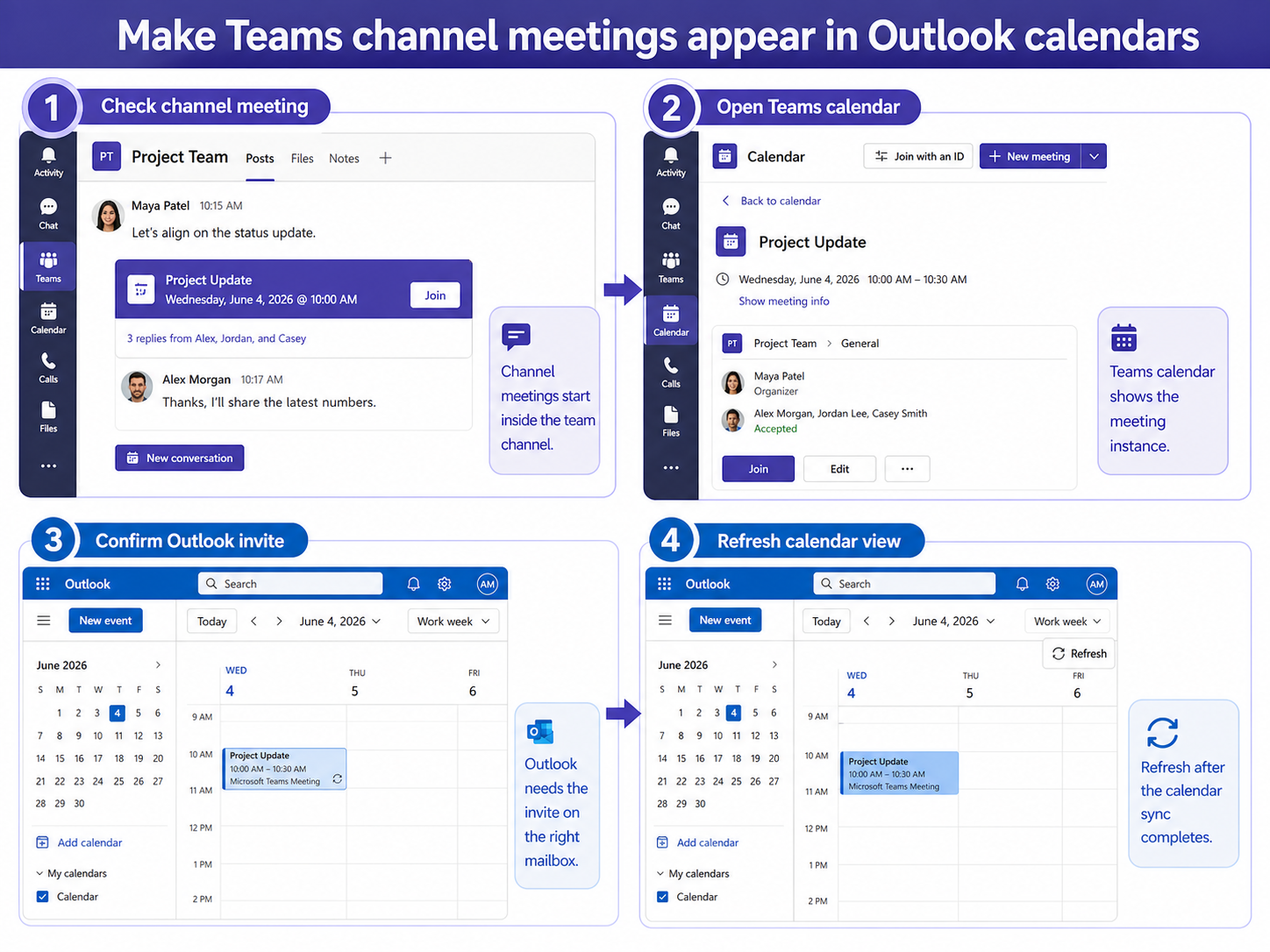
Open Teams, go to the team and channel, and look for the meeting card in the channel posts. A real channel meeting has a meeting post in the channel and usually shows the channel name in the meeting details. If the meeting only appears under Chat or Calendar, it may be a normal Teams meeting, not a channel meeting.
Open the event from Teams Calendar and check the location or channel field. If the channel is not listed, create the meeting again from the channel or from Teams Calendar with the channel selected. For regular invites that only need a meeting link in Outlook, use the steps for fixing that related cleanup step instead of rebuilding the event as a channel meeting.
Check these fields before changing anything:
- Organizer account is the same account used in Outlook.
- The channel name appears in the Teams meeting details.
- Required attendees are listed, not only the channel.
- The event has not been cancelled and recreated under another time slot.
Check who should see the meeting in Outlook
Outlook Calendar does not automatically show every channel post for every team member. It shows meeting invitations that reached the user’s mailbox. If the organizer created a channel meeting and did not add attendees, the channel still receives the meeting post, but some users may only find it by opening the channel.
Ask one affected user to search Outlook Calendar by meeting title and date. Then check Deleted Items and declined meetings. If the invite was declined, hidden by a calendar filter, or moved by a rule, Teams can still show the meeting while Outlook looks empty.
For a meeting that should appear for named attendees, edit the Teams meeting, add the people or distribution group in the attendees field, and send the update. If this is a new meeting rather than a repair, compare the setup with how to the meeting setup checklist so the channel and attendee fields are both populated.
Refresh Outlook calendar sync
If Teams shows the meeting correctly and the user is definitely invited, test Outlook on the web first. Outlook on the web reads the mailbox calendar directly and is a good way to separate a mailbox problem from a desktop profile problem. If the event appears on the web but not desktop Outlook, update the desktop client, switch calendar views, and restart Outlook.
In classic Outlook, remove calendar filters, switch from Work Week to Week, and search by part of the title. In new Outlook, refresh the page, turn the Calendar module off and on, and confirm the correct account is selected. Shared mailbox and delegated calendars can also hide the event if the user is viewing the wrong calendar group.
Use this sync sequence:
- Open Outlook on the web and search for the meeting title.
- If it appears there, restart desktop Outlook and clear view filters.
- If it does not appear on the web, ask the organizer to send an update.
- If only mobile is missing it, remove and re-add the account in the Outlook mobile app.
When to recreate the meeting
Recreate the meeting only after you know the original event was built incorrectly. Recreating too early creates duplicate channel posts, old join links, and confused attendee responses. If the meeting has already been shared externally, send a cancellation for the bad invite before sending the corrected one.
The clean rebuild is simple: create the event from Teams Calendar, select the target channel, add required attendees, verify the time zone, and send the invitation. Then open Outlook on the web from a test attendee account and confirm the event appears before you announce the meeting in the channel.
Teams differences to check on other clients
Teams can behave differently across the Windows desktop app, the Mac app, the browser, and mobile. That difference is useful for troubleshooting because the web client removes part of the local desktop cache from the test.
Run the same check in this order:
- Test in Teams on the web with the same account.
- Compare the Windows or Mac desktop app after a full restart.
- Check the mobile app only after desktop and web give you a clear baseline.
If web Teams works but the desktop app does not, focus on the local app, cache, update state, or device permissions. If every client fails, the cause is more likely account access, meeting policy, service state, or tenant configuration.
Before you ask
Will every team member see a channel meeting in Outlook?
Not always. The channel post is visible in Teams, but Outlook visibility depends on whether the user’s mailbox received the meeting invitation and whether the calendar view is showing that account.
Why does the meeting show in Teams but not Outlook desktop?
If Outlook on the web shows the event, the mailbox is correct and the desktop issue is usually cache, view filtering, or the wrong calendar group.
Can I move a normal Teams meeting into a channel?
In most cases it is cleaner to create a new channel meeting with the channel selected, then cancel the old meeting if the old invite should not be used.
Verify before the meeting starts
Before the meeting day, verify the event from the organizer mailbox and from one attendee mailbox. The reliable sign is that the same title, time, join link, and channel name appear in Teams and Outlook on the web. If that check passes, desktop and mobile clients usually catch up after a restart or account refresh. If it fails, send a meeting update from Teams rather than asking attendees to manually copy the event.