When a Teams meeting is not showing in Outlook, the missing button is usually caused by account eligibility, the Outlook experience you are using, a disabled classic add-in, or a New Teams add-in registration problem. Microsoft says new Outlook for Windows has Teams scheduling integrated, while classic Outlook depends on the Teams Meeting add-in. That means the right fix starts by identifying the Outlook version and mailbox type, not by reinstalling Office immediately.
Check Outlook account support first
Confirm the supported mailbox type
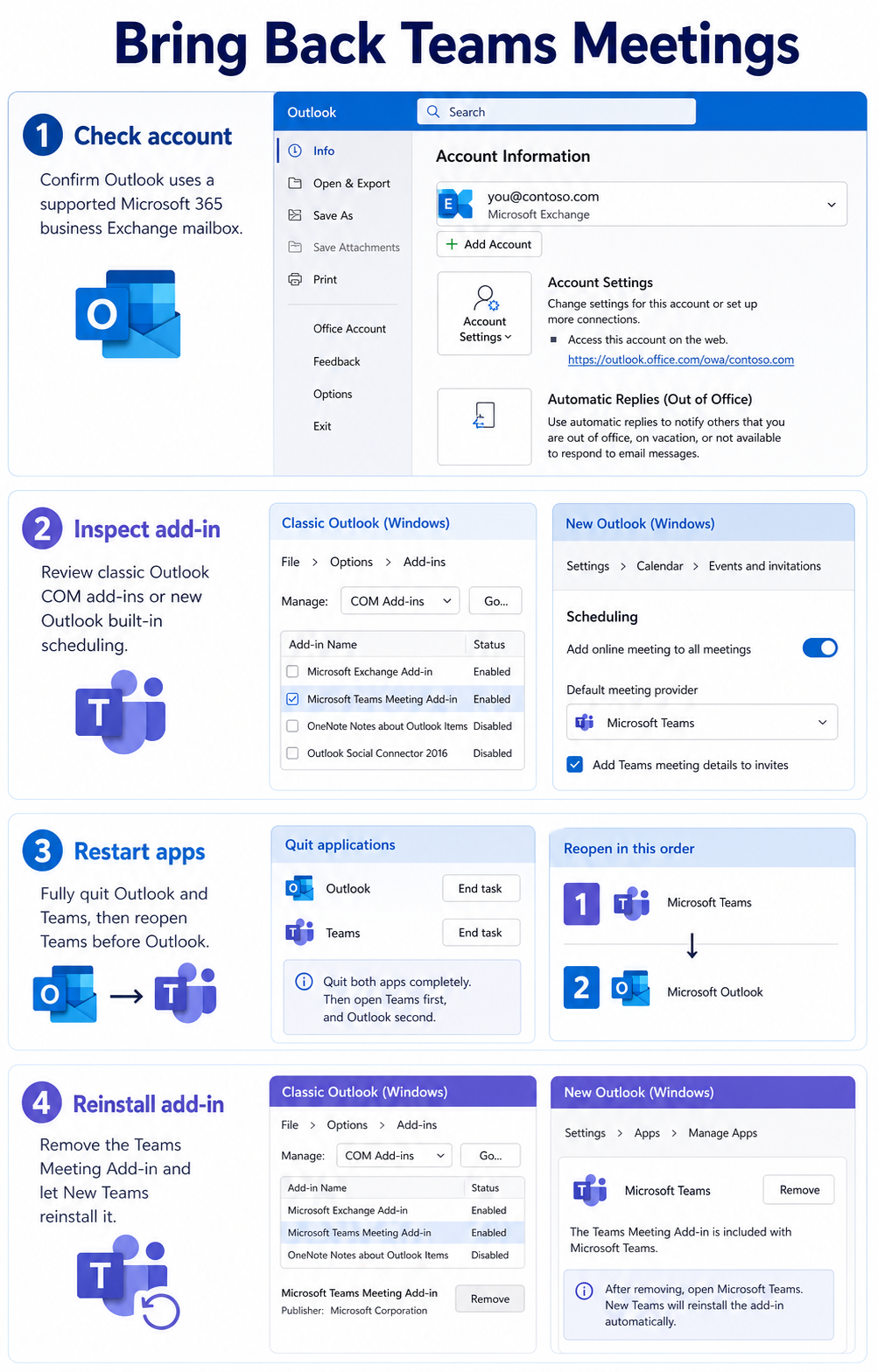
Teams scheduling in Outlook is designed for Microsoft 365 business Exchange accounts. Microsoft notes that personal accounts and POP or IMAP accounts, including many consumer mailboxes, are not supported for the Teams Meeting add-in. If the calendar belongs to Gmail, Yahoo, iCloud, Outlook.com, or another unsupported account, the missing Teams option is expected.
For work accounts, sign into Outlook and Teams with the same organization identity. Mixed sign-ins can produce confusing symptoms: Teams works by itself, Outlook works by itself, but the meeting integration does not appear. When I see the button missing for one user only, I check the mailbox type before touching Windows settings.
Compare new and classic Outlook
In new Outlook, create a calendar event and look for the Teams meeting option in the event window. In classic Outlook, go to File >> Options >> Add-ins, then inspect COM Add-ins for the Teams Meeting Add-in. The add-in model matters because new Outlook does not rely on the same classic COM add-in path.
If your organization is transitioning between classic Outlook, new Outlook, and New Teams, test in both Outlook experiences before deciding the feature is broken. A missing classic add-in can coexist with working Teams scheduling in new Outlook.
Restore the Outlook Teams add-in
Enable the classic Outlook add-in
In classic Outlook, open File >> Options >> Add-ins. Check whether the Teams Meeting Add-in appears under active, inactive, or disabled add-ins. If it is disabled, enable it from the relevant add-in management area and restart Outlook.
Do not ignore Outlook’s disabled add-in list. Outlook may disable add-ins after startup delays or crashes, and the Teams button disappears even though Teams is installed. If you regularly schedule meeting links, this is the first place to look in classic Outlook.
Restart Teams before opening Outlook
Close Outlook. Then quit Teams from the Windows system tray so the client fully exits, not just closes its window. Reopen Teams, wait for it to load with the correct work account, then reopen Outlook and create a new calendar event.
The order matters because Teams installs and maintains the meeting add-in for classic Outlook. Restarting Outlook alone may not force Teams to re-register the integration. My usual repair sequence is Outlook closed, Teams fully quit, Teams opened, then Outlook opened.
Reinstall the Teams meeting add-in
Microsoft documents a New Teams issue where the Teams Meeting add-in is missing in Outlook Desktop after updating. The published fix is to uninstall the Teams Meeting Add-in from Settings >> Apps >> Installed apps, close Outlook, quit Teams, then restart New Teams so it reinstalls the add-in. After the add-in appears again in installed apps, restart Outlook.
Use this targeted add-in reinstall before a full Office repair. It addresses the component that actually creates the missing meeting button. If the add-in never reappears, capture the Teams version, Outlook version, and account type for your Microsoft 365 admin.
Rule out tenant policy issues
Check Microsoft 365 admin settings
Tenant policy can disable or limit Teams meeting features in Outlook. If several users lose the button at the same time, or if the add-in is missing on freshly built computers, ask an admin to review Teams meeting policies and Outlook deployment settings. Local repairs will not override organization-level policy.
Microsoft also says the Outlook add-in does not support creating Teams meetings with personal Teams Free accounts. That matters for small businesses where users mix personal Microsoft accounts with work calendars. The account that owns the Outlook calendar must be eligible.
Test with a new invite
Create a brand-new appointment after each repair instead of repeatedly editing an old meeting. Old recurring events and copied invites can keep stale online meeting data. A clean event tells you whether the scheduling surface is fixed now.
If an existing calendar item has bad Teams details, remove calendar meetings and resend a clean invite rather than patching the same broken recurrence. Later in troubleshooting, I also check whether Outlook is running as administrator, because Office add-ins can behave badly when Teams and Outlook run at different elevation levels.
Repair Office only after evidence
Use Office repair only after account type, Outlook version, Teams sign-in, add-in state, and Teams restart order have been checked. A full repair takes longer and may not touch the tenant or mailbox condition that caused the missing option. If the Teams add-in appears in Windows installed apps but not in classic Outlook, capture that evidence before escalating so support can distinguish registration failure from policy.
Check recent Teams update timing
The issue often appears right after Teams, Outlook, or Microsoft 365 Apps update. Ask whether the user switched to New Teams, toggled new Outlook, or received an Office update before the button disappeared. That history helps you choose between add-in reinstall, Outlook profile repair, and admin policy review.
Isolate the failure with one controlled meeting
Use a new, unsent calendar event for testing. Existing events can retain their original online-meeting state, so they are poor evidence that the integration is repaired. In the test event, confirm that Outlook and Teams are signed in with the same Microsoft 365 work or school account, then look for the Teams meeting control before adding attendees.
In new Outlook, the control is a built-in Teams meeting toggle in the event window. There is no separate COM add-in to install. If the toggle is missing, close Outlook, quit Teams from the notification area, start Teams and confirm the correct account, and then reopen Outlook. This sequence asks Teams to reestablish its integration with Outlook.
Test classic Outlook separately
Classic Outlook for Windows depends on the Microsoft Teams Meeting Add-in. Open File, Options, Add-ins and check whether Microsoft Teams Meeting Add-in for Microsoft Office is active. If it appears under disabled items, enable it and restart Outlook. Microsoft also provides a Get Help troubleshooter for the classic add-in; it does not apply to new Outlook.
Keep Outlook and Teams at the same privilege level. Running Outlook as administrator while Teams runs normally can prevent the integration from loading. Also start Teams before Outlook after reinstalling or repairing the add-in.
Decide whether the problem is local or tenant-wide
Create the same test event in Outlook on the web. If the Teams control works on the web but not in one Windows client, focus on that client’s account, cache, update, or add-in state. If it is missing on the web and desktop for the same user, check the Teams license, mailbox type, and meeting policy.
For a useful administrator handoff, include the Outlook client, version, account domain, test-event time, and screenshots showing the missing control. State whether Teams scheduling works in Teams itself and in Outlook on the web. That comparison prevents a local COM add-in problem from being mistaken for a tenant policy issue.
Outlook Teams scheduling questions answered
Why is the Teams option missing?
The most common causes are unsupported mailbox type, personal account use, disabled classic Outlook add-in, failed New Teams add-in installation, mismatched sign-in, or tenant policy. Start with account and Outlook version before reinstalling software.
Does new Outlook need add-ins?
Microsoft says new Outlook for Windows has Teams scheduling integrated, so it does not use the same separate classic Outlook COM add-in. Classic Outlook still depends on the Teams Meeting Add-in.
Can Teams Free schedule meetings?
Microsoft says the Teams Meeting add-in is not available in Outlook with a Microsoft Teams Free account. Use a supported Microsoft 365 work or school account for Outlook Teams meeting scheduling.
The shortest path is to prove eligibility, identify new versus classic Outlook, then repair the Teams add-in only when that add-in is actually part of the setup.