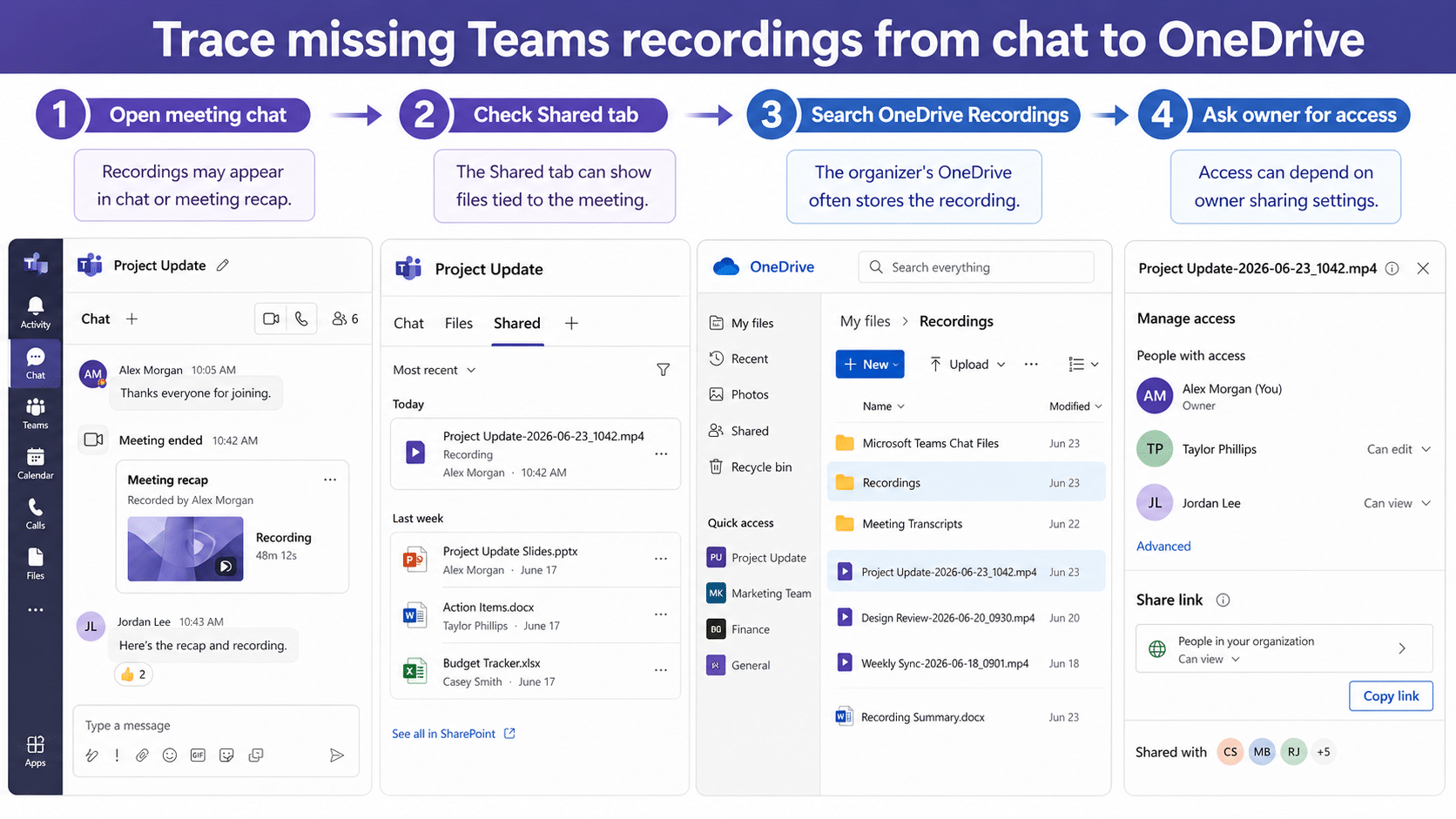
A Teams recording can look missing when it is actually stored under a different owner, surfaced only in the meeting recap, or blocked by file permissions. Modern Teams recordings are tied to Microsoft 365 storage, so the recovery path should include both Teams and OneDrive. The fastest way to find the recording is to follow the meeting artifact trail. Start in the ended meeting chat, check the Shared tab, open the meeting recap, and then search the likely owner storage location.
Start from the ended meeting, not a random chat search
Open Teams, go to Calendar, and select the exact meeting occurrence that was recorded. From there, open the meeting chat or recap. This matters because recurring meetings and forwarded invites can create several similar chat surfaces, and a global chat search may return the wrong thread.
Look for a recording card in the recap area. If your organization uses Copilot or intelligent recap features, the recording may sit beside transcript, notes, or summary content. Our guide to a practical meeting safeguard explains how those meeting artifacts fit together.
Use the Shared tab as a bridge to storage
If the chat card is gone, open the Shared tab in the meeting chat. Shared can show files associated with the meeting even when the main chat conversation is noisy. Sort by recent files and look for a video file, a recording label, or the meeting subject.
Useful clues include:
- The name of the person who started or owned the recording.
- A file date that matches the meeting end time.
- A video file stored with other meeting files.
- A sharing panel that says you need access from the owner.
Do not rename or move the file until everyone who needs it can access it. Moving the recording from the original owner folder can break links in chat and recap.
Search the organizer’s OneDrive Recordings folder
For standard meetings, the recording often lives in the organizer’s or recorder’s OneDrive under a Recordings folder. Open OneDrive on the web and search for the meeting title, the word recording, or the meeting date. If you are not the owner, ask the organizer to run the search from their account.
Channel meetings can behave differently because shared channel storage may use SharePoint rather than personal OneDrive. If the meeting was created in a Teams channel, open the channel Files area and search the related document library.
Fix access before assuming the file is deleted
A recording can be visible to one person and missing for another because the file has not been shared broadly. Ask the owner to open Manage access and confirm whether the viewer has direct access, group access, or an organization link. If the meeting included external guests, access rules can be stricter.
For future meetings, decide recording ownership before the call. If you need repeatable capture, review how to that related cleanup step so the organizer does not depend on someone remembering to start the recording.
Recover the trail when the meeting was recurring or copied
Recurring meetings are where recording searches get messy. Each occurrence can have its own chat activity, recap, and file timestamp, while the subject line stays almost identical. If the recording is not in the first chat you open, use the calendar occurrence date as the anchor and avoid searching only by meeting title.
Copied meetings can create another trap. A copied invite may preserve a familiar title but change organizer ownership, channel context, or storage location. Ask who actually started the recording, because the file may follow the recorder or organizer rather than the person who sent the copied invite.
When you find a likely video file, verify it before sharing it widely. Open the file details, check the duration, confirm the modified time, and preview the first minute if policy allows. This prevents you from sending last week’s recording to people who need the current session.
When to ask an administrator for help
Escalate only after the likely owner has checked chat, Shared, OneDrive, and any channel file location. The administrator will need a precise meeting date, organizer, channel or non-channel context, and the name of the person who started recording. That information is much more actionable than saying the recording disappeared.
If the organization uses retention labels or automatic expiration for recordings, ask whether the file was removed by policy. A retention or expiration rule can make a recording disappear even when nobody manually deleted it. The owner should avoid creating replacement copies until the admin confirms whether the original is recoverable.
For executive or training sessions, add a second owner or clear sharing process before the next meeting. The best recovery workflow is the one you do not need because the organizer, recorder, and storage location were agreed in advance.
Recover an expired recording before retention removes it
Teams recordings can expire according to an administrator-defined policy. When the chat card stops working, check the storage recycle bin promptly because restoration is time-sensitive and depends on where the meeting saved the file. Ask the organizer or channel owner to perform the recovery because ordinary attendees might not have permission to restore the underlying file.
Identify the recording owner and storage site
For a non-channel meeting, start with the organizer’s OneDrive Recordings folder. For a channel meeting, open the channel’s Shared or Files area and its connected SharePoint site. Confirm the meeting title and date before searching deleted items.
Open the correct recycle bin
In Teams, the organizer can open OneDrive, choose My files, and then Recycle bin. For a channel recording, a channel or site owner should open the SharePoint recycle bin. Search for an MP4 name that matches the meeting and inspect its deleted date and original location.
Restore the file without renaming it
Select the verified recording and choose Restore. The service should return it to its original folder. Avoid downloading and re-uploading as the first recovery method because that creates a new file with different links, ownership, and sharing history.
Repair access after restoration
Open the restored recording from OneDrive or SharePoint and review Manage access. Guests and external attendees may need a direct link with appropriate permission. Copy the current link from the restored file rather than relying on an old chat card that still points to an unavailable item.
Verify playback and retention
Play the beginning of the recording, confirm the meeting date and participants, and check that an intended attendee can open the new link. Review the expiration setting allowed by policy and record the recovery date. If the file is absent from the recycle bin, ask the administrator about second-stage recovery or retention before the recovery window closes.
Common questions
Why is the recording visible in chat for one user but not another?
The recording is still a file with permissions. A user who lacks access to the OneDrive or SharePoint item may see a broken link or no file at all.
Can I find a recording if I was not the organizer?
Sometimes, but the owner may need to share it. Start with the meeting recap and Shared tab, then ask the organizer or recorder to check their storage if you cannot open the file.
Does deleting the chat delete the recording?
Deleting or hiding a chat view does not necessarily delete the stored file. The recording should be checked in OneDrive or SharePoint before anyone assumes it is permanently gone.
What to do next
Treat a missing recording as a storage and permission problem first. Teams chat is only one surface for the file, while OneDrive or SharePoint controls where the recording actually lives and who can open it. Once you find the owner, fix the sharing link and then update the meeting chat with the correct file location so the next person does not repeat the same search.