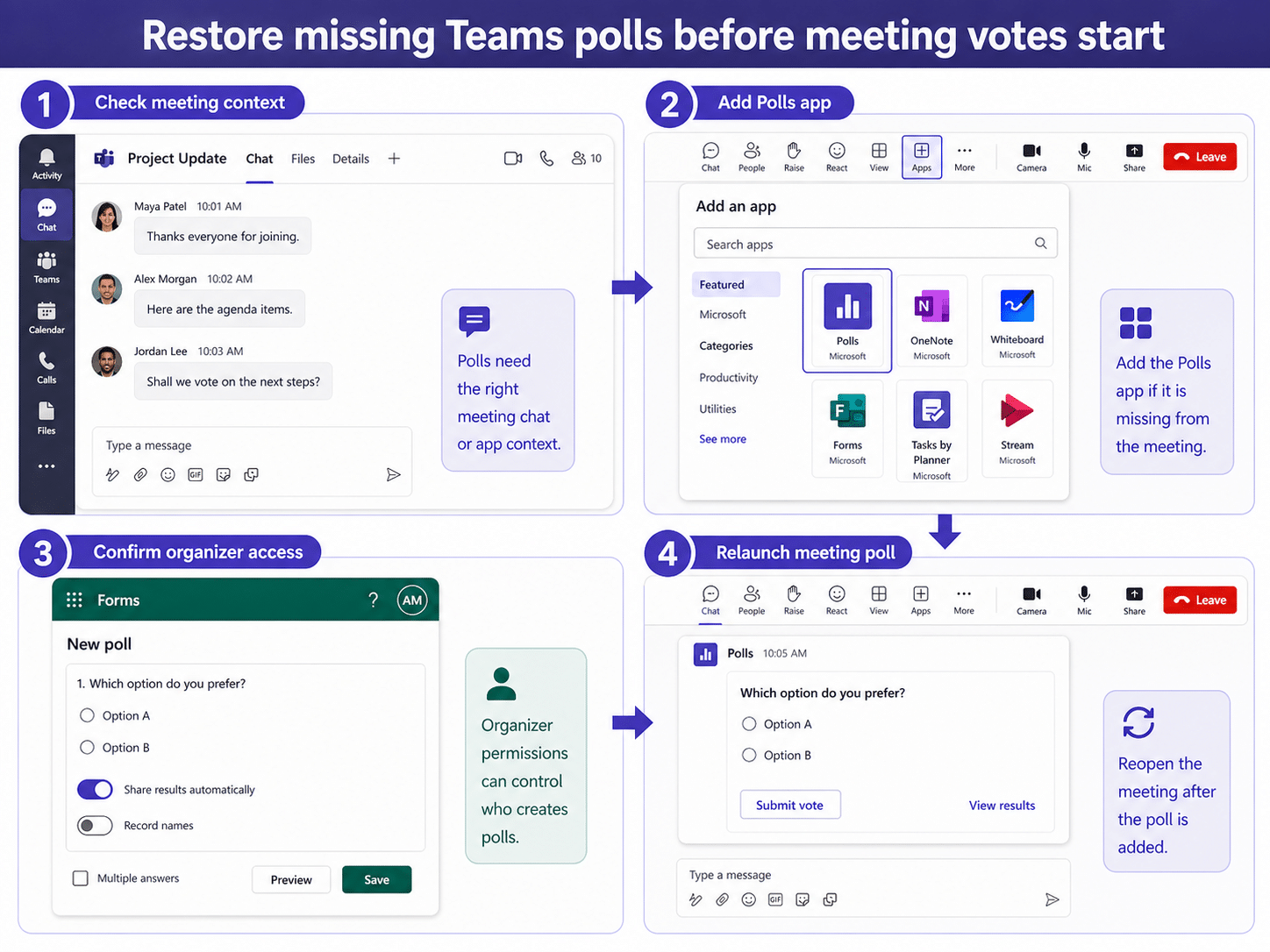
When Teams polls do not show during a meeting, the problem is usually the meeting context, the Polls app, or permissions rather than the question itself. The poll may exist in Forms, but Teams still needs the right meeting chat and app surface to show it to participants. Use a narrow troubleshooting order.
First confirm you are in the actual meeting instance, then add or reopen the Polls app, then check whether the organizer or presenter account is allowed to launch the poll. That keeps you from rebuilding a poll that only needs to be attached to the right meeting.
Start with the meeting instance
Open the meeting from Teams Calendar or the active meeting window, not from a copied chat link. Recurring meetings can create several similar chats, and a poll built in one occurrence may not appear where attendees are currently meeting.
If the meeting was scheduled in Outlook, wait until the Teams meeting chat is created before assuming Polls is broken. A meeting invite and an active meeting chat are related, but they are not the same place for app content.
Check these signals before changing the poll:
- The meeting title and date match the live call.
- The meeting chat has the same participants as the call.
- The Polls tab or app button is missing only in this meeting.
- Other meeting apps still appear normally.
Add Polls back to the meeting surface
In the meeting or meeting chat, open Apps and search for Polls or Forms. If the app is missing, add it again and reopen the meeting chat. For a basic setup reference, see how to that follow-up checklist.
If the poll was prepared before the call, confirm it is connected to this meeting and not only saved as a Forms item. A Forms response page can exist even when the Teams meeting has no visible poll card.
Separate presenter access from attendee visibility
Attendees may not see a poll until the organizer launches it. If you are a presenter, ask the organizer to confirm whether presenters can manage meeting apps and polls in this meeting. In stricter tenants, only the organizer may be able to create or send the poll.
If the poll card appears to the organizer but not attendees, relaunch it during the meeting and ask one internal attendee to refresh the meeting chat. Avoid sending screenshots of the question as a workaround because that breaks response collection.
Fix app and client refresh problems
Teams web and desktop can disagree for a short time after an app is added. Try Teams on the web, sign out and back in, or fully quit the desktop client before rebuilding the poll. If your organization blocks apps by policy, the Polls entry may disappear again after refresh.
Polls also depend on the Forms-backed response path. If poll cards exist but responses or export fail, compare the symptoms with the related setup guide. The issue may be Forms access rather than Teams chat.
Create a backup plan for live sessions
For training or customer calls, test one poll before participants join. Confirm the organizer can launch it, an attendee can vote, and the results page opens. This takes less than a minute and prevents dead air during the meeting.
If Polls remains unavailable, use a separate Forms link as a temporary fallback and record the reason in your meeting notes. After the meeting, fix the Teams app policy or meeting setup so the next session uses the integrated poll path again.
Prevent the same poll failure next time
For meetings where the poll drives a decision, add a dry run to the organizer checklist. Create a one-question test poll, launch it to one internal attendee, confirm the response appears, and then remove or replace the test before the real session starts. This proves the Polls app, Forms response path, and organizer permissions in the same meeting context.
If your tenant restricts third-party or Microsoft apps in meetings, ask the Teams administrator whether Polls is allowed for the organizer's policy package. A policy block can look like a missing app, but refreshing Teams will not fix it. Capture a screenshot of the Apps tray and the meeting details so IT can compare policy to the exact meeting.
When to rebuild the poll
Rebuild the poll only after the meeting context, app availability, and organizer permissions are proven. If you rebuild too early, half the attendees may answer the old poll and half may answer the new one, which makes the results unreliable.
When rebuilding is necessary, copy only the question and answer choices into a new poll attached to the live meeting. Announce that the new poll replaces the earlier one, then discard any partial results from the broken poll so nobody mixes the two response sets.
What to capture before escalation
For support, capture the meeting URL, organizer, Teams client, whether Polls appears in Teams on the web, and whether the same user can open Microsoft Forms. That evidence shows whether the failure is meeting-specific, app-policy-specific, or tied to the user's Forms access.
Include the exact date and time of the test, because calendar, meeting, and directory data can change while troubleshooting is in progress. A precise test record prevents the next person from comparing against a different sync state.
Useful answers
Why can I see the poll in Forms but not in Teams?
Forms can store the question separately from the Teams meeting surface. Add or relink the Polls app in the correct meeting chat so participants can see and answer it inside Teams.
Can attendees create Teams polls during a meeting?
Usually the organizer controls meeting apps and poll launch rights. Some tenants allow presenters more control, but attendees should not be expected to manage the official meeting poll.
Should I recreate the poll if it does not show?
Only after you confirm the meeting chat, app, and permissions are correct. Recreating too early can split responses across two poll objects and make results harder to trust.
Before the next vote
A missing Teams poll is easiest to fix before the meeting reaches the decision point. Confirm the meeting instance, add Polls to the right chat, verify organizer access, and test the attendee view with one internal participant. For recurring events, keep a small pre-call poll check in the organizer checklist so the voting tool is ready before the topic comes up.
Quick answers
Should I test this in Teams on the web?
Yes. The web app is a useful control because it removes part of the local desktop app from the test. If the same account works on the web but not in the desktop app, focus on cache, updates, add-ins, or the local profile before changing tenant-wide settings.
What if the same setup works for another user?
That usually points to an account, license, permission, or profile difference rather than a broken feature for everyone. Compare the affected user’s role, mailbox or file access, app license, and client version before rebuilding the workflow.
When should I ask an administrator to check this?
Escalate when several users see the same symptom, when the setting is controlled by policy, or when the fix requires access you do not have. Give the administrator the affected account, client, time of the test, and the exact result from the web or desktop comparison.