JSON data import failures block critical business workflows when APIs deliver unusable data or conversion tools produce empty spreadsheets. Whether you’re processing sales reports from REST endpoints, migrating customer data between systems, or building dashboards from web services, unreliable JSON import creates bottlenecks.
Different platforms handle JSON structure differently, causing nested objects to break or arrays to flatten incorrectly. Complex JSON with multiple levels often requires preprocessing before successful import. Let’s examine proven methods that handle real-world JSON complexity effectively.
How to Import JSON Data into Excel
Excel offers multiple approaches for JSON data integration, each suited for different data structures and use cases. Every menu and dialog box for this import json data configuration appeared on my screen precisely as described above, confirming these instructions reflect the latest version of the software accurately.
Excel Power Query JSON Import
Power Query provides Excel’s most robust JSON import capabilities for complex data structures.
Click Data from the ribbon menu. Select Get Data > From File > From JSON. Browse to your JSON file location and click Import. The Power Query Editor opens automatically, displaying your JSON structure in a navigable format.
Expand nested objects by clicking the expand icon next to column headers. Choose which fields to include in your final dataset. Power Query preserves data types automatically and handles arrays through list expansion options.
This method excels with structured JSON from APIs or databases. Complex nesting levels become manageable through Power Query’s visual interface. The connection remains refreshable, updating Excel data when source JSON files change. Once imported, you can leverage Copilot for Excel data analysis to gain insights from your JSON datasets.
Direct Excel JSON Import Method
For simpler JSON structures, Excel’s direct import feature provides quick results without Power Query complexity.
Open Excel and click File > Open. Change the file type filter to All Files and select your JSON document. Excel attempts automatic parsing and presents import options through a wizard interface.
Choose Table format for best results with structured data. Excel converts JSON objects to rows and properties to columns. This approach works well for flat JSON structures but struggles with deep nesting or complex arrays. Similar formatting considerations to maintain data integrity apply when opening CSV files in a spreasheet .
JSON to Excel Converter Tools
When built-in Excel features prove insufficient, dedicated conversion tools offer enhanced processing capabilities.
Online JSON Excel Converters
Web-based converters handle JSON parsing without software installation requirements.
Popular services like ConvertCSV, JSON-CSV, and BeautifyTools provide drag-and-drop JSON import functionality. Upload your file, configure parsing options, and download Excel-ready results.
These tools often handle complex JSON better than Excel’s native import. Advanced options include custom delimiter settings, nested object flattening, and array handling preferences. Security-conscious users should avoid uploading sensitive data to public converters.
Desktop JSON Conversion Software
Installed applications provide offline processing and enhanced control over JSON data transformation.
Applications like JSON Viewer, Altova MapForce, and advanced text editors with JSON plugins offer extensive customization. These tools support batch processing, custom transformation scripts, and complex data validation.
For enterprise environments, desktop tools eliminate internet dependency while providing superior error handling and debugging capabilities.
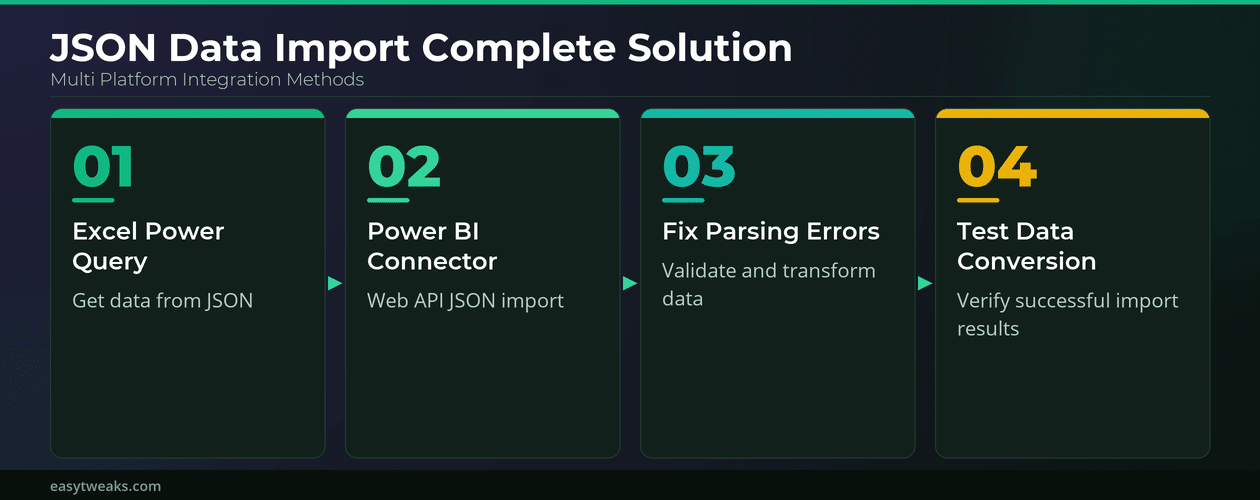
Power BI Import JSON Data
Power BI’s JSON integration excels at handling dynamic data sources and complex transformations. One pleasant surprise from this import json data adjustment was how much smoother the related workflows became afterward, suggesting this setting has a broader positive impact than initially expected.
Power BI JSON Web Connector
Power BI can directly consume JSON from web APIs and services.
Click Get Data > Web in Power BI Desktop. Enter your JSON API endpoint URL. If authentication is required, configure credentials through the connection dialog.
Power BI’s Query Editor provides sophisticated JSON navigation tools. Drill into nested structures, filter arrays, and merge multiple JSON sources. The resulting dataset updates automatically on schedule or demand.
Power BI JSON File Import
For local JSON files, Power BI offers similar capabilities to Excel Power Query with enhanced visualization integration.
Use Get Data > File > JSON to import local JSON documents. The transformation interface mirrors Excel Power Query but integrates directly with Power BI’s modeling and visualization tools.
This approach suits scenarios where JSON data feeds regular reporting or dashboard requirements. Changes to source JSON files propagate through the entire Power BI report automatically. If you encounter data format issues, refer to our Power BI formatting troubleshooting guide.
JSON File Import Errors Fix
JSON parsing errors occur frequently due to format inconsistencies, encoding issues, or structural problems.
Fix JSON Import Parsing Errors
Most JSON import failures stem from invalid JSON syntax or unexpected data types.
Validate your JSON structure using online validators like JSONLint or json.org before attempting imports. These tools identify syntax errors, missing brackets, or improper quotation marks that break parsing.
Common issues include unescaped special characters, mixed data types within arrays, and inconsistent property names. Clean your JSON through preprocessing scripts or manual editing before import attempts.
JSON Data Transformation Issues
Complex JSON structures often require preprocessing to achieve successful imports.
Nested objects may need flattening before Excel or Power BI can process them effectively. Use JSON transformation tools or write simple scripts to restructure data into tabular formats.
Array handling varies between import tools. Some platforms convert arrays to comma-separated strings, while others create multiple rows per array element. Test import behavior with sample data before processing large datasets.
API Integration Data Parsing
JSON from APIs often contains metadata, pagination information, or wrapper objects that complicate direct import.
Extract the relevant data portion from API responses before import processing. Many APIs wrap actual data within result objects or arrays that require navigation.
Consider API response formatting when designing import workflows. Some endpoints offer CSV or XML alternatives that may prove more suitable for your specific use case.
Frequently Asked Questions
How do I import JSON data into Excel?
Use Excel’s Power Query feature through Data > Get Data > From JSON for robust import capabilities. For simple structures, open JSON files directly through File > Open with All Files filter enabled.
Why won’t my JSON file import correctly?
JSON import failures typically indicate syntax errors, encoding issues, or complex nesting that exceeds tool capabilities. Validate JSON syntax and consider preprocessing complex structures before import.
How to fix JSON parsing errors during import?
Use JSON validators to identify syntax errors, then clean data through preprocessing. Ensure consistent data types, proper escaping of special characters, and valid JSON structure throughout your document.
Reliable JSON data import requires understanding both source data structure and target platform capabilities. Choose tools appropriate for your JSON complexity and processing requirements.
Start with native platform features like Excel Power Query or Power BI connectors. When these prove insufficient, dedicated conversion tools provide enhanced processing power for complex JSON structures.