Microsoft Teams meetings often run long because participants arrive without clear expectations or structure. Adding agenda topics to your Teams meeting solves this by giving everyone a shared outline before the call starts. You can configure teams meeting agendas directly inside the invite, assign time blocks to each topic, and ensure every discussion point gets proper attention from the group. Meetings with a published agenda average thirty percent shorter than those without one.
Prerequisites for Teams Agenda Setup
Before you add agenda topics, confirm these requirements:
- Microsoft Teams desktop app or web client running on Windows 11 or macOS, with an active Microsoft 365 subscription (Business Basic or higher). The teams desktop app provides the best editing experience for longer agenda formats.
- Organizer or co-organizer role for the meeting you want to modify. Attendees without this role cannot edit the meeting invite or agenda content.
- Access to Teams Calendar for scheduling and editing meeting invites. This syncs automatically with Outlook Calendar, so changes propagate to both platforms within minutes.
Configure Meeting Agenda in Teams
Create a New Teams Meeting
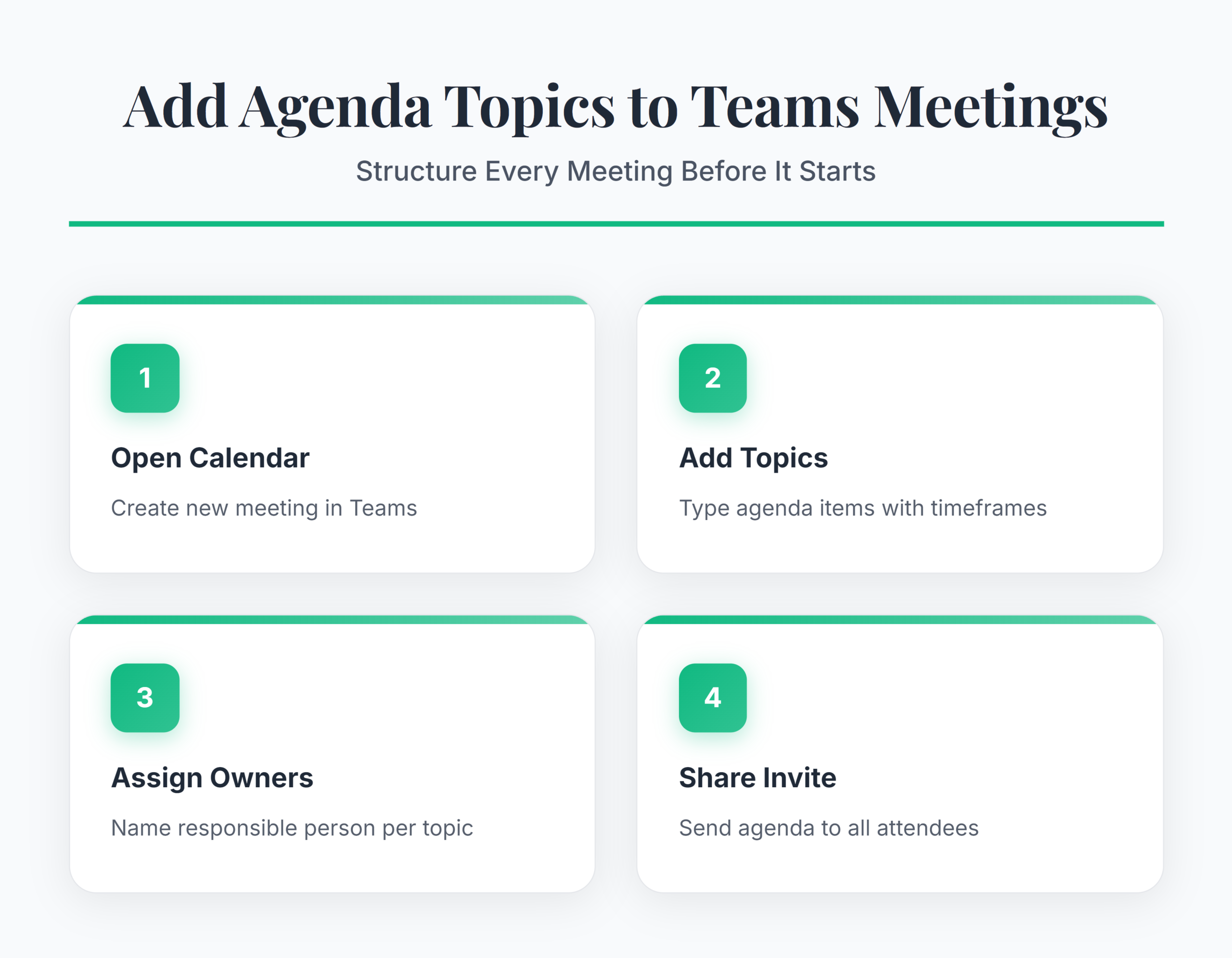
Open Microsoft Teams and select Calendar from the left sidebar. Click New Meeting in the top-right corner to open the scheduling form. Enter your meeting title, date, time, and required attendees in the corresponding fields. Below the meeting details section, locate the large body text area — this is where your agenda topics belong.
Type each topic on a separate line with a brief description and estimated time allocation. Bold the topic headers to make them scannable for attendees reviewing the invite on mobile or desktop. Save the meeting to distribute the agenda to all participants automatically. Teams sends the updated invite to every attendee’s Outlook and Teams calendar within minutes. If the meeting already exists, open it from the calendar and click Edit to add agenda topics to the existing event without creating a duplicate.
Organize and Prioritize Agenda Items
Structure your agenda topics in priority order so the most critical discussions happen while energy and attention are highest. Assign a specific time block to each item:
- Five minutes for status updates and quick check-ins
- Fifteen minutes for decision items that require group input
- Ten minutes for open discussion and parking lot topics
Use numbered formatting inside the meeting body to create a clear sequence that participants follow during the call. Include the owner’s name next to each topic so attendees know who leads that portion of the discussion. Emoji markers or brackets help distinguish between informational items and action-required topics at a glance. If your team already follows a standard format, reference your existing approach to use a Teams meeting agenda template for consistency across recurring sessions. This prevents each organizer from inventing a new layout every week.
Share and Verify the Agenda
After saving the meeting invite, verify the agenda appears correctly by opening the event from your Teams Calendar. Click Edit to review the formatted agenda topics and confirm all attendees received the update notification. Send a brief chat message in the meeting’s dedicated chat thread highlighting any preparation required before the call.
This step catches formatting issues and gives attendees advance notice to review documents or gather data before joining. Teams permission configuration for co-organizers allows designated team members to update the agenda on your behalf when the original organizer is unavailable. Check the attendee tracking status to confirm everyone accepted the invite with the current agenda version. Attendees who declined or haven’t responded may miss critical pre-read materials attached to the agenda, so follow up with them directly through Teams chat.
Advanced Teams Agenda Features
Use Loop Components for Live Agendas
Microsoft Teams supports Loop components inside meeting notes and chat, turning static agendas into living documents. Insert a Loop checklist directly into the meeting chat to create a collaborative agenda that participants edit in real time. Each attendee adds topics, votes on priority, and checks off completed items during the call.
Loop components sync across Teams, Outlook, and the web, so edits appear everywhere without manual distribution. This approach works well for recurring standups where the agenda changes weekly and multiple contributors need to add items before the meeting starts. Pair this with the ability to write notes in Teams meetings for a complete meeting documentation workflow. Loop agendas persist after the meeting ends, creating an automatic record of every topic the team discussed and resolved.
Attach Files to Agenda Topics
Each agenda topic often needs supporting context like slides, spreadsheets, or project reports. Open the meeting invite and use the Attach button to upload files directly to the meeting event. Teams stores these files in the associated SharePoint folder, making them accessible to all attendees before and during the call.
Reference specific file names next to each agenda item so participants know which documents to review in advance. Name your files with the agenda topic prefix for quick identification during the meeting — for example, “01-Budget-Review-Q2.xlsx” maps clearly to the first agenda item. This eliminates the scramble for documents during live discussions and keeps conversations grounded in shared data rather than verbal summaries. Files over 250 MB should upload to SharePoint first and link in the agenda body instead of attaching directly.
Q&A
Why is my Teams meeting agenda not visible to attendees?
Attendees may not see the agenda if you typed it in the meeting notes section instead of the meeting invite body. Open the meeting from Calendar, click Edit, and paste your agenda topics into the main description field. Save and send the update so all participants receive the revised invite with visible agenda items in their calendar notifications.
How do I fix a Teams meeting agenda not syncing with Outlook?
Close and reopen both the Teams app and Outlook to force a calendar sync. If the agenda still doesn’t appear, remove one attendee and re-add them to trigger a fresh invite delivery. Confirm your Microsoft 365 subscription is active, as expired licenses block calendar synchronization between Teams desktop and Outlook on Windows 11.
Can co-organizers edit Teams meeting agenda topics?
Yes. Assign the co-organizer role through Meeting Options before or during the meeting. Co-organizers can edit the meeting invite, update agenda items, and manage attendee settings. This permission configuration enables distributed ownership so the meeting agenda stays current even when the original organizer is unavailable or out of office.
A well-structured agenda transforms Teams meetings from unfocused conversations into productive sessions with clear outcomes. Start by adding detailed topics with time allocations to your next meeting invite, and refine the format based on what keeps your team engaged and on track.