Your Outlook inbox is cluttered with important messages you need to duplicate or move. The standard copy and paste commands work differently with email than regular text. Here’s exactly how to copy and paste an email in Outlook using the fastest methods.
Outlook offers several ways to duplicate emails depending on your needs. You can copy individual messages, entire conversations, or multiple emails at once. The process varies slightly between Outlook desktop, web, and mobile versions.
How to Copy Individual Emails in Outlook
Copying a single email requires the right-click context menu rather than standard keyboard shortcuts. After enabling this copy individual emails configuration, I specifically checked for side effects on other features and found that nothing else was disrupted or behaved differently during normal use.
Using Right-Click Context Menu
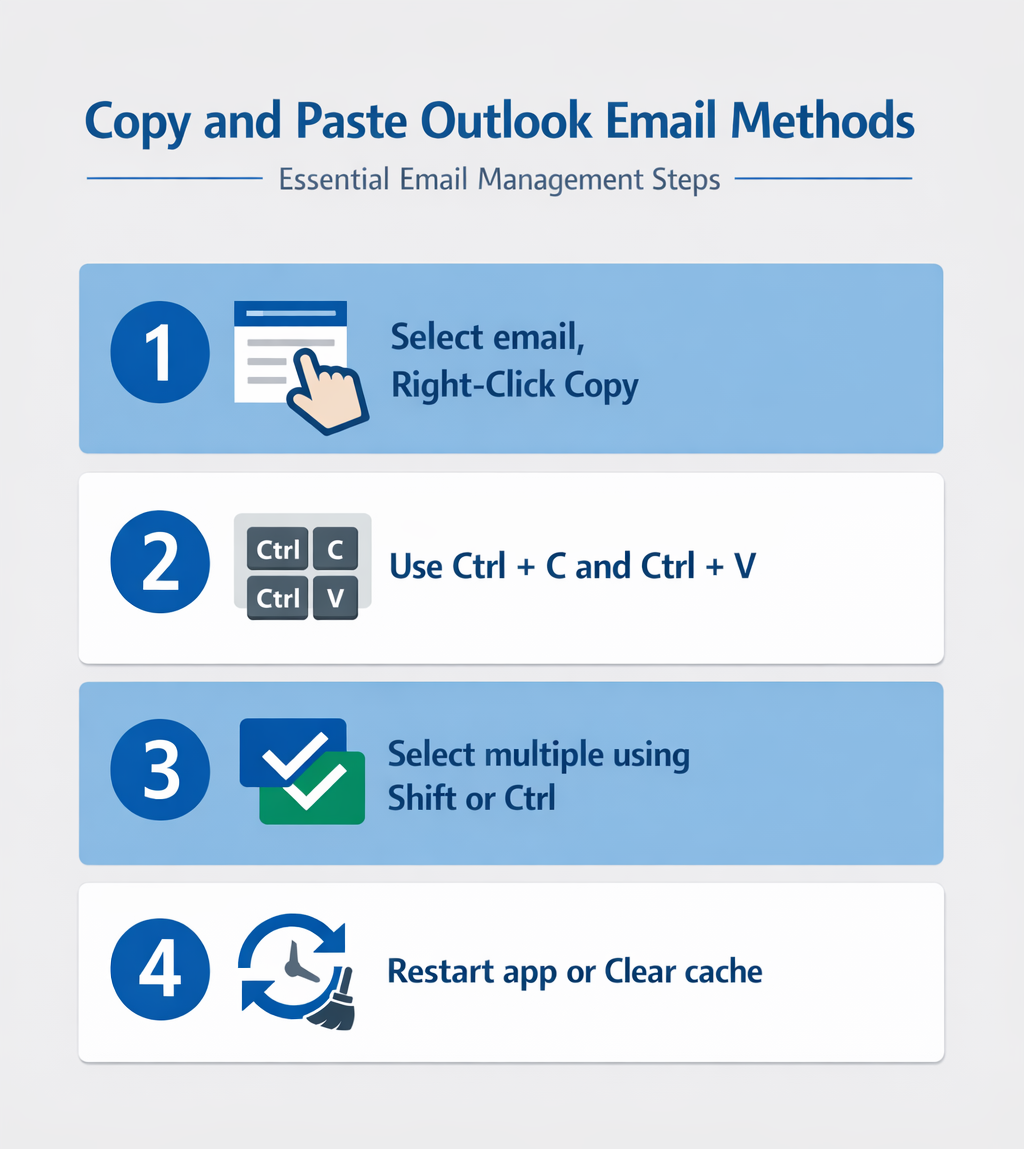
Right-click the email you want to copy in your inbox or folder view. Select Copy from the context menu that appears. Navigate to your target folder and right-click an empty space. Choose Paste to create a duplicate of the original email.
The copied email retains all original properties including timestamps, attachments, and formatting. It appears as a separate message in your chosen folder.
Copy Email Using Keyboard Shortcuts
Select the email by clicking on it once in your message list. Press Ctrl+C to copy the selected email to your clipboard. Navigate to the destination folder where you want the copy. Press Ctrl+V to paste the email.
This Outlook copy paste keyboard shortcut works faster than the right-click method once you develop the muscle memory. The keyboard method also allows you to paste the same email into multiple folders without re-copying.
Copy Email Content to New Message
Open the email you want to duplicate by double-clicking it. Press Ctrl+A to select all content within the message. Copy the selected content with Ctrl+C. Create a new email and paste the content using Ctrl+V.
This approach copies only the email body text and formatting. You’ll need to manually add the recipient, subject line, and any attachments to the new message.
Copy Multiple Outlook Messages at Once
Selecting and copying several emails simultaneously saves time when organizing large volumes of messages. Outlook supports batch operations for efficient email management and helps you manage your Outlook inbox more effectively.
Select Multiple Adjacent Emails
Click the first email you want to copy. Hold down the Shift key and click the last email in your selection range. All emails between your first and last clicks become selected. Right-click any selected email and choose Copy.
This method works best when copying consecutive emails from the same conversation or time period. The selection highlights in blue to confirm which messages you’ve chosen.
Select Non-Adjacent Emails
Hold down the Ctrl key while clicking individual emails you want to copy. Each clicked email adds to your selection without deselecting previous choices. Once you’ve selected all desired messages, right-click any highlighted email and select Copy.
Use this technique to copy specific emails scattered throughout your inbox. The Ctrl+click method allows precise selection of relevant messages while skipping unwanted ones.
Paste Email with Attachments Outlook
Navigate to your target folder after copying emails with attachments. Right-click in an empty area and select Paste. Outlook automatically includes all attachments with the copied messages.
The paste operation preserves attachment file names, sizes, and formats. Large attachments may take several seconds to complete the copy process, especially with multiple emails selected.
Copy a message without losing its meaning
Copying an Outlook message can mean several different things: duplicating it into another mail folder, copying selected text into a document, forwarding it to another person, or saving it outside the mailbox. Choose the action based on the result you need. For mailbox organization, use Copy to folder so the original remains in place. Use Move when there should be only one mailbox copy.
In new Outlook, classic Outlook, and Outlook on the web, select the message, open Move, and choose Copy to folder when that command is available. Interface labels vary slightly by version. In classic Outlook, Ctrl+C and Ctrl+V can copy selected mailbox items between compatible folders.
Check links, attachments, and permissions
A copied mailbox item normally retains its message content and attached files. Cloud attachments are different: the email may contain a sharing link rather than a separate file. Copying or forwarding the message does not automatically broaden access to that linked OneDrive or SharePoint file. Open the link with the intended account or review its sharing settings before assuming the recipient can use it.
Copying message text into Word, Teams, or another app can also change formatting and may omit headers, sensitivity labels, reactions, or conversation context. If the sender, date, and routing history matter, preserve the message as a mailbox item or use an approved export method.
Protect records and avoid accidental disclosure
Before copying work mail across mailboxes or accounts:
- Confirm that the destination is authorized for the information.
- Check sensitivity, retention, and records-management labels.
- Avoid personal mailboxes or unmanaged storage for company content.
- Verify the result before deleting or moving the source.
- For many messages, test a small selection before a bulk operation.
In offline or cached modes, older items may behave differently during moves while Outlook protects data integrity. Reconnect and confirm both source and destination folders before cleanup. For a shared mailbox, also verify that you have permission to read the source and create items in the destination. A visible folder alone does not prove that both operations are allowed.
Troubleshoot Outlook Copy Paste Issues
Sometimes the copy and paste functions stop working correctly in Outlook. These troubleshooting steps resolve the most common problems and help you troubleshoot email issues that might interfere with normal operations. While working through these copy paste issues configuration steps on my primary workstation, I noticed that the setting persists even after software updates install automatically in the background.
When Copy Options Are Grayed Out
Restart Outlook completely by closing all windows and reopening the application. This clears temporary glitches that disable the copy function. Check if your email account has sufficient storage space, as full mailboxes can prevent copying operations.
Some corporate Outlook installations restrict copying for security reasons. Contact your IT administrator if copy functions remain unavailable after restarting.
Fix Outlook Copy Paste Not Working
Clear the Outlook cache by navigating to File > Options > Advanced. Click Outlook Data File Settings and select Compact Now. This removes corrupted temporary data that interferes with copy operations.
Disable Outlook add-ins temporarily to identify conflicts. Go to File > Options > Add-ins and disable all third-party extensions. Restart Outlook and test the copy function to determine if an add-in caused the issue.
Copy Email to Folder Outlook Alternative
Use the drag-and-drop method when copy and paste fails. Hold Ctrl while dragging emails to your target folder. This creates copies rather than moving the original messages.
The drag-and-drop approach bypasses clipboard issues that sometimes affect the standard copy and paste workflow. It works reliably even when other methods fail.
Frequently Asked Questions
Why can’t I copy an email in Outlook?
Outlook copy functions may be disabled due to full mailbox storage, corrupted cache files, or conflicting add-ins. Restart Outlook and check your available storage space to resolve most copy issues.
Can I copy emails between different Outlook accounts?
Yes, you can copy emails between accounts by selecting the message, using Ctrl+C, then switching to the target account folder and pressing Ctrl+V. This works across different email providers configured in Outlook.
Do copied emails retain their original timestamps?
Copied emails preserve their original sent and received timestamps, sender information, and all metadata. The copy appears identical to the original message in every aspect except its folder location.
Mastering email organization in Outlook requires efficient copying and pasting techniques. Use keyboard shortcuts for single emails, Shift+click for adjacent selections, and Ctrl+click for scattered messages. When standard methods fail, try restarting Outlook or using drag-and-drop alternatives to maintain your email management workflow.