You’re sitting at your desk, ready to tackle your morning emails, but Outlook displays “Trying to connect” or refuses to open your mailbox entirely. Your colleagues are sending urgent messages, meetings need responses, and deadlines are approaching, yet your email client won’t cooperate. This connectivity problem disrupts your workflow and prevents you from accessing critical business communications stored in your mailbox.
Solving Outlook 365 connection problems
Outlook email connection failures occur when the application cannot establish or maintain communication with your mail server, whether you’re using Microsoft 365, Exchange Server, or third-party email providers. These issues manifest as persistent “Trying to connect” messages, inability to send or receive emails, or complete failure to open your mailbox upon launching the application.
Today we will address Outlook connectivity scenarios, including network configuration problems, corrupted profile data, authentication failures, and offline mode conflicts. You’ll learn systematic troubleshooting steps that resolve connection issues across Outlook for Windows desktop versions, including Outlook 2016, 2019, 2021, and Microsoft 365 Apps for enterprise. This guide assumes you’re experiencing connection problems with an already-configured Outlook profile rather than setting up a new account.
Verify network connectivity and Outlook’s online status
Before diving into complex solutions, confirm that your computer has active internet connectivity and that Outlook isn’t accidentally set to work offline. Open your web browser and navigate to any website to verify your network connection is functioning properly. If websites load successfully, your internet connection is working, and the problem lies specifically with Outlook rather than your broader network infrastructure.
- Launch Outlook and look at the bottom-right corner of the application window where the connection status appears next to the Send/Receive button to check if Outlook is operating in offline mode. If you see “Working Offline” displayed, click the Send/Receive tab in the ribbon menu, then click the Work Offline button to toggle back to online mode and allow Outlook to attempt reconnecting to your mail server.
- Navigate to File > Account Settings > Account Settings from the main Outlook menu to access your email account configuration and verify that your account credentials and server settings remain correct. Select your email account from the list, click Change, and ensure your email address, username, and server information match your organization’s requirements or your email provider’s specifications.
- Click the Test Account Settings button within the account configuration dialog to run Outlook’s built-in diagnostic tool that attempts to connect to your mail server and identifies specific connection failures. Review the test results carefully, noting any error messages related to network connectivity, authentication, or server availability that will guide your subsequent troubleshooting steps.
- Restart your computer and router to clear temporary network glitches that might prevent Outlook from establishing connections, as this simple step resolves connectivity issues caused by stale network configurations or temporary service interruptions. After restarting, launch Outlook again and observe whether the connection establishes successfully without further intervention.
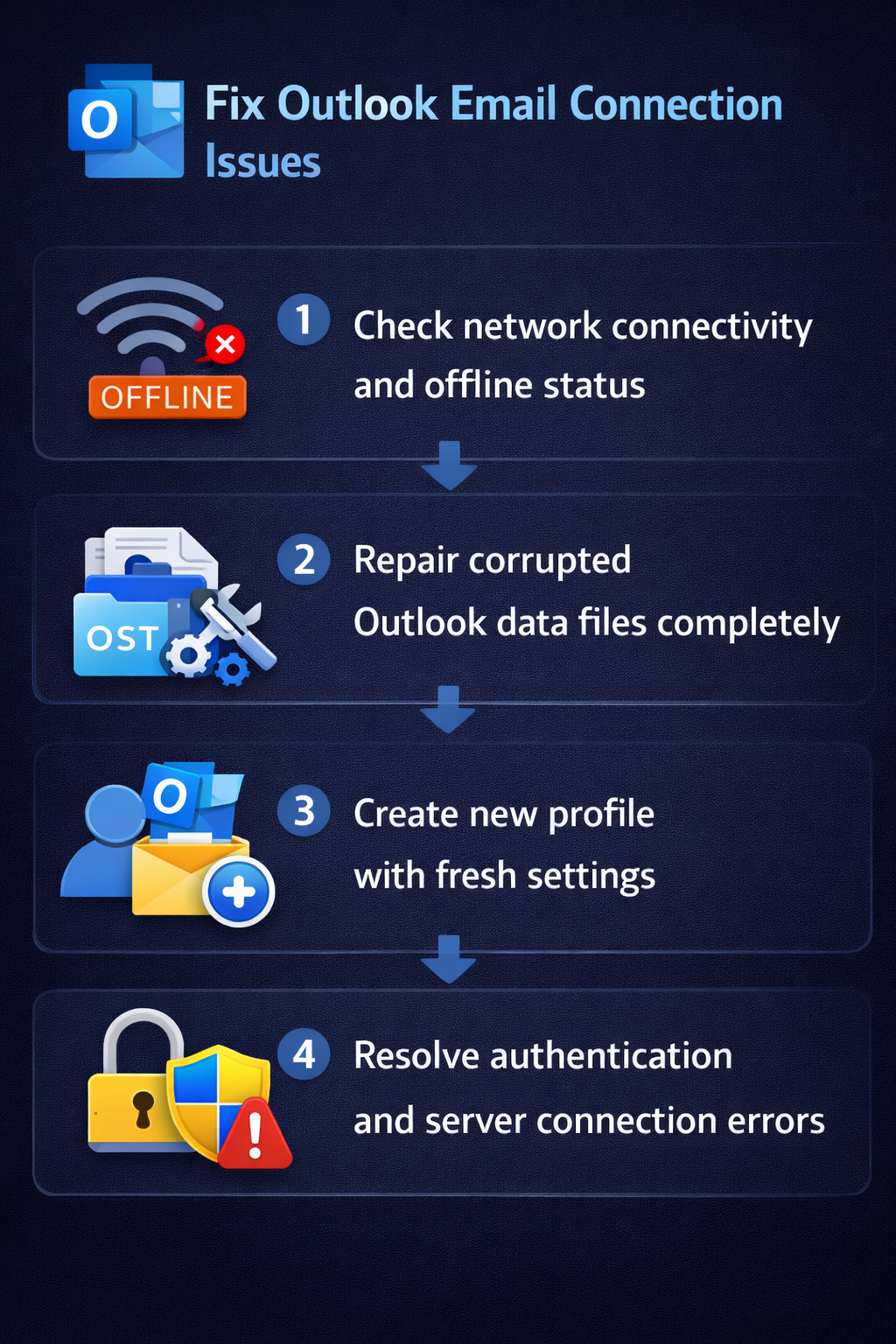
Repair your Outlook data files (PST and OST)
Corrupted Outlook data files (PST or OST files) frequently cause connection problems that prevent Outlook from opening your mailbox or synchronizing with the server properly. Microsoft provides the Inbox Repair Tool (ScanPST.exe) specifically designed to detect and fix corruption within these data files that store your emails, calendar items, and other mailbox content locally.
- Close Outlook completely by right-clicking the Outlook icon in the system tray and selecting Exit, or by using Task Manager to end all Outlook-related processes if the application appears frozen or unresponsive. Navigate to the default Inbox Repair Tool location by opening File Explorer and browsing to
C:\Program Files\Microsoft Office\root\Office16\for Microsoft 365 or Office 2019, orC:\Program Files (x86)\Microsoft Office\Office16\for 32-bit installations on 64-bit Windows systems. - Double-click ScanPST.exe to launch the Inbox Repair Tool, then click Browse to locate your Outlook data file, which is typically stored in
C:\Users\YourUsername\AppData\Local\Microsoft\Outlook\for OST files orC:\Users\YourUsername\Documents\Outlook Files\for PST files. Select the appropriate data file associated with the email account experiencing connection problems, then click Start to begin the scanning process that analyzes the file structure for errors and corruption. - Review the scan results when the process completes, and if errors are detected, check the option to create a backup of the original file before repairs begin to preserve your data in case the repair process encounters unexpected issues. Click Repair to allow the tool to fix identified problems, which may take several minutes to several hours depending on the file size and extent of corruption discovered during the scan.
- Launch Outlook after the repair completes and observe whether the connection establishes successfully and your mailbox opens without displaying “Trying to connect” messages, indicating that the corruption has been resolved and normal email functionality restored. If connection problems persist, proceed to create a new Outlook profile as described in the next section to eliminate profile-specific configuration issues.
Expert Tip: Always maintain regular backups of your Outlook data files to prevent permanent data loss if corruption occurs beyond the Inbox Repair Tool’s ability to fix, especially for PST files containing archived emails not stored on the server.
Create a new Outlook profile to eliminate configuration conflicts
Outlook profiles store account settings, data file locations, and configuration preferences that can become corrupted or misconfigured over time, leading to persistent connection failures that resist other troubleshooting attempts. Creating a fresh profile with clean configuration settings often resolves stubborn connectivity issues when other methods fail to restore mailbox access.
- Close Outlook completely, then open Windows Control Panel by pressing Windows key + R, typing “control panel” in the Run dialog, and pressing Enter to access system configuration tools. Click User Accounts, then click Mail (Microsoft Outlook) to open the Mail Setup dialog where Outlook profiles are managed independently of the Outlook application itself.
- Click Show Profiles to view all existing Outlook profiles on your computer, then click Add to create a new profile with fresh configuration settings that aren’t affected by any corruption or misconfiguration in your current profile. Enter a descriptive name for the new profile such as “Outlook New Profile” or include the current date for easy identification, then click OK to proceed to the account setup wizard.
- Follow the Add Account wizard to configure your email account in the new profile by entering your email address and allowing Outlook to automatically detect server settings for Microsoft 365 and Exchange accounts, or manually entering server information for IMAP or POP accounts. Complete the configuration process, including entering your password and allowing any authentication prompts to complete, ensuring that the Test Account Settings function confirms successful connection to your mail server.
- Return to the Mail Setup dialog, select “Prompt for a profile to be used” under the “When starting Microsoft Outlook, use this profile” section to allow choosing between your old and new profiles when launching Outlook. Launch Outlook, select your newly created profile from the dropdown menu, and verify that the connection establishes successfully and your mailbox opens without errors, confirming that profile-specific issues were causing your connection problems.
Remember: If you’re using a VPN to connect to your organization’s network, ensure the VPN connection is stable and fully established before launching Outlook, as incomplete VPN connections frequently cause authentication and server connectivity failures that appear as Outlook-specific problems.