Rebuilding a calendar entry is tedious when the title, notes, location, and most other details are already correct. In the new Outlook, the cleanest way to copy an appointment or meeting is the Duplicate event command on the calendar item’s right-click menu.
The command creates an editable copy rather than changing the original. You can then choose another date, adjust the time, move the copy to another calendar, and review its attendees before saving or sending it. That last review matters: a copied personal appointment is low risk, while a copied meeting can contain people, recurrence settings, and online-meeting information that should not automatically carry forward.
Duplicate the event from the calendar
Start from the calendar grid rather than opening the event editor. The context menu exposes the duplicate command directly and makes it clear which item you are copying.
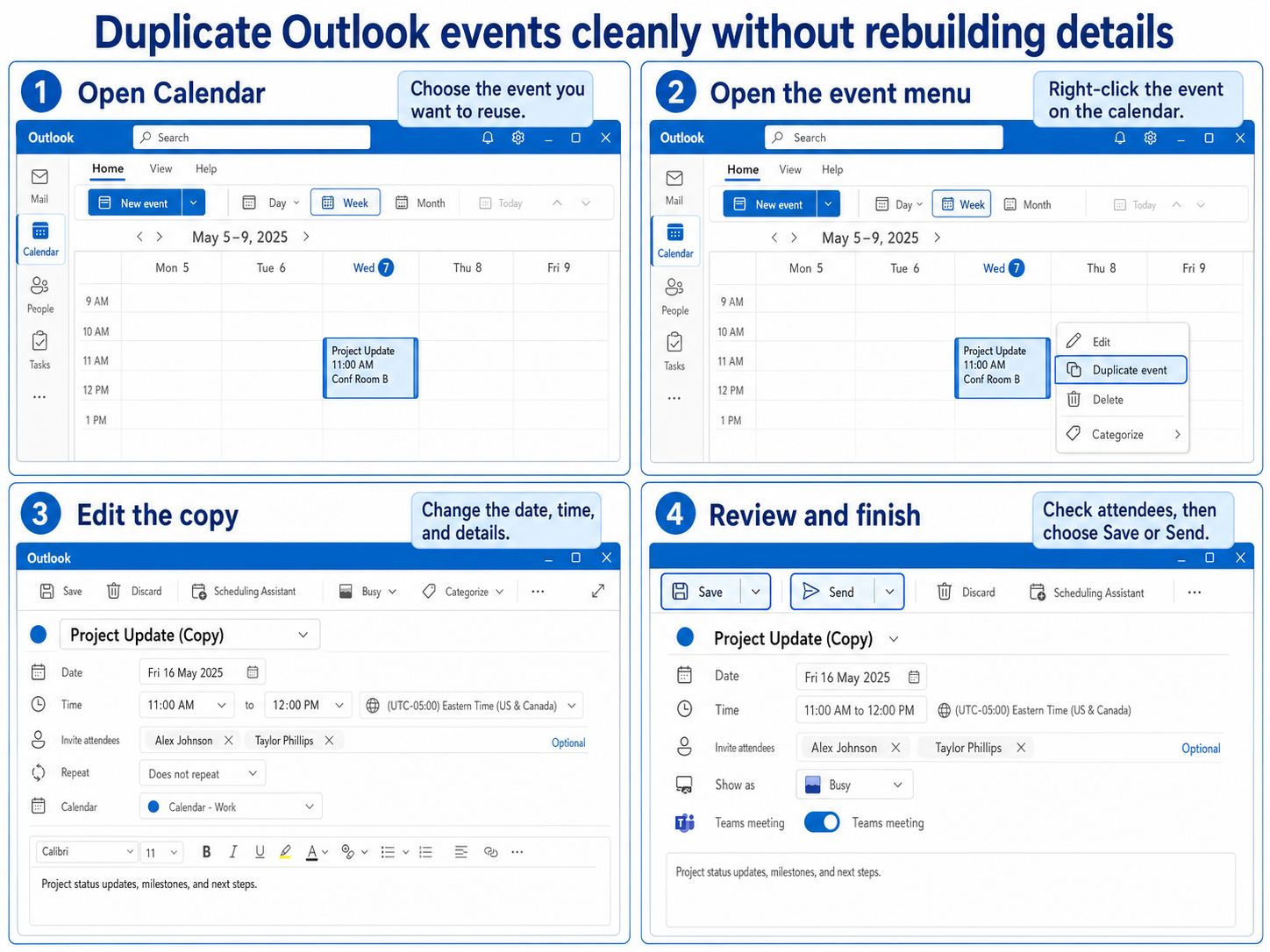
- Open the new Outlook and select Calendar in the left navigation.
- Switch to Day, Week, or Month view and locate the source event.
- Right-click the event on the calendar.
- Select Duplicate event.
- In the copy, change the date, start time, end time, title, location, or notes as needed.
- Review the Calendar, Repeat, Show as, Invite attendees, and Teams meeting fields.
- Select Save for an appointment or Send for a meeting with attendees.
The original event remains on its current date. The duplicate is a separate calendar item, so later edits to one do not update the other.
Know whether you copied an appointment or a meeting
An appointment is an item for your own calendar. It might block your time, show you as free, or remind you about work, but it does not need to send invitations. After editing an appointment copy, Save is normally the final action.
A meeting contains attendees. When you duplicate and edit one, Outlook may present Send because the copy can become a new invitation. Check the recipient list before selecting it. If the goal is only to tell another person about the original meeting, forwarding or sharing the details may be more appropriate than creating a second meeting.
Choose the destination calendar deliberately
If several calendars are open, inspect the Calendar field in the event editor. A copy saved to a secondary calendar may not affect your primary free/busy availability. A shared or delegated calendar can also restrict changes according to your permission level.
Clean the copy before you finish
Treat the duplicate as a draft, even when it looks complete. Outlook can save you retyping, but it cannot decide which details still belong in the new event.
Change the date before editing the smaller details
Set the new date and time first. This reduces the chance of polishing a copy and then saving it on top of the original time slot. Confirm the time zone too, especially when the source meeting involved remote attendees or was created while you were traveling.
For a repeated schedule, consider changing Repeat instead of creating many individual copies. Recurrence is usually the better choice when the title, duration, and attendance pattern stay consistent. Separate duplicates make more sense when each occurrence needs different notes, locations, or participants.
Review every field that can notify someone
For a copied meeting, inspect these fields before selecting Send:
- Required and optional attendees
- Meeting room or physical location
- Teams meeting toggle and join information
- Response options
- Reminder and free/busy status
- Recurrence pattern
- Description, attachments, and old agenda text
Do not assume the copied item remains linked to the original. Microsoft documents that copied meetings are independent items, which can cause confusion if people expect changes or cancellations to stay synchronized. When the event has many attendees or a formal organizer workflow, creating a fresh meeting can be safer.
Pick the right method for the situation
The Duplicate event command is designed for the new Outlook and Outlook on the web. If you switch between clients, note that the older desktop-client techniques use different commands and should not be treated as the new Outlook workflow.
Use Duplicate event when you want a separate item that reuses most of the source details. Use Repeat when one schedule follows a predictable pattern. Use Forward when another person should receive the existing meeting rather than a newly organized copy. Create a completely new meeting when the organizer, attendee set, or online-meeting context must be independent and unambiguous.
There is also an important organizer boundary: Outlook does not let you transfer the organizer role by copying a meeting. If another person must own future instances, that person should create the new meeting series. For an existing recurring series, the original organizer should end the old series at an agreed date and communicate the transition.
If Duplicate event is missing or the copy looks wrong
First, make sure you are using new Outlook for Windows or Outlook on the web. The right-click Duplicate event command is not the same as the older Ctrl+C and Ctrl+V workflow. Select the event directly on the calendar surface and open its context menu; the command may not appear in every editor menu.
If the event belongs to a shared or delegated calendar, try duplicating a simple appointment in your own primary calendar. If that works, the likely difference is calendar permission, event ownership, or organizational policy. Ask the calendar owner or Microsoft 365 administrator to confirm that you can create and edit items in the destination calendar.
If the copied event saves but does not appear where expected, verify the destination calendar and current view. Then refresh Outlook and search for the copied title. If other calendar changes are also delayed, work through these calendar refresh checks before creating another copy, or you may end up with duplicates when synchronization catches up.
For a recurring event, make sure you duplicated the intended item. Editing one occurrence, future occurrences, and the whole series are different operations. If Outlook opens a series prompt, stop and choose the scope that matches your goal before changing the copy.
Questions you might have
Can I use Ctrl+C and Ctrl+V in the new Outlook calendar?
The dependable new Outlook method is the event’s right-click Duplicate event command. Clipboard behavior differs between Outlook clients and builds, so Ctrl+C and Ctrl+V should not be the primary instruction for this version. The context-menu method also makes it easier to see that a separate editable event is being created.
Will duplicating a meeting notify the existing attendees?
Opening the duplicate does not by itself send a new invitation, but selecting Send can notify everyone currently listed on the copy. Remove people who should not receive the new event and check response options first. For a personal appointment without attendees, select Save instead.
Can I copy an event to another calendar?
Yes, when the event editor offers a Calendar field and you have permission to create items in the destination. Check the selected calendar before saving because secondary calendars may not affect your primary availability. Shared calendars can also limit editing or invitation behavior.
Does the copy stay connected to the original event?
No. Treat the duplicate as an independent item. Changes, cancellations, attendee responses, and recurrence edits on one item should not be expected to update the other, so give the copy a clear date and review its invitation details.
Before you move on
The fastest reliable path is short: right-click the event, choose Duplicate event, change the schedule, and inspect every field that could affect another person. Use recurrence for a true repeating pattern and create a fresh meeting when organizer or attendee history matters. Once the copy is saved or sent, open it from the destination date and confirm that the time, calendar, recurrence, and participant list are exactly what you intended.