AI Builder can extract structured values from PDF documents when the forms follow a repeatable pattern. It is most useful for invoices, statements, requests, certificates, and similar files where the same fields appear from document to document.
The key is to treat extraction as a reviewed process, not as blind automation. A model can find fields, but your workflow still needs sample quality, confidence checks, and a place for exceptions.
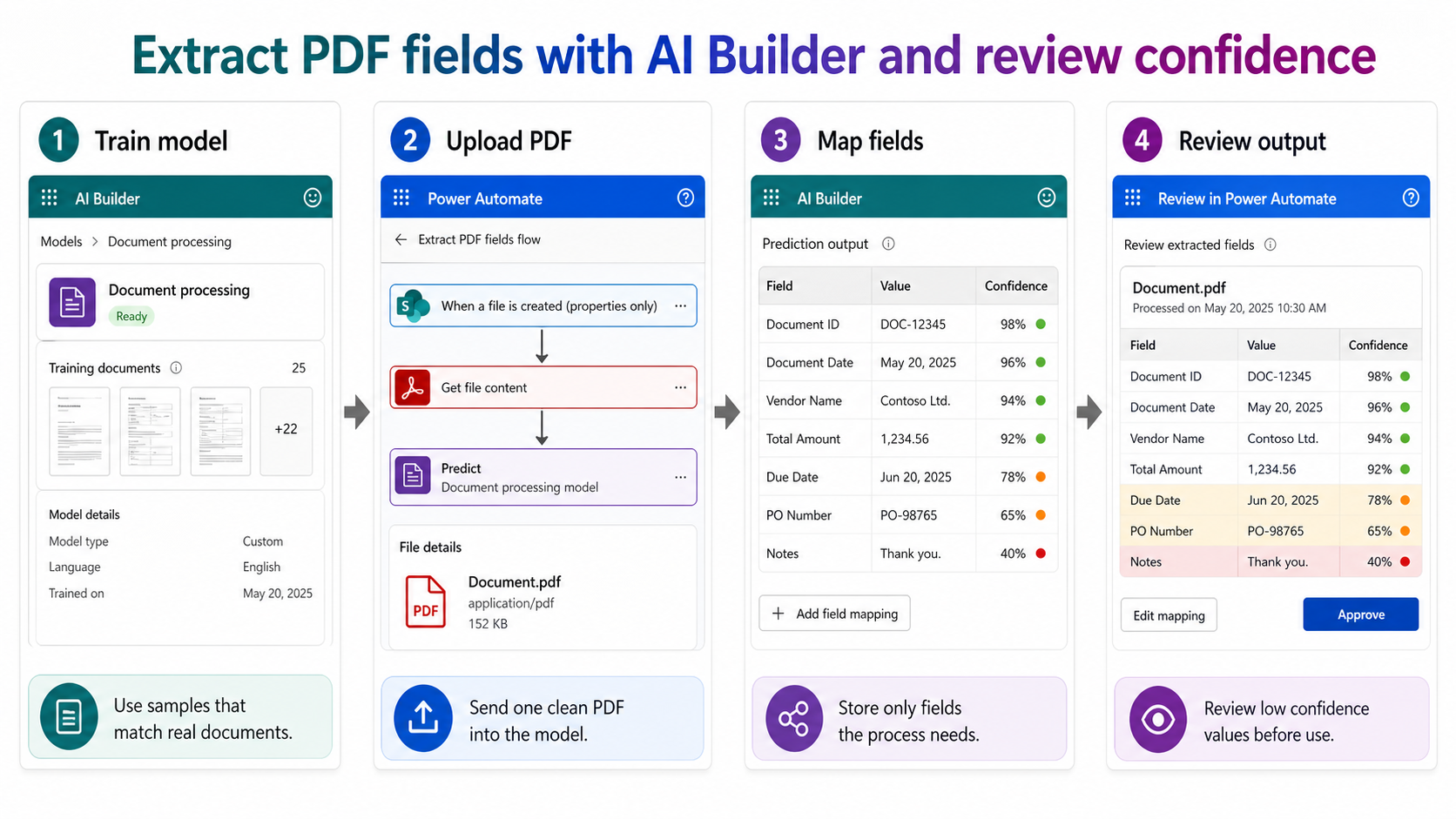
Choose the right extraction pattern
For starters, decide whether the PDF type is standard or custom. Standard documents such as invoices may fit a prebuilt model. Custom forms, internal request sheets, and vendor-specific templates usually need a document processing model trained with representative samples.
If the larger goal is a full automation, use this focused extraction step alongside a workflow like process documents automatically using AI Builder, where intake, routing, and storage are handled outside the model itself.
Prepare PDF samples before training
Collect PDFs that look like the files the workflow will actually receive. Include normal documents, documents with optional fields, and a few messy but valid examples. Do not train only on perfect files if the real process receives scans, different page counts, or vendor variations.
Name the fields in plain business language. InvoiceNumber, CustomerName, TotalAmount, DueDate, and ProjectCode are easier to maintain than generic names such as Field1 or ValueA.
- Use clear samples with readable text.
- Group similar layouts together when possible.
- Separate documents that require different extraction rules.
Map the fields into a process
After the model is trained, call it from Power Automate or the process that handles the incoming PDF. Map only the fields that the next system needs. Extracting every visible field makes the workflow harder to validate and increases cleanup work.
Use a review step for fields that control money, dates, or compliance. For example, a PDF exported from a collaboration workflow, such as when users export Teams chat conversations to PDF, may still need human confirmation before extracted values become records.
Confidence scores
Use confidence values as routing signals. High confidence can continue automatically, while low confidence should go to a review queue with the PDF and extracted field side by side.
Output destinations
Send clean results to a SharePoint list, Dataverse table, Excel table, or approval flow. Choose the destination based on how the business will review and correct records later.
Watch for extraction limits
AI Builder is not a magic fix for every PDF. Password-protected files, rotated scans, handwritten notes, and inconsistent layouts can reduce accuracy. Keep a manual path for documents the model cannot read well.
If the workflow handles regulated or customer-sensitive documents, review retention, access, and error handling before moving from a pilot into production. The model output should be traceable back to the source file and reviewer decision.
Design the exception path before production
The extraction model is only one part of the process. The exception path is what keeps the workflow usable when the model cannot read a value, finds two possible totals, or receives a document that is outside the trained pattern. Create a simple review queue before production so low-confidence files have a clear owner.
Store the original PDF beside the extracted record or keep a secure link to it. Reviewers need to compare the model output with the source document, especially when the field controls a payment, customer record, or compliance action. A row of extracted values without the original document is hard to audit later.
Use thresholds that match the risk of the field. A low-confidence project code may only need a quick correction, while a low-confidence amount or date may need approval before it moves forward. Start conservative, measure how many records go to review, then adjust the threshold after the team understands the real document quality.
Finally, keep sample refresh on the maintenance calendar. Vendors change layouts, departments update forms, and scanned documents may arrive from new sources. A model that worked during the first pilot can degrade quietly if nobody watches exceptions and retrains when patterns change.
- Route low-confidence fields to a named reviewer.
- Keep a link from each extracted record to the source PDF.
- Use stricter thresholds for totals, dates, and identifiers.
- Review exception volume before expanding the automation.
Improve the model from review results
Use the review queue as feedback for the model. Track which field fails most often, whether the problem comes from one vendor or form type, and whether the source PDF is scanned, rotated, or missing labels. Those details tell you whether to add training samples, split the process into multiple models, or fix intake quality before the document reaches AI Builder. Continuous improvement matters more than one perfect demo. Review the failed cases with the process owner, not only the maker. Keep a short note explaining each model adjustment. That note helps future makers understand why the extraction rule changed.
FAQ
Can AI Builder extract data from any PDF?
No. It works best when the document text is readable and the layout is consistent enough for the model to learn. Scans, handwritten notes, and unusual layouts need extra testing.
Do I need Power Automate for PDF extraction?
Not for understanding the model, but most useful production workflows call AI Builder from Power Automate so the PDF can be received, processed, reviewed, and stored.
Should low-confidence fields be rejected automatically?
Usually they should be routed for review rather than thrown away. A human reviewer can correct the field and keep the business process moving without losing the document.
The practical takeaway
The best AI Builder PDF workflow is controlled and reviewable. Train with representative files, map only the fields the business needs, and use confidence scores to decide what can proceed automatically. That gives you automation speed without pretending every PDF will be perfect.