“I need to export our project discussions from Microsoft Teams for compliance purposes, but I can’t find a straightforward way to save our chat conversations as PDF files. How can I preserve these important communications for our records?”
Microsoft Teams chat export methods and PDF conversion
Microsoft Teams does not include a native feature to export individual chat conversations directly to PDF, which can pose challenges for organizations that need to retain communication records for compliance, legal, or documentation purposes. Despite this limitation, there are several reliable methods to capture and convert Teams chat history into portable document formats, ensuring that important conversations can be preserved and shared as needed.
This guide will walk you through multiple approaches to exporting Teams chat conversations and converting them to PDF, including manual techniques, browser-based methods, and automated solutions using Microsoft’s compliance tools. You will learn how to access the Teams data export page, use print-to-PDF functionality, and leverage third-party or enterprise-level options such as Microsoft Purview when required. To follow these steps, ensure you have administrative access to Microsoft Teams, the necessary permissions for data export, and a modern web browser that supports PDF printing.
Teams chat conversation capture and PDF printing techniques
Manual browser-based export method
- Open Microsoft Teams in your web browser rather than the desktop application, as the web version provides better printing capabilities for chat conversations.
- Navigate to the specific chat conversation you want to export by clicking on the chat from your recent conversations list or searching for it using the search bar at the top of Teams.
- Scroll through the entire conversation to ensure all messages are loaded, as Teams uses lazy loading and may not display older messages until you scroll to them.
- Select all the chat content by pressing Ctrl+A (Windows) or Cmd+A (Mac) to highlight the entire conversation, including timestamps, sender names, and message content.
- Right-click on the selected content and choose “Print” from the context menu, or use the keyboard shortcut Ctrl+P (Windows) or Cmd+P (Mac) to open the print dialog.
- In the print dialog, change the destination from your default printer to “Save as PDF” or “Microsoft Print to PDF” depending on your operating system and browser.
- Configure the print settings by selecting “More settings” and choosing appropriate options like paper size (A4 or Letter), margins, and whether to include headers and footers.
- Click “Save” and choose your desired location to store the PDF file, using a descriptive filename that includes the chat participants and date range for easy identification.

Teams data export page utilization for comprehensive exports
- Access the Microsoft 365 Admin Center by navigating to admin.microsoft.com and signing in with your administrator credentials to access advanced export features.
- Navigate to the Microsoft Purview compliance portal by clicking on “Show all” in the admin center navigation, then selecting “Compliance” from the available options.
- In the Purview compliance portal, locate and click on “Content search” under the “Solutions” section to begin setting up a comprehensive Teams data export.
- Create a new content search by clicking “New search” and providing a descriptive name for your export job, such as “Teams Chat Export – [Date Range]”.
- Configure the search parameters by selecting “Exchange mailboxes” and “SharePoint sites” as Teams chat data is stored across these Microsoft 365 services.
- Define your search criteria using keywords, date ranges, or specific participants to narrow down the export to relevant conversations and reduce processing time.
- Execute the search and wait for the results to populate, which may take several minutes depending on the volume of data and complexity of your search criteria.
Expert Tip: Large organizations should consider using PowerShell scripts to automate Teams data exports, especially when dealing with multiple chat conversations or recurring compliance requirements.
Advanced export techniques using Microsoft Graph API
- Register an application in Azure Active Directory to obtain the necessary permissions for accessing Teams data through the Microsoft Graph API programmatically.
- Configure the appropriate API permissions including “Chat.Read.All” and “User.Read.All” to ensure your application can access the required Teams chat data.
- Develop or utilize existing PowerShell scripts that leverage the Microsoft Graph API to retrieve chat messages, participant information, and metadata systematically.
- Format the retrieved data into a structured format such as HTML or CSV before converting to PDF using automated tools or custom scripts.
- Implement proper authentication mechanisms using client credentials or certificate-based authentication to ensure secure access to sensitive communication data.
- Schedule regular exports using task schedulers or Azure Functions to maintain up-to-date archives of Teams conversations for ongoing compliance requirements.
Choose between a readable PDF and an authoritative export
Printing a Teams conversation to PDF captures what the current client or browser renders. It is useful for personal reference, but it may omit collapsed replies, reactions, edited-message history, attachments, hidden system events, or content outside the loaded date range. Review every page before treating the PDF as complete.
For a short conversation, scroll to the oldest required message first and allow Teams to load the history. Expand replies and open any sections that must appear. Print from a supported browser or copy the selected content into Word, then check page breaks, dates, names, and links.
Preserve context and attachments
A message attachment is normally stored in OneDrive or SharePoint rather than embedded inside a PDF export. Save an approved copy of required files separately and record their source links. Confirm that recipients have permission before sharing the PDF or attachments.
Include the chat name, participants, date range, export date, and purpose in the document header or filename. Redact information only in a working copy and preserve the original under the organization’s records policy when required.
Use the correct route for investigations
Microsoft Teams Free has user data-export controls, while business and education tenants can have compliance, retention, eDiscovery, and Microsoft Graph options managed by administrators. A browser printout is not a replacement for those tools when legal, HR, security, or regulatory completeness matters.
Do not use an unapproved browser extension to capture confidential chats. Extensions can read page content and may send data outside the tenant.
If messages appear missing, compare Teams desktop, web, and mobile with the same account and tenant. Confirm whether retention policies, deleted messages, guest access, or a different chat thread explain the gap. For an administrator handoff, provide the chat type, participants, date range, tenant, and intended use. This helps choose a readable user copy or an authorized compliance export without overstating what a PDF proves.
Teams chat export troubleshooting and common PDF issues
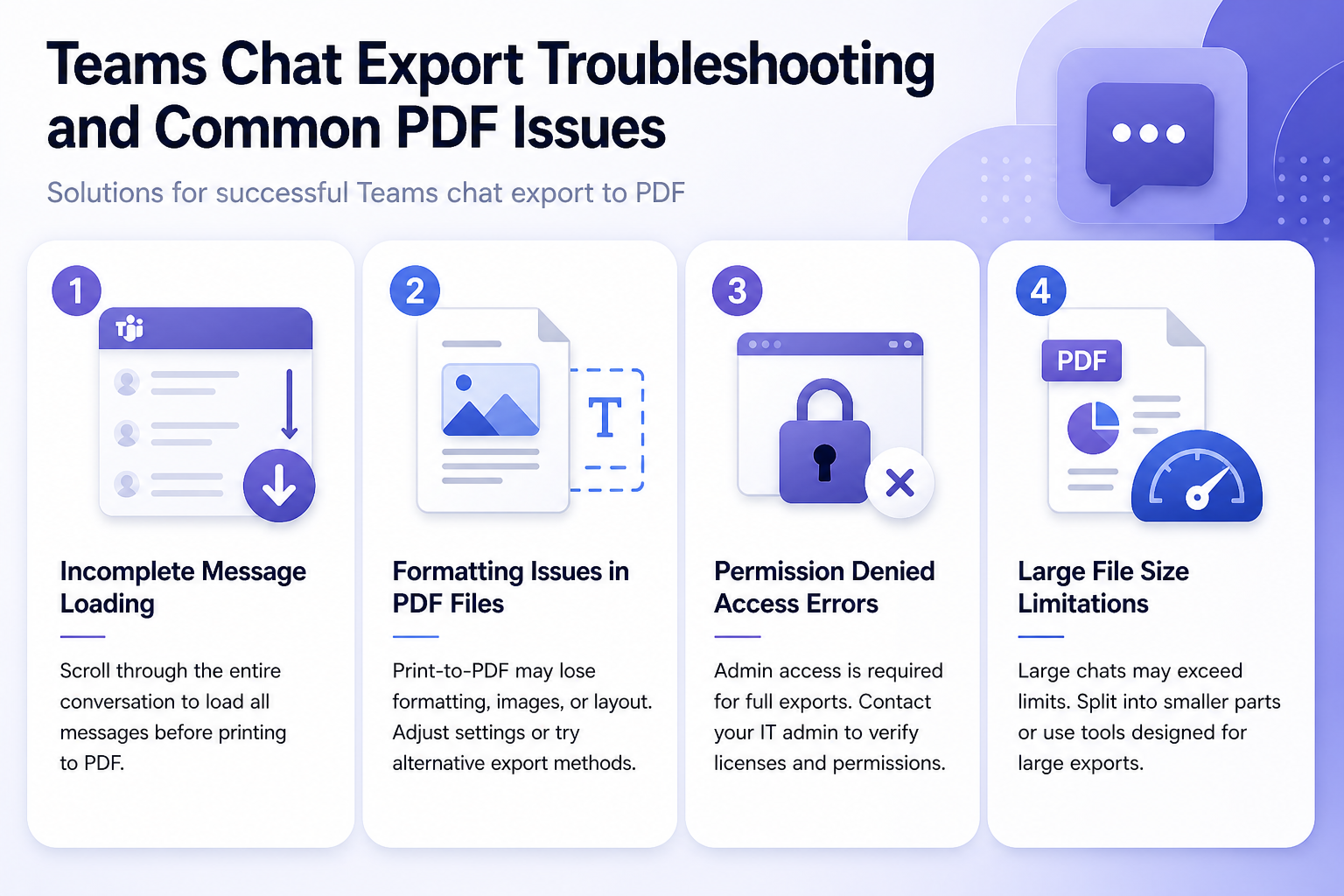
- Incomplete message loading during manual export: Teams web interface may not load all historical messages immediately, requiring you to scroll extensively through the conversation history to ensure complete data capture before attempting to print to PDF.
- Formatting issues in exported PDF files: The browser print-to-PDF function may not preserve the original Teams formatting, resulting in compressed text, missing images, or broken layouts that require manual adjustment or alternative export methods.
- Permission denied errors when accessing Teams data export page: Administrative privileges are required for comprehensive data exports, and users without proper permissions will encounter access restrictions that require IT administrator assistance or role assignment modifications.
- Large file size limitations during PDF conversion: Extensive chat conversations may exceed browser memory limitations or PDF size restrictions, necessitating the conversation to be split into smaller segments or using specialized PDF creation tools that handle large datasets more efficiently.