Good Copilot email prompts are not clever one-liners. They are small work instructions that tell Copilot what result you need, who will read the message, what context matters, and what tone to use. If any of those pieces are missing, the draft may sound polished but still miss the business point.
Use the prompts below as reusable patterns. Replace the bracketed details with your real context, then review the result before sending. Copilot can help you draft and rewrite faster, but it does not remove the need to confirm names, dates, commitments, attachments, and anything sensitive.
Start with a reliable email prompt formula
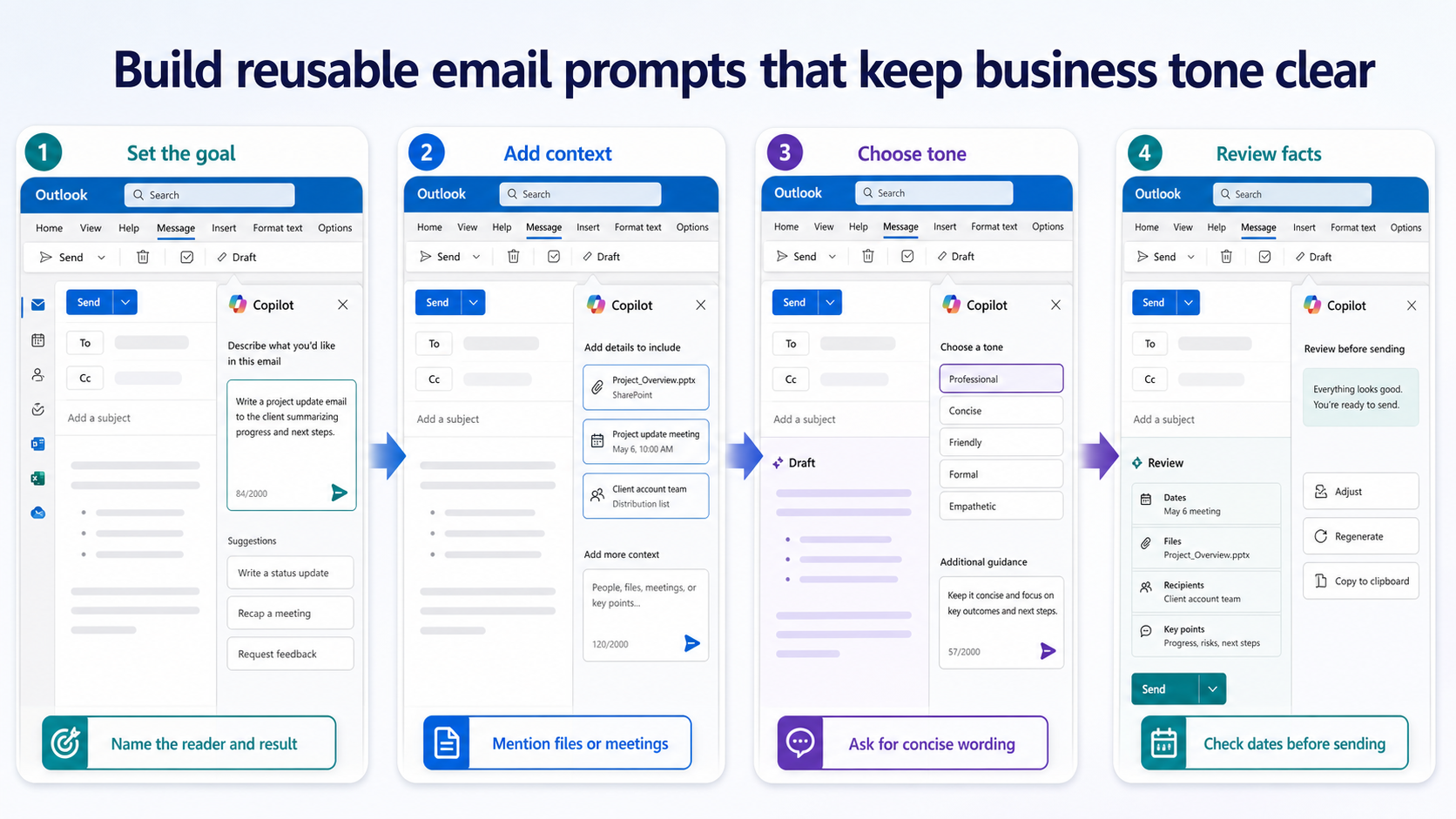
The easiest way to improve work email prompts is to stop asking for a generic email. Ask for a specific communication outcome. A strong prompt usually includes four parts: the recipient, the desired action, the background source, and the tone.
Try this structure: “Draft an email to [recipient] that [desired outcome]. Use [source/context]. Keep the tone [tone] and include [must-have points].” This gives Copilot a job, a boundary, and a quality target.
Prompt for a clear status update
- Draft a concise project status email for my manager.
- Use these points: [progress], [blocked item], [decision needed], and [next milestone].
- Keep it direct, professional, and under 180 words.
- End with one clear question I need answered.
This works well when you already know the facts but need the message organized. If the email will be sent outside your team, add the audience and relationship, such as “external client” or “vendor account manager.”
Prompts for common work email jobs
Most business email work falls into a few repeatable jobs: summarizing a thread, asking for a decision, declining politely, requesting missing information, or turning meeting notes into a follow-up. Save prompts for these situations so you are not starting from a blank compose window each time.
Summarize a long thread before replying
Use: “Summarize this email thread in five bullets. Separate confirmed decisions, open questions, and action items. Then draft a reply that answers only the unresolved questions.” This prompt is useful when the thread contains several voices and you need to avoid repeating old information.
Ask for a decision without sounding abrupt
Use: “Draft a polite follow-up email asking [person/team] to choose between [option A] and [option B]. Include the deadline, the impact of no decision, and a neutral recommendation based on [reason].” This keeps the message firm without turning it into a complaint.
Decline or push back professionally
Use: “Rewrite this response so it politely declines the request, explains the constraint in one sentence, and offers one practical alternative. Keep the tone respectful and brief.” This is safer than asking Copilot to “make this nicer,” because the alternative action is part of the prompt.
Control tone, length, and risk
Tone prompts are most useful when they describe a business situation, not just an adjective. “Friendly” can mean too many things. “Warm but still concise for a senior stakeholder” gives Copilot a clearer target.
For sensitive emails, ask Copilot to produce a draft and a review checklist. Example: “Draft the email, then list any facts I should verify before sending.” This turns Copilot into a writing assistant and a reminder system, not an unchecked sender.
If you need the Outlook-specific workflow, see how to the knowledge-source review for the first check.
After you confirm the main symptom, the broader workflow check is useful when the next decision depends on permissions, sync, or setup details.
Build a small prompt library
Keep a short set of approved prompt patterns for recurring messages. A sales team might save prompts for proposal follow-ups, renewal reminders, and meeting recaps. An operations team might save prompts for outage updates, vendor requests, and policy reminders. The saved prompt should not include private customer data; it should include the reusable structure and review instruction.
When you reuse a prompt, change the recipient, goal, source, and review checklist every time. The review checklist is especially important for work emails because the cost of a wrong date or overstated commitment is higher than the cost of spending one more minute reading the draft.
Reusable prompt pack
- Rewrite this email to be clearer, shorter, and still professional. Keep all commitments and dates unchanged.
- Draft a reply that thanks the sender, confirms what I will do next, and asks for the one missing detail: [detail].
- Turn these meeting notes into a follow-up email with decisions, owners, due dates, and next steps.
- Make this email suitable for an external client. Remove internal shorthand and explain acronyms only when needed.
- Create three subject lines for this email: one direct, one friendly, and one executive-style.
- Summarize this thread and draft a response that does not introduce new promises.
What people ask next
Can I paste a whole email thread into Copilot?
Use the built-in Copilot experience in Outlook when possible because it can work from the selected thread context. If you paste content manually, remove confidential material that is not needed for the task and check your organization’s AI policy.
What is the best tone instruction for work email?
Use a role and situation instead of a single adjective. For example, “concise and calm for a senior stakeholder” usually produces a better business email than “professional.”
Should Copilot send the email for me?
No. Treat Copilot’s output as a draft. Review names, dates, attachments, promises, and any legal or HR-sensitive language before you send it.
Frequently asked questions
Should I test this in Teams on the web?
Yes. The web app is a useful control because it removes part of the local desktop app from the test. If the same account works on the web but not in the desktop app, focus on cache, updates, add-ins, or the local profile before changing tenant-wide settings.
What if the same setup works for another user?
That usually points to an account, license, permission, or profile difference rather than a broken feature for everyone. Compare the affected user’s role, mailbox or file access, app license, and client version before rebuilding the workflow.
When should I ask an administrator to check this?
Escalate when several users see the same symptom, when the setting is controlled by policy, or when the fix requires access you do not have. Give the administrator the affected account, client, time of the test, and the exact result from the web or desktop comparison.
Before you move on
The best work email prompts are repeatable because they separate the writing task from the review task. Ask Copilot for the draft, but also ask what you should verify. That habit keeps speed from turning into avoidable rework.