Can Copilot in Teams meetings help catch up on what I missed?
You join a Microsoft Teams meeting fifteen minutes late, and the conversation has already moved through three agenda items. Everyone is referencing decisions you didn’t hear, and you’re scrambling to piece together what happened. You need to contribute meaningfully, but you’re lost in the context. This is where Copilot in Teams meetings becomes invaluable, transforming how you engage with meeting content before, during, and after each session.
Copilot in Teams meetings and how to leverage prompts
Microsoft Copilot in Teams meetings represents a significant advancement in meeting productivity, using AI to help you summarize discussions, identify action items, and extract key insights from conversations. The tool works by analyzing meeting transcripts in real-time, allowing you to ask questions and receive contextual answers without interrupting the flow of conversation.
Expert Tip: Copilot works best when meeting transcripts are clear and participants speak distinctly, so encourage your team to use quality microphones and minimize background noise for optimal AI performance.
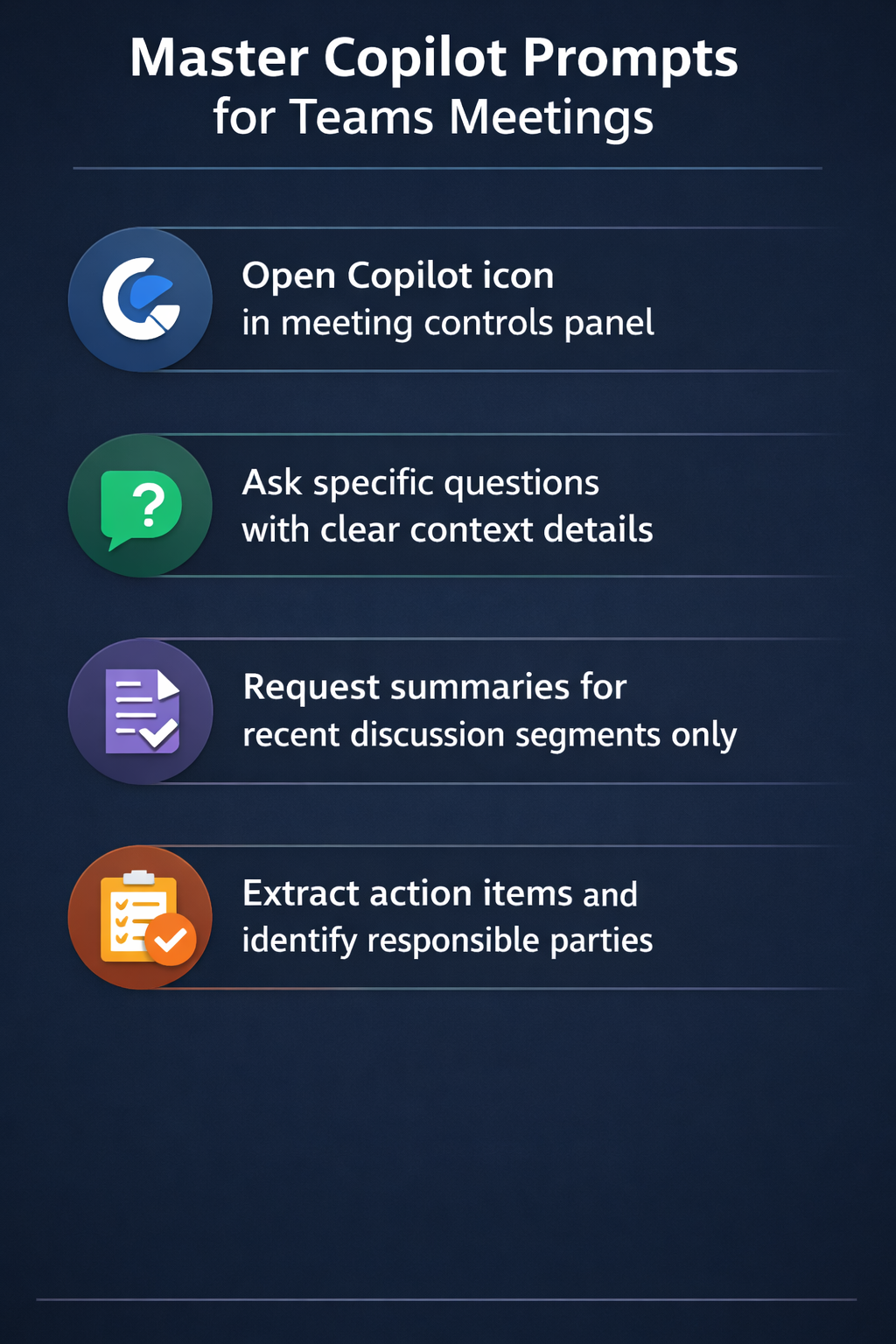
Best Copilot prompts for Teams meeting communication
Essential Copilot prompts for meetings to get started quickly
When you first open Copilot in a Teams meeting, you’ll see Copilot agent suggested prompts that provide a starting point for common queries. These starter prompts typically include options like summarizing the meeting so far, listing action items, or identifying key decisions, giving you immediate value without crafting custom questions. To access Copilot during an active meeting, select the Copilot icon in the meeting controls at the top right of your Teams window, which opens a side panel where you can view suggested prompts or type your own queries. If you’re catching up after a meeting ends, navigate to the meeting in your Teams calendar, select the meeting details, and choose the Copilot option to review the full conversation with AI assistance. For more guidance on getting started with Copilot features, see how to enable Copilot in Teams meetings.
Start with these fundamental Copilot prompts for Teams meeting scenarios that work across most business contexts:
- “What were the main topics discussed in this meeting?”
- “List all action items mentioned and who is responsible for each”
- “What decisions were made during this meeting?”
- “Summarize the last 10 minutes of discussion”
How to improve Copilot prompts with specific context and details
The quality of Copilot’s responses depends heavily on how you structure your prompts, with specific, contextual questions yielding far better results than vague or overly broad requests:
- Instead of “What did Sarah say?”, improve your prompt by adding context: “What concerns did Sarah raise about the Q2 budget allocation?”
- “Summarize the discussion about the marketing campaign timeline, including any disagreements or alternative proposals mentioned”
- “What technical requirements were identified for the API integration project?”
Time-based prompts work exceptionally well when you need to isolate specific portions of longer meetings, allowing you to drill down into particular segments without manual scrubbing through recordings:
- “What was discussed in the first 15 minutes of the meeting?”
- “Summarize the conversation that happened between 2:30 PM and 2:45 PM”
- “What topics were covered after the budget discussion?”
Remember: Copilot can only access information from meetings where transcription was enabled, so make it a habit to turn on transcription for all important meetings to maximize your AI assistance options.
Advanced Copilot Teams tips and tricks for specific use cases
For project status meetings, craft prompts that extract structured information about progress, blockers, and timelines to create actionable summaries for stakeholders who couldn’t attend:
- “What blockers or challenges were mentioned by each team member?”
- “Create a summary of project milestones discussed and their current status”
- “What dependencies between teams were identified during this meeting?”
When reviewing brainstorming or creative sessions, use Copilot prompts for meetings that capture ideas without losing the nuance of discussion and debate that often leads to breakthrough thinking:
- “List all ideas suggested for the product feature, including who proposed each one”
- “What were the pros and cons discussed for each marketing approach?”
- “Summarize the feedback received on the design mockups”
For client or stakeholder meetings, tailor your Copilot prompts to extract commitments, concerns, and relationship-building opportunities that impact business outcomes and customer satisfaction:
- “What commitments did we make to the client during this meeting?”
- “What concerns or objections did the stakeholder raise?”
- “Summarize the client’s priorities as expressed in this meeting”
Uses for Copilot in Teams beyond basic summarization
Copilot in Teams meetings extends far beyond simple summaries, offering sophisticated analysis capabilities that help you understand sentiment, track recurring themes, and identify patterns across multiple meetings:
- “What questions were asked but not fully answered during this meeting?”
- “What topics generated the most discussion or debate?”
- “Were there any disagreements or conflicting viewpoints expressed?”
For recurring meetings like weekly team syncs or monthly reviews, use Copilot to track progress and changes over time by comparing insights across multiple sessions:
- “How does today’s discussion of the sales pipeline compare to last week’s meeting?”
- “What action items from previous meetings were mentioned as completed?”
- “What recurring themes or issues have appeared in our last three team meetings?”
Important Tip: When using Copilot for sensitive meetings involving personnel issues, confidential strategy, or competitive information, remember that Copilot responses are based on transcript data, so ensure your meeting security settings align with your organization’s data governance policies.
Troubleshooting common Copilot prompt challenges and improving response quality
Copilot returns incomplete or vague answers to your meeting questions
When Copilot provides responses that lack detail or miss important context, the issue often stems from how the meeting was transcribed or how your prompt was structured rather than AI limitations. Check that transcription was enabled for the entire meeting by reviewing the meeting details in Teams, as Copilot cannot analyze portions of meetings that weren’t transcribed or where audio quality was too poor for accurate speech recognition:
- Instead of “What was decided?”, try “What was decided about the vendor selection for the CRM project?”
Copilot cannot find information you know was discussed in the meeting
When Copilot claims it cannot find information that you clearly remember being discussed, the problem usually relates to how the content was captured in the transcript or terminology mismatches between your prompt and the actual words used. Review the meeting transcript directly by selecting “View transcript” in the meeting details to verify the exact language participants used, as Copilot searches based on the words in the transcript rather than conceptual understanding. Adjust your prompt to use synonyms or alternative phrasings: if asking about “budget” returns no results, try “cost”, “expenses”, or “financial resources” to match how participants actually spoke during the meeting. For information shared via screen sharing or chat rather than spoken aloud, remember that Copilot primarily analyzes the audio transcript, so check the meeting chat and shared files separately for content that wasn’t verbally discussed.
Copilot prompts work inconsistently across different types of meetings
When you find that certain Copilot prompts for Teams meeting scenarios work well in some contexts but fail in others, the variability often reflects differences in meeting structure, participant behavior, or discussion formality. Structured meetings with clear agendas and formal decision-making processes generate transcripts that Copilot can parse more effectively than free-flowing brainstorming sessions where conversations overlap and topics blend together without clear transitions. Adapt your prompts to match the meeting style:
- For informal discussions, use broader prompts like “What themes emerged from this conversation?” rather than “What decisions were made?”
- For meetings with many participants talking simultaneously or frequent interruptions: “What points did the project manager make about the timeline?”
Match prompts to the meeting’s available evidence
Copilot’s answer depends on what the meeting makes available. During a meeting, it can help summarize the conversation so far and identify points of agreement or disagreement. After a meeting, recap features generally depend on a transcript. If the organizer allows Copilot only during the meeting without transcription, do not expect the same conversation history to remain available afterward.
Before relying on a post-meeting prompt, check the meeting options, transcription status, and your access to the recap. Recording and transcription are distinct controls, and organizational policies may limit either one. Participants should also follow their organization’s notice, consent, and privacy requirements.
Use prompts that ask for traceable output:
Review the source before distributing the answer
Open the transcript or recap and verify names, numbers, deadlines, and decisions. Copilot may produce a useful synthesis, but unclear audio, late joins, overlapping speakers, and informal suggestions can all affect interpretation. A proposed action is not automatically an approved decision.
For sensitive meetings, narrow the prompt to the minimum needed information and review the audience before copying output into chat or email. Do not paste confidential recap material into a channel with broader membership than the original meeting.
If Copilot says it cannot find a detail, ask a narrower question with the topic, approximate time, or speaker rather than asking it to guess. If the transcript is absent, use your notes and ask participants to confirm the decision. The strongest workflow is prompt, verify against the meeting record, assign an owner, and obtain human confirmation—not treating the generated summary as the official record by itself.