Webinar reports are usually urgent because registration lists, attendance proof, and follow-up segments are needed soon after the event. When the export button fails, do not keep clicking it in the same browser state. First confirm that the right person is opening the report, then test the download path cleanly. Teams webinars are more structured than standard meetings. That is useful for registration, but it also means the report location and permissions can differ from a normal meeting attendance CSV.
Confirm the event owner and report location
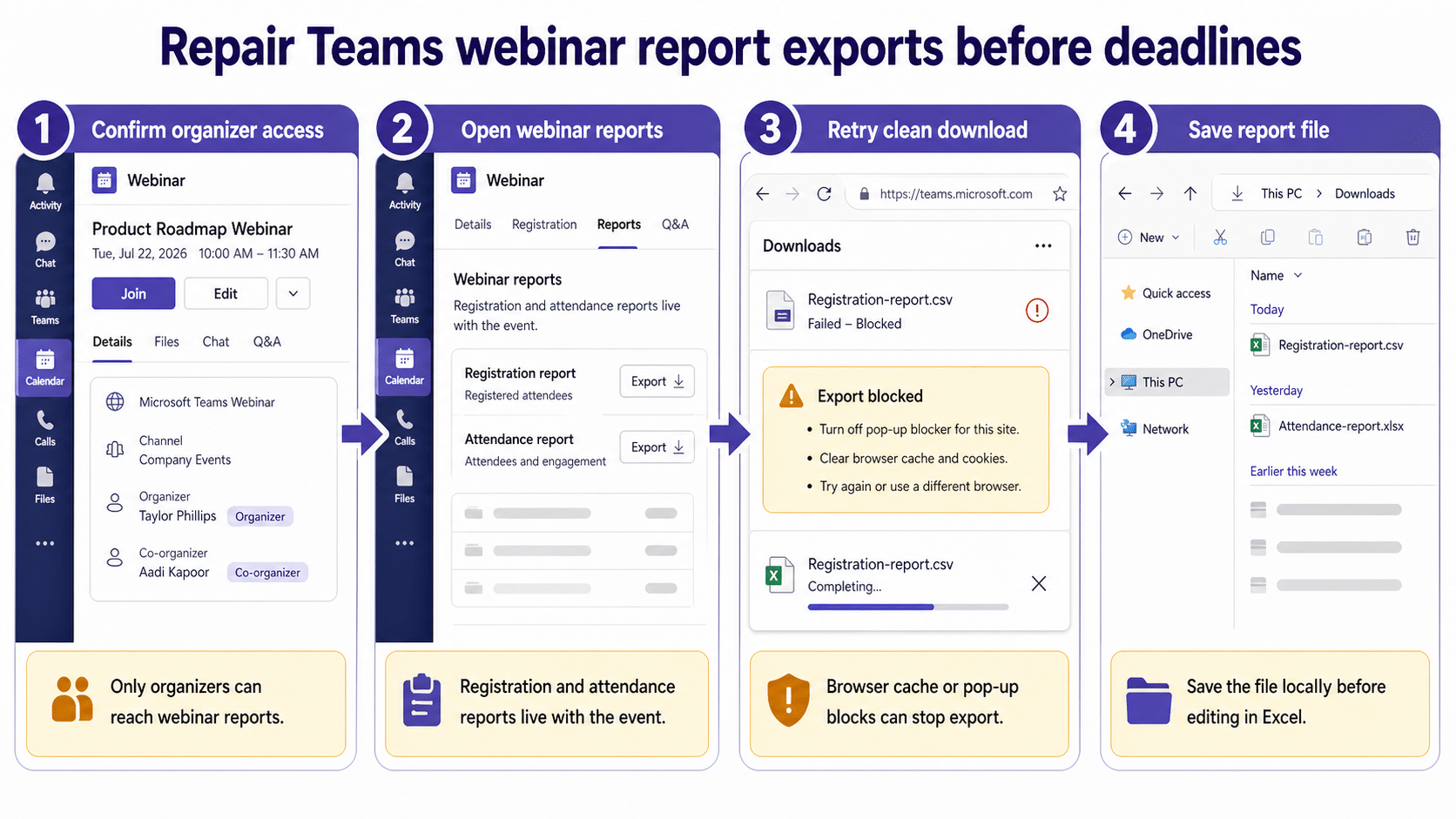
Open the webinar from the Teams calendar and use the organizer account that created or manages the event. Co-organizers may have access in some setups, but an attendee or presenter should not expect the same reporting controls.
If you are still setting up webinars, compare your event flow with our guide to that recap troubleshooting path. The setup choices determine what registration and attendance data is available later.
Separate Teams report issues from browser download issues
If the report screen opens and only the file download fails, treat it as a browser or local download problem. Try a private window, clear the site cache, allow pop-ups and downloads for the Teams web app, or switch to another supported browser. Avoid changing the webinar itself while you are only testing the export mechanism.
Use this order:
- Open the webinar event and reports page again from Teams.
- Try the registration report first, then attendance report if needed.
- Save the file to a simple local folder such as Downloads.
- Open the saved copy in Excel only after the browser finishes downloading.
Use the standard attendance workflow as a comparison
A normal Teams meeting attendance report and a webinar registration report are not identical, but the troubleshooting logic is similar: correct organizer, correct ended event, allowed reporting, and a clean export. If a regular meeting export also fails for the same user, review how to the organizer-side checks.
If only webinar registration export fails, capture the browser error, event ID or URL, organizer, and the exact report type. That evidence is more useful to an admin than a screenshot of a blank Downloads folder.
Clean the file before sharing it
Once the report downloads, open it in Excel and save a working copy before filtering or deleting columns. Registration reports can include personal information, so share the smallest necessary extract with sales, training, or event teams.
If Excel warns about format, protected view, or blocked content, save the file locally and reopen from a trusted location. Do not paste registration rows into chat just to bypass an export issue.
Protect registration data while you troubleshoot
Registration reports often contain names, email addresses, job titles, and attendance signals. Treat the report as personal data while you troubleshoot the export. Do not paste raw rows into Teams chat, screenshots, or support tickets unless your organization allows that sharing.
If the export is blocked by the browser, capture the error message without exposing attendee rows. If the report downloads but Excel opens it strangely, save a copy first and do the cleanup on the copy. That gives you a clean fallback if a filter, sort, or column split changes the original data.
For repeated webinars, create a simple runbook: owner account, report location, export browser, file naming pattern, and approved distribution list. A runbook is faster than rediscovering the same export path after every event.
Create a backup route before the next webinar
If webinar reports are part of your follow-up process, test the export before registration volume becomes high. Create a short internal webinar, register two colleagues, download the report, and open it in Excel. This confirms that the organizer account, browser, and Excel workflow can handle the export.
For a live event, nominate one person to own the report handoff. That person should know the event URL, where reports appear, which browser was tested, and where the final file should be saved. Shared responsibility often causes delay because everyone assumes someone else downloaded the registration list.
Keep a separate event follow-up checklist for marketing or training teams. Include export time, file name, approved columns, and who receives the final workbook. A failed export is easier to fix when the workflow around it is already clear.
If the event has external attendees, confirm the approved sharing path before the webinar starts. Registration files often move from the organizer to sales, customer success, or training teams, and each handoff should preserve only the columns those teams actually need.
That keeps troubleshooting fast without creating a second privacy problem.
It also gives the event team a consistent export owner after every session.
Useful answers
Why does export fail for one organizer but not another?
The two organizers may have different roles, browser settings, or event ownership. Test from the original organizer account before changing the webinar.
Can I export registration after the webinar ends?
In most workflows the report remains tied to the webinar event, but access still depends on role and policy. Open the original event rather than creating a new calendar copy.
Should I use screenshots if the CSV will not download?
Screenshots are a last resort and are poor for follow-up lists. Capture the failure for support, then fix the export path or ask the organizer to download the report.
Questions you might have
Should I test this in Teams on the web?
Yes. The web app is a useful control because it removes part of the local desktop app from the test. If the same account works on the web but not in the desktop app, focus on cache, updates, add-ins, or the local profile before changing tenant-wide settings.
What if the same setup works for another user?
That usually points to an account, license, permission, or profile difference rather than a broken feature for everyone. Compare the affected user’s role, mailbox or file access, app license, and client version before rebuilding the workflow.
When should I ask an administrator to check this?
Escalate when several users see the same symptom, when the setting is controlled by policy, or when the fix requires access you do not have. Give the administrator the affected account, client, time of the test, and the exact result from the web or desktop comparison.
The practical takeaway
When a Teams webinar report export fails, keep the troubleshooting narrow: organizer access, event report location, browser download state, and local Excel handling. That order protects the registration data while still getting you to a usable file quickly. For high-stakes webinars, run a short internal test event before the real session so the reporting workflow is verified before attendees register.