When breakout rooms do not appear in Teams, the meeting is not always broken. The Rooms control depends on who created the meeting, which client you joined from, and whether the meeting type supports room management.
Do not recreate the invite as the first fix. A new invite can change the join link, chat, attendance context, and follow-up materials. If the meeting link itself is missing from Outlook, fix that first with the Teams meeting link checks, then come back to breakout rooms.
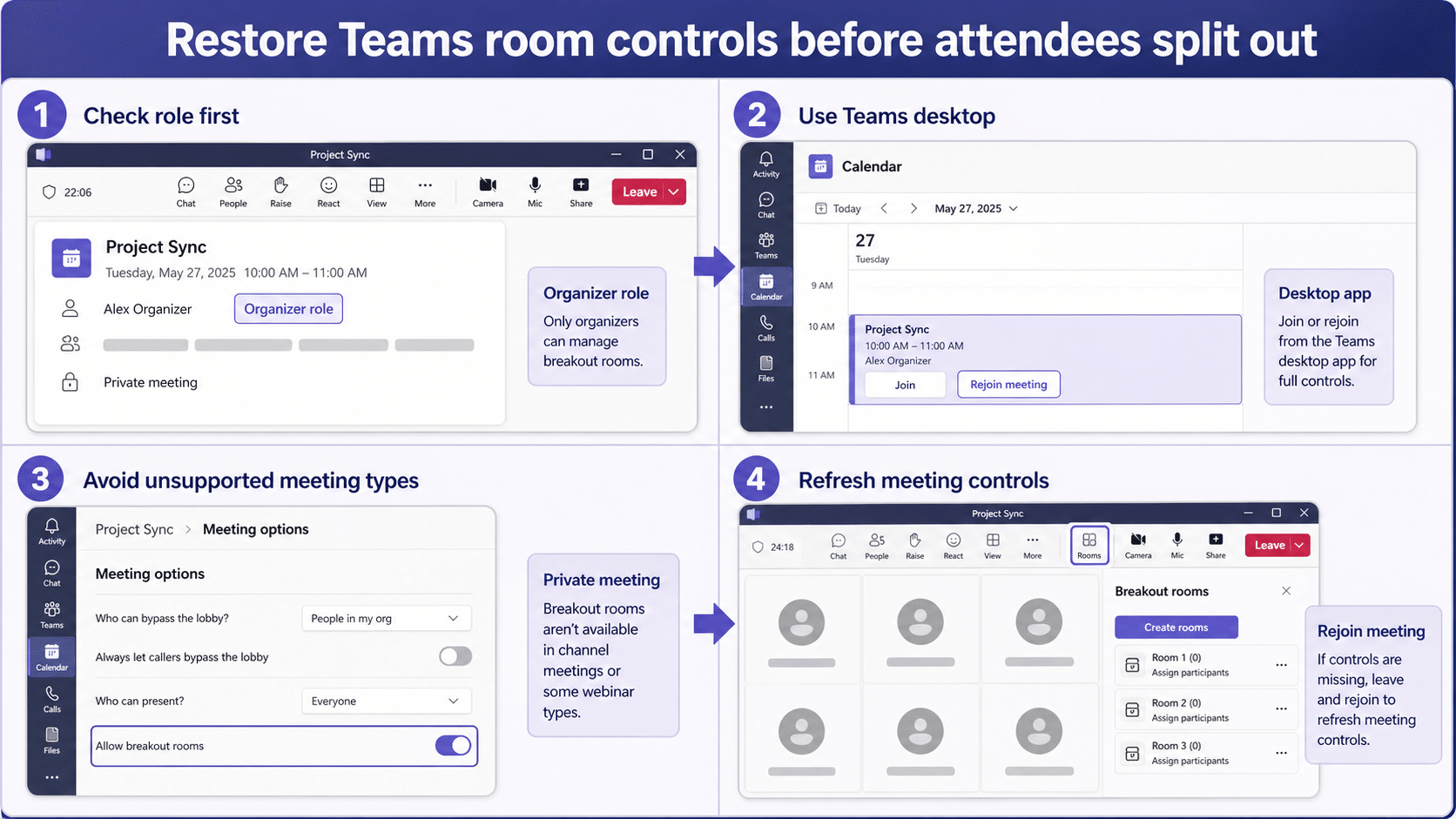
Check who actually owns the meeting
Open the meeting from Teams Calendar and confirm the organizer. Breakout rooms are managed by the organizer or by someone the organizer has allowed to manage rooms. A presenter role alone does not guarantee the Rooms button will appear.
- Confirm you opened the original Teams calendar event, not a forwarded copy.
- Check whether you are the organizer or co-organizer.
- Ask the organizer to assign room-manager access before the meeting starts.
- Leave and rejoin after a role change so Teams redraws the toolbar.
If an assistant, shared mailbox, or another team member created the invite, have that organizer adjust the meeting options. Testing from your own calendar copy can hide that ownership detail.
Join from Teams desktop for the clean test
Breakout room management is most reliable in the Teams desktop meeting experience. If you joined from a browser, mobile device, embedded link, or Outlook preview, close that session and rejoin from Teams desktop with the same work account.
This is especially common when a user clicks a link from Outlook and the browser joins first. You can be in the right meeting and still miss organizer controls because the meeting surface is limited.
Make sure the meeting type supports rooms
Use a normal private Teams meeting as your comparison. Channel meetings, webinars, live-event style sessions, and template-driven events can expose different controls. Create a five-minute private test meeting with two internal attendees and check whether Rooms appears there.
If Rooms appears in the private test meeting, the original invite is the problem. If Rooms is missing from the private test too, collect the organizer account, client version, meeting URL, and policy details for the Teams admin.
Refresh the meeting after setup changes
After assigning a room manager or sending the invite, quit Teams completely and rejoin from the calendar entry. If you created rooms before the meeting, reopen the event from Teams Calendar and confirm the rooms are still attached.
For a full room setup walkthrough, use the Teams breakout rooms guide after the Rooms control is visible. That keeps the troubleshooting separate from the normal setup steps.
Reader questions
Why can I join the meeting but not see breakout rooms?
Joining and managing rooms are different permissions. You can attend or present without having room-management access. Confirm organizer ownership or explicit room-manager assignment.
Can I create breakout rooms before the meeting?
Yes, but the meeting must be scheduled and attendees must be invited. If the option is missing before the meeting, confirm the invite was sent and reopen it from Teams Calendar.
Do breakout rooms appear in Teams mobile?
Participants can use mobile, but organizers should use Teams desktop for dependable room creation and management. Test missing controls in desktop Teams before changing the invite.
Recreate the meeting only after a controlled private test proves the original invite is unsupported or corrupted. Most cases come down to organizer role, client choice, or meeting type.