When a Teams webinar registration email is not sending, first identify which email failed. A confirmation email, pending approval message, reminder, cancellation email, and manual update are different parts of the webinar workflow. Treating them as one generic email problem often leads organizers to resend the wrong link.
The most useful clue is the attendee’s registration status. If the attendee never completed registration, there is no confirmation message to deliver. If the attendee is pending approval, they may receive a different message from someone who was automatically accepted. If reminders are missing, the webinar email schedule or lead time is usually the place to check.
Confirm registration is open and submitted
Open the webinar in Teams and review the registration page. Confirm that registration is still open, the attendee used the correct webinar link, and required fields were submitted. If approval is required, check whether the attendee is still pending rather than accepted.
Ask the attendee to search their mailbox for the webinar title and the organizer’s address. They should also check junk mail, focused inbox filtering, quarantine notices, and rules that move automated messages. If many attendees missed the same email, continue with the organizer-side checks instead of treating it as one mailbox issue.
Automatic versus manual approval
For automatically approved webinars, registration confirmation should be sent after a successful registration. For manually approved webinars, the attendee may first receive a pending approval email. They will not have the final joining experience until approval is completed. Make sure the organizer or co-organizer has not left registrations waiting in the attendee list.
Review webinar emails before the event
Teams webinars include multiple email types for registration, pending approval, waitlisting, rejection, cancellation, reminders, and event updates. In the webinar setup, open the email area and confirm that the relevant email is active. Also check reminder timing. A reminder scheduled too close to the event or changed after registrations may not behave the way the organizer expects.
If the webinar was copied from another event, review the email templates and event details. A copied webinar can carry over old wording, timing, or audience assumptions. Correct the details before sending another update.
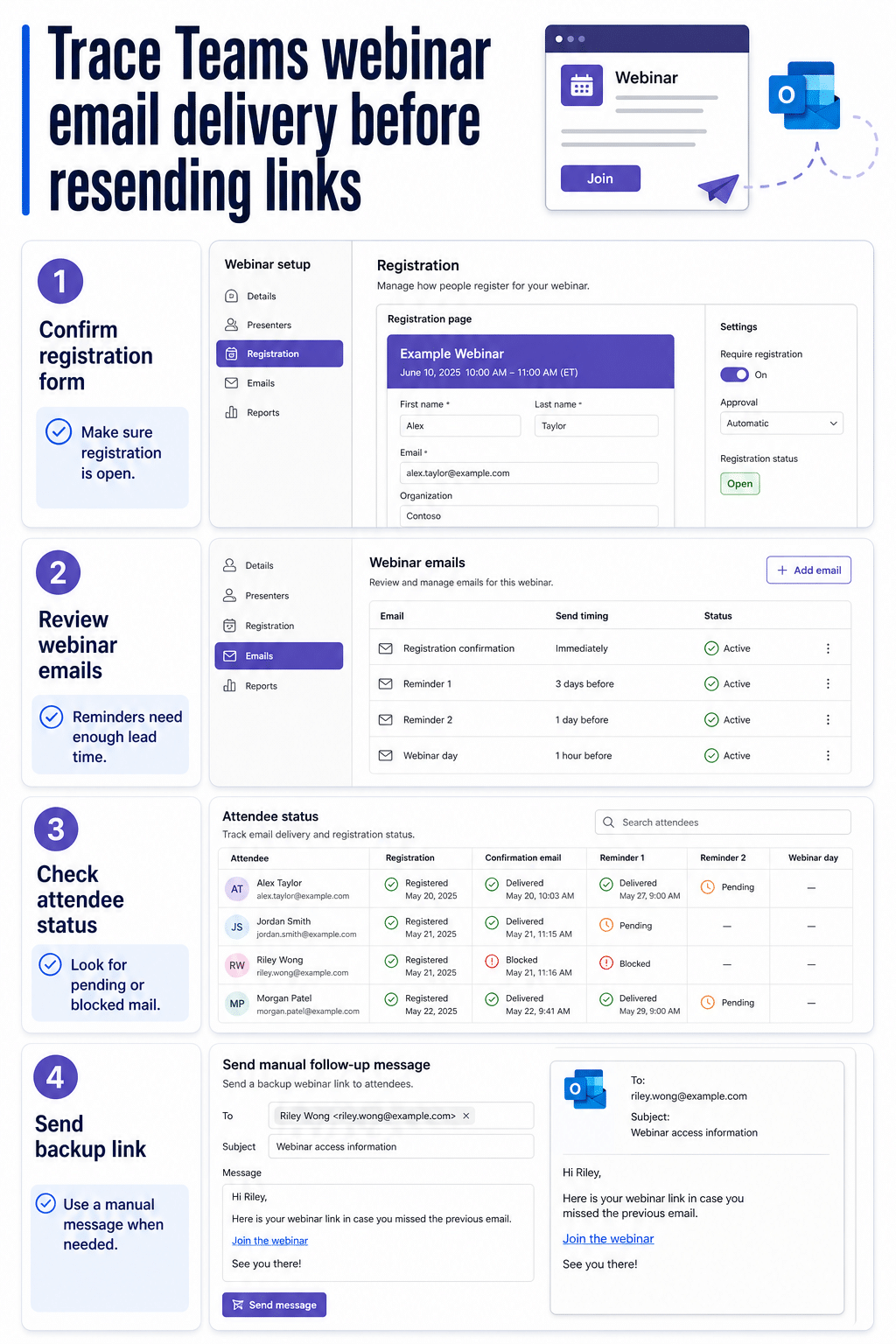
Check attendee status and delivery pattern
Use the attendee list to compare affected users. Are only external domains affected? Did pending approval users miss the acceptance email? Did internal testers receive the email while customer domains did not? Those patterns point to different fixes.
Use this quick decision list:
- One attendee missed the email: check their mailbox filters and resend a manual message.
- All new registrants missed it: review registration settings and email status.
- Only pending users missed it: complete approval and check approval email behavior.
- Only reminders failed: check reminder timing and event date changes.
- One company domain missed it: ask the attendee’s mail admin to check filtering or quarantine.
Send a safe backup message
If the webinar is soon, do not wait for the original automated email to recover. Send a manual Outlook message to affected attendees with the webinar title, date, time zone, join instructions, and support contact. Keep the message factual and avoid exposing the full attendee list. Use Bcc if you are sending to multiple registrants.
For related delivery problems, compare the webinar workflow with broader mail and calendar checks. Our guides to fixing Outlook not sending emails in Windows 11 and Teams meeting invitations not sending cover client and invite issues that can look similar to webinar email failures.
When to involve an admin
Bring in a Teams or Exchange admin when many recipients are affected, external domains block messages, or no webinar emails are sent for any event. Ask the admin to check mail trace, anti-spam policy, quarantine, allowed sender rules, and whether Teams webinar emails are being rewritten or blocked by transport rules.
Give the admin the webinar title, organizer, event date, affected attendee addresses, expected email type, and approximate registration time. That information lets them search message trace instead of guessing from the attendee’s screenshot. If the webinar uses approval, include the approval timestamp too, because the registration message and approval message may be separate events.
Trace one registration from attendee status to the inbox
Diagnose one controlled registration before changing the event for every attendee. Use a test address you are authorized to access and record the registration time, approval method, and expected email type. Keep the webinar published and avoid editing its date, approval mode, or email templates during the test so only delivery is being measured.
Confirm attendee emails are enabled
In Teams Calendar, open the webinar, select View event and Manage event, then review Details and Event access. Confirm Enable attendee emails is on. This setting controls all Teams webinar emails and can only be changed before the event site is published.
Submit a fresh test registration
Open the published registration page in a private browser window, enter the test address, and submit the form once. Capture the confirmation page and time. Do not repeatedly register the same address, because duplicate attempts can confuse the delivery trail.
Read the attendee status
Return to Manage event, open Registration, and select Attendee status. Find the test address and note whether it is registered, pending approval, waitlisted, rejected, or canceled. With manual approval, approve the test registration and record that time.
Match the status to the expected email
A registered attendee should receive a reservation email; a pending request should receive a pending-approval message. Check Inbox, Junk, quarantine, and mail rules for the exact test time and sender. Do not expect a reminder email immediately, because reminders follow the configured pre-event schedule.
Escalate with one complete trace
If Teams shows the correct attendee status but no message arrives, give the administrator the webinar ID, organizer, test address domain, registration and approval times, expected email type, and delivery locations checked. Send a separate backup message only after preserving this evidence, and never expose the full attendee list in that message. After resolution, repeat one clean registration and confirm the expected email reaches the test inbox before inviting more attendees.
FAQ
Which webinar email should be sent after registration?
It depends on the registration setup. Automatically accepted attendees usually receive a registration confirmation. If approval is required, attendees can receive a pending approval message first and then a different message after approval.
Can I resend the Teams webinar registration email?
Teams email options vary by event and tenant, so the safest immediate fix is often a manual follow-up message with the correct webinar details. Before sending it, confirm the attendee status so you do not send join details to someone who was rejected or still pending approval.
Why are reminder emails missing?
Reminder emails depend on the webinar email settings and timing. If the event date changed, reminders were disabled, or the reminder window already passed, attendees may not receive the expected reminder. Send a manual update when the webinar is close.
Why did internal users receive emails but customers did not?
External recipients may be affected by domain filtering, junk mail, quarantine, or blocked automated messages. Ask one affected external attendee to check junk mail and ask their mail admin to search for the message if the webinar is important.
Final check
For a Teams webinar registration email not sending, start with the attendee status, not the resend button. Confirm registration was completed, review webinar email settings, compare the delivery pattern, and send a controlled backup message when the event is near. If the failure affects many recipients, collect timestamps and hand the issue to the mail admin for tracing.