When people say they cannot see your presenter screen in Microsoft Teams, the cause is usually one of four things: you are sharing the wrong surface, the meeting role does not allow presenting, the Teams client is stuck on an old share session, or an admin policy blocks screen sharing. Work through those checks in order before you restart the whole meeting.
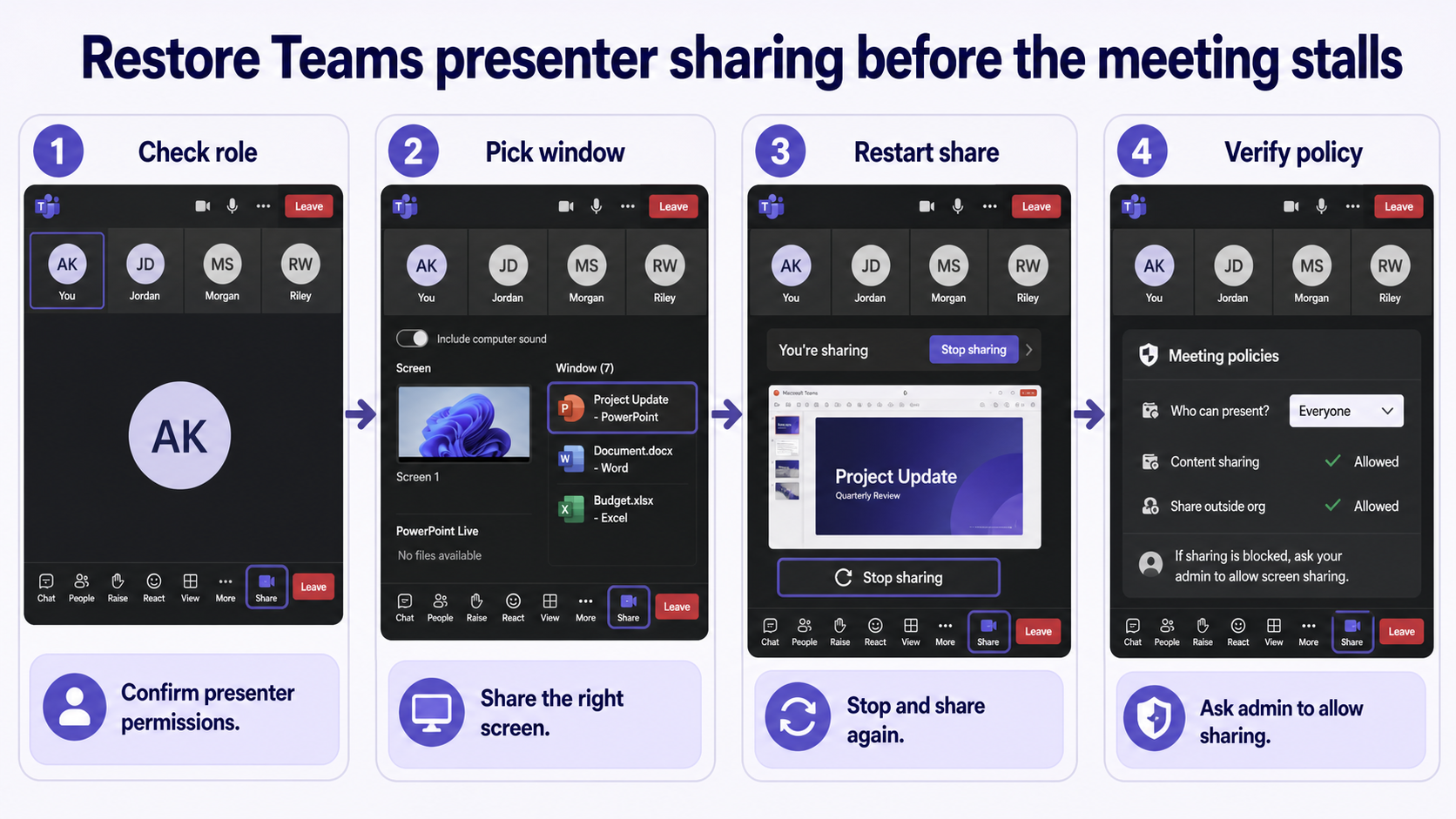
Start inside the meeting window. If you only see camera and microphone controls, open the meeting toolbar and choose Share. Select the exact desktop, window, or PowerPoint Live deck that you want participants to see. A common mistake is choosing a PowerPoint editing window while presenting from another monitor, or choosing a single app window when the content you need is on the full screen.
If PowerPoint is involved, try PowerPoint Live instead of ordinary screen sharing. PowerPoint Live sends the deck through Teams, keeps presenter controls available, and avoids several second-monitor problems. For a broader walkthrough of the presentation options, see our guide on using PowerPoint in Teams meetings.
Next, check your role. The meeting organizer can limit who can present. Open People, find your name, and confirm you are a presenter rather than an attendee. If you are an attendee, ask the organizer to make you a presenter or change Who can present? in meeting options.
If sharing starts but viewers still see a blank, frozen, or old screen, stop sharing and start again. Close extra duplicate Teams windows, disconnect and reconnect a second monitor, then share the actual screen or window again. For general share-button and permission fixes, use our companion checklist for Teams screen sharing not working.
Finally, consider policy. In managed tenants, Teams meeting policies can disable screen sharing, restrict application sharing, or limit presenting to organizers. If several presenters are affected, collect the meeting URL, your Teams version, and a screenshot of the sharing menu, then ask an administrator to review the meeting policy assigned to the affected users.
Quick troubleshooting checklist
- Confirm you clicked Share and picked the right desktop, window, or PowerPoint Live deck.
- Make sure the organizer has made you a presenter.
- Stop sharing and share again if viewers see a frozen or black screen.
- Rejoin from the desktop app if the browser session is unreliable.
- Ask an admin to confirm content sharing is allowed in the assigned meeting policy.
What to check before the next meeting
If this happened during an important call, do a five-minute rehearsal before the next one. Join a test meeting with one colleague or a second device, share the same material you plan to present, and confirm what the viewer can actually see. This catches the most common mismatch: the presenter believes they are sharing the slide show, while attendees only see the editing window, a blank monitor, or a minimized app.
Also check your monitor layout. Teams can show several share choices when you have a laptop display, a docked monitor, and a projector. Rename or identify the screen you use for presenting, then keep private notes, email, and chat windows on a different display. If you routinely switch between apps, share the entire presentation screen. If you only need one file, share that app window to reduce the chance of exposing notifications.
For PowerPoint-heavy meetings, open the deck before you join the call. Start the slide show or prepare PowerPoint Live, then share only after the meeting toolbar is stable. If participants report that they see presenter notes, stop sharing immediately and switch to the correct surface. PowerPoint Live is often cleaner because it separates the attendee view from the presenter controls.
Admin checks for repeated failures
When one user cannot present in any Teams meeting, the organizer role is probably not the whole story. Ask the Teams admin to review the assigned meeting policy, especially content sharing, screen sharing mode, and who can present. Policies can be assigned globally or directly to users, so two employees in the same department may not have the same behavior.
Admins should also compare desktop app behavior with web behavior. If the web client works but the desktop app fails, the user may need a Teams update, cache cleanup, graphics driver update, or Windows restart. If both clients fail, tenant policy or network controls are more likely. Capture the meeting time, user principal name, Teams version, and exact share choice before opening a support ticket.
If the issue appears only with one deck or one app, test a simple browser window next. A successful browser share proves that Teams sharing works and narrows the fault to the original app, file, or graphics path. That small isolation step saves time because it separates meeting permissions from content-specific problems.
Why can I see my PowerPoint but attendees cannot?
You may be presenting locally without sharing the correct PowerPoint window or PowerPoint Live deck. Stop sharing, choose Share, and select the deck or the full screen where Slide Show view is actually running.
Why is the Share button missing?
You may be an attendee, the meeting options may restrict presenters, or your organization may block content sharing through Teams policy.
Should I share a window or the full screen?
Share a window when you only need one app and do not want alerts visible. Share the full screen when you move between apps or monitors during the demo.
Conclusion
Most Teams presenter-screen issues are fixed by choosing the right share target, confirming presenter permissions, and restarting the share session. If the same issue affects multiple meetings or multiple users, treat it as a tenant policy problem and involve the Teams administrator.