Your external monitor flickers, flashes, or shows horizontal lines every few seconds. This problem occurs when the display signal between your computer and the monitor breaks down — usually because of a loose cable, mismatched refresh rate, or outdated graphics driver. Most screen flickering on an external monitor resolves within minutes once you identify the actual root cause and apply the right fix.
Troubleshoot External Monitor Flickering
Check Display Cables and Ports
Unplug the cable connecting your external monitor and plug it back in firmly at both ends. A loose HDMI or DisplayPort connection is the most common cause of screen flickering, especially on monitors that sit on adjustable arms or stands that shift position throughout the day. Even a millimeter of play at the connector causes intermittent signal drops.
Try a different cable if the flickering continues. Damaged or low-quality cables produce intermittent signal loss that appears as random flickering or brief blackouts. Use a certified HDMI 2.0 or DisplayPort 1.4 cable rated for your monitor’s resolution and refresh rate — cheap unbranded cables fail more often under sustained use.
Test a different port on your graphics card if you have multiple outputs available. A failing port produces the same symptoms as a bad cable, and swapping ports rules out hardware damage on the GPU side within seconds.
Adjust Monitor Refresh Rate Settings
Right-click your desktop and select Display settings. Scroll down and click Advanced display to see the current refresh rate for each connected monitor. A mismatch between the rate Windows sends and what the monitor expects causes visible flickering.
- Open Advanced display settings from the Display page
- Select your external monitor from the dropdown at the top
- Choose a supported refresh rate from the list (start with 60 Hz)
- Click Apply and confirm the change within 15 seconds
Most external monitors run at 60 Hz, but gaming monitors may default to 144 Hz or higher. If the flickering stops at a lower refresh rate, your cable may not support the higher rate. HDMI 1.4 cables cap out at 60 Hz for 4K resolution, so upgrading to HDMI 2.1 or DisplayPort 1.4 unlocks higher refresh rates without flickering. Always match the cable specification to the refresh rate you want to use.
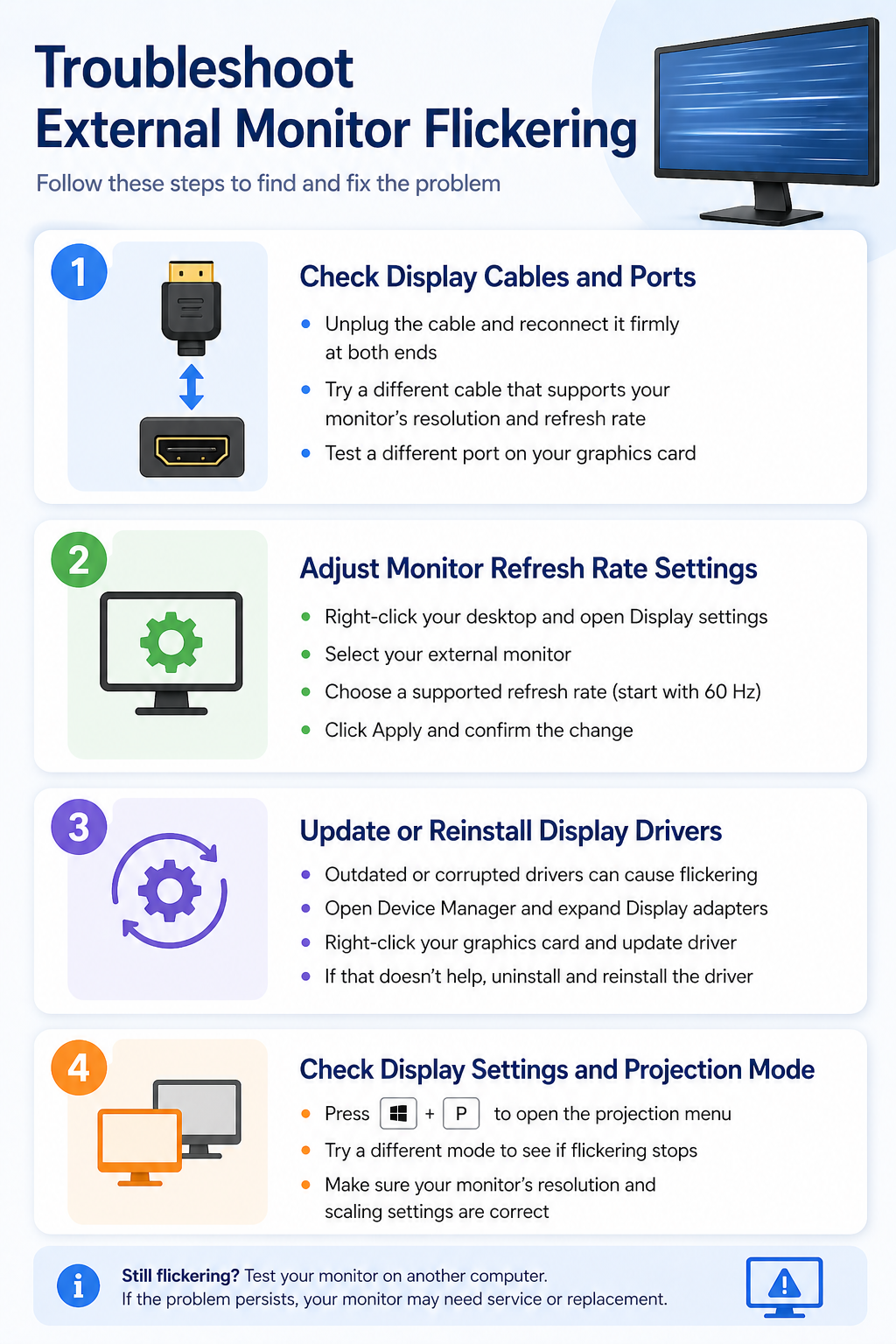
Update Graphics Driver on Windows 11
Outdated or corrupted display drivers cause flickering that no cable swap will fix. Open Device Manager by right-clicking the Start button and selecting it from the menu.
Expand Display adapters, right-click your graphics card, and select Update driver. Choose Search automatically for drivers and let Windows check for a newer version. This catches most routine updates.
For NVIDIA or AMD cards, download the latest driver directly from the manufacturer’s website instead of relying on Windows Update. The manufacturer’s driver package includes display-specific optimizations that the generic Windows driver skips entirely. Run the installer and choose a clean installation if the option appears — this removes leftover configuration from the old driver.
Restart your computer after installing the updated driver. Windows 11 sometimes holds onto the old driver in memory until a full reboot, which means the flickering persists even after a successful update. A restart clears the old driver completely and loads the fresh version. If you’ve been fixing Windows 11 screen flickering issues on your laptop display as well, updating the driver often resolves both problems at once since the same GPU serves both screens.
Switch Display Mode in Windows Settings
Press Win + P to open the display projection menu. Switch between Duplicate, Extend, and Second screen only to determine if the flickering follows a specific mode.
Flickering that only appears in Duplicate mode usually points to a resolution conflict. Your laptop screen and external monitor both try to run at the same resolution and refresh rate, which strains the graphics card when the two displays have different native specifications.
- Extend mode lets each display run at its own native resolution independently
- Second screen only eliminates the conflict entirely by disabling the laptop display
- Duplicate mode forces a shared resolution — avoid this configuration if your displays don’t match
Switching to Extend mode resolves most duplication-related flickering without sacrificing your multi-monitor workflow. You keep both screens active, and each one operates at its optimal settings.
Fix Persistent Monitor Flickering Problems
Flickering After Windows 11 Updates
Windows 11 updates occasionally replace your graphics driver with a generic version that conflicts with your monitor. Open Settings >> Windows Update >> Update history to check if a driver update installed recently.
Roll back the driver through Device Manager if an update coincides with when the flickering started. Right-click your display adapter, select Properties, click the Driver tab, and choose Roll Back Driver. This restores the previous working version immediately.
Pause future driver updates temporarily by going to Settings >> Windows Update >> Advanced options and toggling Pause updates for one week. This prevents Windows from reinstalling the problematic driver while you wait for the manufacturer to release a compatible version. Check the GPU manufacturer’s support page for known issues with recent Windows 11 builds before resuming updates.
Flickering in Specific Applications Only
Some applications trigger flickering because they force a different rendering mode on the GPU. Close programs one at a time to identify whether a specific application causes the problem.
Disable hardware acceleration in the offending application once you identify it. In most browsers and apps like Teams or Slack, navigate to Settings >> Advanced and turn off Hardware acceleration. This forces the app to use software rendering instead of your GPU, which eliminates the flickering at a small performance cost.
If you’re setting up screen mirroring to a TV or display and notice flickering only during mirrored sessions, the bandwidth limitation of your wireless display adapter is likely the cause. Wireless protocols compress the video signal and introduce latency that manifests as flickering. Switching to a wired HDMI or DisplayPort connection eliminates this bottleneck entirely.
Prove whether flicker follows the monitor, cable, or port
A reliable display troubleshooting procedure begins with a controlled test and a clear success condition. Record the current state, account, device or file involved, and the exact symptom before making changes. Apply one material change at a time so the outcome is reversible and useful evidence is preserved.
Run the focused check
Swap one component at a time: cable, computer port, monitor input, and then monitor. A known-good certified cable at the required resolution and refresh rate is a stronger test than repeatedly reconnecting the same cable.
In Settings > System > Display > Advanced display, select the affected monitor and choose a refresh rate supported at the current resolution. Test without adapters or docks when possible, then install graphics and monitor updates.
Verify and document the outcome
Record whether flicker appears in screenshots, BIOS, another computer, or only one application. If it persists before Windows loads, focus on hardware. If only one app flickers, test its acceleration setting and driver compatibility without lowering system security.
For a managed work environment, check whether the behavior is controlled by policy, licensing, permissions, retention, or a staged feature rollout. A missing or locked control may be intentional. Do not bypass governance locally. Capture the application and operating-system versions, account type, relevant timestamps, and non-sensitive screenshots. This evidence helps support teams identify whether the remedy belongs on the device, in the user profile, in Microsoft 365 administration, or with another service owner.
Repeat the original action after the change and confirm the result from the perspective of another affected user when appropriate. If the test fails, restore the previous state before trying the next option. Keep the final working configuration and the reason for it in the team documentation.
Before closing the case, restart or refresh the affected client and perform the test once more. A result that survives a new session is stronger than a temporary improvement. Note any remaining limitation and the person responsible for follow-up.
Common Questions
Why does my external monitor flicker intermittently?
Intermittent flickering usually results from a loose cable connection, an unstable refresh rate setting, or a graphics driver that conflicts with your monitor. Temperature changes throughout the day can also cause cables to expand slightly and lose solid contact at the connector. Start by reseating the cable firmly at both ends and testing with a known-good replacement cable.
How do I fix monitor flickering permanently on Windows 11?
Update your graphics driver from the manufacturer’s website, set the refresh rate to your monitor’s native specification, and use a certified cable rated for your target resolution. These three fixes address the most common root causes and prevent the flickering from returning after system restarts or Windows updates.
Can a bad HDMI cable cause screen flickering?
A damaged or low-grade HDMI cable absolutely causes flickering on external monitors. Cables degrade over time, especially at bend points near the connector where internal wires fatigue from repeated movement. Replace any cable older than three years or any cable showing visible wear at the plug ends with a certified replacement.
Screen flickering on an external monitor almost always traces back to the cable, refresh rate, or graphics driver. Work through these fixes in order — most users resolve the problem at the first or second step without needing advanced troubleshooting.