An action failed with 403 Forbidden means Power Automate reached the service, but the service refused the operation. When people ask how to fix Action Failed 403 Forbidden in Power Automate, the answer usually sits in permissions, connection ownership, sharing scope, or a blocked connector action. Microsoft’s error and connection guidance points to validating the action output, repairing the connection, and confirming that the account has access to the target resource.
Identify the refused connector action
Expand the failed action output
Open the failed run, expand the red action, and read the Inputs, Outputs, and error details. A 403 on Get item is a different problem from a 403 on Send an email, because the first points toward list or file access while the second may involve mailbox permissions. Capture the connector name, action name, target URL or identifier, and the user account behind the connection.
My fastest 403 fixes start by naming the exact resource the connector refused.
If the run has multiple failures, work from the first refused action. The later actions may fail only because the expected content never arrived.
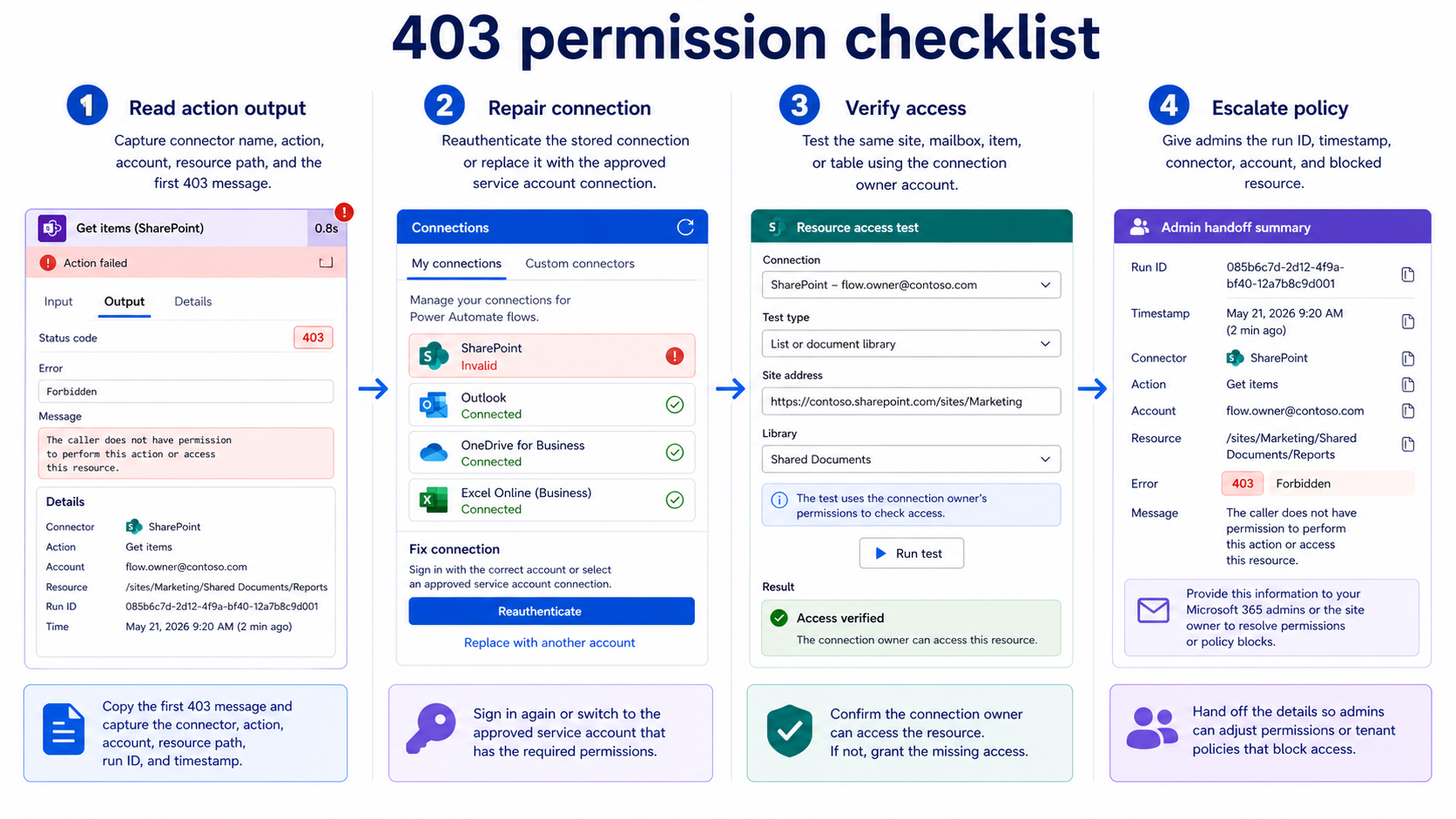
Compare run failure context
Check whether the same flow fails for every record or only for specific items, folders, sites, mailboxes, or users. A universal failure usually points to a broken or unauthorized connection. A record-specific failure often means the account can use the connector but cannot access that exact resource.
Use this related guide to inspect failed runs when the 403 appears after another action already failed.
Confirm environment and connector policy
Some organizations restrict connector use through environment settings and data policies. If a connector action worked yesterday and now returns 403 for multiple users, ask an environment admin whether policy, licensing, or connector access changed. Microsoft’s error reference is useful here because the HTTP code alone does not explain which policy layer rejected the request.
Do not bypass policy by moving the flow to another environment without approval. That can create a bigger governance problem than the failed run.
Repair account access and connections
Reauthenticate the broken connection
Open Data >> Connections, find the connection used by the failed action, and check its status. Select Fix connection or create a new connection if the existing one cannot be repaired. Save the flow after updating the action to use the working connection, then rerun the same test input.
For connection-specific failures, the companion article on repair connector sign-ins covers the broader invalid connection workflow.
Verify permissions on target content
The connection account needs permission to the exact target, not only the app. For SharePoint, confirm access to the site, list or library, item, and folder path. For Outlook, confirm the account can send from the mailbox or access the shared mailbox. For Dataverse, confirm table privileges and row access.
Use a direct browser test with the same account when possible:
- Open the SharePoint item, document library, or folder while signed in as the connection owner.
- Try the same mailbox operation in Outlook on the web if the flow sends or reads mail.
- Confirm the action is not pointing to a deleted, moved, or renamed resource.
- Check whether an admin recently changed conditional access, DLP, or connector policy.
Separate owners from run users
A cloud flow can be shared with users while individual actions still run under the connection owner’s credentials. That difference causes confusion when the person who starts the flow has access but the stored connection does not. Open the action, inspect the selected connection, and decide whether the flow should use a service account, the owner’s account, or a per-user connection.
When the flow touches shared resources, a dedicated service account is usually easier to monitor than a personal account. It also avoids failures when an employee changes role or loses mailbox access.
Handle stubborn 403 scenarios
Test with a minimal flow
Create a temporary flow with the same trigger input and only the failing connector action. If the minimal version returns the same 403, the problem is outside the surrounding automation logic. If the minimal version works, compare dynamic content, resource IDs, and connection references in the original flow.
The goal is to remove noise. A 403 is an authorization result, so the smallest reproducible action helps you prove where authorization breaks.
Check shared mailbox send rights
Email actions can return permission errors when the connection account tries to send from an address it does not own. Confirm whether the account has the required shared mailbox permission and whether the action uses the right mailbox field. A personal Outlook connection cannot automatically send as every shared address in the tenant.
This problem often appears after a flow is copied from one owner to another. The action still looks valid, but the new connection does not carry the old mailbox rights.
Ask admins for policy evidence
When personal permission checks pass and the connection is healthy, ask a Power Platform or Microsoft 365 admin to inspect environment policy, connector restrictions, and audit records. A 403 can be produced by access control outside the flow designer. Provide the run ID, timestamp, connector, action name, and affected account so the admin can search precisely.
Avoid vague tickets like “Power Automate is broken.” The useful ticket says which account was blocked from which resource through which connector action.
Questions people also ask
What does 403 Forbidden mean in Power Automate?
It means the connector request reached the target service, but the service refused the operation. In Power Automate, that usually points to resource permissions, connection ownership, mailbox rights, environment policy, or a connector restriction. The run history action output gives the best clue.
Why does my flow work for one user only?
The flow may be using that user’s stored connection, or the target resource may grant access to only that person. Shared flow permissions do not automatically grant SharePoint, Outlook, or Dataverse permissions. Check both the flow sharing settings and the connector account.
Can I fix 403 by recreating the flow?
Usually no. Recreating a flow can hide the issue if it creates a fresh connection, but it does not solve missing access to a site, mailbox, file, or policy-controlled connector. Repair the connection and permissions first.
A 403 is a refusal, not a mystery crash. Name the connector account, verify the exact target resource, repair the connection, and escalate policy evidence only after those checks pass.