When a run sits in progress and then fails, the useful question is not only how to fix Power Automate flow timing out. The better question is which part of the run is waiting too long: the trigger, a connector call, a loop, a child process, or an approval-style wait. Microsoft documents service limits, connector throttling, action timeouts, and trigger troubleshooting patterns, so the fastest fix is to isolate the wait instead of rebuilding the entire automation.
Check the slow Power Automate run
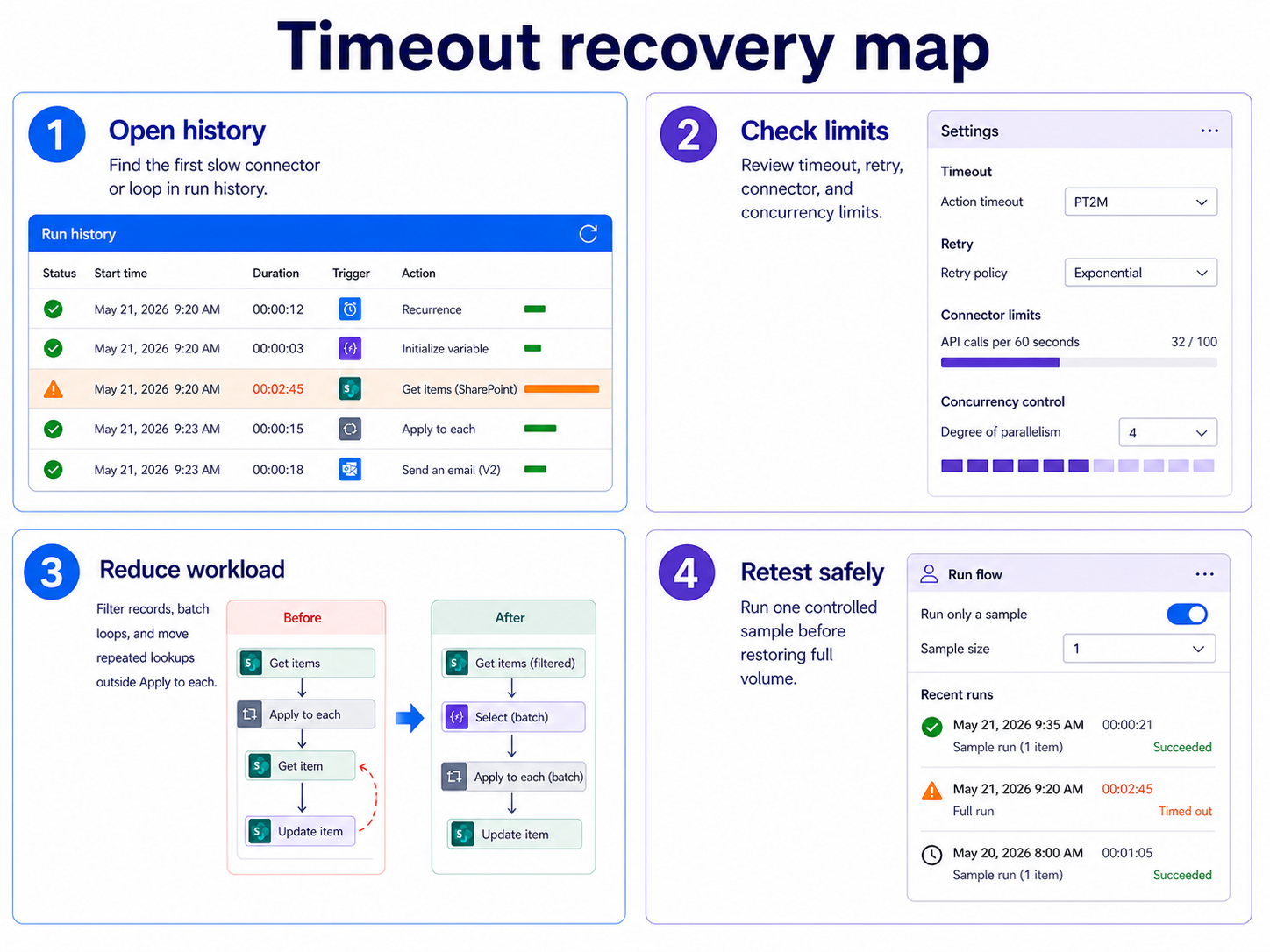
Read the run history details
Open the flow, select the failed or long-running run, and expand every action around the point where the duration jumps. A timeout usually appears after an action waited for a connector response, retried several times, or processed too many records inside one branch. If the run also shows a separate failure, use the error code and action output before changing the design; a timeout can be the last visible symptom of an earlier service delay.
My usual first clue is the action duration, not the red failure banner.
For a related failure-first workflow, use this guide to trace failed runs before changing your trigger or loop design.
Compare action and connector limits
Microsoft Learn separates several limit types: request limits, connector throttling, action timeout behavior, loop limits, and flow duration limits. That matters because raising concurrency will not help if the connector is already throttling, and shortening a loop will not help if a single external service call waits too long. Check whether the slow action calls SharePoint, Outlook, Dataverse, Excel, or a custom connector, then compare that pattern with the documented Power Automate limits.
If the action has retry policy settings, inspect whether the run spent most of its time retrying the same call. Retries are useful for transient failures, but they can make a broken connection or overloaded endpoint look like a timeout.
Confirm the trigger still fires
A flow that appears to time out may actually be stuck before useful work starts. Microsoft trigger troubleshooting guidance recommends checking whether the trigger is enabled, whether trigger conditions filter out events, and whether the connected service is producing the expected event. For recurrence flows, confirm the schedule and time zone; for automated flows, create a fresh event and watch whether a new run appears.
Do not assume a delayed run means the trigger is healthy. A trigger with stale connection credentials or restrictive conditions can leave you debugging actions that never received the right input.
Reduce work inside each run
Split large loops into batches
The most common timeout pattern is an Apply to each loop that tries to handle too many items in one run. Filter records before the loop, use pagination carefully, and move expensive steps outside the loop when the value is the same for every item. If each iteration calls SharePoint, Outlook, or another connector, the total run time grows quickly and can hit service or connector limits.
Use these practical loop controls:
- Filter the source query so the flow only receives records that need action.
- Add a top count or date window when a scheduled cleanup flow handles old items.
- Move repeated lookup actions before the loop and reuse the result where possible.
- Consider child flows or separate scheduled batches when one run processes thousands of rows.
The linked walkthrough on control loop behavior is a better fit when the timeout happens inside Apply to each.
Tune concurrency with connector caution
Concurrency can reduce elapsed time, but it is not a universal fix. Turning on parallelism inside a loop may help when each item is independent and the connector accepts the extra requests. It can make the problem worse when the service throttles, when records must be processed in order, or when two branches update the same row.
Start with a small concurrency value, rerun with a controlled sample, and compare total duration with the previous run. If failures change from timeout to throttling, back off and redesign the workload into smaller batches.
Replace waits with durable checkpoints
Long Delay, Do until, and approval waits can keep a run open far longer than expected. When the process waits on a human, a third-party system, or a scheduled response, store state in SharePoint, Dataverse, or another reliable location and let a later flow resume the work. This pattern keeps the active run short and makes recovery easier if a connection fails.
For example, write a status value such as `Pending approval` or `Waiting for invoice` and trigger a second flow when the status changes. The design is easier to monitor because each run has a smaller responsibility.
Resolve timeout edge cases
Fix connections before redesigning flows
Open Data >> Connections in Power Automate and confirm that each connection used by the run is authenticated. A connector can still appear in the flow designer while the underlying token has expired or the account has lost permission to the mailbox, list, or file. Repair the connection, save the flow, and run the same test input again. If no run starts at all, switch from duration troubleshooting to this trigger activation checklist.
When I see random timeout spikes, I check connection health before changing loop settings.
If the same action fails for only one user or one site, the timeout may be masking a permission or access problem. Test with a known-good account and a small sample record.
Watch service throttling and retries
Throttling usually appears as delayed or retried actions rather than a neat design-time warning. Microsoft Learn explains that platform and connector limits protect service reliability, so high-volume flows should reduce request count and avoid bursts. If your run history shows repeated connector calls around the same minute, spread the workload across time or reduce parallel requests.
This is especially relevant for flows that send many emails, update many SharePoint items, or call custom APIs. A retry policy can hide the first throttled response until the run has already consumed much of its allowed duration.
Rebuild only the failing section
After you identify the slow action, copy the flow and remove unrelated branches. Use one trigger input, one affected action, and one simple response path. A smaller test flow tells you whether the issue belongs to the connector, the input size, or the surrounding design.
Avoid rebuilding the full automation until the minimal case is clear. Rebuilds often move the timeout without explaining it.
Power Automate timeout questions answered
Why does my Power Automate flow timeout randomly?
Random timeouts usually come from variable connector response time, throttling, large loops, or retries after a transient service issue. Check whether slow runs share the same connector, item count, mailbox, SharePoint site, or time of day. A pattern in run duration is more useful than the final error message alone.
Can increasing concurrency fix a timeout?
Sometimes, but only when iterations are independent and the connector can handle extra parallel requests. If the connector is already throttling, concurrency may produce more retries and longer runs. Test with a small number first and compare both run duration and error type.
Should I use delay actions for long waits?
Short delays are fine for simple pacing, but long business waits are usually better handled with stored status and a second flow. That approach keeps each run shorter and easier to recover. It also avoids tying one automation run to a human response or external system delay.
Timeout fixes work best when you shorten the run and reduce connector pressure. Find the action that waits, shrink its workload, and keep long human or system waits outside the active run.