Your AirPods should connect to your iPhone the moment you open the charging case. When that stops happening, the problem usually traces back to an incorrect Bluetooth preference, a corrupted pairing profile, or a firmware mismatch between your AirPods and iOS. Most automatic connection failures resolve in under five minutes once you target the right cause.
Restore AirPods Auto-Connect to iPhone
Verify AirPods Bluetooth Preferences
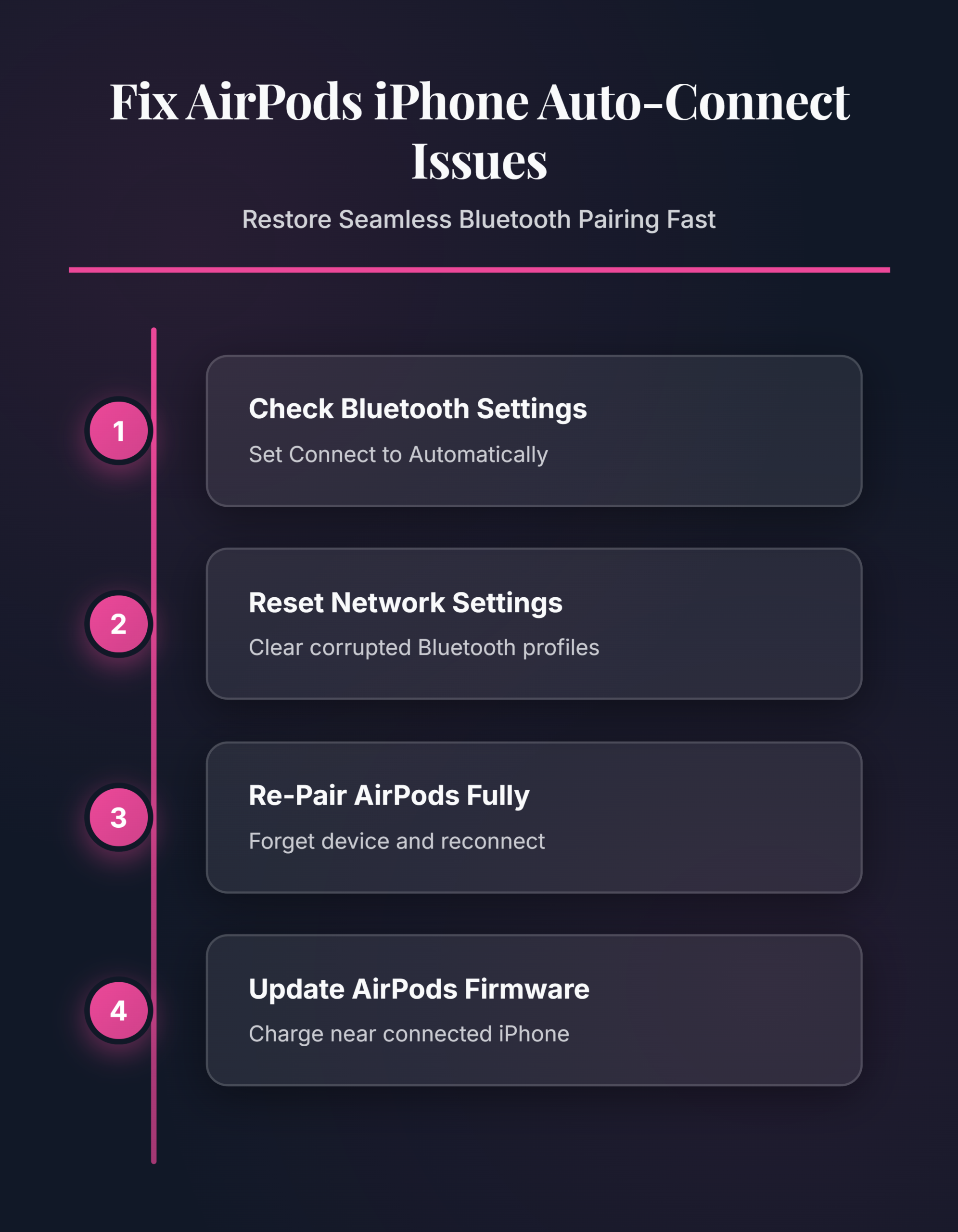
The most frequent reason AirPods stop auto-connecting is a single toggle buried in Bluetooth settings. Open Settings >> Bluetooth on your iPhone and find your AirPods in the device list. Tap the info (i) button next to your AirPods name, then scroll down to Connect to This iPhone. Set this to Automatically rather than When Last Connected to This iPhone.
The When Last Connected option tells your iPhone to yield the connection to whichever Apple device used the AirPods most recently. If you wore them with your Mac an hour ago, your iPhone won’t claim them when you open the case. Switching to Automatically forces your iPhone to always grab the connection first. This single change fixes the auto-connect issue for roughly half of all affected users. Double-check this setting on each Apple device signed into your iCloud account to avoid conflicts.
Reset iPhone Network Configuration
A corrupted Bluetooth profile can block the automatic handshake between your AirPods and iPhone. Resetting network settings wipes all saved Bluetooth pairings, Wi-Fi passwords, and VPN configurations — giving your iPhone a clean wireless slate. This is the same principle behind needing to reset your network configuration on other devices when wireless connections break down.
Navigate to Settings >> General >> Transfer or Reset iPhone >> Reset >> Reset Network Settings. Enter your passcode when prompted. Your iPhone restarts automatically, and you need to reconnect to Wi-Fi networks afterward.
After the restart, open your AirPods case near your iPhone. The setup animation should appear on screen within a few seconds. Tap Connect to re-pair, and your AirPods restore the automatic connection preference to its default. This approach resolves deeper Bluetooth stack corruption that a simple toggle cannot fix. Keep your Wi-Fi password handy before you start since the reset clears it.
Re-Pair AirPods From Scratch
When settings changes and network resets don’t work, a full re-pair forces your AirPods to build a fresh connection profile. Start by forgetting the existing pairing: go to Settings >> Bluetooth, tap the info (i) button next to your AirPods, and select Forget This Device. Confirm when prompted.
Next, factory reset your AirPods:
- Place both AirPods in the charging case and close the lid
- Wait 30 seconds, then open the lid
- Press and hold the setup button on the back of the case until the status light flashes amber, then white
- Hold the open case near your unlocked iPhone
The pairing animation appears on your iPhone screen. Tap Connect and follow the on-screen prompts to complete setup. This process rebuilds the entire Bluetooth profile from scratch and restores automatic connection behavior. After pairing finishes, go back into Settings >> Bluetooth >> info (i) and confirm Connect to This iPhone is set to Automatically. Skipping this verification is the most common reason a re-pair doesn’t stick.
Troubleshoot AirPods Connection Edge Cases
AirPods Connect to Wrong Device
AirPods linked to a single iCloud account can auto-connect to a nearby Mac or iPad instead of your iPhone. This happens when multiple devices have Connect to This iPhone (or the equivalent Mac/iPad setting) set to Automatically. Open Bluetooth settings on the device that keeps stealing the connection and change its preference to When Last Connected.
On your iPhone, keep the setting at Automatically so it always claims priority. If you own AirPods Pro or AirPods Max, automatic device switching adds another layer — your AirPods follow audio focus across devices. Disable auto-switching on devices you rarely use with AirPods to prevent connection hijacking. This same concept applies when you need to troubleshoot Bluetooth connection problems across multiple paired devices on any platform.
AirPods Won’t Connect After iOS Update
iOS updates occasionally reset Bluetooth preferences or create firmware compatibility gaps. After updating your iPhone, check Settings >> Bluetooth >> info (i) next to your AirPods — the Connect to This iPhone preference sometimes reverts to When Last Connected during major iOS releases.
If the setting looks correct, verify your AirPods firmware is current. With AirPods connected, go to Settings >> Bluetooth >> info (i) and scroll to the bottom to find the firmware version number. AirPods update firmware automatically while charging, but you can nudge the process along:
- Place AirPods in the case and connect the case to a power source
- Keep your iPhone nearby and connected to Wi-Fi
- Close the lid and wait 20–30 minutes
Outdated AirPods firmware paired with a new iOS version is a known trigger for auto-connect failures. Apple does not provide a manual firmware update button, so the charging method is the only way to force it. If the firmware version hasn’t changed after one attempt, leave the case charging overnight near your iPhone.
Q&A
Why do my AirPods not connect to my iPhone automatically?
The most common cause is the Connect to This iPhone Bluetooth setting being configured to When Last Connected instead of Automatically. Other triggers include a corrupted Bluetooth pairing profile, outdated AirPods firmware, or another Apple device on the same iCloud account claiming the connection before your iPhone does.
How do I fix AirPods that stopped auto-connecting after an update?
Check Settings >> Bluetooth >> info (i) next to your AirPods and verify Connect to This iPhone is set to Automatically — iOS updates sometimes reset this preference. If the setting is correct, place your AirPods in the charging case near your iPhone overnight to trigger a firmware update.
Does resetting AirPods delete my settings?
A factory reset (holding the setup button until amber-then-white flash) removes the pairing from all devices on your iCloud account. You need to re-pair the AirPods and reconfigure preferences like automatic ear detection and press-and-hold actions. Audio settings such as EQ return to defaults.
Your AirPods auto-connect failure comes down to one of three things: a wrong Bluetooth preference, stale pairing data, or a firmware mismatch. Work through the fixes above in order, and your AirPods should reconnect to your iPhone the instant you open the case.