AirPods that drop audio mid-call on a Mac create real problems during work meetings and phone conversations. The issue usually traces back to Bluetooth interference, outdated firmware, or macOS audio routing conflicts that pull the connection away from your calling application. The audio cuts out, the microphone stops transmitting, and reconnecting mid-call rarely works cleanly. These configuration steps fix AirPods not working during FaceTime, Zoom, Microsoft Teams, and other calling software on your Mac by addressing each root cause directly.
AirPods Bluetooth Requirements for Mac
Before you troubleshoot AirPods not working during calls, confirm these requirements:
- macOS Ventura 13.0 or later — earlier versions lack critical Bluetooth stability patches that affect call audio routing
- AirPods charged above 20% — low battery triggers aggressive power-saving mode that drops active connections mid-call
- No competing Bluetooth audio devices paired — other headphones or speakers cause handoff conflicts that interrupt call audio
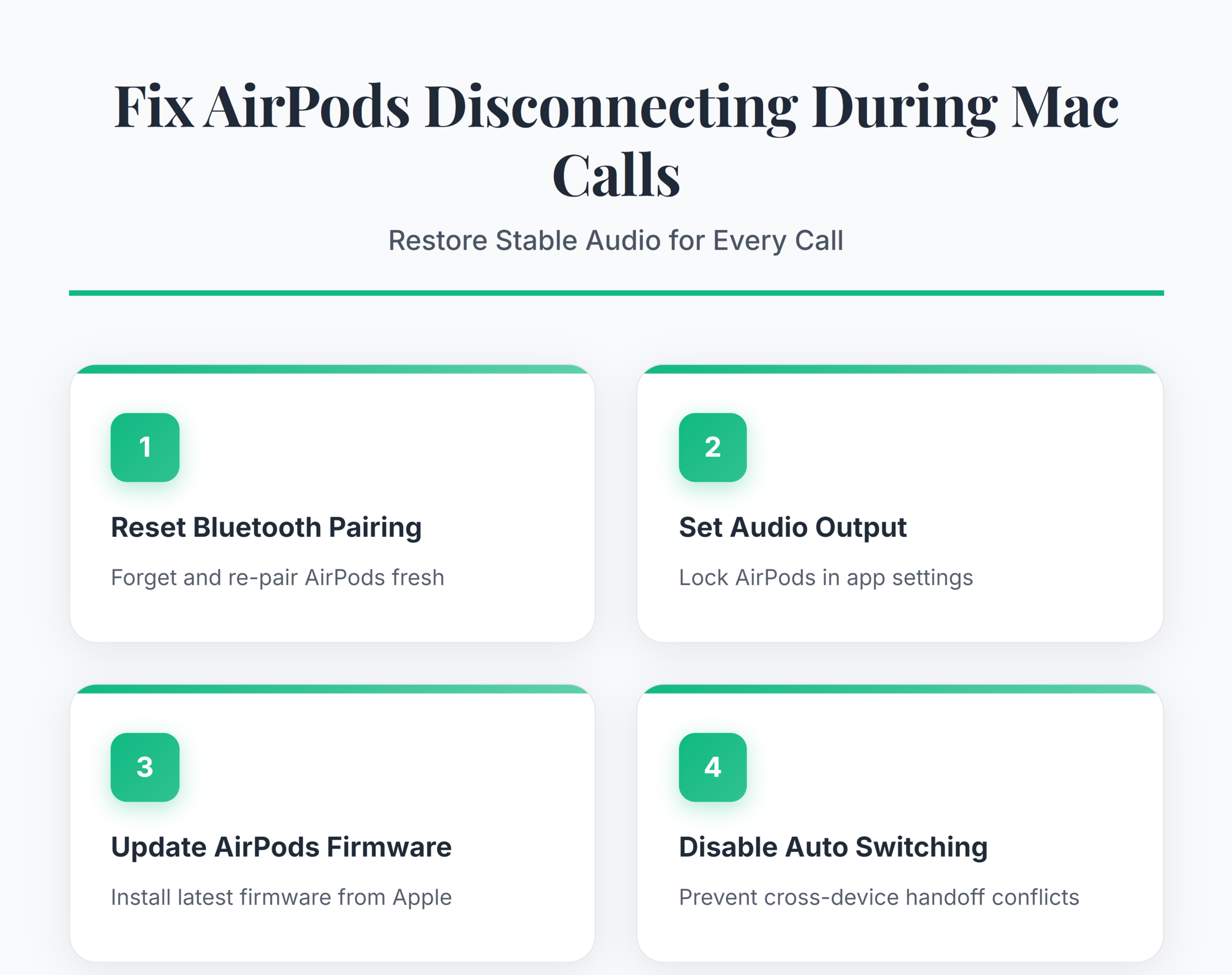
Fix AirPods Call Audio on Mac
Reset AirPods Bluetooth Connection
Open System Settings on your Mac and navigate to Bluetooth. Find your AirPods in the device list, click the info button next to them, and select Forget This Device. This removes cached pairing data that often becomes corrupted after macOS updates or extended use. Place your AirPods back in the charging case, close the lid, and wait 30 seconds. Open the lid, then press and hold the setup button on the back of the case until the status light flashes amber followed by white. Return to Bluetooth settings and pair the AirPods fresh. A clean re-pair forces macOS to rebuild the entire connection profile from scratch, which resolves most intermittent disconnection issues during active calls. Test the connection by placing a short call immediately after pairing to confirm stability before moving to additional steps.
Configure Mac Sound Output for Calls
Open System Settings and go to Sound >> Output. Select your AirPods as the active output device while they are connected. Many disconnection issues during calls happen because macOS switches audio output to the built-in Mac speakers or another device mid-conversation. To lock the output, open the calling application you use most and check its audio configuration separately. In Zoom, go to Settings >> Audio and set both the speaker and microphone to your AirPods explicitly. If you use Microsoft Teams, you can troubleshoot Teams audio problems and configure AirPods through Settings >> Devices to assign the same output. FaceTime uses the system-level Sound settings and does not require a separate audio configuration step. Application-level audio settings override the system default, so configuring both locations prevents macOS from rerouting audio when the application requests a different output device during a call.
Verify AirPods Firmware Is Current
Outdated firmware is a frequent cause behind AirPods call disconnections that persist after Bluetooth resets. Check your current firmware version by connecting your AirPods, then navigating to System Settings >> Bluetooth, clicking the info button next to your AirPods, and noting the firmware version listed. Compare this against the latest version published on Apple’s AirPods firmware support page. AirPods update firmware automatically when placed in the charging case, connected to a power source, and positioned near a paired device with internet access. If your firmware is behind, place the AirPods in the case near your Mac, connect the case to a charger, and leave them undisturbed for at least 30 minutes. Re-check the version afterward to confirm the update applied. Firmware updates patch known Bluetooth stack bugs that cause audio drops specifically during active microphone use in calls, making this step essential for a permanent fix.
Advanced AirPods Troubleshooting Options
Disable Automatic AirPods Device Switching
Apple’s automatic switching feature moves AirPods between your iPhone, iPad, and Mac based on which device plays audio or receives a notification.
- During calls, this feature can pull the AirPods connection away from your Mac when a notification sound or media starts on another nearby Apple device.
- Open System Settings >> Bluetooth, click the info button next to your AirPods, and change Connect to This Mac from Automatically to When Last Connected to This Mac.
- Repeat this change on your iPhone under Settings >> Bluetooth >> AirPods info to prevent that device from reclaiming the connection.
- If your AirPods also fail to maintain a connection on iOS, you may need to fix AirPods not connecting to iPhone separately.
- Disabling automatic switching ensures a stable, dedicated connection to whichever device you intentionally paired with, eliminating the mid-call handoff that causes sudden audio drops.
Reset Mac Bluetooth Module Completely
When standard steps fail to fix AirPods not working permanently during calls, a full Bluetooth module reset clears deep configuration issues stored at the system level. Hold Shift + Option and click the Bluetooth icon in the menu bar to reveal the hidden debug menu. Select Reset the Bluetooth module and confirm the action. Your Mac disconnects all Bluetooth devices and rebuilds the module configuration from scratch. After the reset completes in roughly 10 seconds, re-pair your AirPods using the pairing steps from the initial setup section above. This reset clears corrupted Bluetooth preference files stored in the system Library folder that accumulate over months of use and cause persistent connection instability during calls. A Bluetooth module reset is the most thorough software-level fix available on macOS, and it resolves edge cases that individual device re-pairing cannot reach.
FAQ
Why do AirPods keep disconnecting during calls on Mac?
The most common causes are Bluetooth interference from nearby wireless devices, outdated AirPods firmware with known audio bugs, automatic device switching pulling the connection to another Apple device, and corrupted Bluetooth pairing data on your Mac. Low AirPods battery also triggers power-saving behavior that drops active call connections unexpectedly.
How do I fix AirPods not working on Mac calls permanently?
Reset the Bluetooth module on your Mac, forget and re-pair the AirPods, update to the latest firmware, and disable automatic device switching. Set your AirPods as the explicit audio device in each calling application’s settings. These combined steps address all major root causes and provide a permanent airpods not working solution.
Can Wi-Fi interference cause AirPods to disconnect during calls?
Yes. AirPods use Bluetooth on the 2.4 GHz frequency band, the same band many Wi-Fi routers broadcast on. If your Mac connects to a 2.4 GHz Wi-Fi network, switching your router to the 5 GHz band reduces wireless interference and improves AirPods connection stability during extended calls.
A clean Bluetooth re-pair combined with explicit audio device settings in your calling application resolves most AirPods disconnection issues on Mac. Run through the firmware update check and disable automatic switching to keep your connection stable across long meetings and conference calls.