Why are my Teams calls on Windows 11 dropping in seconds?
“Every time I try to join a Microsoft Teams meeting, the call drops within seconds of connecting. This happens whether I’m dialing in from my Windows 10 laptop or trying to join through the desktop app. My colleagues can hear me briefly, then I’m suddenly disconnected. It’s becoming impossible to participate in important client meetings and team collaborations. What’s causing these frequent call drops, and how can I ensure stable connectivity for my daily video conferences?”
Understanding why Microsoft Teams keeps dropping calls
Call stability issues in Microsoft Teams often stem from network connectivity problems, outdated software, or conflicting system configurations. These disruptions significantly impact business productivity and professional communication. Windows users might experience these challenges due to firewall restrictions, bandwidth limitations, or incompatible audio drivers. Resolving these issues requires systematic troubleshooting across network settings, Teams configuration, and system optimization to ensure reliable voice and video communication.
Comprehensive approach to fix dropping calls in Teams
We will address the most common causes of Teams call drops through a systematic troubleshooting approach. We’ll examine network optimization, application updates, audio device configuration, and Windows 10-specific settings. The solution covers both immediate fixes and preventive measures to maintain stable connections. You’ll need administrative access to your Windows 10/11 desktop and/or laptop and basic knowledge of network settings to implement these recommendations effectively.
How to stop Teams calls from dropping frequently
- Update Microsoft Teams to the latest version by clicking your profile picture, selecting “Check for updates,” and restarting the application after any available updates install completely.
- Clear Teams cache files by pressing Windows + R, typing “%appdata%\Microsoft\Teams” and deleting all folders except “Logs,” then restart Teams to rebuild the cache with fresh configuration data.
- Configure Windows Firewall exceptions by opening Windows Security, navigating to “Firewall & network protection,” clicking “Allow an app through firewall,” and ensuring Microsoft Teams has both private and public network permissions enabled.
- Optimize network bandwidth allocation by closing unnecessary applications, pausing cloud backups during calls, and connecting directly to your router via Ethernet cable when possible for maximum stability. Monitor your network connection during calls using Teams’ built-in diagnostic tools accessible through Ctrl+Shift+Alt+D to identify specific connectivity issues.
- Update audio and video drivers through Device Manager by expanding “Audio inputs and outputs,” right-clicking your microphone and speakers, selecting “Update driver,” and choosing automatic driver search options.
- Adjust Teams audio settings by clicking the three dots during a call, selecting “Device settings,” testing different microphone and speaker combinations, and enabling “Noise cancellation” to reduce audio processing conflicts.
- Reset network adapter settings by opening Command Prompt as administrator, running “netsh winsock reset” followed by “netsh int ip reset,” then restarting your computer to refresh network configurations.
- Configure Quality of Service (QoS) settings in your router admin panel by prioritizing Microsoft Teams traffic, setting bandwidth limits for other devices, and enabling UPnP for automatic port management
- Note: When experiencing frequent call drops, start by checking your audio setup. If you’re using external audio devices, make sure to properly connect Bluetooth headphones to Microsoft Teams and test them before important calls. This can resolve many common audio-related disconnection issues.
Comparing Teams Call Stability Across Platforms
Windows 10 and Windows 11 handle Teams calls differently due to architectural changes in network stack management and audio processing. Windows 11 users benefit from improved DirectX audio integration and enhanced network prioritization through the updated Network Quality of Service framework. However, Windows 10 systems running legacy audio drivers may experience fewer compatibility conflicts with older USB headsets and conference room equipment.
The Teams desktop application provides superior call stability compared to Teams for Web because it accesses native system resources directly and maintains persistent background processes for connection management. Web-based Teams relies on browser WebRTC implementations, which can introduce latency and connection drops when browser tabs compete for memory resources. Mobile Teams apps on iOS and Android use different codec compression algorithms optimized for cellular networks, making them more resilient to bandwidth fluctuations than desktop versions.
Capture the failure before changing several settings
Run one controlled call and write down the exact local time, account, other participant, device, network, and whether the call dropped before or after media connected. Note any error code shown in Teams. This evidence lets support match the client symptom with the correct session instead of searching through every call made that day.
Compare one variable at a time
Repeat the test on Teams for web using the same computer and network, then on the desktop app. If only the desktop client fails, focus on its update, local state, and device integration. If both fail, test a different network without changing the account. A result that follows the network points toward connectivity; a result that follows the user can indicate policy, identity, licensing, or service configuration.
What can a Teams administrator inspect?
Authorized support roles can use Teams admin center meeting and call troubleshooting or Call Analytics to review device, network, connectivity, and quality details for a specific user’s call. The record can show each call leg and help isolate which participant or route ended. Very abrupt disconnects may have incomplete quality data, which makes the accurate time and participant information even more important.
Escalate with a compact evidence set
Provide the meeting or call link when available, both participant accounts, the time with time zone, client type, network used, error code, and the results of the web-versus-desktop test. Include Teams logs only when support requests them because they may contain organizational details. Avoid clearing caches, reinstalling, changing DNS, and disabling security software all at once; simultaneous changes erase the comparison that identifies the actual cause.
If the call succeeds only after switching networks, do not permanently bypass company security routing without approval. Give IT the comparison so they can examine VPN, proxy, firewall, wireless, or provider behavior through the authorized support process.
Troubleshooting persistent Teams call drops on Windows 10 /11
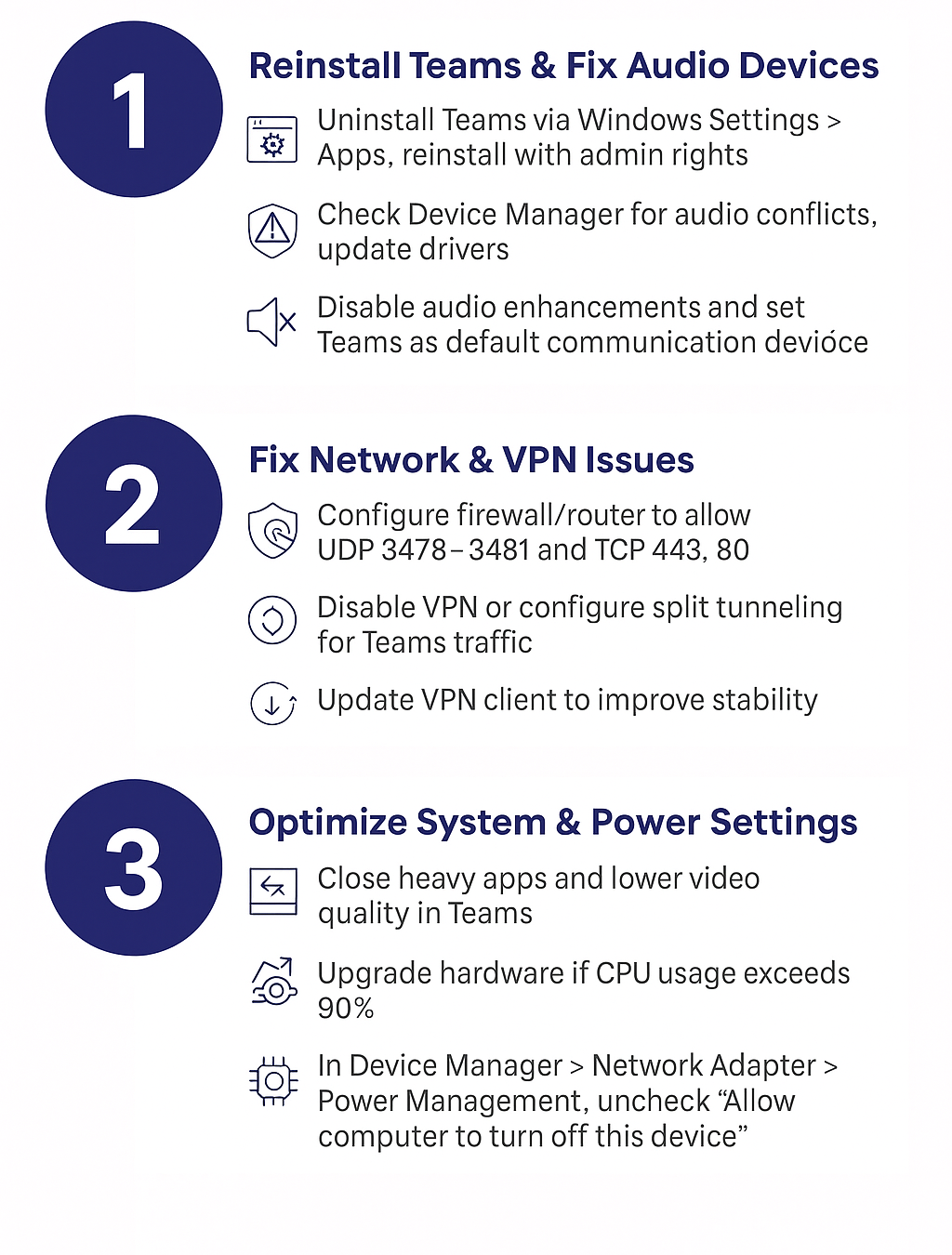
- Teams application crashes during calls often indicate corrupted installation files requiring complete uninstallation through Windows Settings, downloading fresh installer from Microsoft’s official website, and performing clean installation with administrative privileges.
- Audio device conflicts causing immediate disconnections require checking Device Manager for yellow warning icons, disabling conflicting audio enhancements in sound control panel, and setting Teams as default communication device in Windows sound settings.
- Network firewall blocking Teams protocols manifests as successful initial connections followed by rapid disconnections, requiring port forwarding configuration for UDP 3478-3481 and TCP 443, 80 in both Windows Firewall and router settings.
- Insufficient system resources during video calls cause automatic disconnections when CPU usage exceeds 90%, requiring closure of resource-intensive applications, reducing video quality in Teams settings, and considering hardware upgrades for consistent performance.
- VPN interference with Teams connectivity creates unstable connections requiring split-tunneling configuration to bypass VPN for Teams traffic, updating VPN client software, or temporarily disconnecting VPN during critical meetings while maintaining security protocols.
- Windows 10 power management throttling network adapters during calls requires accessing Device Manager, expanding network adapters, opening properties for your connection, navigating to Power Management tab, and unchecking “Allow computer to turn off this device.”