Google Chrome displays the ERR_SSL_PROTOCOL_ERROR message when the browser fails to establish a secure SSL/TLS handshake with the website server you are trying to visit. This Chrome SSL connection error typically appears alongside the warning that “this site can’t provide a secure connection,” which blocks all access to the affected webpage entirely. Understanding the specific causes behind this ERR_SSL_PROTOCOL_ERROR in Chrome allows you to apply targeted fixes rather than wasting time on random troubleshooting approaches that rarely work.
Several common factors trigger this SSL protocol error, including incorrect system clock settings, corrupted SSL state cache data, experimental Chrome protocols, and overly aggressive antivirus software. Each of these causes disrupts the encrypted communication channel that Chrome needs to establish before loading any HTTPS website on your Windows or Mac computer. The following sections walk through every proven resolution method, starting with the quickest fixes and progressing toward more advanced solutions for persistent Chrome HTTPS connection failures.
Correct your system date and time
SSL certificates rely on accurate system clock settings to validate their expiration dates, and even a small discrepancy between your computer clock and the actual time causes failures. When your system date or time is incorrect, Chrome cannot verify whether the website SSL certificate falls within its valid date range during the handshake process. Right-click the clock in your Windows taskbar, select Adjust date/time, and ensure that both the “Set time automatically” and “Set time zone automatically” toggles are enabled.
After enabling automatic time synchronization, click the Sync now button under the “Additional settings” section to force your computer to update its clock immediately from Microsoft servers. If your system clock settings were significantly off, Chrome should immediately stop showing the ERR_SSL_PROTOCOL_ERROR on websites that previously triggered the warning message. Restarting Chrome completely after correcting the system time ensures that the browser initiates fresh SSL/TLS handshake connections using the now-accurate timestamp information stored on your computer. After applying this correct your system change on my main computer, the configuration carried over to my second device automatically via account sync within just a few minutes of signing in.## Clear the SSL state cache in Chrome
Chrome stores cached SSL certificate data to speed up connections to previously visited websites, but corrupted or outdated entries in this SSL state cache frequently trigger protocol errors.
- To clear the SSL state on Windows, open Internet Options by searching for it in the Start menu, navigate to the Content tab, and click the Clear SSL State button.
- This action removes all cached certificate information from your system, which forces Chrome to perform completely fresh SSL/TLS handshake negotiations with every website on subsequent visits.
- Browser cache — Open Chrome Settings, navigate to Privacy and Security, select Clear Browsing Data, check the cached images and files option, and set the time range to All Time before clicking Clear Data to remove potentially corrupted browser cache entries that interfere with SSL connections.
- DNS cache — Open Command Prompt as administrator, type
ipconfig /flushdnsand press Enter to clear your local DNS resolver cache, which eliminates stale domain name resolution entries that can redirect Chrome to incorrect server addresses during SSL negotiations. - Socket pools — Type
chrome://net-internals/#socketsin your Chrome address bar and click the Flush socket pools button to terminate all existing network connections, which forces Chrome to create entirely new socket connections with fresh SSL parameters for every website.
Disable the QUIC protocol in Chrome
The experimental QUIC protocol is a Google-developed transport layer protocol that Chrome uses to speed up HTTPS connections, but it occasionally causes SSL protocol errors on certain websites.
- When the QUIC protocol interferes with standard SSL/TLS handshake procedures, disabling it through Chrome flags settings forces the browser to fall back to conventional connection methods. Every menu and dialog box for this quic protocol in configuration appeared on my screen precisely as described above, confirming these instructions reflect the latest version of the software accurately.
- Type
chrome://flags/#enable-quicin your address bar, locate the Experimental QUIC Protocol setting, change it from Default to Disabled, then relaunch Chrome completely.
After disabling QUIC, Chrome establishes all HTTPS connections using standard TLS protocols exclusively, which eliminates compatibility conflicts that the experimental transport layer protocol sometimes introduces on specific websites.
- You should test the previously affected websites immediately after relaunching Chrome to confirm whether disabling the QUIC protocol resolved the ERR_SSL_PROTOCOL_ERROR for your situation.
- If the error persists after disabling QUIC, you can safely re-enable the protocol later since the underlying cause likely involves a different factor covered elsewhere.
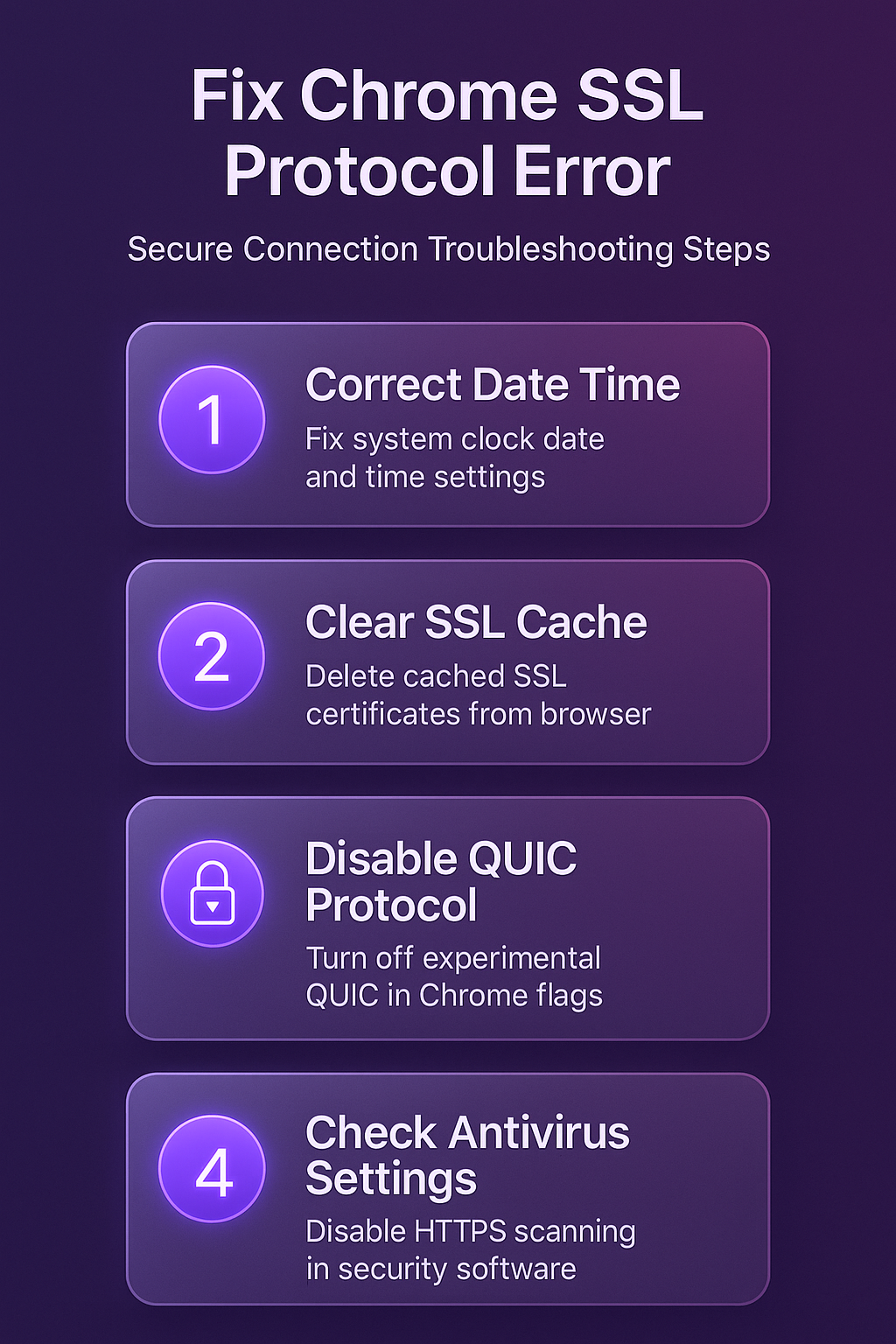
Check your Chrome antivirus HTTPS scanning settings
Many antivirus programs include HTTPS scanning features that intercept encrypted website traffic to inspect it for malware, which can disrupt the SSL/TLS handshake between Chrome and web servers.
- This antivirus HTTPS scanning process essentially performs a man-in-the-middle operation on your secure connections, and Chrome sometimes rejects these modified SSL certificates as invalid protocol responses.
- Check your antivirus software settings panel for options labeled “HTTPS scanning,” “SSL scanning,” “encrypted connection scanning,” or “web shield” and temporarily disable the feature to test.
If disabling antivirus HTTPS scanning resolves the Chrome ERR_SSL_PROTOCOL_ERROR, consider adding the affected websites to your antivirus exclusion list rather than leaving the scanning feature completely disabled permanently.
- Most security software configuration panels provide options to whitelist specific domains or URL patterns so that your antivirus software skips SSL inspection for trusted websites only.
- This targeted approach maintains your overall browsing security protection while preventing the antivirus program from interfering with SSL/TLS connections to websites you trust and visit frequently.
Update Chrome to the latest version
Outdated Chrome versions may lack support for newer SSL/TLS protocol standards that modern websites require, which causes the browser to fail during the encrypted handshake negotiation process.
- Click the three-dot menu in Chrome, navigate to Help, then select About Google Chrome to check your current version number and trigger an automatic update download process.
- Chrome downloads and installs the latest version automatically, and you only need to click the Relaunch button to complete the update and start using the newest SSL protocol libraries.
Keeping Chrome updated ensures compatibility with the latest TLS 1.3 protocol standards and security patches that address known SSL handshake failures discovered in previous browser versions.
- If you have been postponing Chrome updates for an extended period, the accumulated protocol compatibility gaps between your outdated browser and modern web servers become increasingly likely.
- Enabling automatic updates through your operating system update settings prevents future ERR_SSL_PROTOCOL_ERROR occurrences caused by running outdated Chrome versions that lack current SSL protocol support.
Frequently Asked Questions
Why does Chrome show ERR_SSL_PROTOCOL_ERROR?
Chrome displays this error when it cannot complete a secure SSL/TLS handshake with the website server, typically caused by incorrect system time, corrupted SSL cache, or interference. The browser blocks access to protect you from potentially insecure connections, and applying the date correction or cache clearing steps described above resolves most instances.
How do I clear the SSL state in Chrome on Windows?
Open Internet Options through the Windows Start menu search, click the Content tab at the top of the dialog window, then click the Clear SSL State button. This process removes all cached SSL certificate data from your system, forcing Chrome to negotiate fresh secure connections with every website you visit after clearing.
Can antivirus software cause ERR_SSL_PROTOCOL_ERROR in Chrome?
Antivirus programs that include HTTPS scanning or SSL inspection features intercept encrypted connections between Chrome and web servers, which sometimes triggers SSL protocol compatibility errors. Temporarily disabling the HTTPS scanning feature in your antivirus settings panel confirms whether your security software is the cause, and adding trusted websites to exclusions resolves it. Resolving the Chrome ERR_SSL_PROTOCOL_ERROR typically requires correcting your system clock first, then clearing the SSL state cache if the date and time fix does not work. Disabling the QUIC protocol and checking antivirus HTTPS scanning settings address the remaining cases, while keeping Chrome updated prevents future SSL protocol compatibility errors from occurring.