Losing browser tabs mid-research or during a project wastes time and breaks your workflow. Firefox stores session data and browsing history locally, which means most closed tabs are recoverable within minutes. This guide walks through every method to restore Firefox tabs, from quick keyboard shortcuts to deep session restore configuration changes that prevent tab loss permanently.
Understand private windows and session restore limits
Firefox session restore is designed for normal browsing windows, crashes, updates, and restarts. Private windows are different: once a private window closes, Firefox does not keep the same browsing history for later restoration. If the missing tabs were private, the normal Restore Previous Session option will not bring them back.
If a normal session does not restore, open the Firefox menu, choose History, and check Recently Closed Tabs and Recently Closed Windows before refreshing or reinstalling the browser. A browser refresh can help with damaged settings, but it may also change add-ons and profile data. Recover needed URLs first, then troubleshoot crashes or extension conflicts. For research-heavy work, bookmark important tab groups instead of relying only on crash recovery.
Prerequisites for Firefox Tab Recovery
Before starting recovery, confirm these requirements:
- Firefox 115 or newer installed on Windows, macOS, or Linux
- Access to the Firefox profile folder for advanced recovery methods
- The lost session was not a private browsing window, since private windows do not save history or session data
Restore Firefox Tabs Using Built-In Methods
Reopen a recently closed tab or window
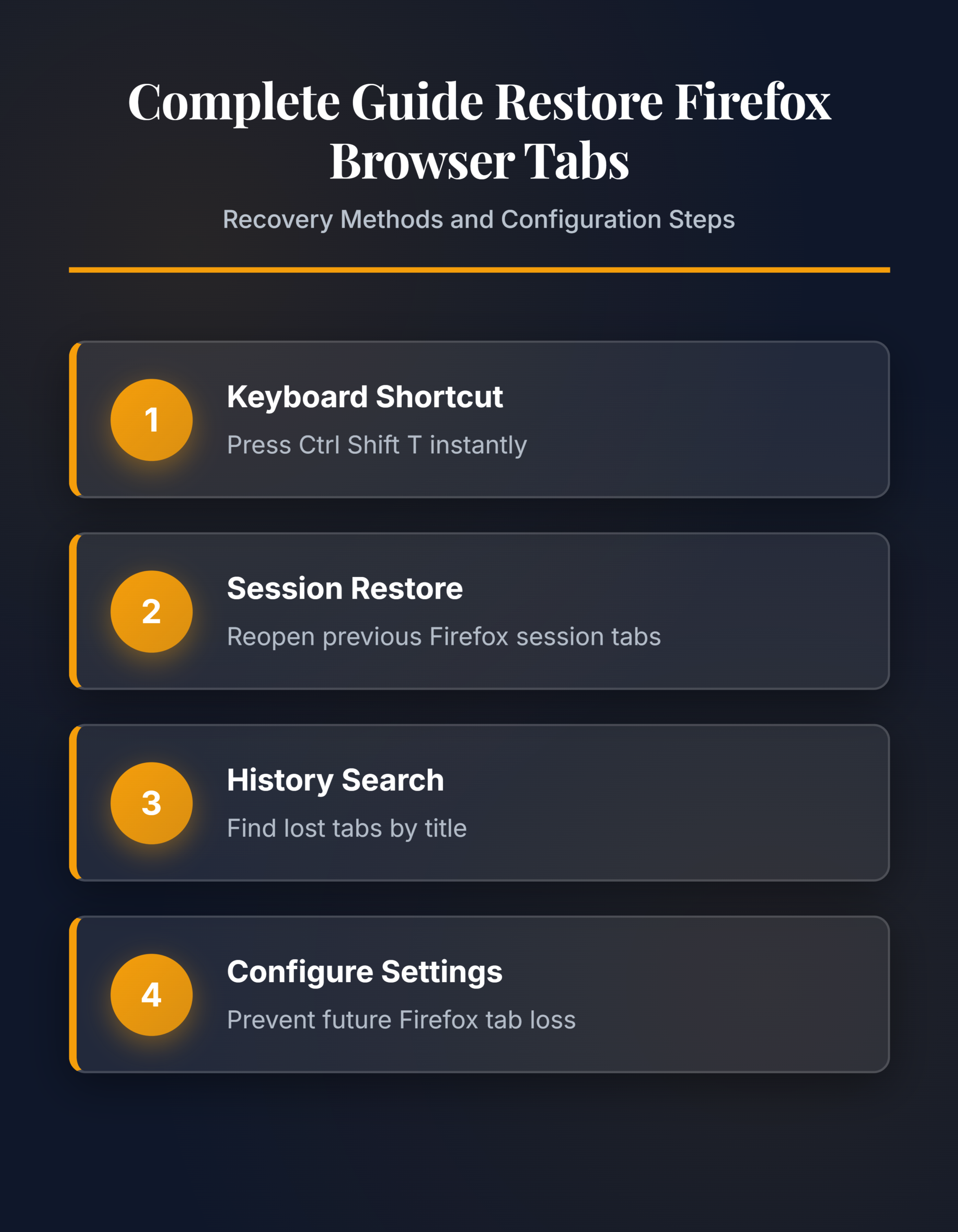
Press Ctrl + Shift + T on Windows or Linux, or Command + Shift + T on macOS, to reopen the last closed tab. Repeat the shortcut to work backward through other recently closed tabs. You can also open the Firefox menu, choose History, and select Recently Closed Tabs or Recently Closed Windows. The window list helps when you close a whole window.
Bring back the previous session
If Firefox does not recover your tabs after a restart, open the menu, choose History, and select Restore Previous Session. After a crash, Firefox may instead display a Restore Session page where you can choose which windows and tabs to reopen. Private windows are not restored.
For tabs that no longer appear in the recently closed lists, press Ctrl + H (Command + Shift + H on macOS) and search your browsing history by page title or URL. If you regularly switch browsers, the equivalent recovery controls in Chrome and Edge use a similar workflow.
Advanced Firefox Tab Restore Configuration
Make session restore automatic
Open Firefox Settings, select General, and enable Open previous windows and tabs under Startup. If the option does not work, check Settings > Privacy & Security > History. Firefox must retain browsing history, and any setting that clears browsing and download history when Firefox closes can prevent recovery.
Recover from a session backup safely
Use backup files only after the menu and history methods fail. Enter about:support, find Profile Folder, and select Open Folder. Copy the entire sessionstore-backups folder to a safe location before changing anything, then fully exit Firefox.
In the copied folder, compare the .jsonlz4 files by modification time and size. Copy the most promising file into the main profile folder and rename the copy sessionstore.jsonlz4; move any existing file with that name elsewhere instead of deleting it. Restart Firefox and check the recovered session. This cautious approach preserves a rollback path. For a browser-specific comparison, see the Edge session troubleshooting steps.
FAQ
Why is Firefox tab restore not working?
The most common cause is the Open previous windows and tabs setting being disabled under Settings >> General >> Startup. A corrupted `sessionstore.jsonlz4` file or a browser extension that clears session data on close can also prevent restore from functioning. Refreshing your Firefox profile through `about:support` resolves most persistent cases.
How do I fix Firefox tab restore not working permanently?
Enable session restore in Settings >> General >> Startup, then increase the session save frequency in `about:config` by lowering `browser.sessionstore.interval` to 5000 milliseconds. Remove any cleanup extensions that delete session data on close. These three changes eliminate the most common causes of recurring tab loss in the application.
Can I restore Firefox tabs from weeks ago?
Yes. Firefox history stores visited pages for up to 180 days by default. Press Ctrl + H, search for the page title or URL fragment, then right-click the result and select Open in New Tab. Session restore only covers your last active session, but history search covers months of browsing activity.
Combine the keyboard shortcut for recent tabs with proper session restore configuration to keep your Firefox browsing sessions recoverable at all times. Adjust the about:config values once and unexpected tab loss becomes a solved problem.