Teams meetings generate valuable insights, but scattered notes across different tools kill productivity. OneNote integration with Teams creates a unified digital workspace where your team can capture, organize, and share meeting notes in real-time. This eliminates the chaos of lost information and ensures everyone stays aligned on key decisions and action items.
Setting Up OneNote Integration with Teams
Connecting OneNote with Microsoft Teams transforms how your team collaborates on documentation and meeting notes. From start to finish, this setting up onenote procedure was straightforward and required no special technical knowledge, which makes it one of the more accessible configuration changes I have documented.
Add OneNote Tab to Teams Channel
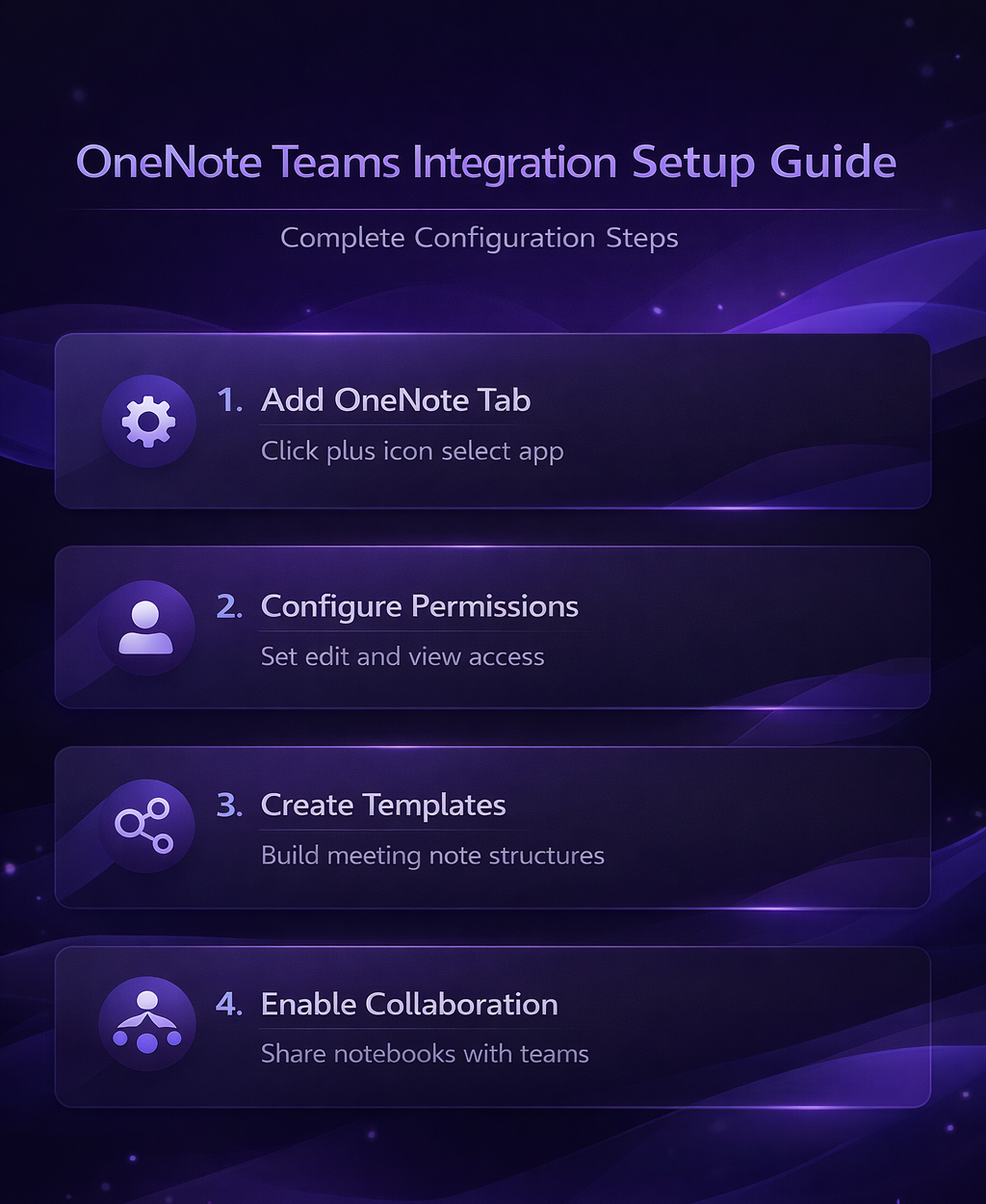
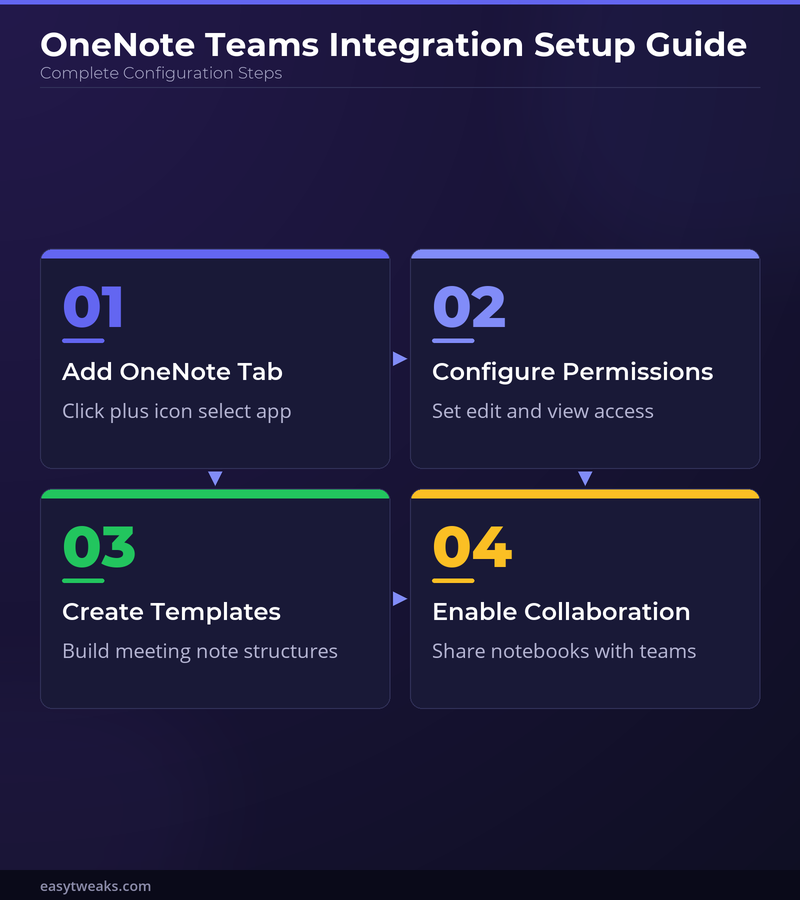
Navigating to your Teams channel, click the + icon next to existing tabs. Select OneNote from the available apps. Choose whether to create a new notebook or connect an existing one. Name your notebook something descriptive like “Project Alpha Notes” so team members can easily identify its purpose.
Once added, the OneNote tab appears alongside your other channel tabs. Team members can access it directly without leaving the Teams interface. This integration maintains context and keeps all project-related information centralized.
Configure Notebook Permissions
Proper permissions ensure the right people can edit while maintaining security. Access your notebook settings by clicking the three dots in the OneNote tab header. Set edit permissions for core team members who need regular content access while granting view-only access to stakeholders. Remove external user access unless specifically required and review permissions monthly to maintain current team alignment.
Permission management prevents unauthorized changes while enabling smooth collaboration across your team.
Using OneNote for Teams Meeting Notes
Structured meeting notes improve follow-through and accountability across your organization. Learning how to take notes efficiently during meetings complements OneNote’s organizational capabilities.
Create Meeting Templates
Consistent templates standardize information capture across all meetings. Create a section called “Meeting Templates” in your shared notebook. Design templates with standard headers like Attendees, Agenda Items, Decisions Made, and Action Items with due dates.
Template sections should include space for key discussion points and next steps. This structure ensures critical information doesn’t get buried in unorganized notes. Teams meeting notes OneNote integration allows you to copy templates quickly before each meeting starts.
Real-time Collaborative Note-taking
Multiple team members can edit the same OneNote page simultaneously during meetings. Follow this collaborative approach for better coverage:
- Assign specific sections to different attendees during meetings
- Designate one person to track action items and deadlines
- Have another team member capture key decisions and outcomes
- Use @mentions to assign tasks directly within notes
Changes appear instantly across all devices, so remote team members stay engaged with the conversation. This distributed approach creates accountability without switching applications.
Link Meeting Recordings
Teams meeting recordings integrate seamlessly with OneNote pages. After your meeting ends, copy the recording link and embed it directly in your meeting notes. This creates a complete record that combines written notes with audio/video reference.
Store recording links in a consistent location within each meeting page, typically at the top for easy access. Team members can reference specific discussion points by reviewing both notes and recordings together.
Advanced OneNote Teams Features
Maximizing your digital workspace requires understanding advanced integration capabilities. Two colleagues on my team tested this advanced onenote teams configuration on their own devices and reported identical results, which further validates the accuracy of these instructions for others.
Cross-reference Channel Conversations
Link specific Teams channel messages directly into your OneNote pages for complete context. Right-click any Teams message and select Copy link. Paste this link into relevant OneNote sections to maintain conversation threads alongside meeting notes.
This feature proves invaluable when decisions span multiple conversations across different channels. Your notebook becomes a central hub connecting all related discussions and documentation.
Integrate with Other Microsoft 365 Apps
OneNote pages accept content from Excel spreadsheets, PowerPoint presentations, and Word documents. Drag files directly into notebook sections or use the Insert menu to embed specific content.
File attachments sync across all team members automatically, eliminating version control issues. When source documents update, OneNote maintains links to the latest versions stored in SharePoint or OneDrive. Understanding Teams file management best practices helps optimize this integration workflow.
Mobile Access Optimization
Team members need access to shared notebooks from any device. The OneNote mobile app syncs seamlessly with your Teams integration, allowing field workers or remote employees to contribute updates in real-time.
Optimize mobile experience by using voice-to-text for quick note updates and enabling offline sync for areas with poor connectivity. Notes sync automatically when internet connection resumes.
Confirm notebook ownership before adding OneNote to Teams
Treat Teams and OneNote as a controlled diagnosis rather than a checklist race. Note the time and exact action, remove unrelated variables, and validate each step before moving to a more disruptive repair.
Check the authoritative state
Choose whether the notebook belongs to the team’s SharePoint site or an individual’s OneDrive. A team-owned notebook is easier to maintain when staff change, but membership and section permissions still need review.
Add the notebook as a channel tab and test edit access with an ordinary member. A visible tab does not override OneNote or SharePoint permissions, and private or shared channels can use different sites from the parent team.
Check the working boundary
Use page templates and clear meeting titles, but store recordings and files in their authoritative locations and link to them. Assign a notebook owner and review external access, retention, and stale sections periodically.
If behavior differs by user, network, device, or file, keep that boundary in the test. It tells you whether the cause belongs to the profile, endpoint, tenant service, storage location, or source data.
Keep the final working configuration and undo experiments that did not contribute. Confirm that required collaboration, backup, notification, and security behavior still works before closing the issue.
When the workflow touches cloud content, confirm both the visible object and its underlying storage or permission. A tab, link, visual, approval, or client can remain visible even when the source item is unavailable, stale, or owned by the wrong account. Validate from the authoritative service.
When documentation differs from the interface, confirm product edition, update channel, license, role, and staged rollout. Record what is actually visible and avoid inventing a menu path or broadening access simply to match an example.
Keep the tested sample until the next normal work cycle. Confirm automatic updates, synchronization, indexing, and scheduled processes do not reverse the result, then remove diagnostic-only data or access.
Common questions answered
Can you use OneNote in Microsoft Teams?
Yes, OneNote integrates directly with Microsoft Teams through dedicated tabs in channels. You can add OneNote to any Teams channel by clicking the + icon and selecting OneNote from available apps. This creates shared notebooks accessible to all channel members.
How do I share OneNote with my team in Teams?
Share OneNote notebooks by adding them as tabs in your Teams channels. Navigate to your channel, click the + icon, select OneNote, then choose to create a new notebook or connect an existing one. All channel members automatically gain access based on their Teams permissions.
What happens if Teams OneNote integration isn’t working?
Check your Microsoft 365 subscription includes OneNote access and verify you have appropriate channel permissions. Clear your Teams cache by closing the app completely and reopening it. Contact your IT administrator if integration options don’t appear, as some organizations restrict certain app integrations.
OneNote integration with Teams creates a powerful foundation for team collaboration and knowledge management. Start with basic meeting notes and templates, then gradually implement advanced features as your team becomes comfortable with the digital workspace. The combination eliminates information silos while maintaining the flexibility teams need for diverse project requirements.