AirPods connectivity issues with Microsoft Teams can disrupt important meetings and frustrate users who rely on wireless audio for daily calls. When your AirPods stop connecting or drop audio mid-meeting, specific troubleshooting steps can resolve the problem quickly and permanently.
Quick fixes for AirPods connections
Bluetooth pairing problems are the most common cause of AirPods failing in Microsoft Teams because Windows manages Bluetooth connections differently than macOS or iOS, creating potential conflicts with audio routing.
Reset AirPods pairing for Teams
- Disconnect your AirPods from all devices before establishing a fresh connection to eliminate stale pairing data that interferes with Teams audio routing.
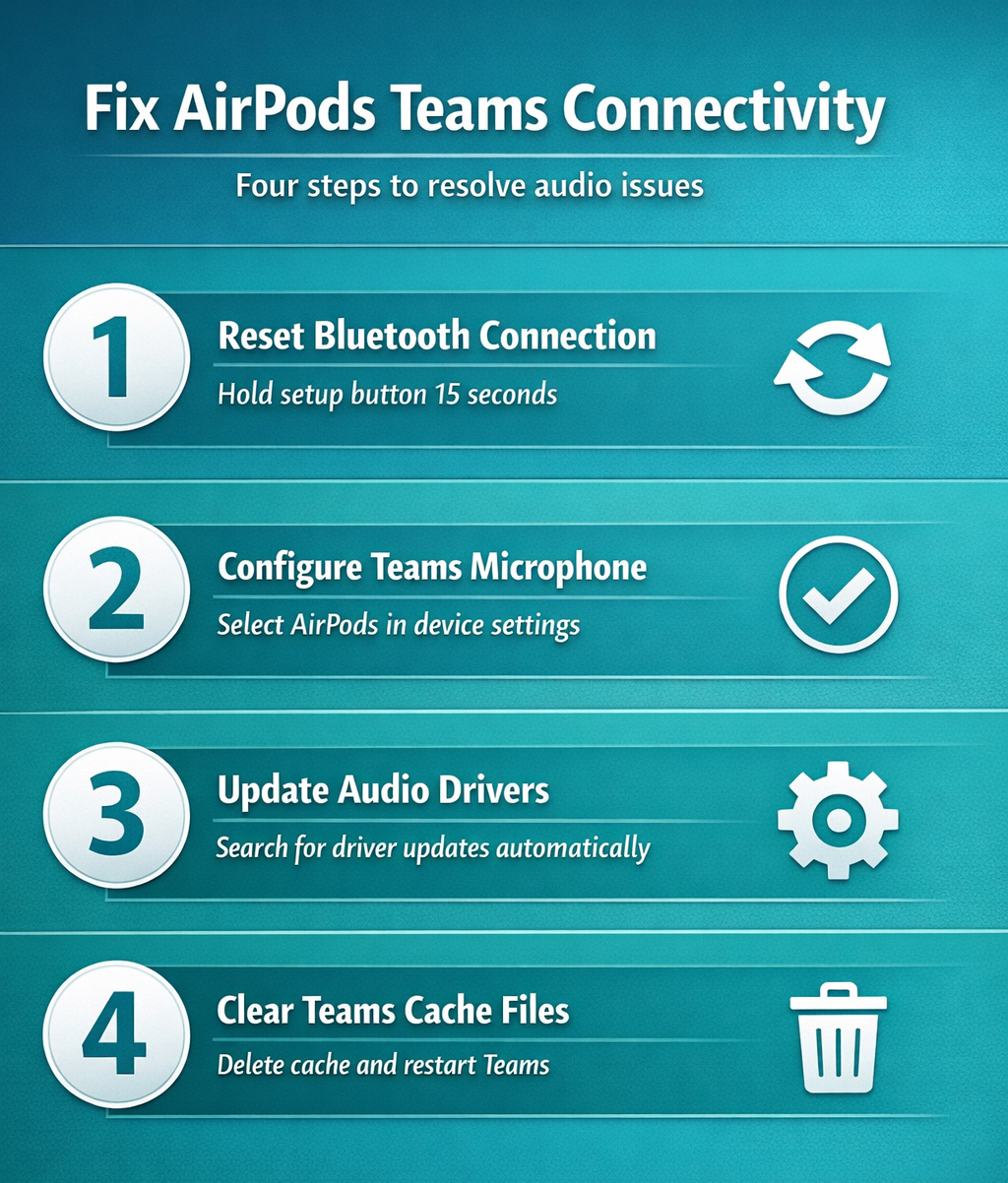
- Open your AirPods case and hold the setup button on the back for 15 seconds until the status light flashes amber then white.
- On Windows, navigate to Settings >> Bluetooth & devices >> Devices and remove any existing AirPods entries by clicking the three dots and selecting Remove device.
- Wait 30 seconds before pairing again so Windows has time to clear the old Bluetooth profile completely before establishing a clean new connection.
Configure AirPods audio in Windows
Windows treats AirPods as both a headset and stereo headphones, creating dual audio profiles that confuse Teams during calls. Right-click the volume icon in your system tray, select Open Sound settings, and under Output ensure your AirPods appear as Headphones (AirPods Stereo) rather than the Hands-Free profile.
Set the audio format to 16 bit, 44100 Hz for optimal compatibility. You can connect Bluetooth headphones to Teams using these same steps for any wireless audio device, not just AirPods.
Update your AirPods firmware
Outdated firmware causes persistent connectivity issues with Microsoft Teams that no amount of re-pairing will fix. Place your AirPods in their charging case, connect the case to power, and ensure your iPhone or iPad is nearby with WiFi enabled to trigger the automatic update.
Check your firmware version by going to Settings >> General >> About >> AirPods on your paired iPhone. Apple releases firmware updates silently, so verifying the version confirms whether your AirPods have the latest compatibility fixes for apps like Teams.
Microphone not working in Teams
Microphone problems are the second most common AirPods issue in Teams, since the app often defaults to your computer’s built-in microphone instead of routing audio through the AirPods.
Adjust the microphone settings
- Open Microsoft Teams, click your profile picture in the top-right corner, then select Settings >> Devices.
- Under Microphone, choose Headset (AirPods Hands-Free) from the dropdown menu. You can also fix Teams audio settings for broader audio device troubleshooting.
- Click Make a test call to verify microphone functionality by speaking normally and listening for clear audio playback without distortion or echo.
- If the test fails, try switching between different AirPods audio profiles until you find the one that routes both input and output correctly.
Disable auto-switching in Teams
Teams automatically adjusts microphone levels, which can interfere with AirPods’ built-in noise cancellation and audio processing hardware. In the same Devices settings page, uncheck Automatically adjust mic sensitivity to prevent Teams from conflicting with the AirPods’ own audio management.
Set your microphone level manually using the slider control, aiming for the green zone during normal conversation volume. Test different levels during actual calls to find the optimal balance between clarity and background noise reduction.
Fix echo during Teams calls
Echo problems occur when Teams processes audio through multiple input sources simultaneously, creating a feedback loop between your AirPods microphone and your computer’s built-in mic. Navigate to Control Panel >> Hardware and Sound >> Sound >> Recording tab to fix this.
Right-click any microphone entries except Headset (AirPods Hands-Free) and select Disable to prevent audio conflicts. Leaving multiple active microphones is the single most common cause of echo during Teams calls with AirPods.
Understand the AirPods call-audio tradeoff
Bluetooth headphones can expose different playback and call profiles. High-quality stereo playback and microphone-enabled call audio may use different endpoints, depending on Windows, the Bluetooth adapter, and the AirPods model. Selecting mismatched input and output devices can cause silence, delay, or a sudden quality change when a Teams call starts.
Open Teams Settings, Devices and select the AirPods explicitly for speaker and microphone. Use Make a test call when it is available. Then open Windows Sound settings and confirm that the input meter moves and the output device plays the test sound.
Run a clean connection test
Charge the AirPods and case, disconnect them from nearby phones or tablets for the test, and remove automatic device switching as a variable. In Windows Bluetooth settings, disconnect and reconnect the AirPods. If the pairing remains unstable, remove the device, restart Windows, and pair it again.
Test a private Teams meeting without joining from a second nearby device. Two active microphones and speakers in one room create echo that resembles a headset problem. Compare the AirPods with the built-in microphone or a USB headset to isolate Bluetooth from Teams.
Stabilize the Windows audio path
Install approved Windows, Bluetooth, audio, and dock updates. Connect closer to the computer and reduce interference from crowded USB hubs or wireless devices. If audio fails after sleep or docking, note the sequence and reselect the AirPods in Teams rather than clearing the entire Teams cache first.
When the microphone works but playback quality drops, that may reflect the call profile rather than a defective headset. For meetings where microphone quality is critical, consider using the computer or a USB microphone for input and the AirPods only for output, after testing that combination.
Record the Teams version, Windows version, AirPods model, Bluetooth adapter, chosen input and output, and test-call result. On managed devices, ask IT before changing drivers or Bluetooth services. Repeat the same test call after each change so the improvement is measurable.
Advanced troubleshooting steps
If the steps above didn’t resolve your AirPods issues in Teams, persistent problems may require advanced troubleshooting that addresses Windows audio drivers and cache configurations.
Update Bluetooth and audio drivers
Outdated drivers cause intermittent AirPods connectivity problems that appear random but stem from driver-level incompatibilities with Teams audio routing. Open Device Manager by right-clicking the Start button, then expand the Bluetooth and Sound, video and game controllers sections.
Right-click your Bluetooth adapter and select Update driver >> Search automatically for drivers, then repeat this process for all audio-related devices. Restart your computer after driver updates complete to ensure the new drivers load properly.
Clear the Teams app cache
Corrupted Teams cache interferes with audio device recognition and causes persistent AirPods problems that survive restarts and re-pairing attempts. Close Microsoft Teams completely using Task Manager, then navigate to %appdata%\Microsoft\Teams in File Explorer.
Delete the contents of these folders: application cache, blob_storage, databases, GPUcache, IndexedDB, Local Storage, and tmp. Restart Teams after clearing the cache so the application rebuilds its device profiles from scratch.